Introducing Approval SLA for Approval Processes
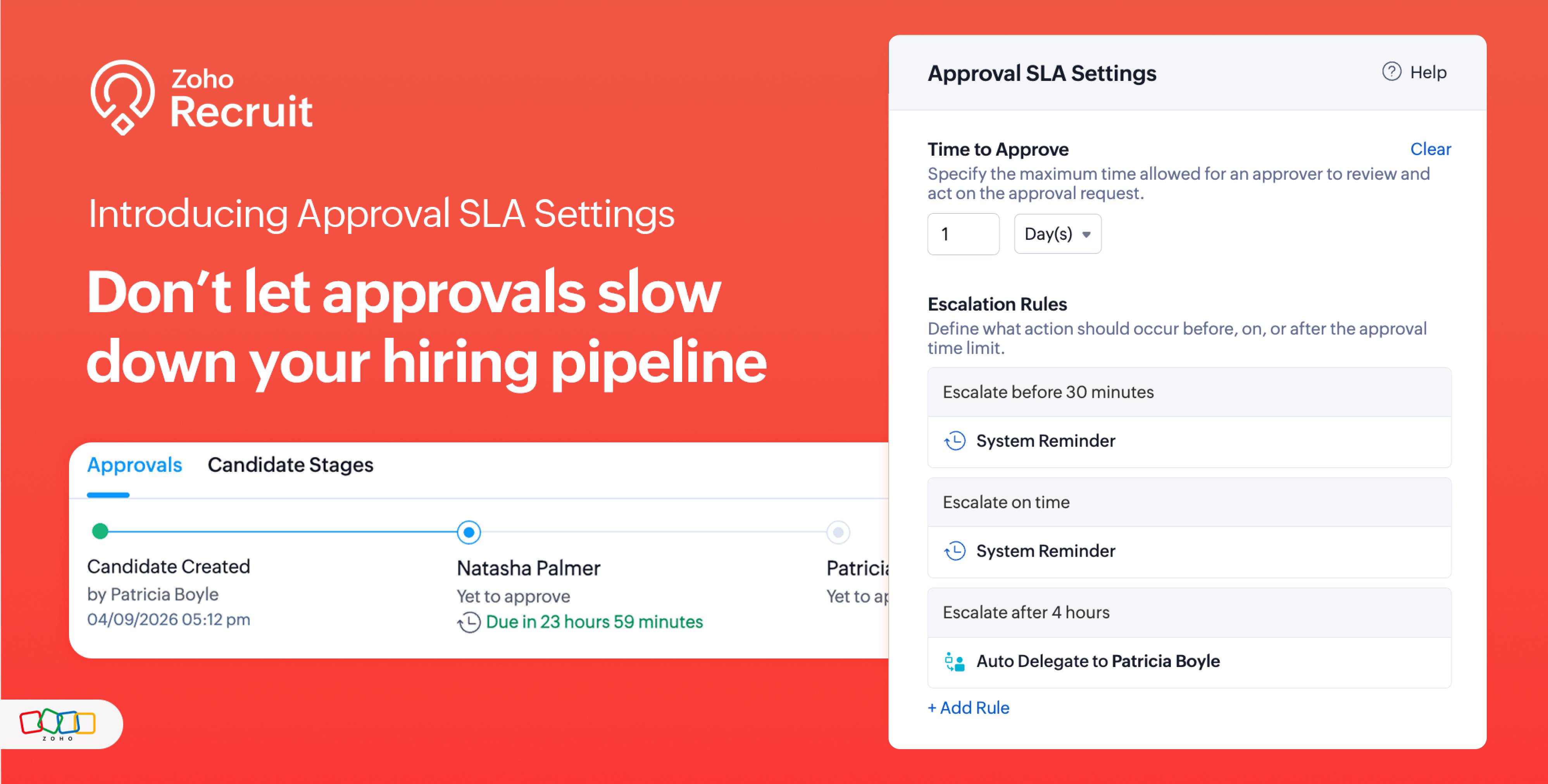
Approvals can sometimes be delayed when approvers do not respond within the expected timeframe, which can slow down your recruitment processes.
With the new Approval SLA in Zoho Recruit, you can set deadlines for approval requests and define automated actions to keep approvals moving. You can configure actions to be performed before, when, or after the approval deadline is reached.
What's new
You can now:
Set a time limit for approvers to review and act on approval requests.
Configure escalation rules to trigger actions before, on, or after the approval deadline.
Send automated reminder emails to approvers before the deadline.
Automatically approve or reject an approval request when the defined time limit is reached.
Automatically delegate an approval request to another approver when required.
Configure multiple escalation rules for the same Approval SLA to handle different stages of the approval timeline.
Configure Approval SLA based on specific conditions, so the SLA is applied only to relevant approval requests.
How it works
Create a new Approval process.
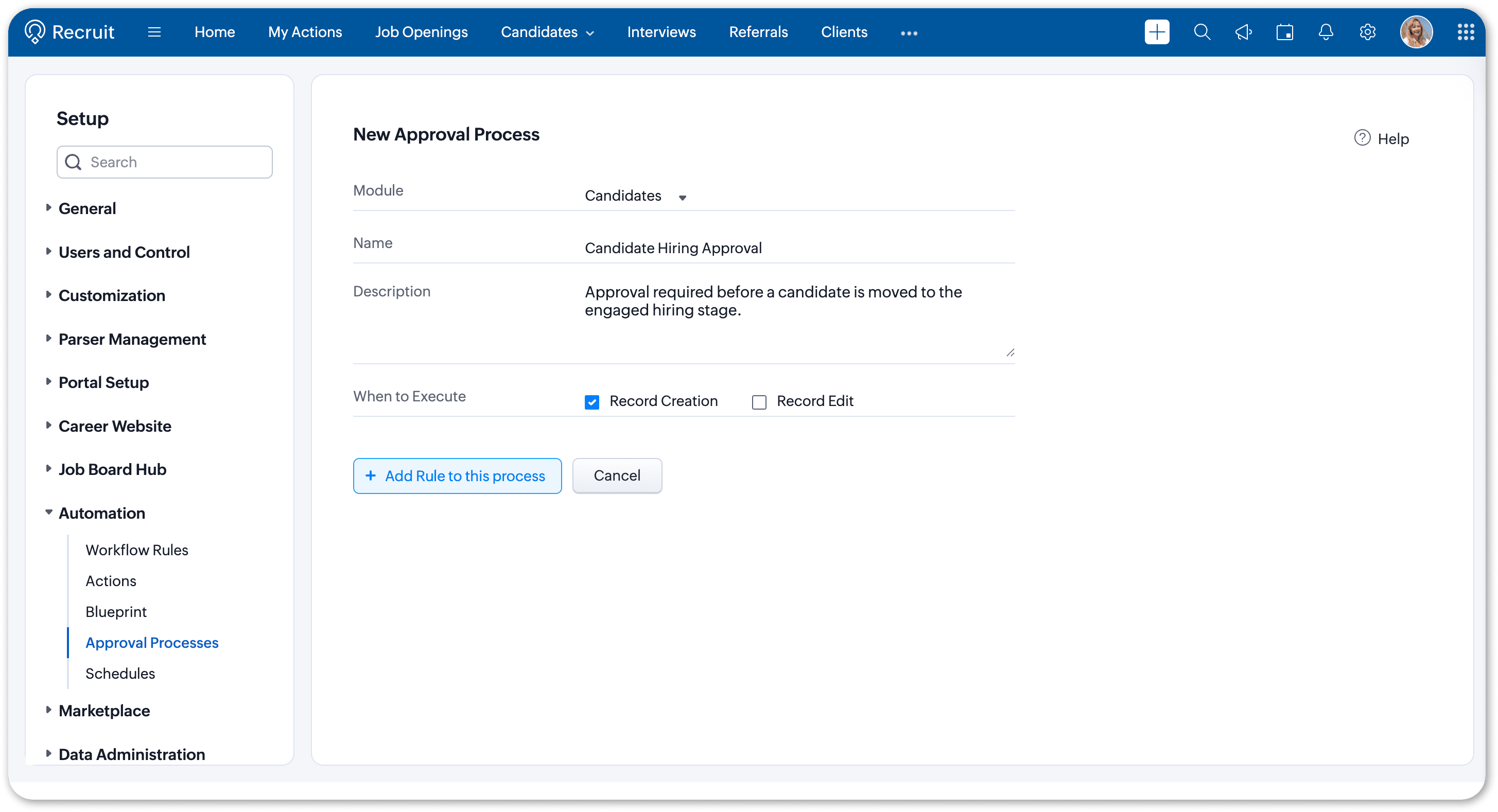
In the Approval SLA section, click Add Approval SLA.
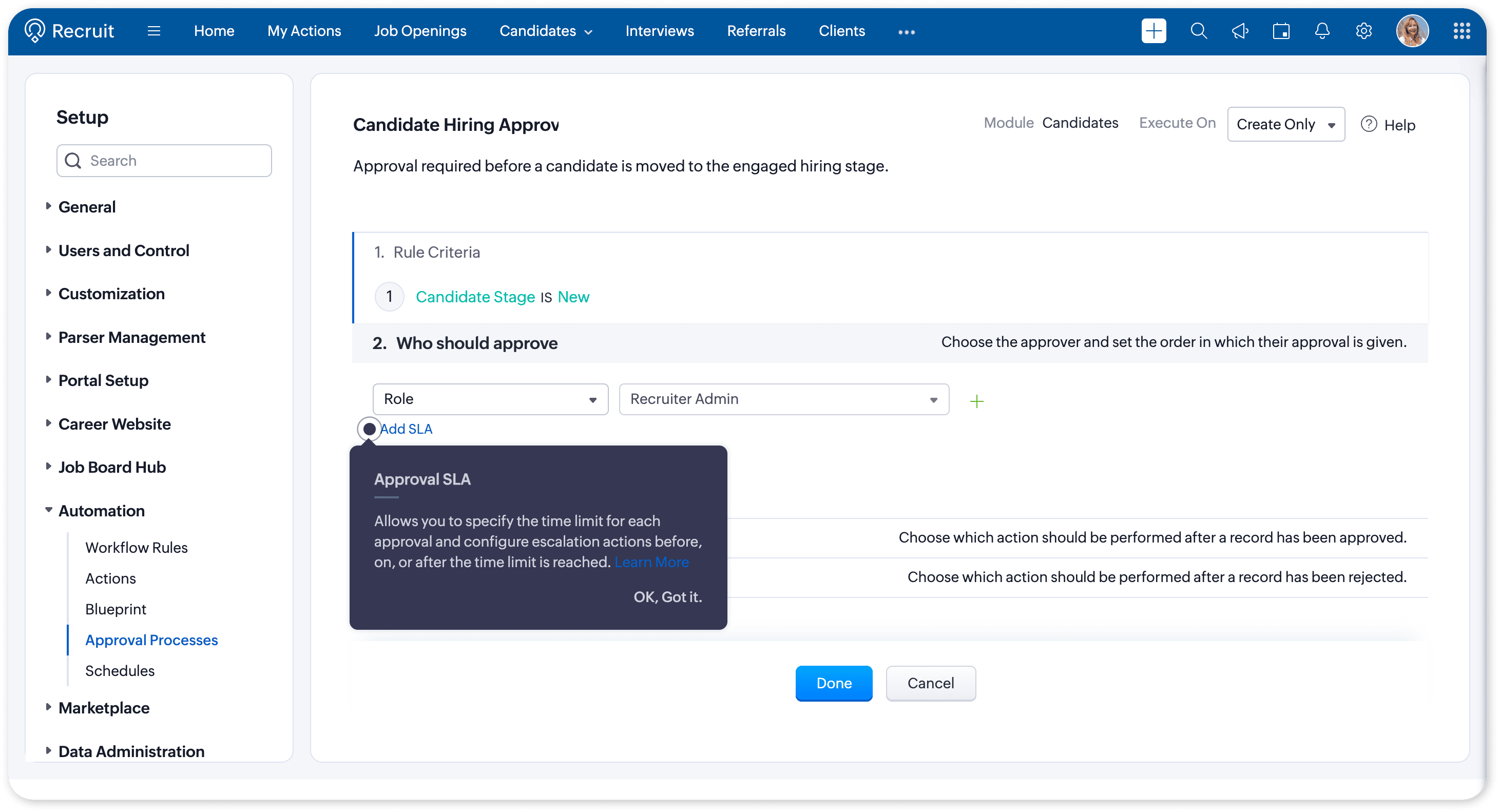
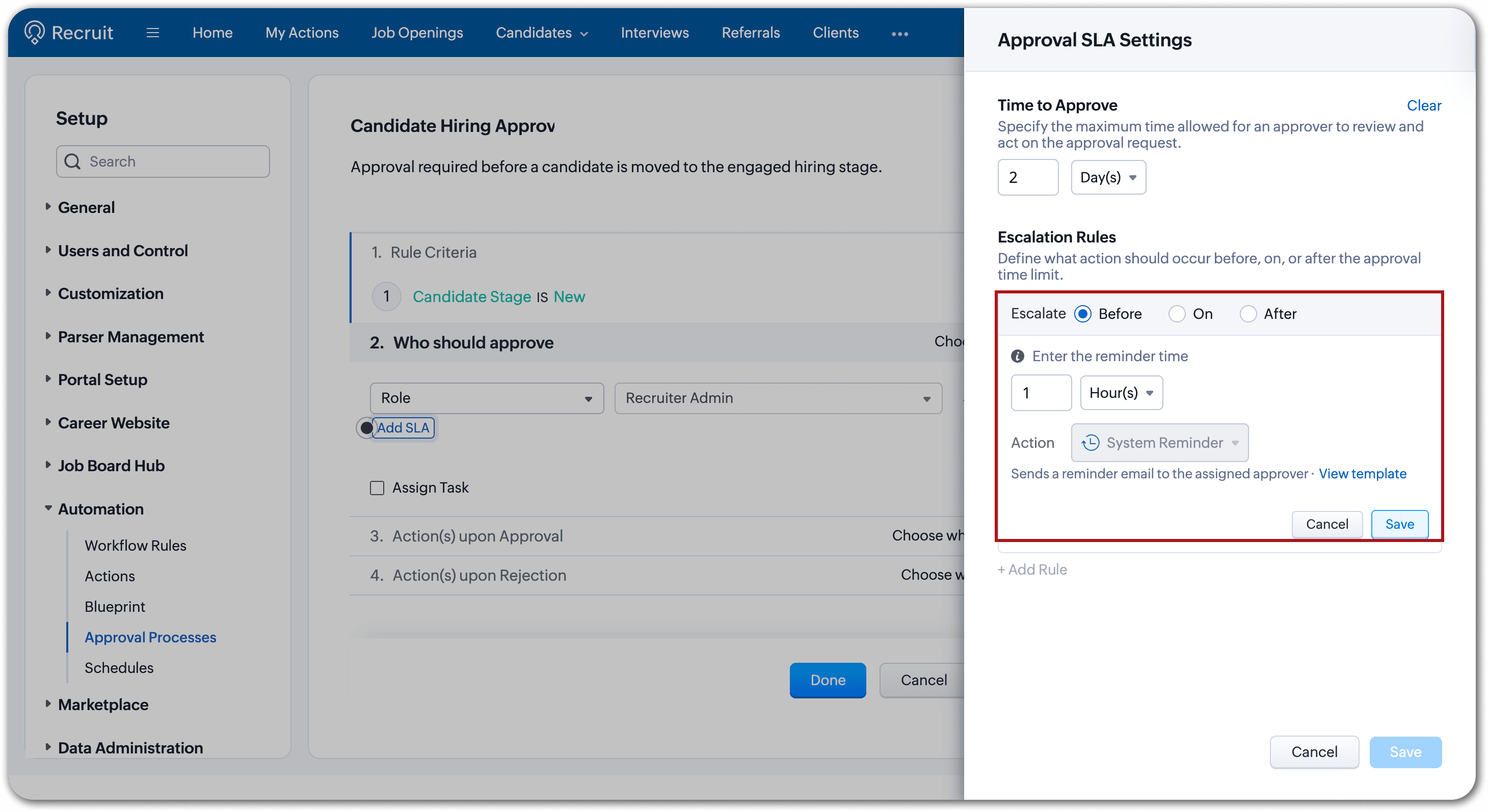
Approval SLA Settings panel , Enter Time to approve - Specify the maximum time allowed for an approver to review and act on the approval . Enter the time limit and select the required time unit from the dropdown.
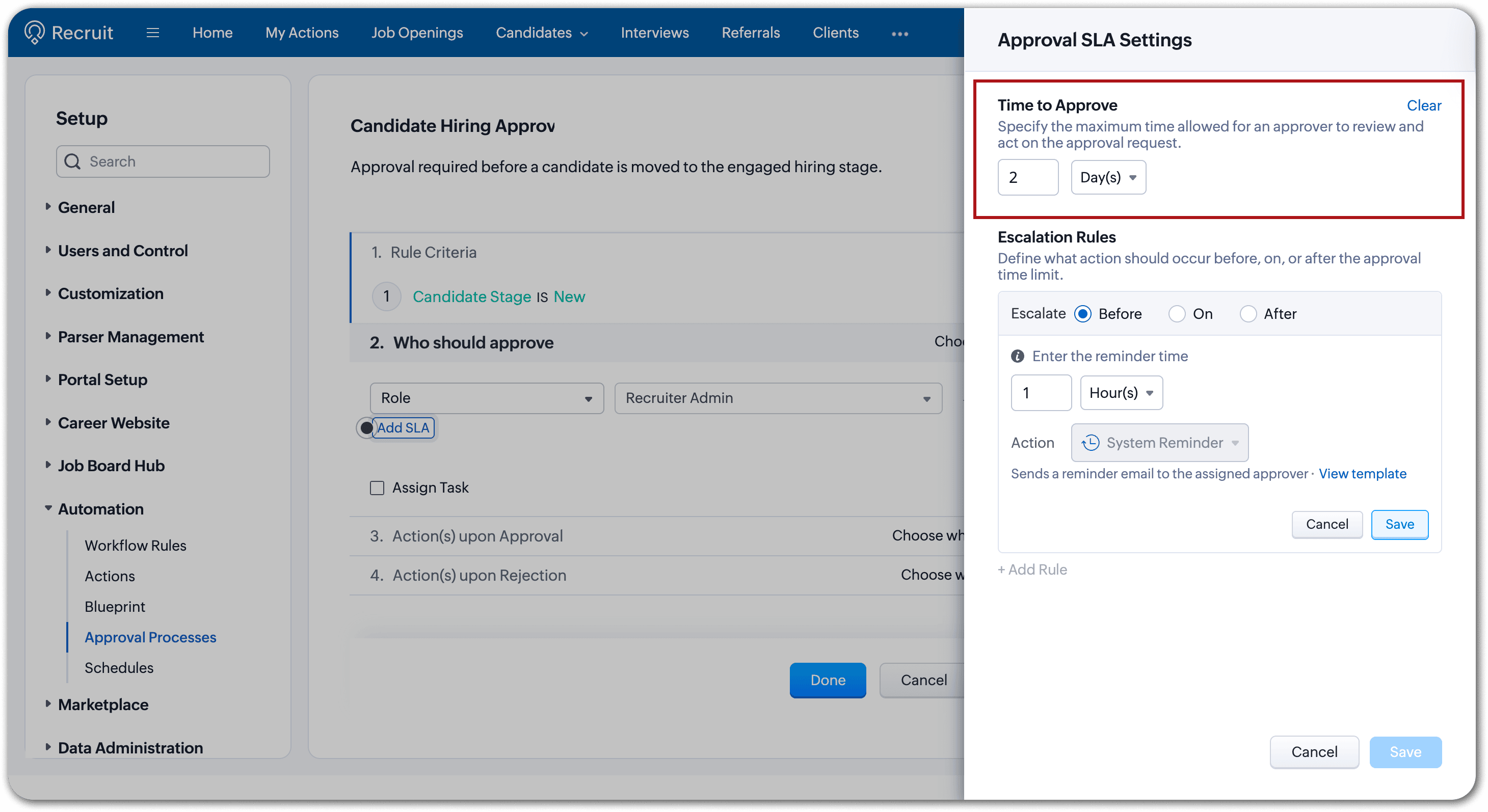
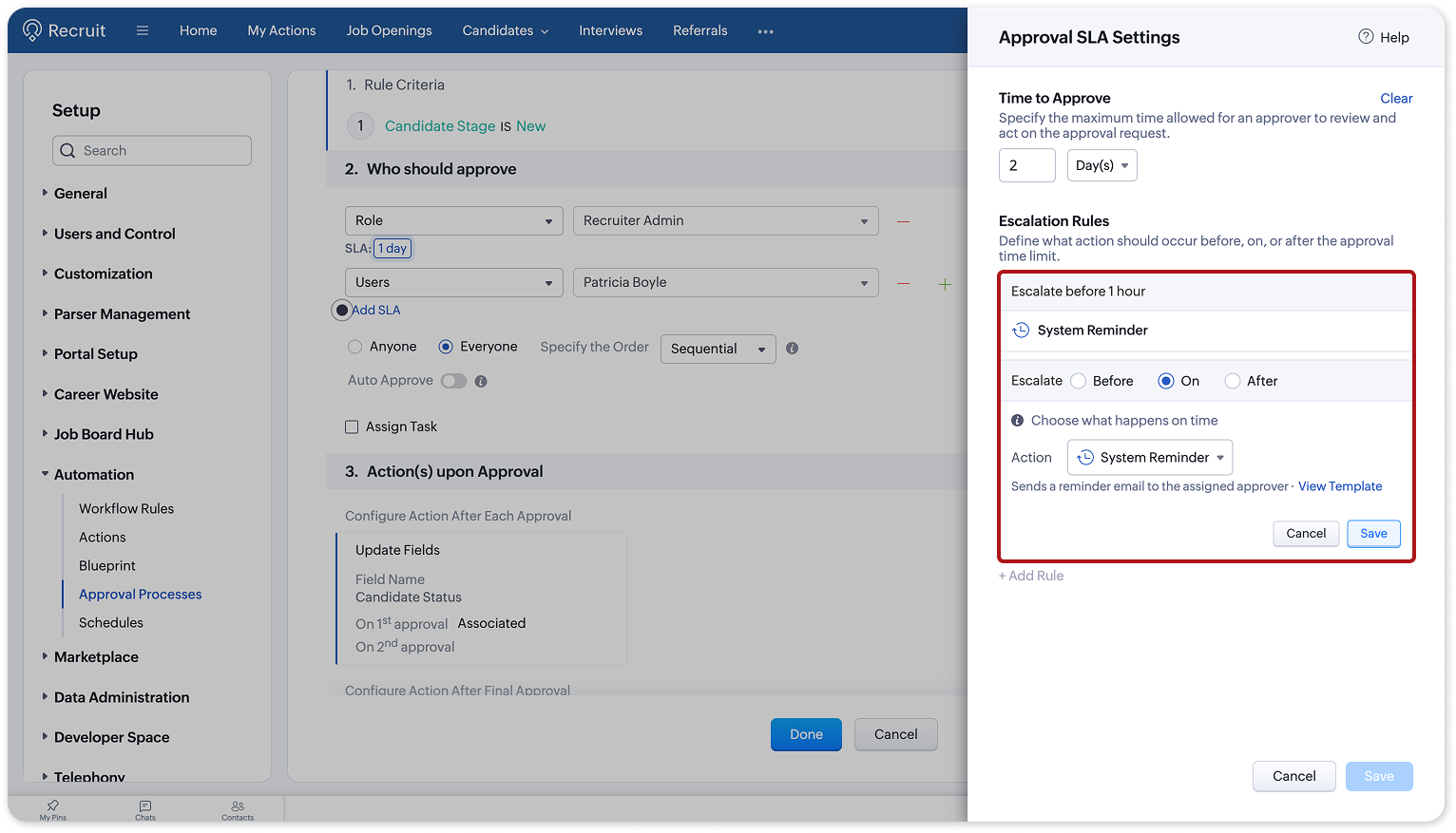
Under Escalation Rules, specify when an action should be performed in relation to the approval time limit. You can choose one of the following options:
Before — Perform the action before the approval time limit is reached.
On — Perform the action when the approval time limit is reached.
After — Perform the action after the approval time limit is reached.
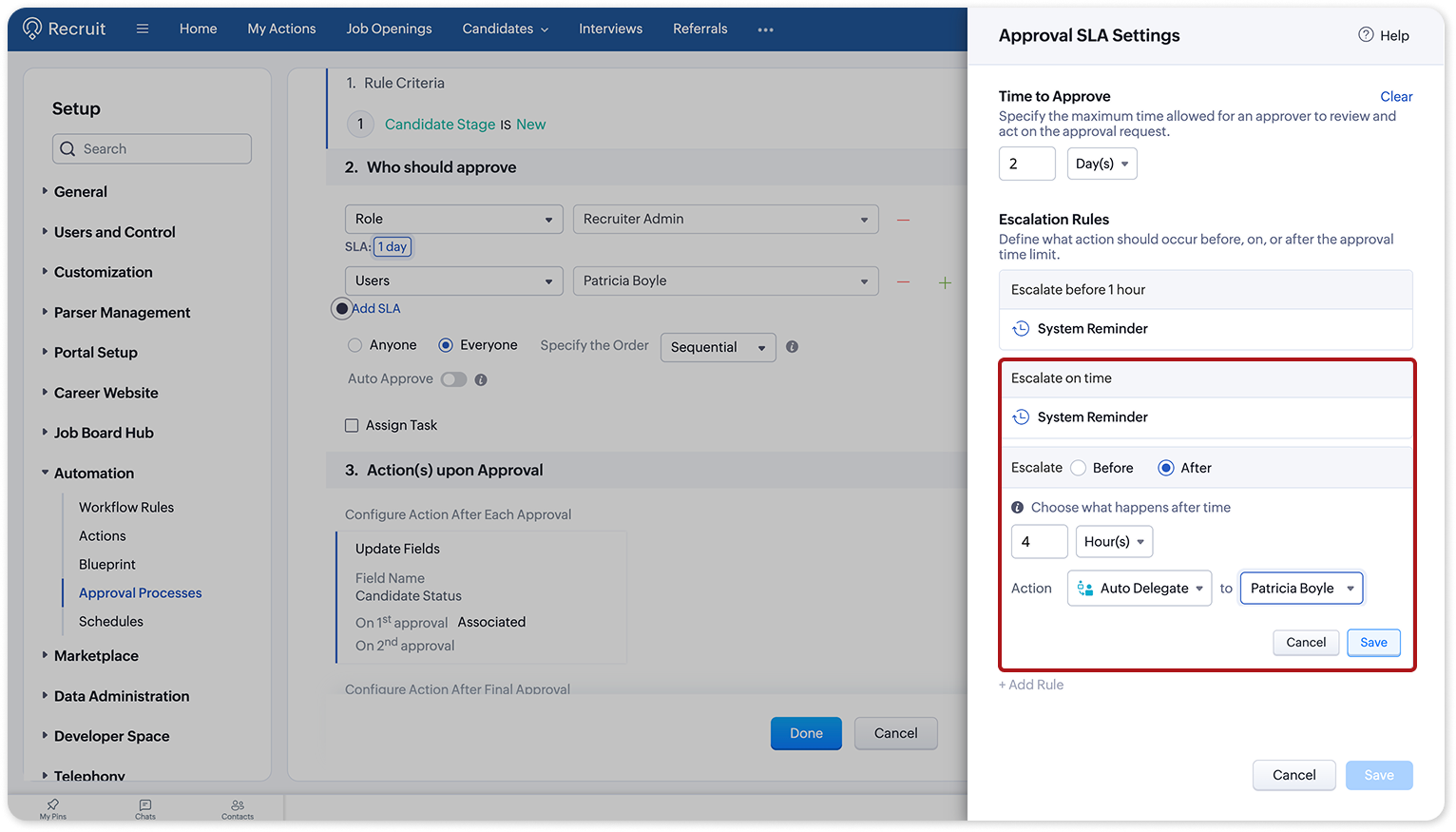
Select the action to be performed when the escalation rule is triggered. The available actions include:
System Reminder — Sends a reminder email to the assigned approver. You can click View template to view the email template.
Auto Approve — Automatically approves the approval request.
Auto Reject — Automatically rejects the approval request.
Auto Delegate — Automatically delegates the approval request to another approver. If you select Auto Delegate, select the approver to whom the approval request must be delegated.

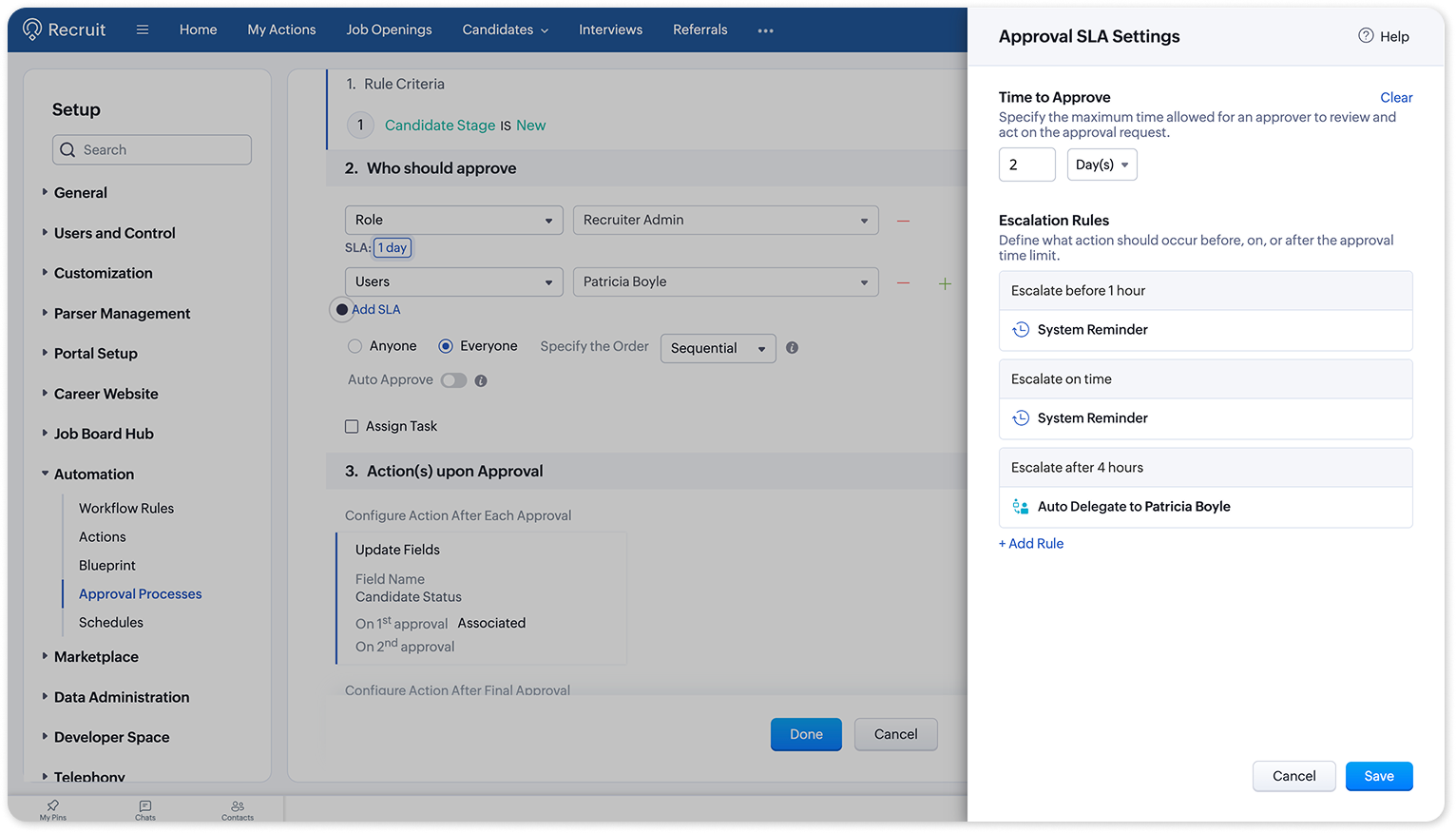
You can configure multiple escalation rules for the same Approval SLA by clicking + Add Rule.
Review the configured rules and click Save in the Approval SLA Settings panel.
View and approve approval requests
Once an approval process is configured with an SLA, approvers can view and manage approval requests from different places in Zoho Recruit.
Candidate Detail Page
In the record's Approvals section, you can view the approval flow, including the approvers involved and their current approval status.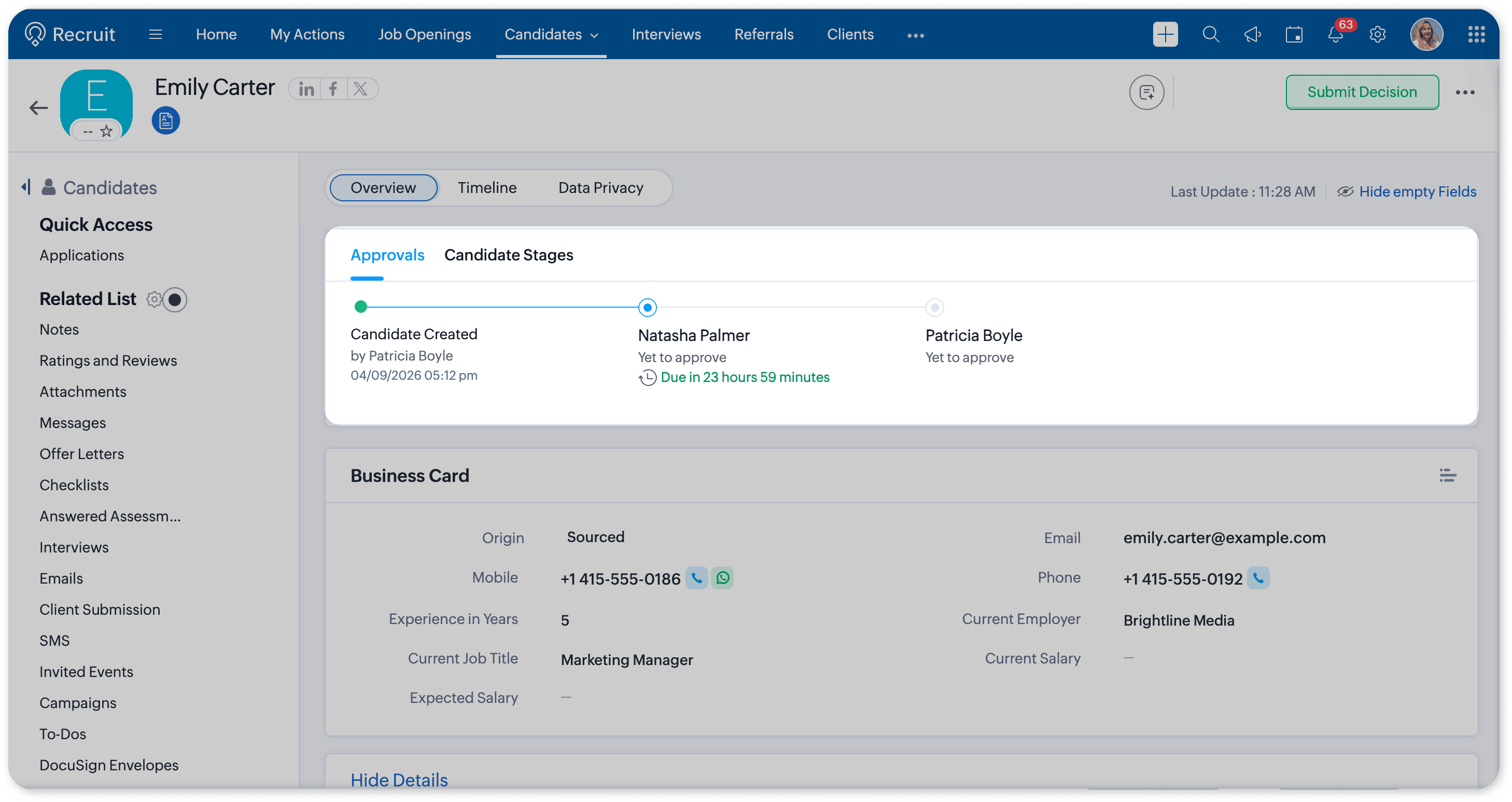
My Actions Detail Page
You can view and manage your pending approval requests from the My Actions page.
Go to My Actions.
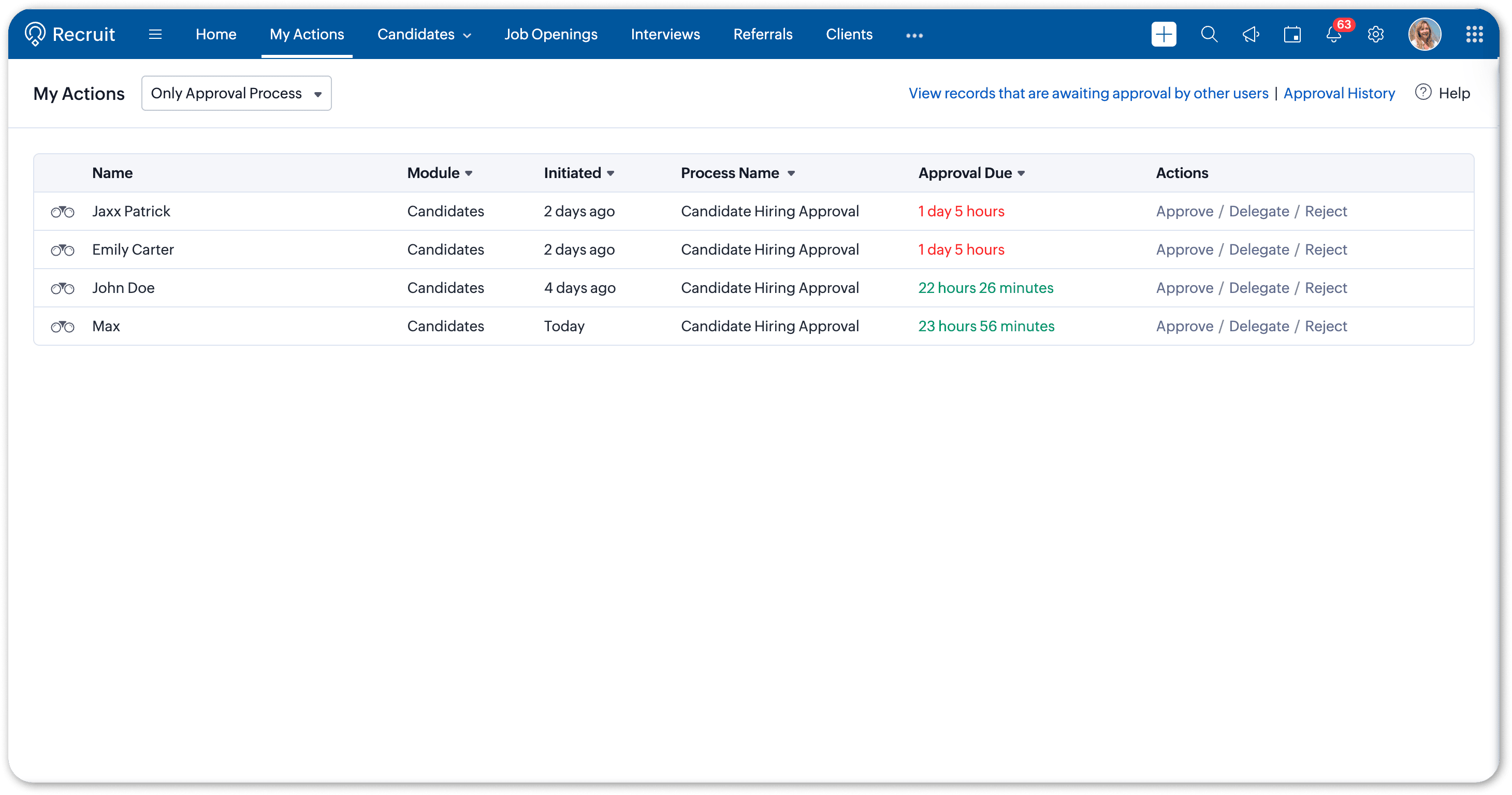
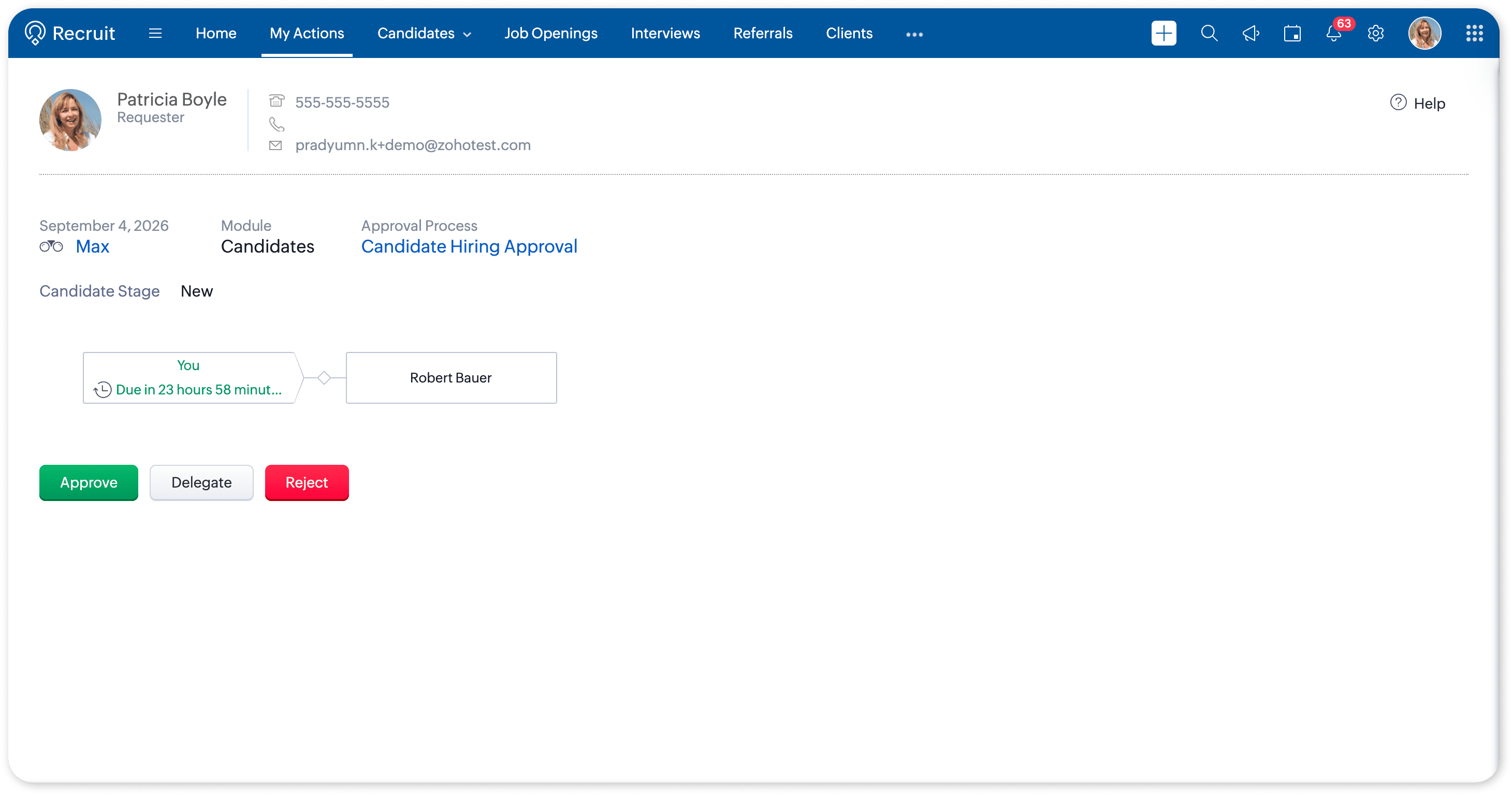
Click the required approval request to open its details.
Review the approval request and click Approve, Delegate, or Reject as required.
Try it out
Configure an Approval SLA for your approval processes and automate reminders, approvals, rejections, and delegation to keep your recruitment workflows moving without unnecessary delays.
For step-by-step instructions, refer to the Configuring Approval SLA help documentation.
Tell us what you think
We'd love to hear how Approval SLA helps you streamline your approval processes and reduce delays. Share your thoughts in the comments below or write to us at support@zohorecruit.com.