Kaizen 241 - Automating Deal Risk Escalation Using Workflow APIs, Connected Workflows, and Functions

Welcome to another Kaizen week.
In many organizations, sales teams work in Zoho CRM, finance teams manage invoices in Zoho Books, and support teams handle customer issues in Zoho Desk. Now consider this scenario:
A sales representative is working on a high-value upsell opportunity for an existing customer. The deal has reached the final negotiation stage and is ready to move forward. From the sales team’s perspective, everything looks fine. However, the finance team may know that the customer has unpaid invoices, while the support team may already be handling unresolved tickets for the same customer.
Sales teams typically do not verify these details manually every time a deal progresses, which can lead to risky business decisions.
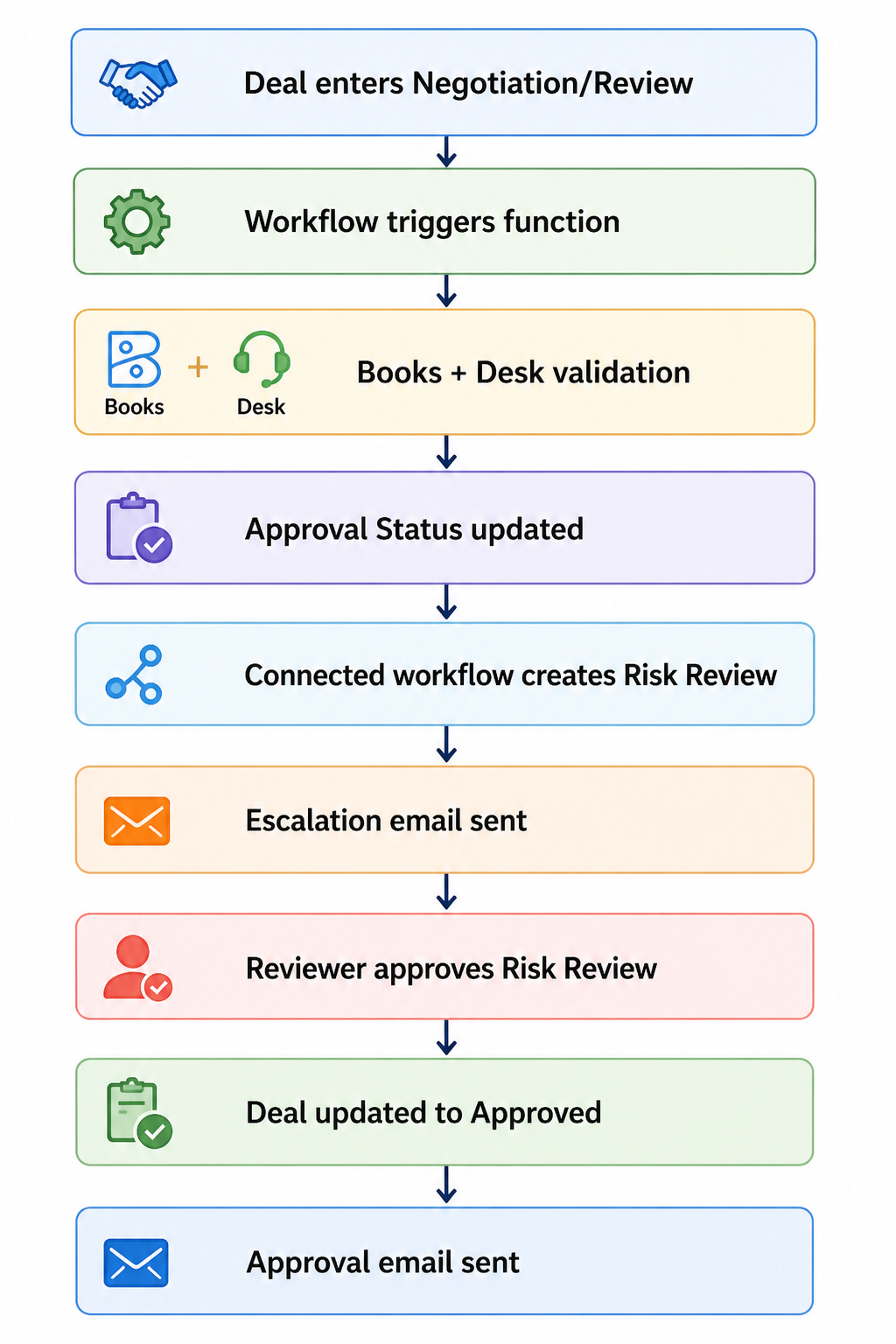
In this post, we will build a cross-app risk validation flow for high-value deals in Zoho CRM. When a deal enters the Negotiation/Review stage, the automation checks for unpaid invoices in Zoho Books and open support tickets in Zoho Desk, updates risk fields in CRM, escalates risky deals into a connected review process, and resumes deal progression only after approval.
To implement this, we will use a combination of:
Workflow APIs for the initial trigger
Custom Functions for runtime validation logic
Connected Workflow APIs for cross-module review orchestration
Email Notification APIs for stakeholder communication
Field Update APIs for updating the original Deal after review.
Prerequisites
Before implementing this flow, make sure the following are already available:
Zoho CRM with access to Workflows, Custom Functions, and Connected Workflows.
Zoho Books and Zoho Desk configured for the same business context, and integrated with Zoho CRM. Check these links for more details : CRM - Books integration help, CRM - Desk integration help.
Active connections from Zoho CRM to Zoho Books and Zoho Desk.
The Deals module in CRM.
A custom module called Risk Reviews.
NOTE: This implementation assumes that the Zoho Books and Zoho Desk integrations are already configured and CRM connections are available for use inside Deluge invokeurl calls. In the sample function, these are referenced as books_connection and desk_connection.
The connections must include the scopes required by the APIs used in the custom function:
the Zoho Books connection should include scope(s) to read invoices
the Zoho Desk connection should include scope(s) to read contacts and tickets
If these scopes are missing, the invokeurl calls in the custom function will fail even if the workflow and Deluge logic are configured correctly.
CRM Setup
Fields to Add
Add three fields to the Deals module:
Approval_Status : Tracks the validation/approval state (Picklist field : Pending Validation, Approved, Escalation Required)
Invoice_Risk_Count : Number of problematic invoices found (Number field)
Open_Ticket_Count : Number of open support tickets found (Number field)
Risk Reviews Module
Create a custom module called Risk Reviews to store escalation records for Deals. Each Risk Review record remains connected to the originating Deal so that the review process is traceable and the original Deal can be updated automatically after approval.
Include the following fields in the Risk Reviews module:
Review_Status (Picklist: Pending, Approved, Rejected, Needs Clarification)
Risk_Type (Multiselect Picklist: Invoice Risk, Support Risk, Both)
Deal (Lookup to Deals module)
Account (Lookup to Accounts module)
Deal_Amount (Currency)
Reviewer (User field)
Comments (Long Text)
Escalated_On (DateTime - auto-populated when created)
Reviewed_On (DateTime - populated when review is completed)
Step 1: Create the workflow rule
Whenever a deal enters the final negotiation stage, we want the system to validate whether the customer has any financial or support-related risks before allowing the deal to move forward.
Workflow Trigger Conditions:
Stage = Negotiation/Review
Deal Amount > threshold value. In this example, we use ₹250000 as the high-value threshold.
This ensures that only high-value deals go through this validation process.Create this using the Create Workflow Rule API. The workflow contains a single instant action: execute a custom function.
Find the Workflow Rule API input JSON here.

Solution flow
Custom Function
Once triggered, the workflow executes a custom function. The function accepts a single input parameter, dealId, from the workflow context and performs the validation logic in five steps.
1. Fetch deal details from Zoho CRM
It first fetches the deal record and extracts:
Deal stage
Deal amount
Current approval status
Account details
Contact details
These values are used both for qualification checks and for matching records across Zoho CRM, Zoho Books, and Zoho Desk.
2. Check whether the deal qualifies for validation
We do not want every deal to go through this process. The function exits if:
the deal is not in the Negotiation/Review stage
the deal amount is below ₹250000
This avoids unnecessary API calls and keeps the validation logic focused only on high-value deals. In a production implementation, this threshold can be moved into a configurable setting instead of being hard-coded in the function.
3. Check invoice risk in Zoho Books
The function fetches invoices using the configured Books connector and Zoho Books APIs. It then loops through the returned invoices and counts records where:
customer_name matches the CRM Account name
status is one of:
unpaid
overdue
draft
The count is stored in Invoice_Risk_Count.
In the current implementation, the CRM Account is matched to Zoho Books using the account display name. This works for simple cases, but according to your implementation, it is better to match using a stable customer identifier instead of relying only on account names.
4. Check support risk in Zoho Desk
The function validates support risk in two stages.
First, it fetches Desk contacts using the configured desk_connection and identifies the matching contact by comparing the Desk contact email with the CRM Contact email.
Once a match is found, the function fetches Desk tickets and counts records where:
contactId matches the identified Desk contact
status = Open
The final count is stored in Open_Ticket_Count.
5. Determine approval status
Once both validations are complete, the function determines the new approval state:
if Invoice_Risk_Count > 0 or Open_Ticket_Count > 0, set Approval_Status to Escalation Required
otherwise, set Approval_Status to Approved
The function always refreshes:
Invoice_Risk_Count
Open_Ticket_Count
It updates Approval_Status only if the new value is different from the current one. This avoids unnecessary status updates while still keeping the numeric risk fields current.
Find the full Deluge function code here.
To make this automation safer in implementations, it is also a good idea to prevent duplicate escalations. For example, before creating or triggering a new review cycle, you can check whether an open Risk Review record already exists for the same Deal.
Note: If you have high invoice volumes or large contact bases, extend this implementation with pagination, server-side filtering, and error handling.
Step 2: Create the Connected Workflow
At this stage, the function has already identified whether the deal is risky.
If no risks are found, the Deal is approved and moves forward.
If risks are found, the process needs to do more: create a review record, notify stakeholders, wait for a human decision, and then update the original Deal once that decision is made. This kind of multi-record, multi-stage flow can technically be assembled using a combination of separate workflow rules and custom functions, each reacting to field changes across modules. But that means you are manually maintaining the relationships between those rules, keeping track of which record triggered what, and ensuring updates flow back correctly to the originating Deal.
Connected Workflows are built specifically for this pattern. They let you define the entire cross-record process in one place, where each stage is explicitly linked to the record that triggered it. The Risk Review stays connected to the Deal it came from, so when a reviewer approves it, the platform knows exactly which Deal to update, without you wiring that logic together separately.
This keeps the process traceable, reduces the number of moving parts you need to maintain, and makes the flow easier to extend later if you add outcomes like Rejected or Needs Clarification.
The first step is to create a Connected Workflow using the Create a Connected Workflow API, where you define the root node, name and description. After that, you can add rules using the Add a Rule to a Connected Workflow API.
Download the input JSON to create a Connected Workflow for Deals module here.
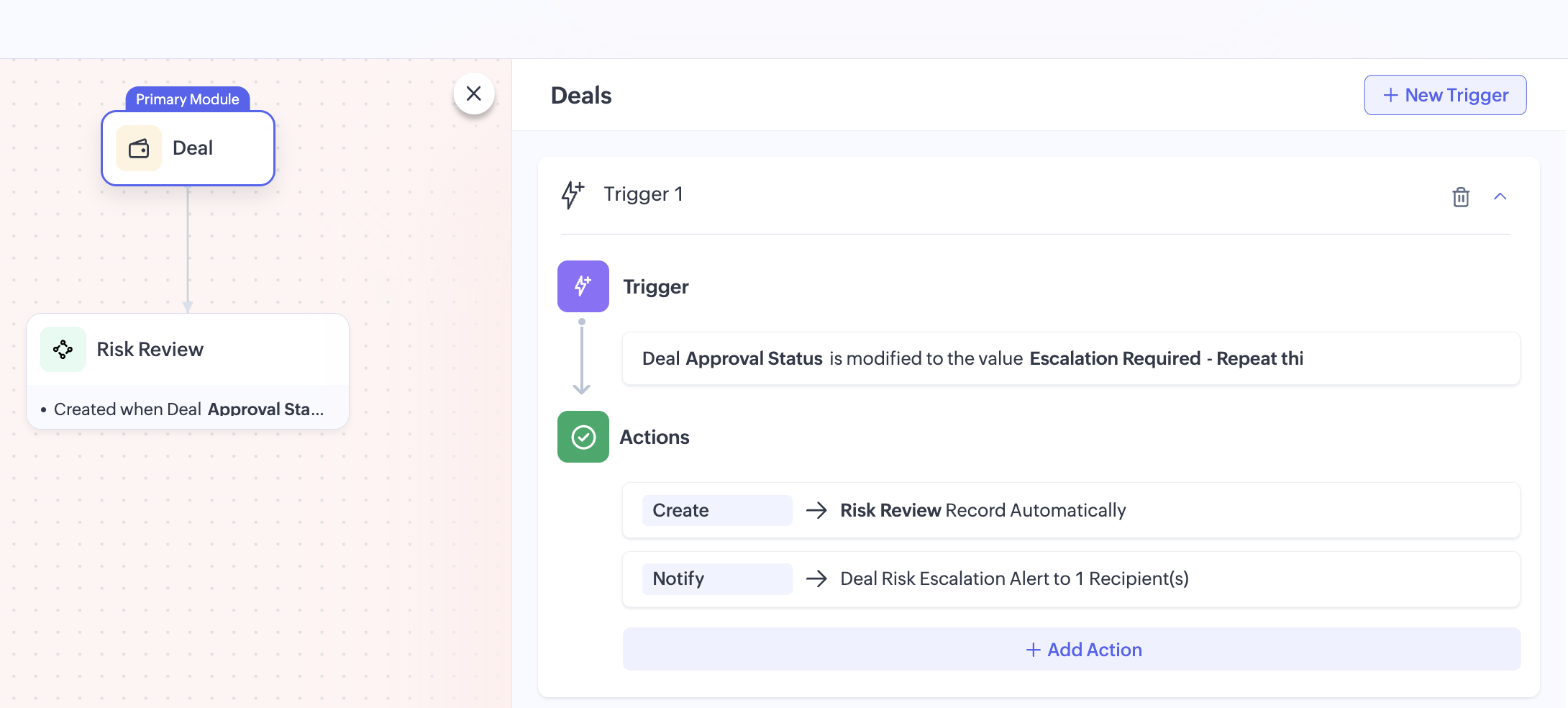
First Connected Workflow Rule: Deal > Risk Review
The first connected workflow rule runs when the Deal record gets updated by the function.
Trigger: Approval_Status = Escalation Required
When this happens, the rule performs two actions.
Action 1: Create a connected record
A connected Risk Review record gets created automatically.
Fields such as Deal name, Account, Deal amount, and risk-related details are mapped from the Deal. Additional fields such as Review_Status and Risk_Type are also populated so that reviewers can immediately understand why the Deal was escalated.
Action 2: Send escalation email
Once the review record is created, an email notification is sent to the relevant stakeholders to inform them that the deal requires review before progressing further. This action is created using the Email Notifications API. Click here for the input JSON to create Email Notification Action request.
To download the input JSON for adding this rule to the Connected Workflow, click here.
Second Connected Workflow Rule: Risk Review > Deal
Once reviewers complete their review, the process should move back to the original Deal. This is handled by the second connected workflow rule.
Trigger: Review_Status = Approved
When the Risk Review record is updated to Approved, the rule performs two actions.
Action 1: Update the Deal record
The related Deal record gets automatically updated using a field update action. The Approval_Status will be updated to Approved, allowing the sales team to continue progressing the Deal.
This action is created using the Create Field Update Action API. Click here to download the input JSON for this request.
Action 2: Send approval email
Once the Deal is approved, another email notification is sent.
This informs stakeholders that the review is complete, risks were addressed and the deal can now move forward. This action is created using the Create Email Notification API.
You can also extend this flow by defining additional outcomes such as Rejected or Needs Clarification, depending on your review process.
Attached files:
By combining Zoho CRM workflows, custom functions, Connected Workflows, and action APIs, we can turn a manual risk checkpoint into a structured and traceable approval process.
This pattern is useful whenever CRM decisions depend on data spread across multiple Zoho applications. By combining workflows, custom functions, and Connected Workflows, businesses can enforce validations, reduce manual checks, and create more reliable approval processes.
For production use, you can extend this implementation further by:
making the threshold configurable
storing stable cross-app identifiers for more reliable matching
preventing duplicate review creation
adding rejection or revalidation paths
logging integration failures for easier troubleshooting.
If your business process depends on data spread across multiple Zoho applications, this is a practical way to orchestrate that logic inside CRM.
You can find all the sample files used in this implementation, including the workflow JSONs, Connected Workflow configurations, email actions, field update actions, and Deluge function code here: Project files
We hope you found this useful. If you have any questions, feel free to leave a comment below or reach out to us at support@zohocrm.com
