Custom Validation for Blueprint to Enforce Mandatory File Uploads and File Extension C

Welcome to another exciting Kaizen post on Client Script!
Have you ever wanted more control over what gets uploaded to a File or Image field in Zoho CRM, like restricting file types, validating file names, or showing a custom error before an inappropriate file gets saved?
Client Script now supports File Upload and Image Upload fields, giving you greater control over file validation and user experience.
In today's post, let's see how to make a file upload field mandatory in a Blueprint using Client Script, a solution to the question raised in our community forum.
In this Kaizen post,
- Use Case
- Solution
- Supported ZDKs
- Summary
- Related Links
1. Use Case
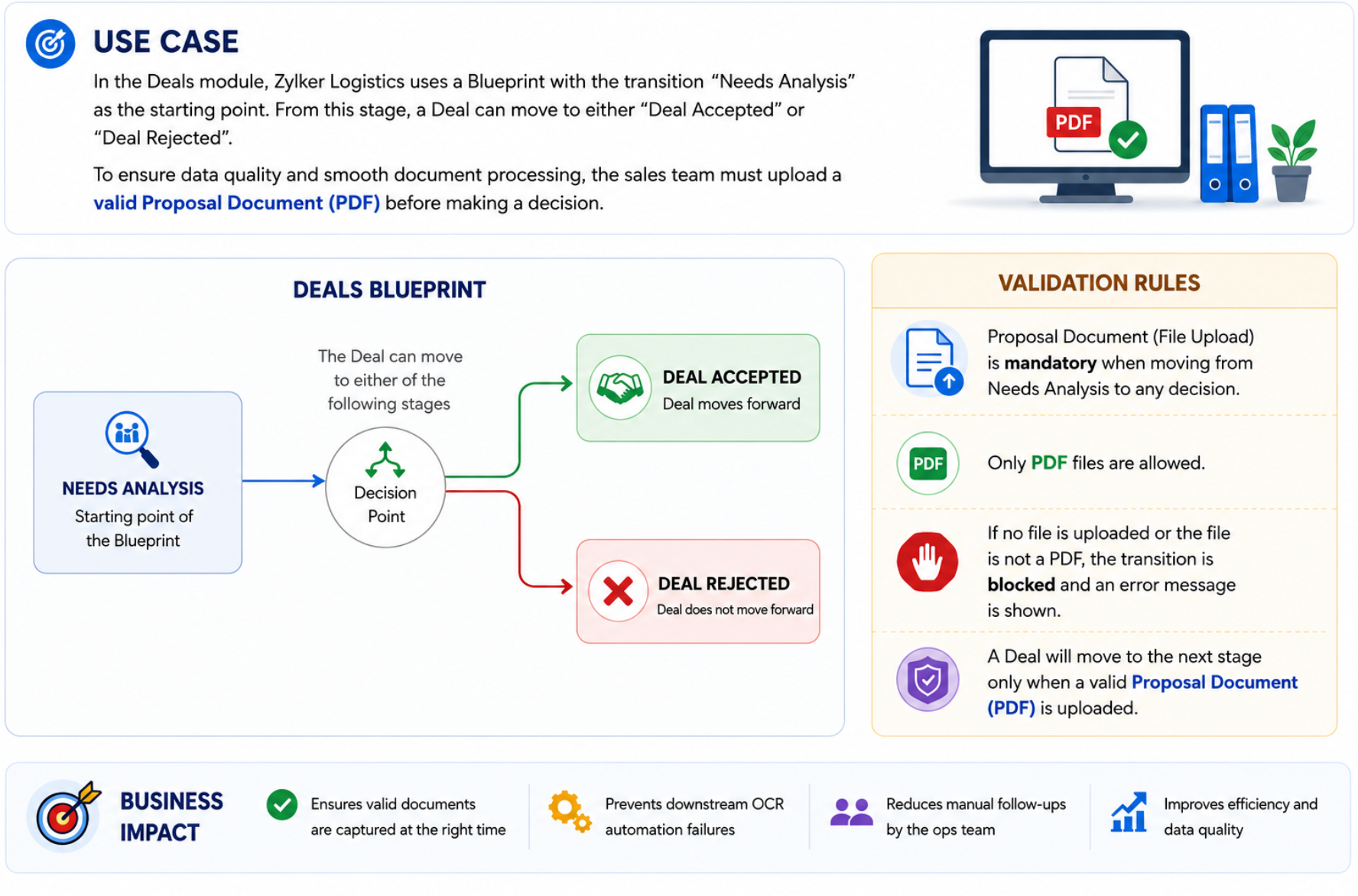
In the Deals module, Zylker Logistics uses a Blueprint with the transition "Needs Analysis" to "Deal Accepted" or "Deal Rejected". Sales agents were clicking this transition without uploading the Order Confirmation file, which caused downstream OCR automation to fail and forced the ops team to manually chase missing documents later. To fix this, the admin wants to check whether the Order Confirmation field has a file attached whenever a user tries to perform the transition. If no file is attached, the transition should be blocked and an error message should prompt the user to upload the file first. Additionally, if a file is attached, it should be a PDF only. This way, a Deal can only move to next transition once a valid PDF confirmation document has actually been uploaded.
2. Solution
This use case can be solved using Client Script. All you have to do is create a Client Script with the "beforeTransition" event for the Deals module.
- Go to Setup > Developer Space > Client Script. Click +New Script . Specify the details to create a script and click Next.
- Enter the following script and click Save.

- // Check if the current blueprint transition being triggered is "Deal Accepted" or "Deal Rejected"
- if (transition.name == "Deal Accepted" || transition.name == "Deal Rejected") {
- // Get the value of the Test field (file upload field)
- var objectArray = ZDK.Page.getField('Test').getValue();
- // Log the field value to console for debugging purposes
- log(objectArray);
- // Check if the field is empty - covers empty string, null, and empty array cases
- if ((objectArray == '' || objectArray == null || objectArray == '[]')) {
- // Show an error message to the user if no file is attached
- ZDK.Client.showMessage("Upload a **valid Proposal Document PDF** to proceed", error)
- // Stop/block the blueprint transition since validation failed
- return false;
- }
- else {
- // If a file is attached, get the name of the first uploaded file
- var fileName = objectArray[0].File_Name;
- log(fileName);
- // Extract the file extension from the file name and convert it to lowercase
- var extension = fileName.substring(fileName.lastIndexOf('.') + 1).toLowerCase();
- // Check if the uploaded file's extension is not "pdf"
- if (extension != "pdf") {
- // Show an error message asking the user to upload a valid PDF file
- ZDK.Client.showMessage("The Proposal Document field accepts **only PDF files**. Please select a **.pdf file** and try again.", error);
- // Stop/block the blueprint transition since the file is not a PDF
- return false;
- }
- }
- }
This script runs before the "Deal Accepted" or "Deal Rejected" blueprint transition. It checks whether the Proposal Document field has a file attached. If the field is empty, it shows an error and blocks the transition. If a file is attached, it checks the file's extension. If the extension isn't "pdf", it shows an error and blocks the transition; otherwise, the transition proceeds normally.

Note:
The value of a File Upload field is an array of objects, even when only a single file is uploaded. Therefore, access the required file object (for example, objectArray[0]) before retrieving its properties, such as File_Name
- Here is how the Client Script works when no file is uploaded to the Proposal Document field.

- Here is how the Client Script works when a GIF file is uploaded to the Proposal Document field.

- If a valid PDF file is uploaded, the transition goes through smoothly without any issues.

3. Supported ZDKs
For File Upload and Image Upload fields, as of now only the following ZDKs are currently supported:
getValue() – Retrieves the file details currently populated in the File Upload or Image Upload field.
setValue() – Sets or updates the value of the File Upload or Image Upload field.
4. Summary
In this Kaizen post, we discussed:
- How to validate a file's extension and stop a Blueprint transition based on it.
- How to check whether a file has been uploaded using Client Script.
- ZDKs that can be used for File Upload and Image Upload fields.

Previous Kaizen : Kaizen #252 - Managing Data Sharing Rules using APIs | Kaizen Directory