Import Slides in Zoho Show for Faster Presentations
The sales team is preparing for their monthly business review. John needs the latest revenue data from the Finance team's presentation.
Instead of copying and pasting the slides or recreating them, he uses the Import Slides feature in Zoho Show to bring them directly into his presentation.
But Import Slides is more than just another way to copy a slide, it gives you more control over how the imported slides look, stay updated, and work in your presentation.
What is Import Slides?
Import Slides lets you bring slides from an existing presentation without creating them from scratch. While importing a slide, you can choose how it works in the destination presentation:
- Keep source style with link – Retains the original formatting and keeps the slide linked to the source presentation, allowing you to sync changes made to the source slide.
- Keep source style – Retains the original formatting without linking the slide to its source.
- Use destination style – Applies the destination presentation's theme, fonts, colors, and formatting to the imported slide.
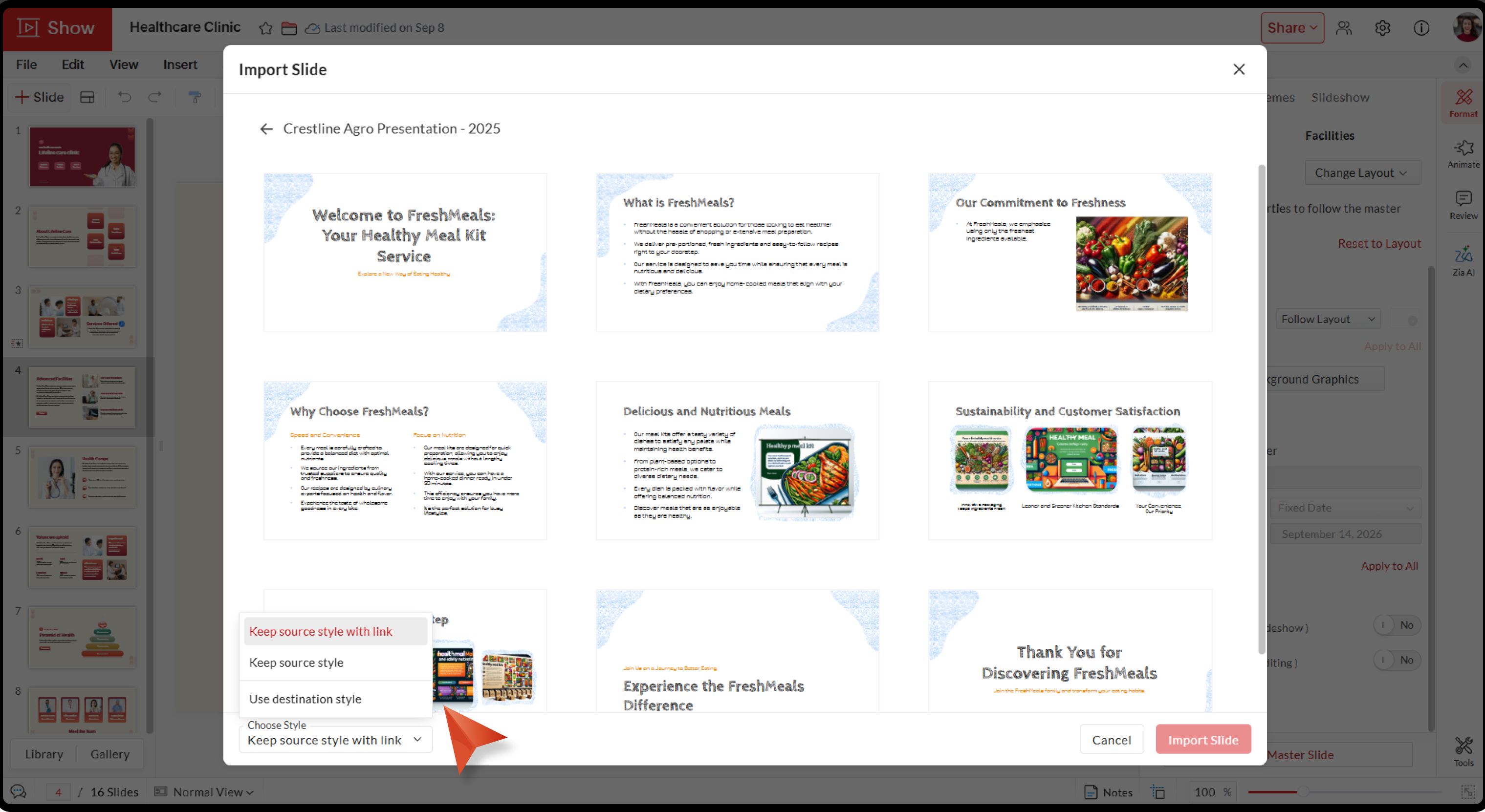
This makes it easy to use existing content while deciding how much of the original slide you want to retain.
How do you use Import Slides?
Open the presentation where you want to bring in the slides. Click Import Slides and select the presentation containing the slides you need. Hover over the slides you want and select them to add them to your presentation, then choose the style option that works best: Keep source style with link, Keep source style, or Use destination style.
The imported slides are then added to your presentation, ready for you to use and edit.

Keep frequently updated slides in sync
Some slides are used across multiple presentations and need to stay up to date. Revenue figures, performance metrics, product roadmaps, or company information can change regularly.
When you import a slide using Keep source style with link, the imported slide remains connected to its source presentation. If the original slide is updated, you can sync those changes to your imported slide instead of manually updating it.
This helps teams use shared content while keeping important information consistent across presentations.
Make imported slides fit your presentation
Not every slide needs to look exactly like the original. You may want to bring a performance slide into another presentation while making it match the presentation's existing theme and formatting.
With Use destination style, the imported slide adopts the destination presentation's theme, fonts, colors, and formatting. This helps bring content from different presentations together while maintaining a consistent look.
Detach slides when you need to customize them
Sometimes, a linked slide needs to be changed for a specific presentation. For example, you may want to use a revenue slide as a starting point but modify it to highlight the numbers most relevant to your audience.
In this case, you can detach the slide to remove its connection with the source presentation. You can then customize it independently without future source updates affecting your changes.
Bring content from multiple presentations together
The content you need for one presentation may be spread across several others. You might need revenue slides from one presentation, product updates from another deck, and customer results from a third.
With Import Slides, you can bring the required slides into one presentation, one source presentation at a time. Instead of switching between presentations and creating content, you can gather the slides you need and build a complete presentation from existing work.
Build better presentations with Import Slides
The next time you find yourself creating a slide that already exists, Import Slides can help you use it more effectively. Bring in the slides you need, keep frequently updated content in sync, make slides match your presentation, or detach them when it's time to customize.
With Import Slides, existing content becomes easier to use, update, and adapt, so you can spend less time creating slides and more time building your presentation.
Hope you found this article helpful. Try out this feature and let us know what you think in the comments section below.