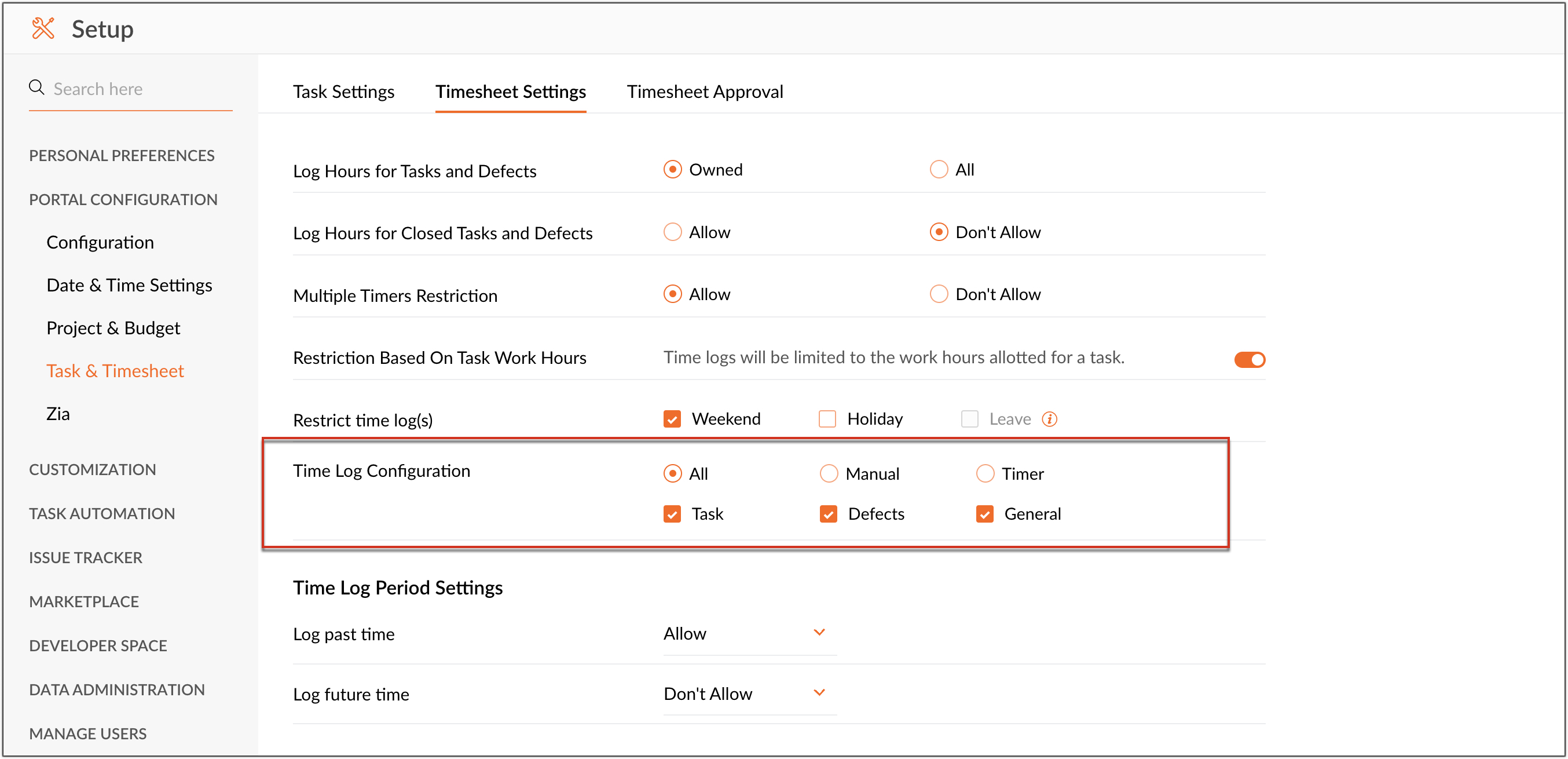
Time Log Configuration
Time logs are an effective way to track your users' hours.
In our
previous
post, we saw how to move timesheets from one task or issue to another. In this post, you will learn how to configure these timesheets from the setup page.
For instance, consider a scenario where the manager wants all the portal users to add the time log only for the tasks, and issues. There are two ways in which they can do this. They can either start the timer which will automatically record work hours or they can manually enter the time log after completing the task or issue.
For instance, consider a scenario where the manager wants all the portal users to add the time log only for the tasks, and issues. There are two ways in which they can do this. They can either start the timer which will automatically record work hours or they can manually enter the time log after completing the task or issue.
In the setup page, manager can select one of the three options under the time log configuration section.
-
All - To add time logs for all the modules and to start the timer.
-
Manual - To manually add the Time Logs
-
Timer - To enable timer for the tasks and issues.
In this case, since the manager wants to add time logs only for the tasks and issues, they can select the
Timer
option
and select the task and issue module.
All the portal users will now be able to add time logs only through timers.
Click here
to learn more about time log configuration.