Home Page of Zoho Analytics
1. Where do I find the Workspaces that I create?
All the Workspaces that you have access to will be listed in the Workspaces tab of the Zoho Analytics Home page. Click Owned to view the Workspaces that you have created.

2. How do I view the Workspaces shared to me?
All the Workspaces that you have access to (including the ones shared to you) will be listed in the Workspaces tab of the Home page. Click the Shared to view the Workspaces that are shared to you. The owner of each shared Workspace will be mentioned in the corresponding Workspace icon.

3. Where do I find my Dashboards?
All the Dashboards that you have access to (including the ones shared to you) are listed in the Dashboards tab of the Home page. You can choose to view the Dashboards that are created by you or shared to you, by navigating to the corresponding tabs. You can also choose to list the Dashboards in a specific Workspace by selecting the applicable Workspace from the All Workspace drop down.

4. Some of the Shared Workspaces are not listed in the Shared tab. How do I view them?
This can happen when you selected a specific organization. When you have selected an organization, then Workspaces in that organization alone will be listed. You can choose to view all Workspaces across organizations by selecting All Organizations.

5. Can I rename a Workspace?
Yes, you can rename a Workspace. You need Account Administrator privilege to do this. Follow steps below to rename a Workspace:
- Click the More Actions icon of the Workspace you want to rename.
- Select Rename Workspace.
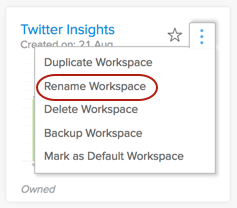
- The Rename Workspace dialog will open. Modify the Workspace Name and Description as needed.
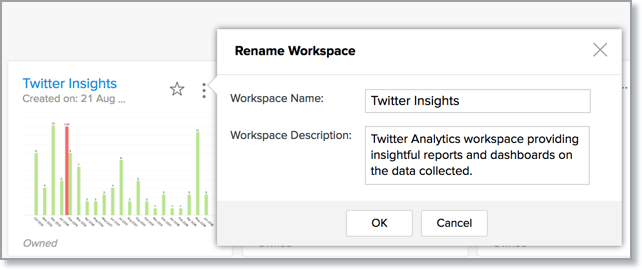
- Click OK . The Workspace will be renamed.
6. Can I delete the Workspace?
Yes, you can delete a Workspace. You need Account Administrator privilege to do this. Follow steps below to delete a Workspace:
- Click the More Actions icon of the Workspace you want to delete.
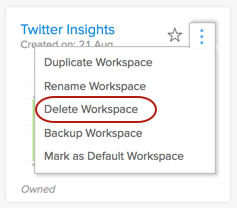
- An alert message will be shown to confirm the action.
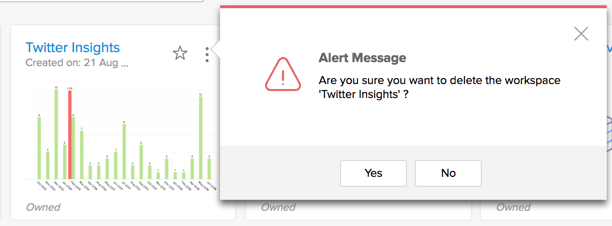
- Click Yes to delete the workspace.
7. Can I take a backup of my Workspaces?
Zoho Analytics allows you to back up the data available in your Workspace. The Workspace Backup option will backup the data from tables and SQL queries from query tables. The backup data can be downloaded from the URL listed. The reports and dashboards are not backed up. You can use this feature if you want to have a local copy of your data.

- Zoho Analytics runs on redundant network devices to avoid any single point of failure at any level on the internal network.
- User data is backed-up periodically across multiple servers, helping protect the data in the event of hardware failure or disaster. Hence, your data will remain safe on our servers. In the case of any unforced system issues, we would help you to restore your data from our end. Click to know more.
- This Backup feature is recommended to be used only if you want to have an archive of your data.
8. How do I backup data in my Workspace?
Follow the below steps to back up the data in a Workspace:
- Click the More Actions icon of the Workspace from which you want to take a data backup.
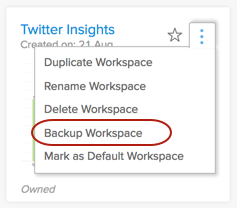
- Select Backup Workspace.
- The Backup Settings dialog will open.
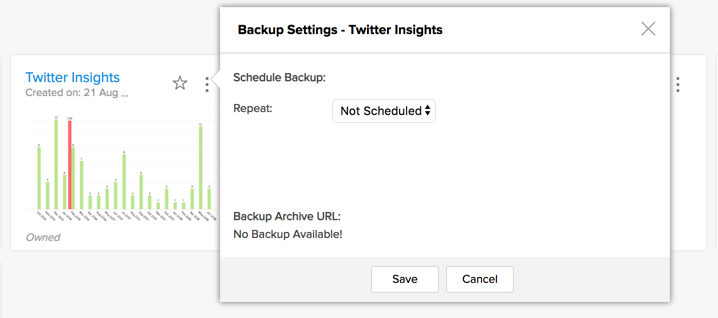
- You can choose to schedule your backup in a periodic interval. Specify the interval to backup your data in the Repeat drop-down menu. Available options are:
- Not Scheduled
- Everyday
- Weekly Once
- Monthly Once
- Not Scheduled
- Specify the day or date for backup data.
- Click Save . The data is backed up, you can download the backup file by clicking the date link next to the Backup-Archive URL.The last 3 versions of the backed up data will be available for download. The latest file will be at the same URL/link, thereby making it easy for you to bookmark or download. Older versions will be deleted.
 Note: You can also back data from Workspace from the Backup tab in the Workspace Settings page. The backups can also be configured at the account level. To know more, click here.
9. Can I copy my Workspace?
Yes, Zoho Analytics allows you to copy the workspace using the Duplicate Workspace option. Workspace can be copied only within the same organization.
- With Data: This copies all the tables, reports and dashboards from the existing workspace.
- With Data Source: This copies all the tables, reports and dashboards along with connection details and the operations applied over tables using Zoho DataPrep such as transformations and rulesets. These rulesets will be applied automatically to the data when you import data in to an existing table (Import data into this table).
Note: - The With Data Source option is not applicable for business connectors.
- The Schedule interval will not be copied when a workspace is duplicated. However, you can schedule data import after copying the workspace.
- Click the More Actions icon of the Workspace which you want to copy.
- Select Duplicate Workspace.
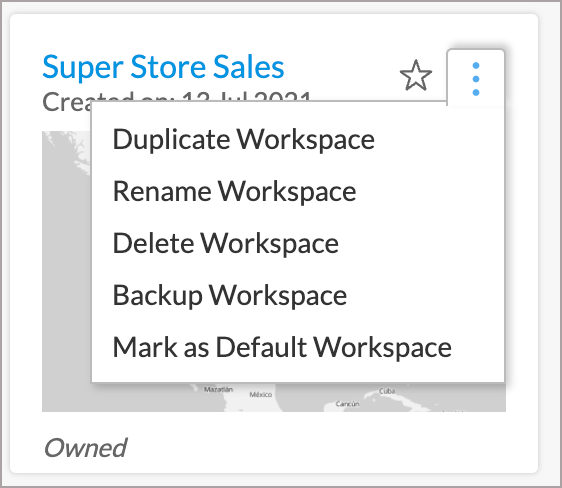
- The Duplicate Workspace dialog will open.
- Provide a unique Workspace Name . You can also choose to provide a Workspace Description .
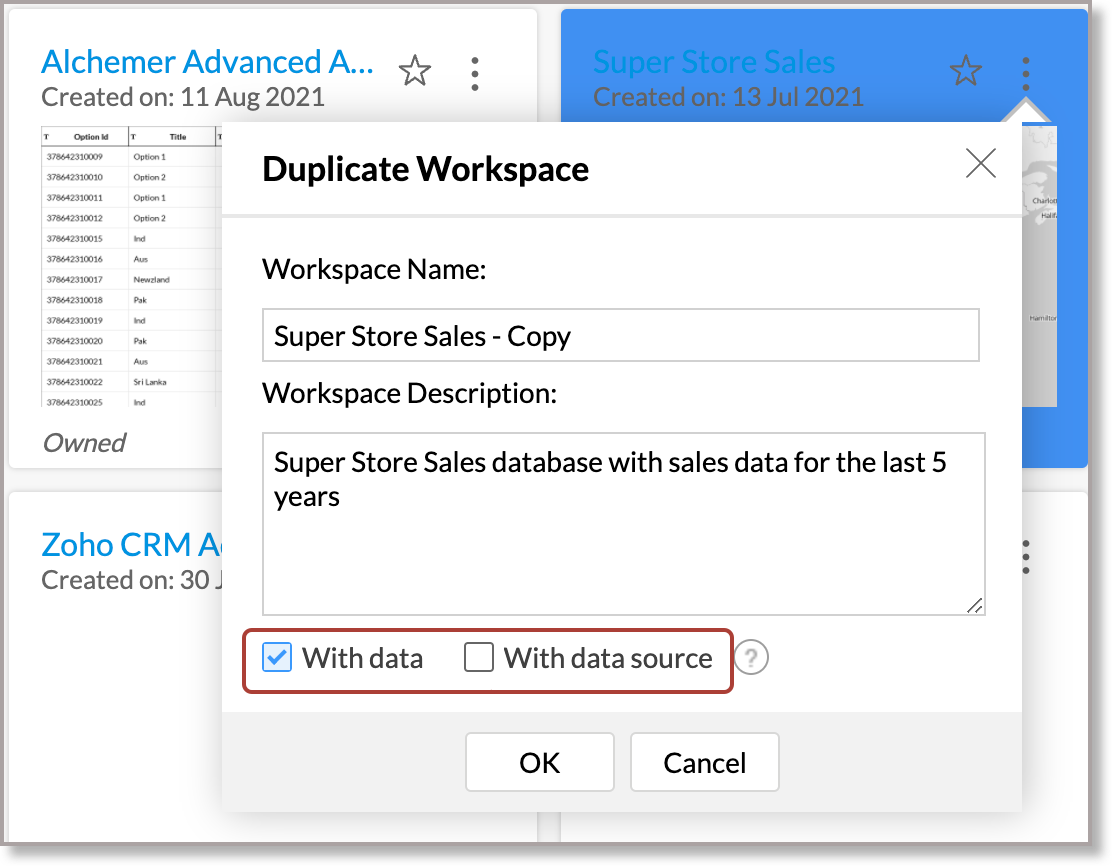
- The With data checkbox is selected by default. Unselecting this will copy only the template of the tables, reports and dashboards.
- Choose With data source checkbox, if you need to copy the data with its connection details and the rulesets applied to the respective tables using Zoho DataPrep.
- Click OK to create a copy of this Workspace.
10. Can I bookmark a Workspace as a favorite?
Yes, you can favorite your most accessed Workspace by tapping the Star icon available in line with the Workspace name.

11. Can I create a Workspace similar to another Workspace?
Yes, you can. Follow the below steps below to achieve this.
- Click the More Actions icon of the Workspace.
- Select Duplicate Workspace.
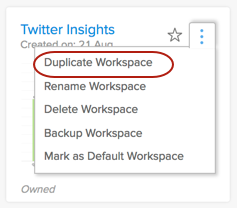
- The Duplicate Workspace dialog will open.
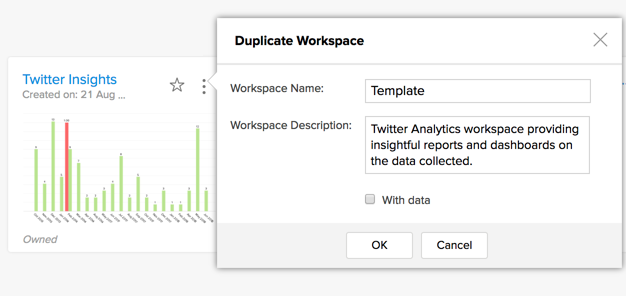
- Unselect the With data checkbox.
- Click OK . A new Workspace with the same data and report structure will be created. You can import the required data into the table.
12. Can I set a Workspace as default?
Yes, you can set a Workspace as default Workspace. Follow the below steps to do so.
- Click the More Actions icon of the Workspace which you want to mark as default.
- Select Mark as Default Workspace.
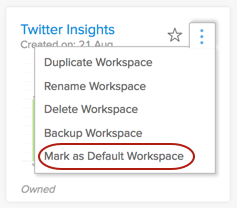
- The Workspace will be marked as default.
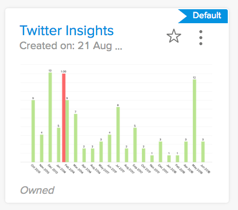
When you access the Zoho Analytics service, this Workspace will open by default.
13. How do I view Featured Sample Workspaces?
Zoho Analytics provides a set of Featured Workspaces for demonstrating its capabilities. This would be an easy way to understand the features in Zoho Analytics.
These featured samples provided by Zoho Analytics are business relevant Workspaces. You can click on any of the Sample Workspaces to go through its dataset and reports available in it. You can copy these Workspaces into your account and reuse them for your needs.
Refer: Zoho Analytics Sample Workspaces
14. How do I view Users Shared Public Workspaces?
Zoho Analytics provides a Public Gallery to allow our users to publish their Workspaces. You can access these views with the permission that the users have set. Some of them have edit permission too. Click here to know more about How to make a Workspace/View public.
Workspace Explorer
1. What is a Workspace Explorer?
The Explorer is the main page of the Workspace from where you can create, access and share the views in your workspace. The following questions discuss the various options available in the Explorer.
2. How can I access my Views?
All the views in the Workspace will be listed in the Explorer tab. Zoho Analytics allows you to specify how to display the views list.

You can choose to list them as grid view and list view as needed.
- Grid View - This displays the view as tiles.
- List View - This displays the view as a text list with Title and Description.
You can also choose to organize the view in the following order.
- Folder - The views will be organized by folders they are saved in.
- Related Views - All reports created over a table will be organized together. This will be useful to group reports that are created over the table.
- Types - The views will be organized by type i.e., Chart, Pivot etc.,
Further, for easy accessibility, the analytics elements are organized into three categories (Dashboards, Reports & Data).
3. How can I access my Dashboards?
- Open the Workspace.
- Click the Dashboards tab from the left bar.
- All dashboards for this Workspace will be listed. Click the dashboard you want to view.
- You can also access the dashboards from the Explorer tab. By default, views will be organized by Folder . Reorganize them by Types , and you can access your dashboard under Dashboards section. Learn more about organizing views.
4. Can I organize views in navigation panel?
Yes, you can choose to organize the views listed in the Data , Reports , and Dashboard navigation panel. The view list can be organized in one of the following order.
- Folder - The views will be organized by folders they are saved in.
- Related Views - All reports created over a table will be organized together. This will be useful to group reports that are created over the same table. This is applicable for Reports navigation panel alone.
- Types - The views will be organized by type i.e., Chart, Pivot, etc.,
Follow the steps to organize the view list.
- Open the corresponding navigation panel.
- Click the View by icon at the top right of the panel and then choose the order.
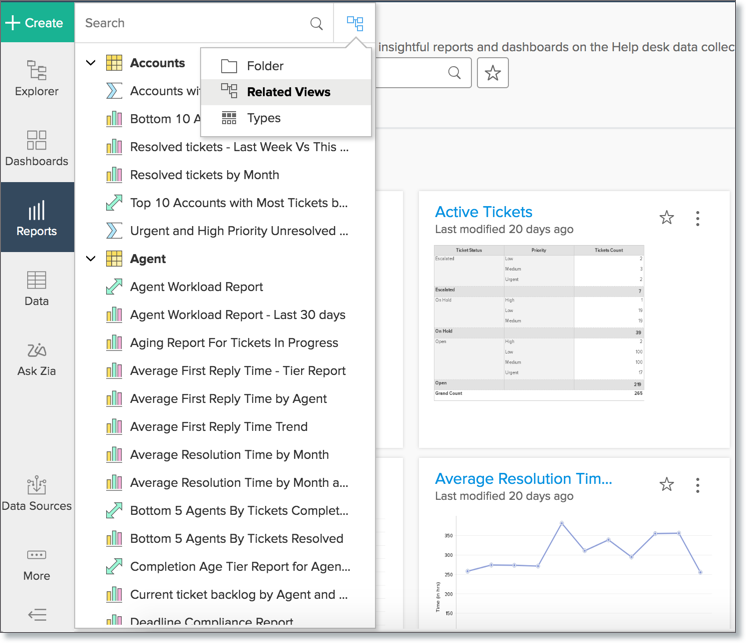
This order will be applied to all workspace (both owned and shared) in your account. The search result in the panel will also be listed in this selected order.
5. Can I view the sources from where data is been imported into my Workspace?
Yes, you can view the data sources from where data has been imported into your Workspace. Follow the below steps to do so.
- Open the Workspace.
- Click Data Source from the left bar.
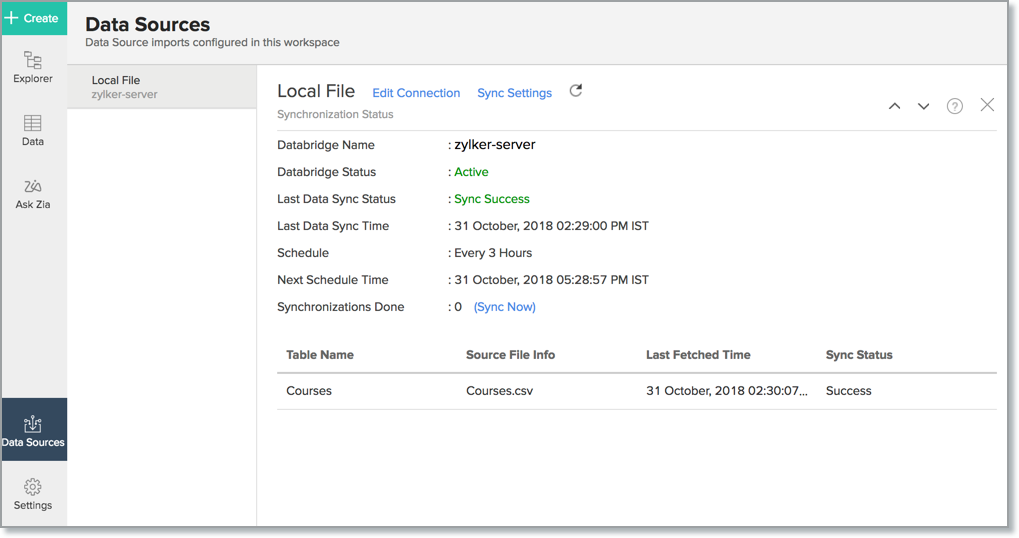
- All data sources for this Workspace will be listed. Click the data source you want to view.
- The Data Source page will open displaying the source import configured for this page.
6. Can I view the relational data model of my Workspace?
Yes, you can view the relational data model of your table. Follow the below steps to do this:
- Click the Data tab in the left panel.
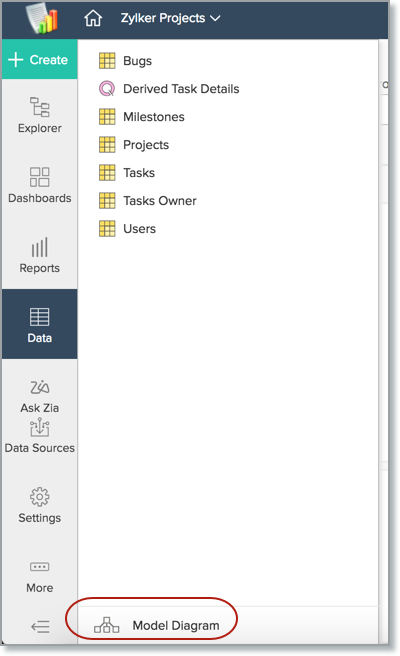
- A panel listing all tables in the Workspace. Click the Data Model at the bottom of the panel.
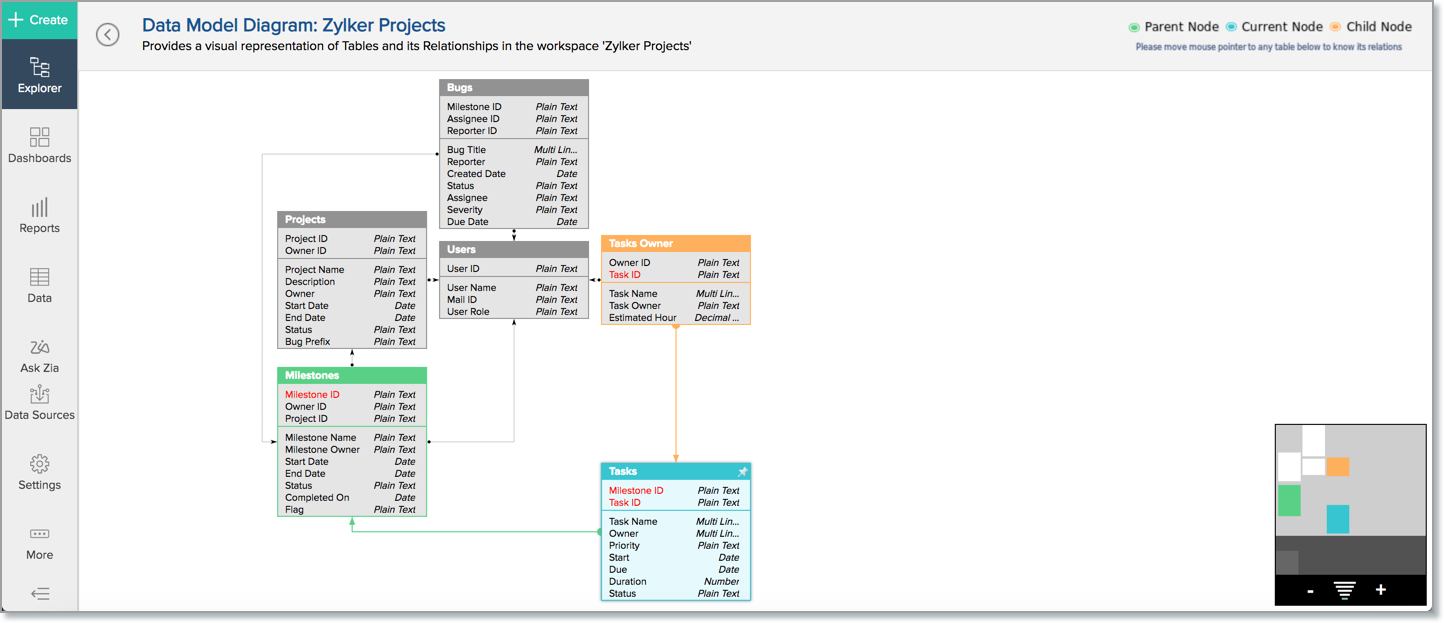
- The Data Model Diagram will open. In this, each element represents a table in the Workspace with the list of the column in them. Lines connecting them represent the join through lookup column.
7. How can I invoke Ask Zia in the Workspace?
Ask Zia tab
- To invoke Ask Zia, click the Ask Zia tab on the left panel of the workspace, t he Ask Zia interface will open. Type your query to get the answers as appropriate visualizations.
- You can shift to the Conversation Mode using the toggle button at the top right. Click to learn about Conversing with Zia.
- Click Workspace Search icon on the top left. The Search Views dialog box opens, click the Ask Zia tab. Type your query to get the answers as appropriate visualizations.
- You can navigate to the Ask Zia conversation mode, by clicking the Continue Conversation button.
- The Ask Zia interface will open and you can start to converse with Zia. Click to learn about Conversing with Zia.
Note : When you invoke Conversation Mode in Ask Zia, it will always be a new conversation. Ask Zia will not record your previous queries. 8. What are the customization options available for Workspace?
Zoho Analytics allows you to customize your Workspaces with a set of preferences such as setting the beginning of your fiscal year, set chart color or grid theme across the reports etc.,
To learn how to customize your workspace, refer here .
9. What is Viewer Mode?
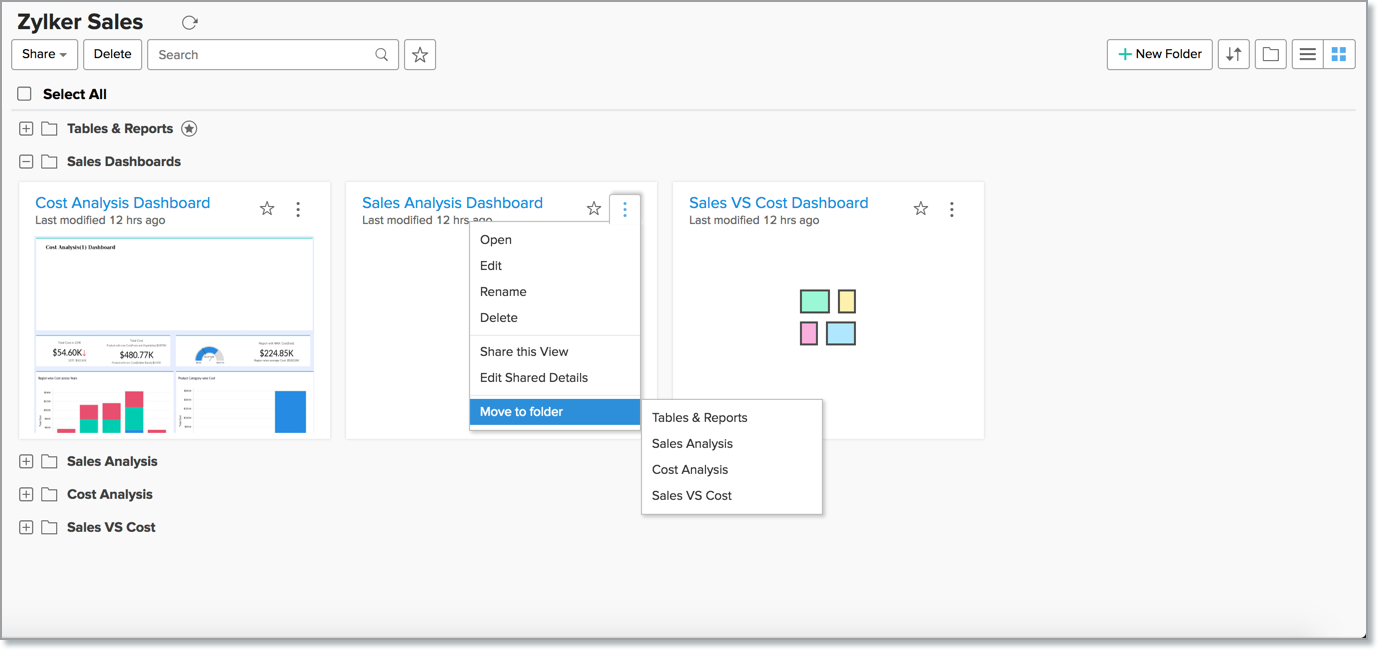
10. How do I create folders and sub-folders?
You can create folders in your Workspace by following the steps below.
- At the top right, near organize the Views by folder. The New Folder option will appear.
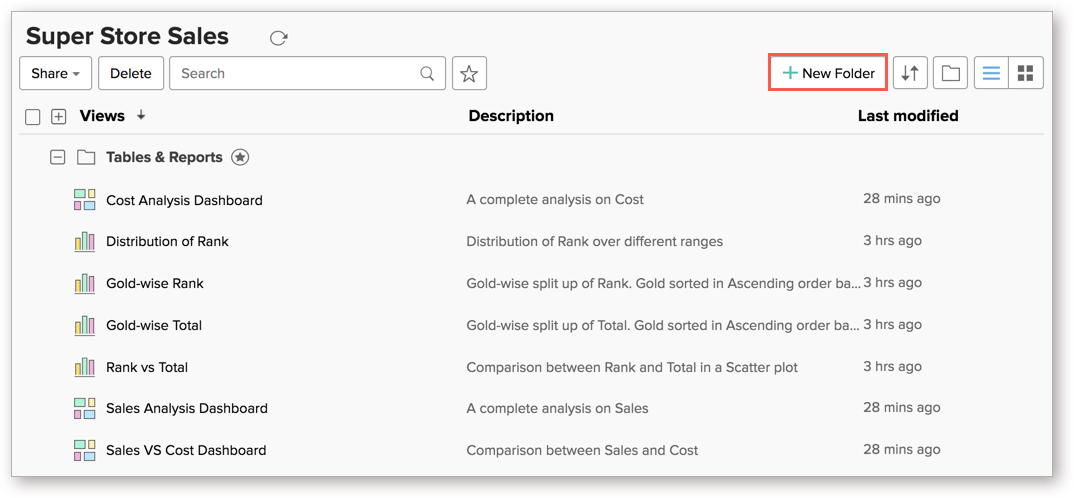
- Click the New Folder button. The Create New Folder will open. Specify the Folder Name and Description.
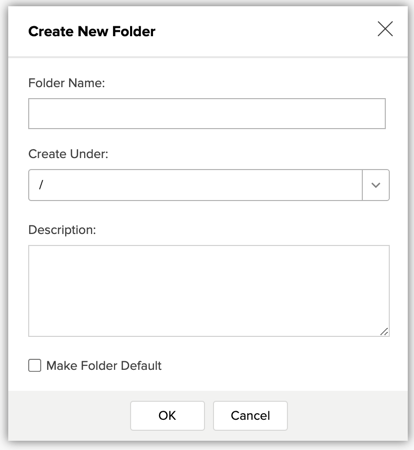 Note : It is mandatory that the folder name is unique.
 - In the Create Under section, select the folder in which you want to create the folder. Selecting {/} will create the folder in root directory. To create a sub-folder, select the folder name under which you are creating the sub-folder from the Create Under drop down. You can create a sub-folder only for one level.
- Select Make Folder Default option if you want to set the new folder as default for the Workspace.
- Click OK . The folder will be created.
11. Can I move a parent folder as a sub-folder in the Explorer?
Yes, you can move a parent folder as a sub-folder in the Explorer . To do that,
- Click the Actions icon that appears on mouse hover in line with the folder name.
- Click Move to folder .
- From the drop-down menu, select the folder name to which you want to move this folder.
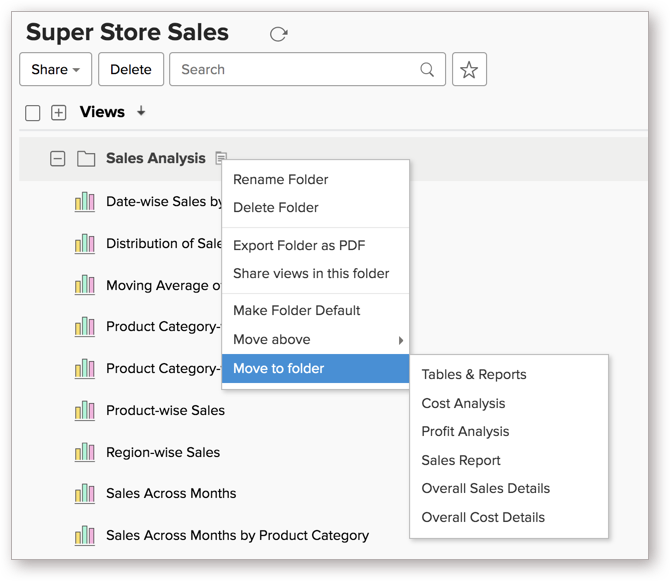
The selected folder will be moved to the destination folder.
Note : You cannot move a (parent) folder containing sub-folders to another folder.12. Can I move a sub-folder as a parent folder in the Explorer?
Yes, you can move a sub-folder as a parent folder in the Explorer. Follow the below steps to do that.
- Hover the mouse over the sub-folder that you want to move.
- Click the Actions icon that appears. The Action menu will open.
- In the menu that opens, click Move as Parent Folder
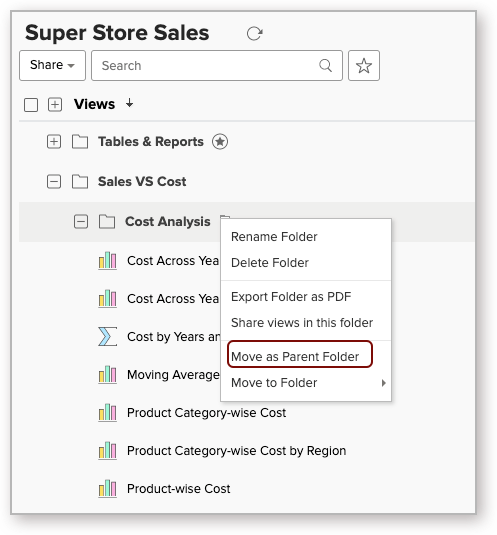 The folder will be moved as a parent folder.
13. Can I move sub-folders of a folder to another folder in the Explorer?
Yes, you can move sub-folders of a folder to another folder in the Explorer in the similar way you move a parent folder as a sub-folder
14. Can I make a sub-folder as a default folder?
Yes, you can make a sub-folder as a default folder. To do that,
- Click the Actions icon that appears on mouse hover in line with the sub-folder name.
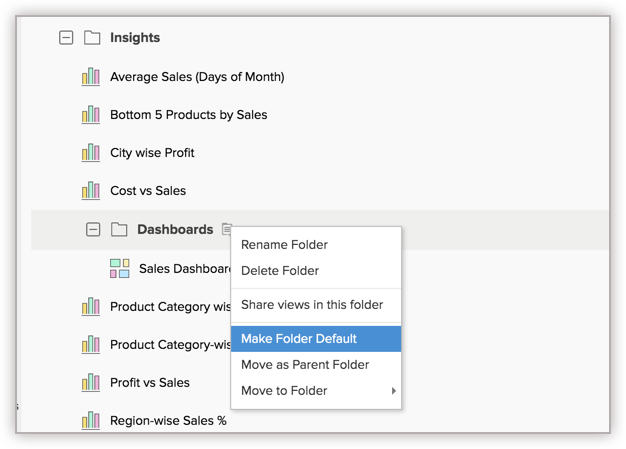
- Click Make Folder Default .
15. Can I move View(s) from one folder to another folder in the Explorer?
Yes, you can move view(s) from and across folders to another folder in the Explorer . To do that,
- Select the checkbox, that appears on mouse hover, in line with the view(s) names.
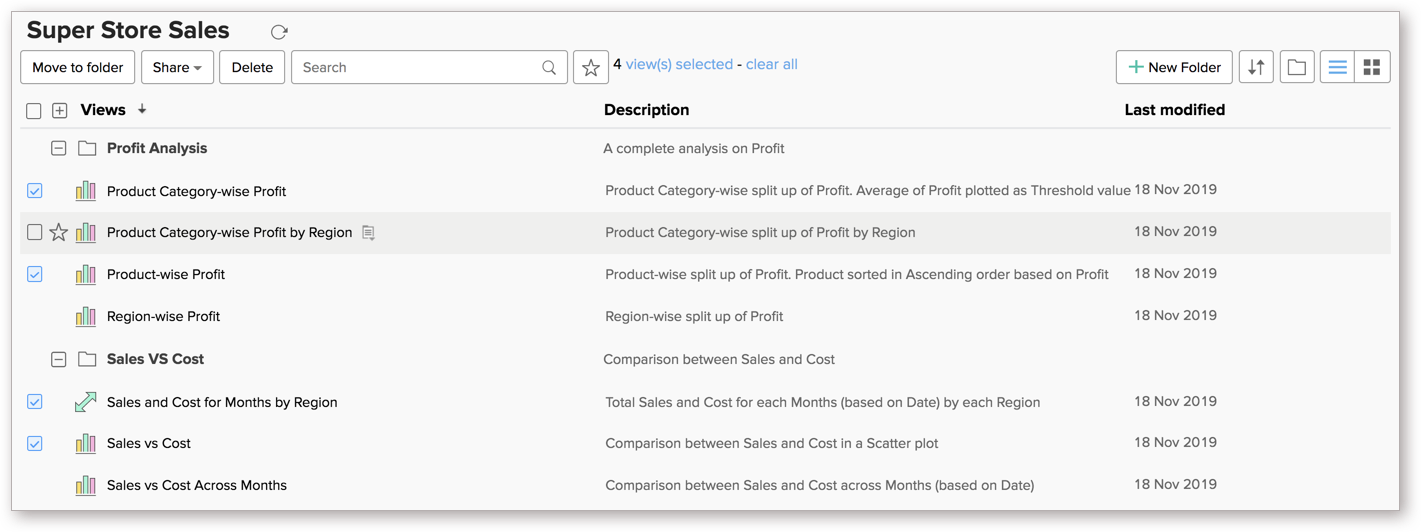
- From the Move to folder drop-down, select the destination folder.


The selected view(s) will be moved to the destination folder.
16. Can I search for Views in the Workspace?
- Workspace Search
- Explorer Search
- Views tab
- Select to search for different views available in the workspace. You can select the view type to match the search item.
- The Sticky Search option available in the Search Views dialog allows you to search and open multiple views in the background without closing the Search dialog.
- Ask Zia tab
- Select to ask questions to Zia in natural language and get powerful reports and insights quickly. To learn more about Ask Zia, click here.
- Click the Explorer tab on the left panel of the workspace.
- You can find the Search field below the workspace title.
- Enter the search term in the field to search for views and select the view from the suggestions that appear.
- You can also specify the View Type to be match with the search term.
Yes, you can favorite your most accessed Views in the Explorer by tapping the Star icon available in line with the View name.

You can favorite Views from the Dashboards or Reports tab in the side menu bar. To do that,
- Click the Dashboards or Reports tab in the side menu bar.
- Click the Star icon that appears on mouse over the View name.
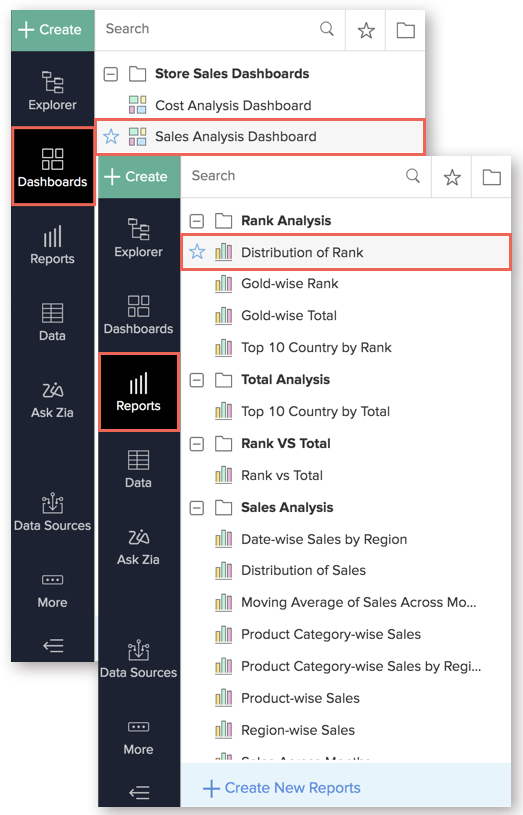
You can also mark the view as a favorite from the view(s).

Note : The favorites marked in the web will be synchronized in the mobile app and vice-versa.18. Can I view the dependency details of the Views?
Yes, you can view the dependency details of Views i.e., tables and reports created over these tables will be listed as Parent and Child Views.


Dependency Details View
Click More > Dependency Details > Views , to view all the dependent views i.e., the Parent Tables over which the Query Table is created and the Child Views which are created over the Query Table.

Dependency Details Table
Click More > Dependency Details > Tables , all the related tables will be listed. i.e., Parent Tables of multiple level and Child Tables will be listed.

19. Can I recover views that are deleted?
Yes, you can recover the views that are deleted.
- Click the Trash option on the left panel of the Explorer .
- The Trash page will open. Click the Restore icon that appears on mouse over.
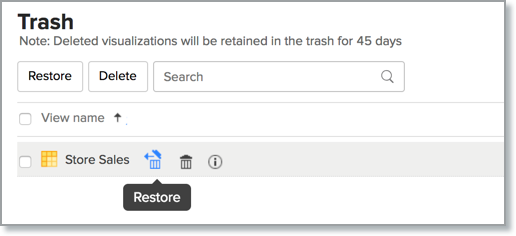
- You can also restore multiple views by selecting them and then click the Restore button at the top.
