Import Associated Products
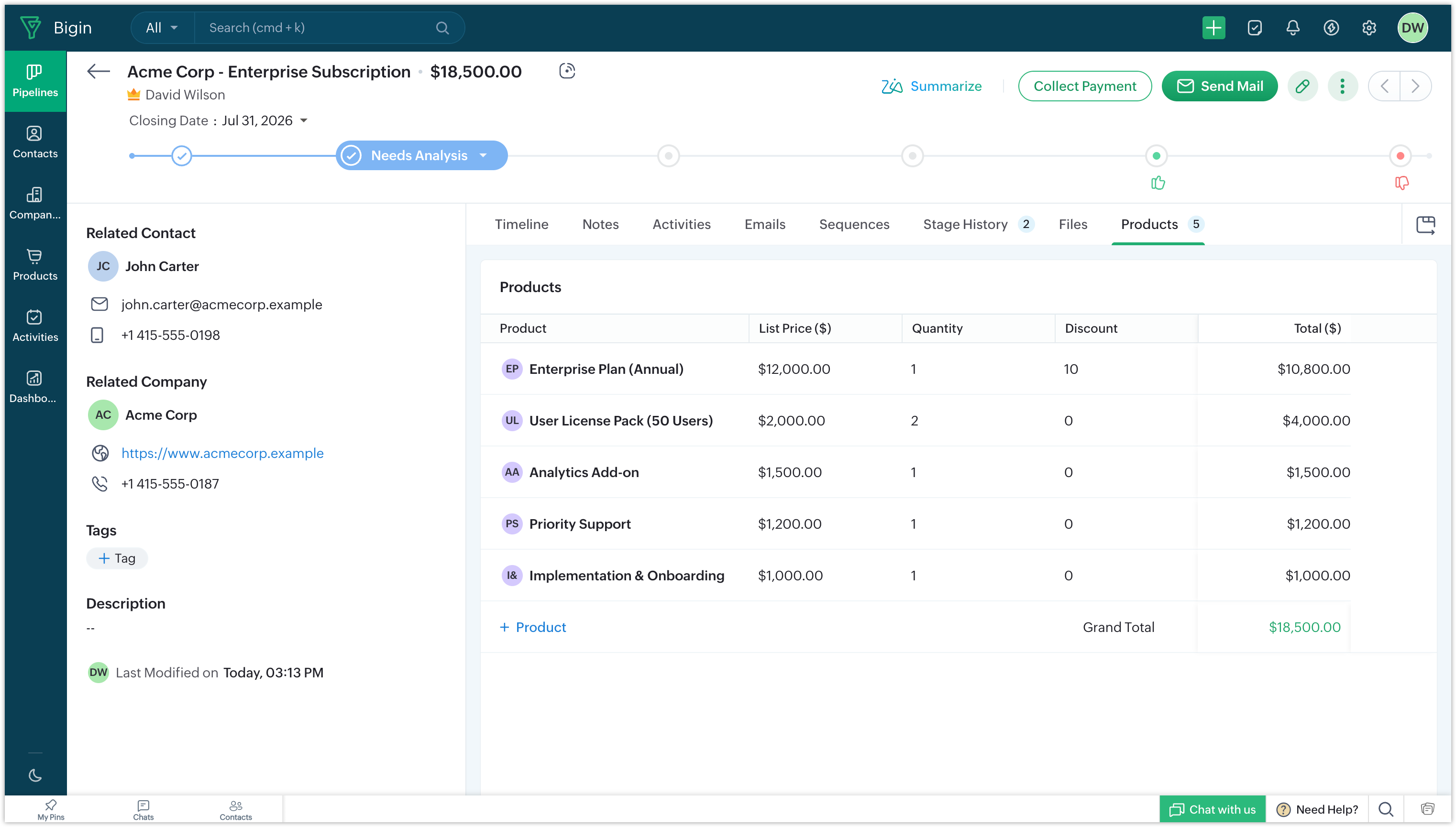
Associated products in Bigin allow you to keep track of the products or services linked to your pipeline records (deals), which provides you a better visibility into what exactly is being sold in each deal. A single deal may contain multiple products and tracking them outside the CRM can lead to scattered information and inconsistencies.
By associating products with a deal, you can capture details such as product name, quantity, and price within the same record. This enables you to manage your deals more effectively and ensures all relevant details is available at one place. Additionally, when you add associated products, the pipeline record automatically reflects the aggregate value of all linked products, which helps you get an accurate view of the total deal value at a glance.
Import Associated Products lets you import products and link them to their respective deals in one go, and eliminates the need for repetitive manual effort and ensures faster data migration.
Points to remember:
- Ensure that you have the import permission enabled for your profile. If you do not have this permission, the import option will not be available in your account.
- Before importing associated products, make sure both the parent records (in this case, pipeline records) and the products you want to associate are already available in Bigin.
- Ensure the Associated Products section is available in the Pipeline Fields. If it's not available, you can add it from the unused fields.
- The import file must include a unique identifier to associate each product with the correct pipeline record.
- Ensure the first row of the import file contains column headers, such as Product Name, Product ID, Quantity, Price, and other relevant fields.
To import associated products:
- Go to the Pipelines module.
- Click the drop-down button next to + Pipeline Record and select Import Associated Records.
- In Upload Your File stage, click Upload or drag and drop your file.
- Click Next.
- In Choose an Action stage, select one of the following:
- Add as new Associated Products
- Update existing Associated Products only
- Both
- Click Next.
- In Map Your Data stage, map the fields from your file to the respective fields in Bigin. Ensure you map the Parent ID with respective Pipeline ID.
- Click Finish to start importing.
The import process will run in the background. Once it is completed, you will receive a notification in the bottom-right corner of your Bigin account. This notification will have an option to view a detailed summary of the import.
You can also access the summary from the Import History section under the Data Administration settings.
You can also access the summary from the Import History section under the Data Administration settings.

Notes:
- Each pipeline record supports importing up to a maximum of 100 associated products.
- If you choose update existing associated products during import, you cannot undo the import action.