Users and Control - Compliance (GDPR, HIPPA)
GDPR
1. What is GDPR and why does it matter?
General Data Protection Regulation (GDPR) is a sweeping EU data protection law effective May 25, 2018. It governs how organizations collect, process, and store personal data of EU residents. It mandates transparency, consent, and accountability in handling personal information.
2. Who must comply with GDPR?
Any organization that processes personal data of EU residents qualifies—even if the company itself is located outside the EU. Compliance isn't based on geography alone; it's about whose data you process.
3. What are the lawful bases for processing personal data in Bigin?
GDPR identifies six lawful bases: Consent, Contract, Legal Obligation, Vital Interests, Public Task, Legitimate Interests. Bigin lets you record these bases and conduct a Legitimate Interests Assessment as required.
4. Is GDPR compliance mandatory if I’m outside the EU and don’t have EU customers?
If you don’t process EU resident data, GDPR isn't mandatory. However, Zoho still recommends enabling compliance settings to uphold strong privacy standards for all users.
5. What happens when GDPR compliance is turned off in Bigin?
Any previously established lawful processing basis becomes inactive. Data will then be treated as if no lawful basis was defined for those records.
6. What are the specific rights granted to individuals under GDPR, and how does Bigin support them?
- Right to be informed – Individuals must know how and why their data is processed. Bigin enables communication via consent forms and privacy statements.
- Right of access – Contacts can request a copy of their stored data. You can generate and email CSV exports directly within Bigin without downloading to your system.
- Right to rectification – Individuals can request updates. You send a CSV, they amend it, and you reimport the corrected file.
- Right to erasure (“right to be forgotten”) – You can lock and delete a contact’s record and add their email to a block list to prevent re-import or sync.
- Right to restrict processing / object – Records can be locked to halt further processing (e.g. no edits, no calls, no emails).
- Right to data portability – Data can be exported in machine-readable CSV and sent directly from Bigin.
- Right to be notified – In context of breach, the controller must inform individuals within 72 hours; Bigin’s tools help document and respond appropriately.
7. How do I enable GDPR compliance and set up data‑privacy tools in Bigin?
Navigate to Setup → Users & Control → Compliance Settings, then turn on GDPR compliance. This is required to unlock all Data Privacy features. Within any Contact’s record, you’ll see a Data Privacy section to manage requests directly.
8. What features does Bigin offer to support GDPR compliance?
- Custom consent forms: Create and send personalized forms to collect opt‑in consent, with custom language and privacy statements embedded.
- Manual consent logging: Enter consent details obtained offline (phone/in-person/postal) via the Data Privacy section in contact records.
- Data subject request handling: Use Bigin’s built‑in Data Privacy features to manage requests from contacts, such as access, export, and rectification.
9. How can I customize the GDPR consent form for data subjects?
Within the Compliance settings:
- Click Customize in the Consent Form section.
- Choose form language, specify communication options (Email, Phone), consent statements, privacy statement text, remarks section, and preview.
- Click Save. You can revert to default anytime.
10. How do I manually update a contact’s consent details?
Open a contact record and click Data Privacy. From there:
- Set Data Processing Basis to Applicable → Select Consent.
- Use Update consent details to log Communication Preferences, date, remarks, and method (Email or Call).
- Click Save.
11. Can I filter contacts by Data Processing Basis?
Yes. In the Contacts module:
- Click the filter icon and choose Data Processing Basis.
- Select the desired criteria to view matching records.
12. How do I raise a Data Subject Request (DSR) in Bigin?
Within a contact record under Data Privacy:
- Click + Request.
- Choose the request type (e.g., Access Data, Export Data, Rectify, Stop Processing, Delete Data) and click Save.
13. What types of requests can I raise for a data subject?
You can raise these GDPR rights via Bigin:
- Access Data (Right of access)
- Rectify Data (Right to rectification)
- Export Data (Right to data portability)
- Stop Processing (Right to restrict processing or object)
- Delete Data (Right to be forgotten)
14. How do I fulfill a ‘Access Data’ request?
After creating the request:
- Click Send email for access request.
- Choose a template or compose a message. The data is attached as a CSV. You can view sent emails in the related list.
- Close the request when complete.
15. How do I handle a ‘Rectify Data’ request?
- Create the rectify request.
- Send an email with a CSV file to the subject.
- They can return corrected data, which you import back into Bigin.
- You may then close or delete the request.
16. How is 'Export Data' (Portability) handled?
- After raising the request, click Send email for export data.
- A machine‑readable CSV file is attached and sent—no local download required.
- You can view, close, or delete the request.
17. How do I handle a 'Stop Processing Data' request?
- Open the user's record and click Data Privacy.
- Under the Data Subject Requests section, click + Request.
- In the New Request pop-up, select Request to stop processing data.
- Click Save. The request will be added to the record.
- Click Lock for the request to stop processing data. The record will be locked. No edits, emails, calls, or campaigns can be initiated on it.
- To resume, click Unlock.
18. How does a 'Delete Data' request work?
Create the request and click Lock, then click Move to block list.
The record will be removed. The email address will be blocked from future imports or syncs.
Blocklisted addresses raise an alert if you attempt to add them again.
19. What are the Stages in consent management?
Based on the customer response, the status of the consent request is processed; the stages involved here are as mentioned below.
- Pending: When a consent request hasn't been sent to data subjects.
- Waiting: After sending the consent form, while awaiting a response.
- Obtained: When consent is received from the data subject.
- Not responded: When consent isn't received within the defined waiting period in Consent Settings.
Reference Documents:
https://help.zoho.com/portal/en/kb/bigin/explore-settings/articles/manage-compliance#Raise_Data_Subject_Request
https://help.zoho.com/portal/en/kb/bigin/explore-settings/articles/data-subject-rights-16-4-2024#Request_to_access_dataRight_to_access
https://help.zoho.com/portal/en/kb/bigin/explore-settings/articles/data-subject-rights-16-4-2024#Request_to_access_dataRight_to_access
HIPPA Compliance
1. What does HIPAA require from Zoho and its users?
HIPAA mandates that Covered Entities and Business Associates implement measures to protect Protected Health Information (PHI) and Electronic PHI (ePHI), including security, privacy, breach notification, and administrative rules. Zoho itself does not collect or maintain PHI for its own purposes, but offers tools within Bigin to support HIPAA compliance for its customers
2. Is a Business Associate Agreement (BAA) available for Bigin?
Yes. Zoho will sign a HIPAA-compliant BAA with your organization. You can request a BAA template by emailing legal@zohocorp.com
3. How does Bigin support HIPAA compliance specifically?
Bigin offers the following features:
- Mark PHI fields in the Contacts module (up to 30 fields per account).
- Restrict PHI access/export through API, data export, Zoho app integrations, and third‑party integrations.
- Encrypt PHI fields for added security. Although encryption is optional, it is strongly recommended.
4. Which fields can be marked for PHI (Personal Health Information)?
Custom and standard fields in the Contacts module can be marked as PHI, up to 30 in total. Lookup fields and auto‑number fields are excluded from being marked as containing PHI .
5. What are the PHI‑restriction options in Bigin?
Administrators can toggle the following restrictions depending on business needs:
- Restrict PHI via the API
- Prevent export of PHI
- Stop transfer of PHI to other Zoho services
- Block PHI transfer to third‑party integrations
6. How do I enable HIPAA compliance in my Bigin account?
- Navigate to Settings → Users and Controls → Compliance.
- Enable the HIPAA Compliance toggle.
- In the Personal Health Data Handling section, activate any needed restriction options .
7. How do I mark fields as PHI?
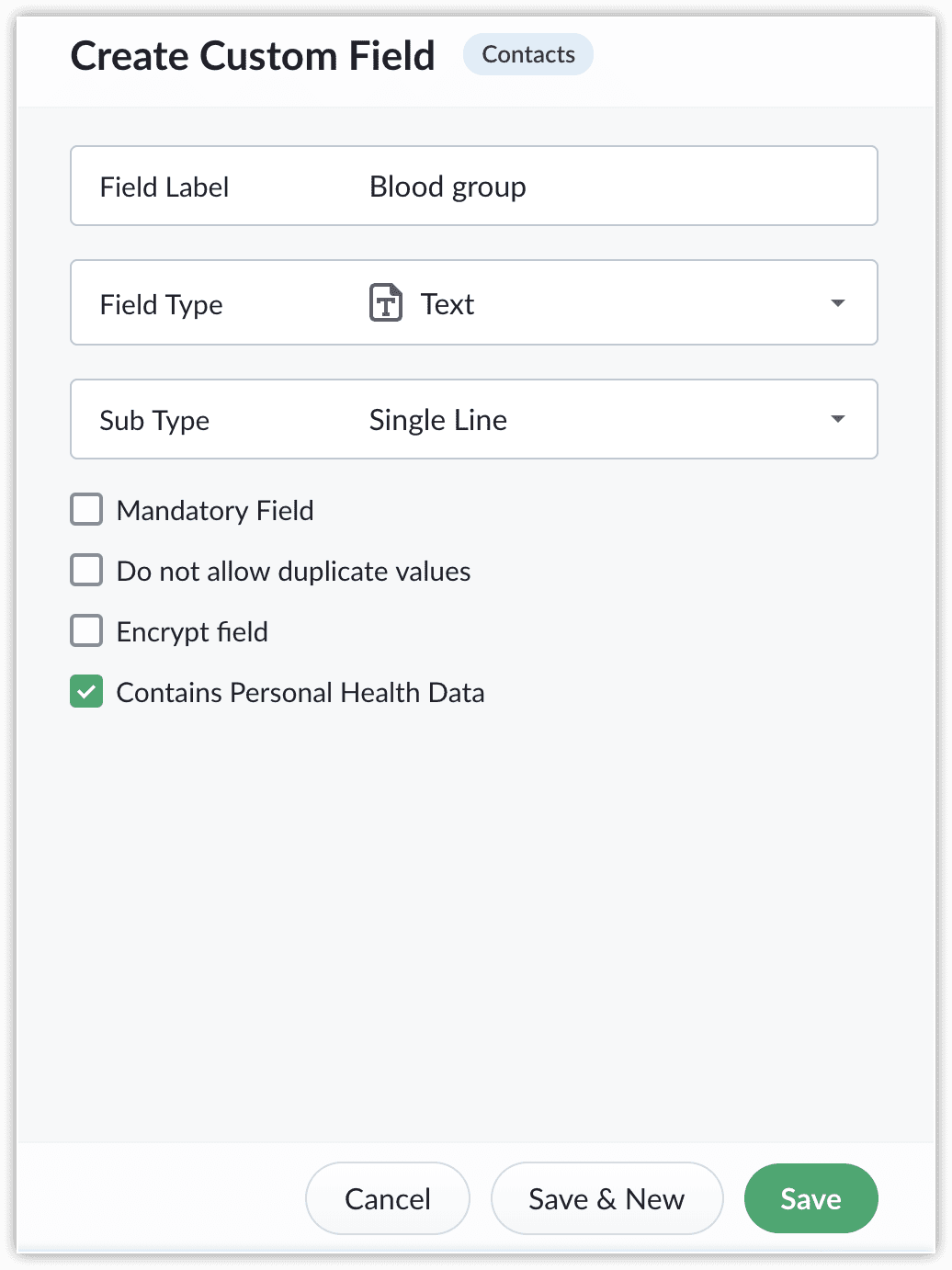
Navigate to Settings → Fields → Contacts module. Edit the intended field and check Contains Personal Health Data (PHI). This option only appears when HIPAA compliance is enabled.
8. What happens if HIPAA compliance is disabled?
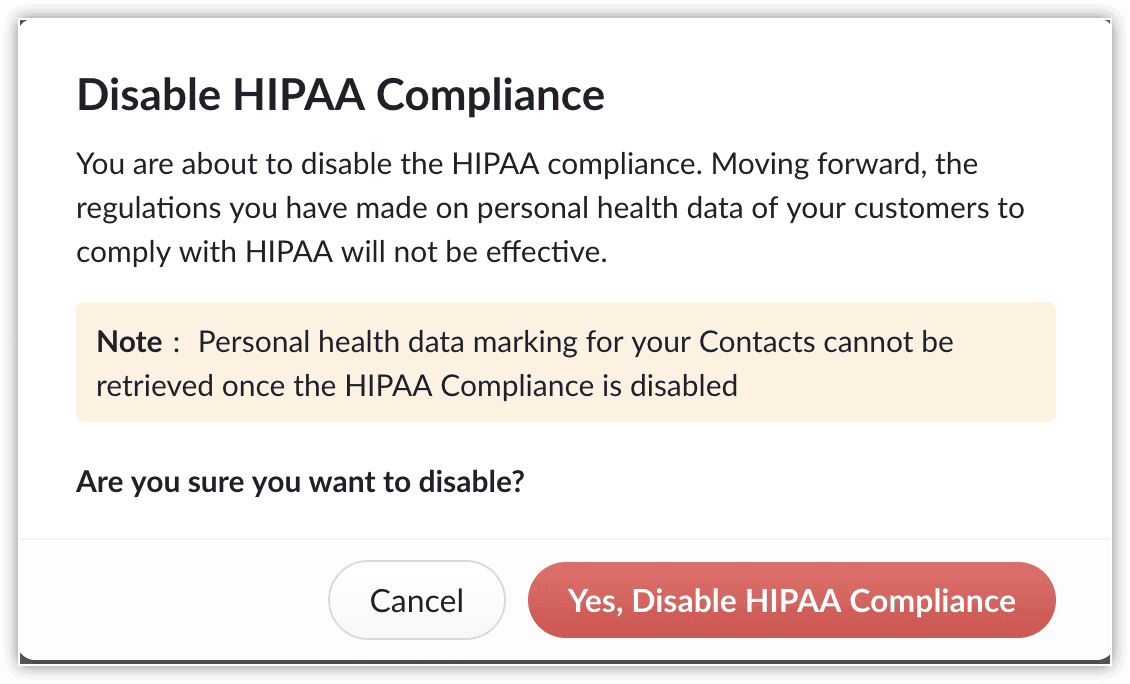
Disabling HIPAA compliance will automatically unmark all previously flagged PHI fields. To re-enable PHI controls, you must enable HIPAA compliance again and manually mark fields as needed.
9. How can users view PHI‑marked data?
Within a record, PHI‑marked fields are grouped under the Health tab in the Data Privacy section on the record detail page.
Reference Document:
https://help.zoho.com/portal/en/kb/bigin/explore-settings/articles/hipaa-compliance-with-bigin
https://help.zoho.com/portal/en/kb/bigin/explore-settings/articles/hipaa-compliance-with-bigin