Understanding reports
1. How are forwarded emails (Tell-a-Friend) tracked in reports?
Zoho Campaigns only tracks forwarded emails when the Tell-a-Friend merge tag is used in the campaign content. If a recipient forwards the email using this link, the forward action is recorded and shown in the campaign reports.
Regular email forwarding through email clients (such as Gmail or Outlook forward buttons) is not directly tracked as a forward. However, if a forwarded email recipient clicks a link in the email, the click will be recorded and attributed to the original recipient.
This approach helps maintain accurate engagement data while still capturing meaningful interactions that originate from forwarded content.
2. Can I view bounce reasons in my reports?
Yes. Zoho Campaigns provides detailed bounce information in campaign reports. Under the Bounces section, you can view:
The recipient’s email address
The bounce type (hard or soft)
The specific bounce reason (for example, mailbox full, invalid domain, or email address does not exist)
These insights help you identify deliverability issues and take corrective actions, such as cleaning your mailing lists or correcting invalid email addresses.
Campaign-based reports focus on the performance of a specific campaign. They show overall metrics for that campaign, such as delivery, opens, clicks, bounces, unsubscribes, and spam complaints.
Contact-based reports, on the other hand, provide a recipient-level view. They display how an individual contact has interacted with your campaigns over time, including opens, clicks, replies, and other activities. This allows you to understand engagement patterns for a specific subscriber across multiple campaigns.
4. Where can I find list-based reports in Zoho Campaigns?
You can find list-based reports by navigating to Reports → List-Based Reports.
Here, you can select any mailing list to view how contacts in that list have engaged with your campaigns. These reports help you understand list-level performance, such as engagement trends, inactive contacts, and overall response patterns for a specific list.
5. What are social campaign reports?
Social campaign reports show how your campaigns perform when shared on social media.
These reports include:
You can also retrieve the social share URL link from the sent campaign report by clicking More → Social share option and track how the campaign performs outside email.
6. What is a heat map report?
A heat map report visually shows which links in your email received the most clicks.
Links with higher engagement appear more prominent, making it easier to identify:
Heat maps are useful for improving content layout, call-to-action placement, and overall email design.
7. Can I see which links were clicked in my email campaign?
Yes. In the campaign report, you can see exactly which links were clicked and how often.
Go to the Clicks or Click Activity section to view detailed link engagement.
You can see:
All links included in the email
Total and unique clicks per link
Recipient-level click details
Untracked links, if any
Click distribution across links
This helps you understand which content drives engagement and how recipients interact with your emails.
The activity timeline shows how a specific contact has interacted with your campaigns over time.
It includes actions such as:
Opens
Clicks
Replies
Bounces
Unsubscribes
You can also search for a contact by email address within the campaign report by going to Recipient activity to confirm whether they opened or clicked a particular campaign.
9. Where can I find reports for a sent campaign?
You can find reports for sent campaigns by navigating to Reports → Sent Campaigns.
Select the campaign you want to analyze to view detailed metrics such as delivery, opens, clicks, bounces, unsubscribes, spam complaints, and recipient activity.
10. What can I view in the Reports module of Zoho Campaigns?
The Reports module provides a complete view of campaign performance across email and SMS campaigns.
You can track:
This module helps you measure engagement and understand how your campaigns are performing overall.
11. What does "occurrence" mean in sent campaign reports?
Occurrence refers to the number of times a specific link appears in the email content.
For example, if the same URL is used multiple times within an email, the occurrence count shows how many times that link was placed in the campaign. This helps you understand link placement frequency, separate from click activity.
12. What are the filters available in the Reports module?
The available modules are Campaign owner, Campaign status, Campaign type, and Sent date.
In the Reports module, you can filter campaigns using the following options:
Campaign owner
Campaign status
Campaign type
Sent date
These filters help you narrow down campaigns and quickly find the reports you’re looking for.
13. What criteria are available in campaign-based reports?
Campaign-based reports allow you to filter and analyze campaigns based on:
Opened campaigns
Clicked campaigns
Clicked URLs
These criteria help you segment campaign performance based on engagement levels.
14. What views are available in the sent campaign reports module?
The Sent Campaigns Reports module offers two views:
You can switch between these views using the view icon toggle beside the export reports button, based on your preference.
15. Can I check the total number of sent campaigns in reports?
Yes. In the Reports module, you can view the total number of sent campaigns.
Scroll to the bottom-right corner and click the Total count option to see the total campaign count.
16. What does “link click” mean?
A link click represents an instance where a recipient clicks a URL included in your email campaign.
In the Reports module, it is a detailed report of the number of times each link was clicked, as well as the number of unique clicks per link. You can also view recipient details for specific links and find the untracked links as well.
This metric helps you understand how recipients interact with specific links in your email.
17. What does "Total Click Distribution" mean?
Total click distribution shows how clicks are distributed across different links in your email.
You can use this data to find out which content your recipients pay more attention to. By comparing these percentages, you can more effectively place links in your future campaigns.
18. Are reports updated in real time?
Yes. Campaign reports are updated in near real time as recipients interact with your emails.
Opens, clicks, bounces, and unsubscribes are reflected in reports as soon as the activity is recorded.
19. What is the difference between "Download recipient activity" and "Download reports"?
Download reports provide campaign-level numbers, such as total recipients, without including individual email addresses.
Download recipient activity provides a detailed, contact-level view and includes information such as:
If you need individual contact details, use Download recipient activity.
20. How does list-based reporting work?
List-based reports show how contacts within a specific mailing list have engaged with campaigns sent to that list.
You can view:
This helps you evaluate list health and audience responsiveness over time.
You can also export reports based on lists. To do that, You can choose mailing list as a filter criteria, while exporting your reports.
This allows you to export contact activity specific to a particular list.
21. Can I compare the reports on a yearly basis?
Yes. There is an option to compare the reports based on days and years according to the opened and clicked campaigns.
Be it Campaigns based reports or List based reports, you can view it's yearly report by following these steps:
Click the Yearly Report tab.
Data for a particular year is represented in two ways. You can select them from the dropdown in the top-left highlighted section.
Select Campaign Aggregate
This report shows data on the campaign response based on months for the whole year you have selected.
To view reports for a particular year, select Year from the dropdown option in the top-right corner of the graph.
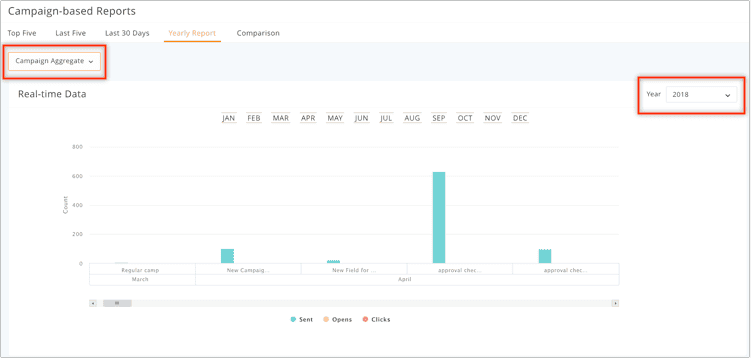
This helps track long-term engagement trends.
22. Will workspace reports reflect in the default org space?
No. Reports are workspace-specific.
Campaigns sent from a particular workspace will be reflected only within that workspace’s Reports module and will not appear in the default org space.
Recipient comments allow contacts to leave feedback directly on your email campaign.
Zoho Campaigns provides a comment box where recipients can submit their comments. These comments are moderated, meaning you can review and choose whether to publish them. Until published, comments remain private.
This feature is useful for collecting feedback and starting discussions around campaign content.
24. Do list based reports include autoresponders and workflow emails?
No. List-based reports include only regular email campaigns sent to the mailing list.
Autoresponders and workflow emails are not included in list-based reporting. Automation metrics are rather tracked separately under the Automation → Reports section.
1. What is considered a good open rate or clickthrough rate (CTR)?
There is no universal benchmark for a “good” open rate or CTR, as performance varies by industry, audience quality, and content relevance. However, as a general reference:
Higher rates usually indicate strong subject lines, relevant content, and a well-engaged audience. Lower rates may suggest deliverability challenges, list fatigue, or content that doesn’t resonate with recipients.
Yes. Under the User Agent Stats in Reports, Zoho Campaigns provides detailed device and user agent reports that show how recipients viewed your email campaigns.
These reports include breakdowns by:
Device type (mobile, desktop, tablet)
Operating system (Android, iOS, Windows, macOS)
Email clients and web browsers (such as Gmail, Outlook, Apple Mail, Chrome, Safari)
This information helps you optimize your email design and content for the devices and platforms most commonly used by your audience.
You can access this information by following the below steps:
Step 1: From the Navigation Toolbar to the left, click Reports.
Step 2: Click Sent Campaigns.
Step 3: Click the campaign for which you want to view the device-related stats.
Step 4: Click the More Actions (three-dot) button at the top bar.
Step 5: Click the User Agent Stats option.
This will show the devices and operating systems, email clients, and web browsers through which this campaign has been viewed.
Yes. Zoho Campaigns allows you to send follow-up campaigns based on engagement.
From the Sent Campaigns report:
Open the campaign you want to follow up on.
Click Send Follow-up.
Choose recipients who didn’t open or did open the campaign.
Proceed with creating the follow-up campaign.
This helps you re-engage contacts without resending the campaign to everyone.
4. Can I view geolocation based reports in Zoho Campaigns?
Yes. In the report summary, it shows the geographic distribution (by country/region) of recipients who opened your campaign, based on IP address.
Yes. Zoho Campaigns provides opens by location data in campaign reports.
Location data is derived from the recipient’s IP address and typically shows country or region-level information. However, location data may sometimes appear as “Unknown” due to:
Because of these factors, geolocation reports should be treated as indicative rather than exact.
5. Can I check whether reply tracking was enabled for a sent campaigns?
Yes. You can check this from the sent campaign report.
Go to Reports → Sent Campaigns, open the required campaign, and look at the Report Summary section. Here, you’ll be able to see whether Reply tracking was enabled when the campaign was sent.
If reply tracking was not enabled at the time of sending, replies for that campaign will not be tracked or displayed in reports.
6. Does Zoho Campaigns filter bot activity and reliable activity?
Yes. Zoho Campaigns provides an option to filter bot-generated activity.
When bot filtration is enabled:
This helps ensure that your reports reflect genuine recipient behaviour.
7. What does "Click to open rate" (CTOR) mean?
Click-to-open rate (CTOR) shows how many recipients clicked a link after opening your email.
It is calculated as:
CTOR = (Unique clicks ÷ Unique opens) × 100
CTOR helps you understand how effective your email content is once the email has been opened.
8. Can you compare or delete multiple campaigns at once from reports?
You can compare up to five campaigns at a time based on key metrics such as opens, clicks, bounces, and unsubscribes using the Campaign Comparison feature in the Reports module.
And yes, uou can delete multiple campaigns in one action.
Select all required campaigns and click the Trash icon. This will move the selected campaigns to the trash.
9. How do I switch between numbers and percentages in the Reports view?
Yes. In Reports → Navigate to Sent Campaigns, you’ll find an option at the top of the report to toggle between:
Percentage view
Count view
This lets you analyze performance using the format you’re most comfortable with.
Such Contacts are also be called inactive contacts.
You can find these contacts under Reports → List-based Reports.
Select the required mailing list and go to Contact data to identify contacts who haven’t been targeted yet.
These insights help you segment inactive users and run re-engagement or cleanup campaigns.
11. Under “List-based reports,” what does “Not opened recently” and "Not Opened" mean?
“Not opened recently” lists contacts who haven’t opened campaigns sent to the mailing list within a selected time range, which can vary from the last month up to the last 12 months.
This helps you identify disengaged contacts over a specific period.
“Not opened” includes contacts who have never opened any campaign sent to the selected mailing list, regardless of when those campaigns were sent.
Currently, Zoho Campaigns does not provide a direct comparison view for mailing lists.
However, you can export reports for individual lists and compare their performance manually. And, You can export reports for up to 20 campaigns at a time.
13. Why are my click rates visible but open rates are zero?
This usually happens because open tracking depends on a tracking image, which may not always load.
Common reasons include:
The recipient has disabled image loading
The email client blocks tracking pixels
The recipient clicked a link without loading images
The campaign was sent as a plain-text email
In these cases, clicks are still tracked correctly, but opens may not be recorded.
14. What are the types of opens tracked in Zoho Campaigns?
Zoho Campaigns tracks different types of opens to provide better clarity on engagement.
These include:
Reliable opens – Human-verified opens after filtering bot activity who opened your email, with each counted only once regardless of multiple opens.
Bot opens – Opens triggered by automated systems like email scanners or security bots that scan mails for security.
Apple MPP-influenced opens – Opens triggered due to Apple Mail Privacy Protection (iOS 15+), preloading images even if the user hasn’t actually opened the email.
Enabling bot filtering helps ensure that your engagement metrics reflect actual recipient behaviour instead of inflated open rates.
15. What does “bounce rate” mean?
Bounce rate represents the percentage of emails that were not successfully delivered.
It is calculated as:
Bounce rate = (Number of bounced emails / Number of emails sent) × 100
This includes both:
16. Can I segment recipients based on report data?
Yes. Zoho Campaigns allows you to create segments based on campaign engagement.
You can segment contacts using criteria such as:
These segments can be reused for targeted follow-up or re-engagement campaigns.
17. What is a clickthrough rate (CTR)?
Clickthrough rate (CTR) shows the percentage of recipients who clicked at least one link in your email, out of the total emails delivered.
CTR is calculated as:
CTR = (Number of unique clicks / Number of emails delivered) × 100.
CTR helps you understand how effective your email content and call-to-action are in driving engagement.
18. How is the open rate calculated?
Open rate shows the percentage of recipients who opened your email.
It is calculated as:
Open rate = (Unique opens / Emails delivered) × 100
Because open tracking relies on image loading, this metric may be affected by email client restrictions.
19. What are the key metrics shown in a campaign report?
A campaign report typically includes:
● Delivered emails: The number of emails successfully delivered.
● Opened: Total and unique opens.
● Clicked: Total and unique link clicks.
● Bounced: Hard and soft bounces.
● Unsubscribed: Number of users who opted out.
● Spam Complaints: Reports marked as spam by recipients
These metrics together give a complete view of campaign performance.
20. What is a unique reply and reply rate in Campaign reports?
Unique replies represent the number of distinct recipients who replied to your email. If a recipient replies multiple times, they are counted only once in unique replies.
A reply rate is the percentage of recipients who sent a reply to your email out of the total number of recipients to whom the email was delivered.
21. What are reliable clicks in Campaign reports?
Reliable clicks represent the number of unique recipients who clicked at least one link in your email, with each recipient counted only once.
This metric helps avoid over-counting repeated clicks by the same contact.
22. What is "Email opens from unknown location"?
When you send emails through Zoho Campaigns, and if you have opted to get the location data of the email recipients, the data along with the open and click rates will be displayed in the campaign reports.
The open rate is tracked with the help of a hidden one-pixel image placed in the body of the message. When an email recipient opens the email and when the one pixel image is downloaded, an "open" is recorded in your Campaigns database. When the recipient opens the email multiple times, the open count increases. The click rate is calculated when an email recipient opens an email and clicks the link present in it.
When an email is opened or when a link is clicked, data about the Internet Protocol (IP) address from which the email recipient accesses their mailbox is saved and used to determine the recipient's location. This location is identified by mapping the IP address with the entries in the internet service provider's database or regional internet registries.After acquiring location information, you can use the data that's collected to send personalized campaigns.
Though the exact location of an email recipient cannot be identified, you can determine their city/town/village if the email is frequently opened and the links in them are clicked. The data that's collected may sometimes be inaccurate due to insufficient information in the geolocation service provider's database and various other factors.
Let's take a look at the major road blocks you might face when trying to determine the geolocation of email recipients.
When emails are forwarded
When an email recipient forwards an email to their friend and when that friend opens the email and click the links, the recipient's friend's location is identified and is assumed to be the original email recipient's location.
For example, if an email recipient in Brazil forwards an email to a friend in Russia, and when the friend opens the email, the IP address used by the friend in Russia will be analyzed and the corresponding location will be saved in the database.
When email recipients use a Virtual Private Network (VPN)
When email recipients use a VPN to access their mailbox, the IP address of the VPN is used to determine the location, and the location of the VPN's IP address will be considered as the email recipient's location.
For example, if an email recipient in Brazil uses a VPN in Russia to access their mailbox, the location of the IP address (Russia) is assumed to be the email recipient's location.
Image proxying
Generally, when people receive email from unknown sources, the images in those emails are not displayed because the email is not from a trusted source. Now, some mailbox providers have started to cache images in emails for security reasons. They download the images in their proxy server, check for security threats, and then send the email to the recipient's inbox.
When images are downloaded and links are checked for malware in the mailbox provider's proxy server, the location of the mailbox provider's proxy server is saved as the email recipient's location in your Zoho Campaigns database.
When anti-spam and phishing email software is installed
Some email recipients have installed security software to protect their inbox. These anti-spam and phishing software programs will check emails that reach a recipient's inbox, open the links, download images, and scan them for malware. In such scenarios, the IP address of the security software's server will be used to determine the location, and its location will be assumed to be that of the email recipient.
Under the circumstances listed above, Zoho Campaigns won't be able to identify the exact location of a lead. In these cases, in the campaign report, we will mark them as "Unknown location" under the "Opens By Location" section.
23. What is the difference between unique opens/clicks and total opens/clicks?
Total opens/clicks count every interaction, including repeat actions by the same recipient.
Unique opens/clicks count each recipient only once, regardless of how many times they interacted.
For example:
Number of times Rob opened the email - 4
Number of times Doug opened the email - 3
Number of times Nick opened the email - 2
Total Opens - 9
Unique Opens - 3
This distinction helps you understand both reach and intensity of engagement.
Note that if bot filtering is disabled, total opens may include bot-triggered opens as well.
Advanced reports
1. Why is the Google Analytics (GA) reports section not available under Zoho Campaigns Reports?
Due to changes in Google Analytics API restrictions and version upgrades, detailed GA reports are no longer displayed directly inside the Zoho Campaigns Reports module.
However, you can still connect Google Analytics to Zoho Campaigns for tracking purposes. Campaign-related data will be passed to Google Analytics, and you can view detailed campaign performance directly within the GA interface.
2. Do SMS campaigns support a follow-up campaigns like email campaigns?
No. SMS campaigns currently do not support follow-up campaigns.
The follow-up option is available only for email campaigns, where recipients can be filtered based on engagement such as opens or clicks.
3. Can I check the SMS credits used and cost spent from campaigns reports?
Yes. You can view SMS credit usage from the SMS campaign report.
Navigate to Reports → SMS Campaigns, open the required campaign, and click on the Credits section. This shows the total credits consumed for that campaign, which can be used to track cost and usage.
4. Can the sent campaigns be reordered in the Reports module?
Yes. You can reorder campaigns in the Reports module.
Open Reports, and in the top-right corner, use the sorting options to reorder campaigns based on:
Ascending order
Descending order
Recently sent
This helps you quickly find the campaigns you’re looking for.
5. Can I rearrange or customize columns in campaign reports?
Yes. You can customize and organize columns in campaign reports.
Open the report and click the Equalizer (settings) icon to:
This helps you focus on the data that matters most.
6. Can Zoho Campaigns track survey or poll results?
Zoho Campaigns can track survey and poll results only when they are created using Zoho Survey or SurveyMonkey.
If a survey or poll is created using an external tool, Zoho Campaigns will not track the responses. However, the action will still be recorded as a link click.
For supported surveys and polls:
You can view completed, partially completed, and pending responses.
Reports can be accessed from Reports → Sent Campaigns → Link Clicks.
Survey and poll results are shown separately for better clarity.
7. Can I move multiple campaigns at once to a different folder?
Yes. You can move multiple campaigns at the same time.
In the Reports module:
Click Select all (or choose specific campaigns).
Click Move to folder.
Select the destination folder.
Yes. You can mass update contact fields directly from campaign reports and specific views within the Reports page.
From sent campaign reports, open the required campaign and select an activity such as opens or clicks. Once the activity data is displayed, you can use the Mass update option to update selected contact fields for all contacts who match that engagement criteria and set a value.
Similarly, In the sent campaign reports, certain report views also support mass updates. For example, under Report Summary → Opens by Location, switching to Table view enables the Mass update option, allowing you to update contact fields and set a value in bulk based on the report data.
This makes it easy to enrich or modify contact information based on user engagement and reporting insights, without updating contacts individually.
9. Can I customize or filter reports by date range?
No. Zoho Campaigns does not currently support date-range filtering within a single campaign report.
Campaign reports always show cumulative data from the time the campaign was sent.
Yes.
Under Reports → Sent campaign → Specific campaign → Clicks section →Select link → View Contacts → Export.
You can download a report that includes only the contacts who clicked a specific link in your campaign.
To do this:
Go to Reports → Sent Campaigns.
Open the required campaign.
Go to the Clicks section.
Select the specific link
Click View Contacts.
Use the Export option to download the report.
The exported file will contain only the contacts who clicked that selected link.
11. How do I view the child or chain campaign reports?
To view child or chain campaign reports:
Go to Reports → Sent Campaigns.
Open your preferred campaign.
Click View chain or View child campaign.
This helps you to analyze the performance of follow-up or linked campaigns.
12. What is the password for accessing exported reports?
Exported reports are password-protected for security.
The default password is a combination of the following:
The same password format is used for all exported report files.
Yes. You can export campaign report data in CSV, XLS, or XLSX formats.
To export:
Go to Reports → Sent Campaigns.
Open the required campaign.
Go to Recipient Activity.
Choose the activity type you want to export (opened, clicked, unsubscribed, spam, etc.).
Click Export.
14. Can I export the reliable and bot opens from sent campaigns reports?
No. Currently, exporting neither reliable open based nor bot open based contacts is supported.
This feature is planned for a future update.
15. Can SMS campaigns reports be compared?
Yes. Zoho Campaigns supports SMS campaign comparison.
You can compare SMS campaigns based on:
Activity
Yearly performance
Navigate to Reports → SMS Campaigns to access these comparison views.
16. Can I export the consolidated report for all email campaigns?
In Zoho Campaigns, campaign reports can only be exported per campaign.
A consolidated export option for all campaigns is under development and will be available in future updates.
No. Campaign reports can only be exported at the campaign or list level.
However, individual contact activity is available within the contact profile under Campaign summary.
18. Why can’t other users access my reports?
If other users can't access your reports, please check to make sure you have set the right privileges.
From the navigation toolbar, choose Settings and select Manage Users.
Open the Privilege tab.
Enable Access campaign detailed reports, stats and analysis for all users.
You can also set up to notify other admins or users via email when your campaign reports are generated or updated by enabling Report Notification Settings.
19. How do I share reports?
You can share the reports of your sent campaigns with anyone using a link. When you share a report generated link, the recipient can view a detailed report summary. However, recipients data is password protected and you can share the access code with the receiving user to view data.
To share a report:
From the Navigation toolbar, choose Reports.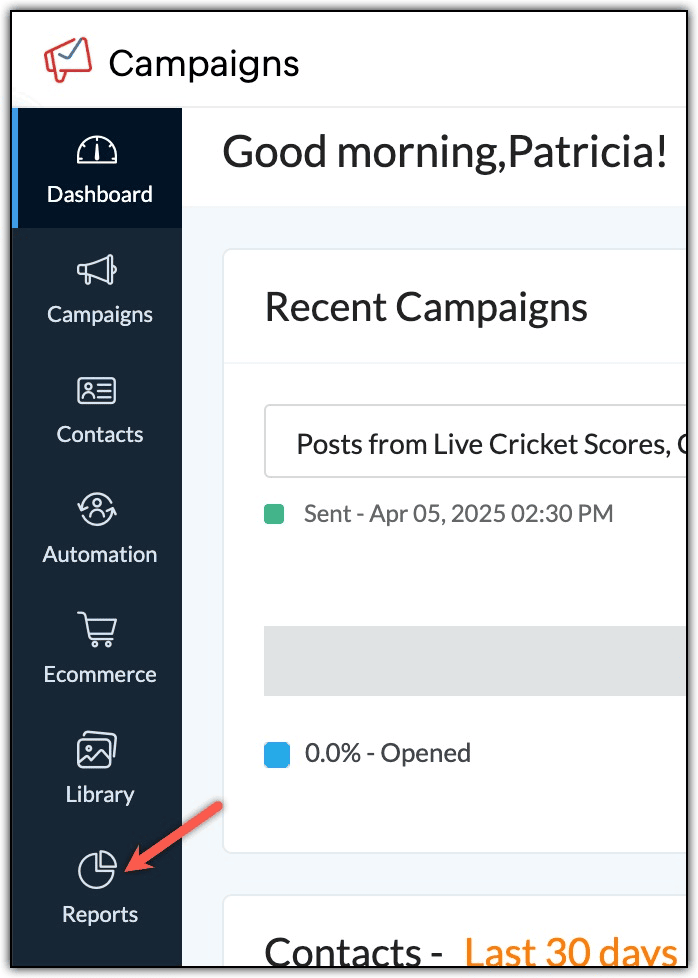
Select Sent Campaigns.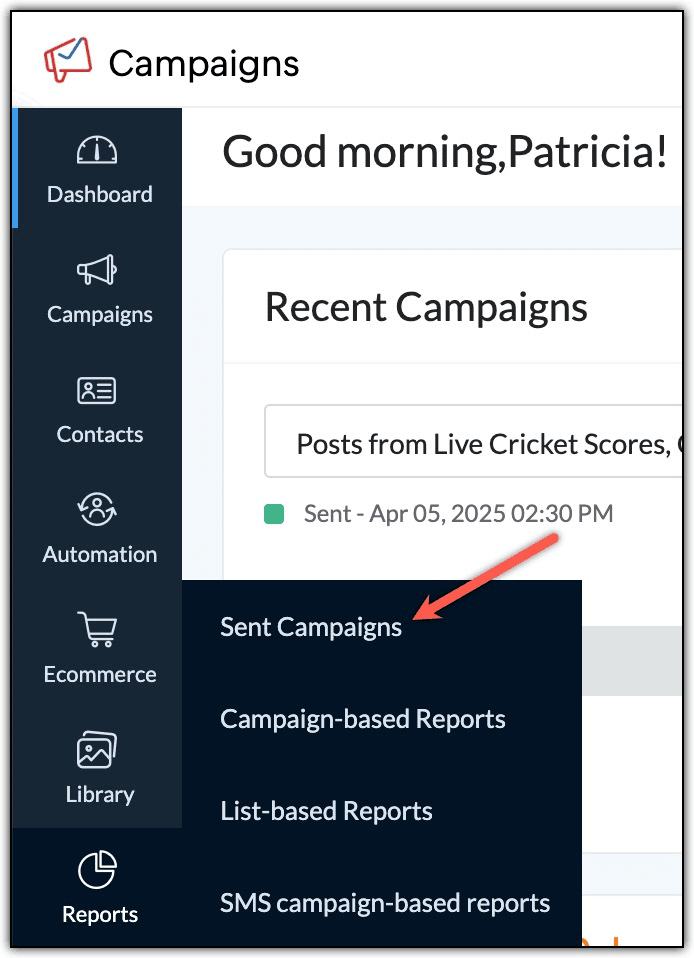
Select the campaign you want to share reports for.
Click ther More icon in the top-right corner. From the dropdown list, select Share Reports.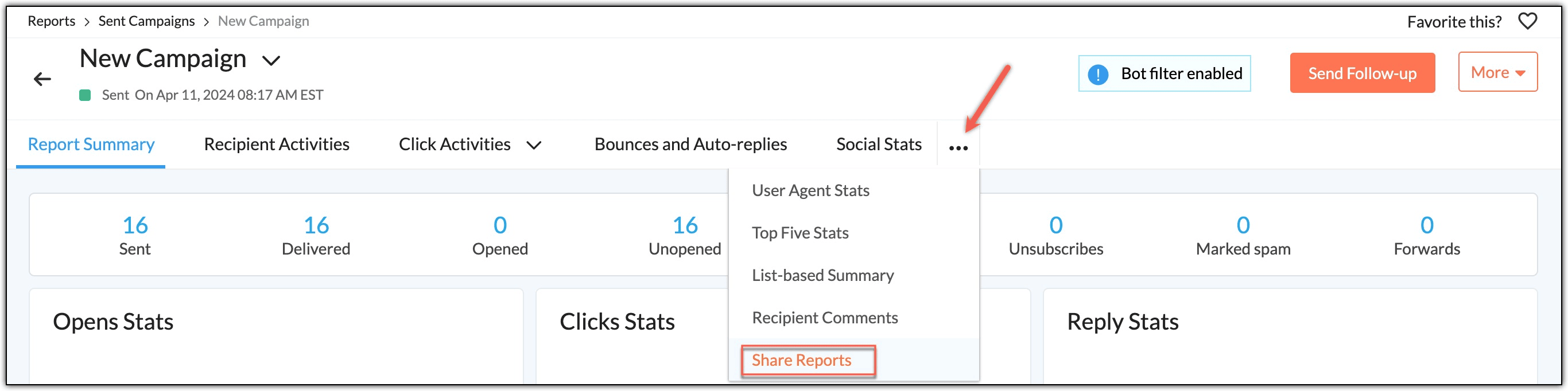
Select header details from the dropdown and enter the Access code.
Click Generate Report Link to generate the report URL.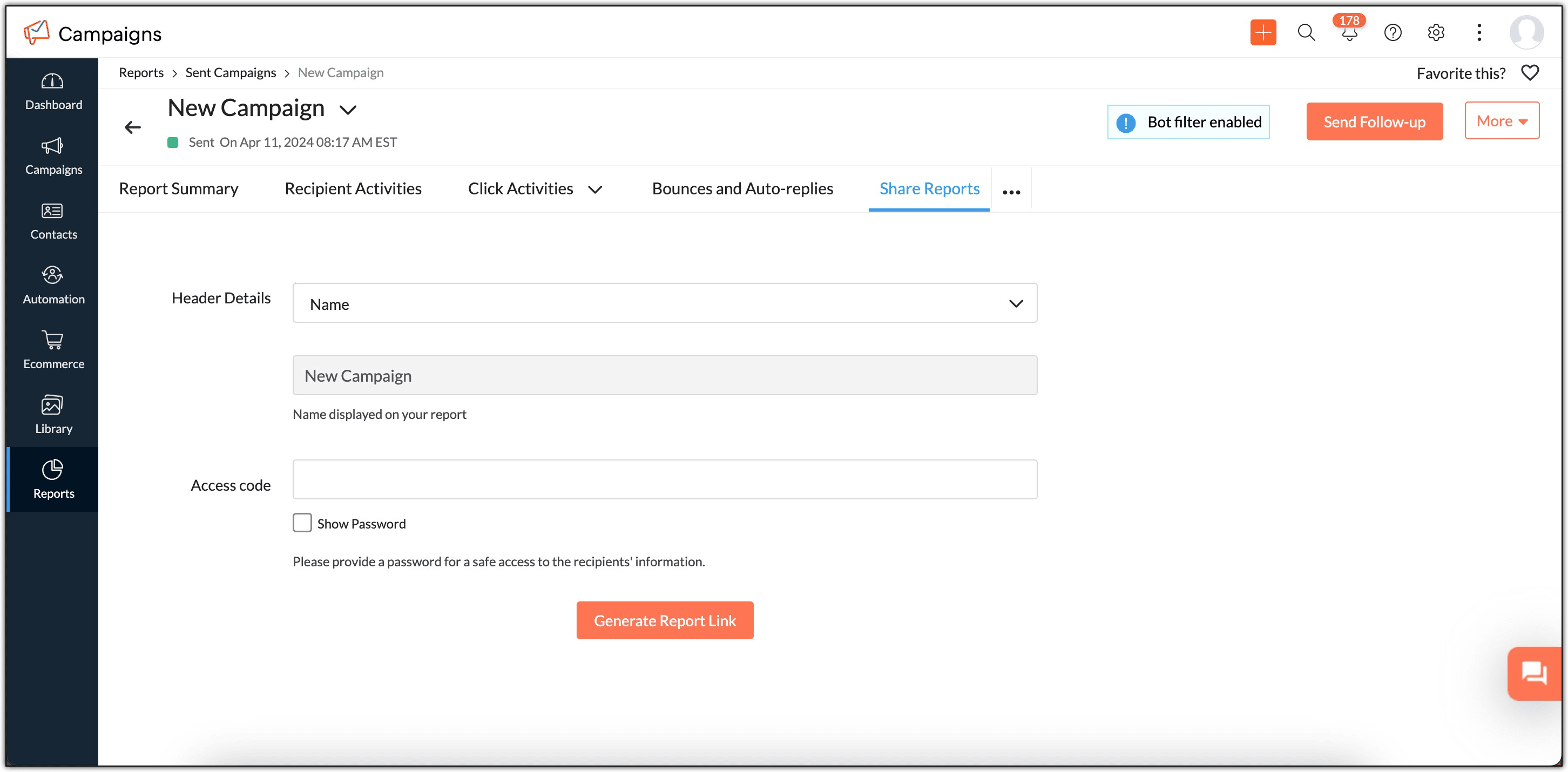
The report URL will be generated below. Copy and paste it in another tab to view it.
You need to share this password with the people you want to share the reports with.
You can share the access code separately with the recipient.
Note that shared report links are valid only for a limited time.
20. Can I send follow-up emails to users who have opened my emails?
Yes. To send follow-ups to those who've opened your emails:
From the navigation toolbar, choose Reports and select Sent Campaigns.
Select the campaign to send follow-ups for.
Click the Send Follow-up button.
Under Chain Campaign, select For Opened Recipients to send the email to those recipients.
Proceed with the usual campaign creation steps.
21. Can I edit a campaign after it has been reviewed or sent?
You can edit a campaign after it has been reviewed, but not after it has been sent.
Once a campaign is sent:
If you use the same content often, you can save it as a template in the library for future campaigns.
Deliverability insights
1. What are the limitations in reports data for plain-text email campaigns?
Plain-text email campaigns have limited tracking capabilities.
Because plain-text emails do not support the 1×1 tracking pixel or clickable hyperlinks:
Open tracking is not available
Click tracking is not available
Only delivery and bounce information is recorded
If you need detailed engagement data like opens and clicks, it’s recommended to use HTML campaigns or pre-designed templates.
2. Why is there a discrepancy between the number of email opens and the user agent stats?
Our user agent data is gathered from contacts who have opened your emails. This allows us to parse related data about contacts' devices, OS, desktop email clients, and web browsers. However, when email clients such as Google and Yahoo are involved, they suppress the user agent string and encrypt it through proxy servers. We do not receive authentic data from these proxy servers, so we remove this user agent data from our stats. This can lead to discrepancies between the number of email opens and the user agent stats.
3. Can I see inbox placement details in the Campaigns Reports section?
No. Zoho Campaigns does not display inbox placement information in campaign reports.
Inbox placement depends on email providers and spam filtering systems, and this data is not shared reliably with email service providers. As a result, this information is not available in the Reports module.
4. Are test emails counted in sent campaign reports?
No. Test emails are not recorded as recipient activity.
Test emails are meant only for previewing and validating campaign content. Opens, clicks, or replies from test emails will not be included in sent campaign reports.
5. Are spam complaints tracked in campaign reports?
Yes. If a recipient marks your email as spam and the mailbox provider shares that information, Zoho Campaigns will record it.
Spam complaints appear under the Spam Complaints section of the campaign report. This data helps you monitor sender reputation and identify campaigns that may be triggering spam filters.
6. Is there any validity for the generated report link?
Yes. The generated report link is valid for 15 days from the time it is created.
After the validity period expires, the link will no longer be accessible, and a new link must be generated if you want to share the report again.
7. Why is my sent campaigns report not constant?
Earlier, campaign reports could change due to automated bot activity.
If bot filtering was enabled, Zoho Campaigns will now separate bot-triggered actions from real recipient activity. This ensures your reports remain stable and reflect accurate engagement.
Auto-replies are automatic responses sent by recipients (for example, out-of-office replies).
These replies are routed based on the recipient’s mail server configuration, usually to the sender or reply-to address. Zoho Campaigns does not control or re-route auto-replies.
Once they are back, they will have a chance to view and respond to the emails.
9. How are the open locations identified?
Based on the recipient's email box configuration or IP, our server will deduct the recipient location from the recipient's server acknowledgment, and the same will be updated in sent Campaigns reports.
10. Where can I view the unsubscribe feedbacks received for my email campaigns?
When sending email campaigns to your contacts, it is mandatory to include an unsubscribe link in the campaign. It is considered one of the key aspects of responsible email marketing. It will also help boost your email deliverability rate. Given below are the two ways in which you can access the unsubscribe feedbacks in Zoho Campaigns.
Reports
Follow the steps given below to view unsubscribe feedback in the Reports section of Zoho Campaigns.
Click Reports in the Navigation tool bar.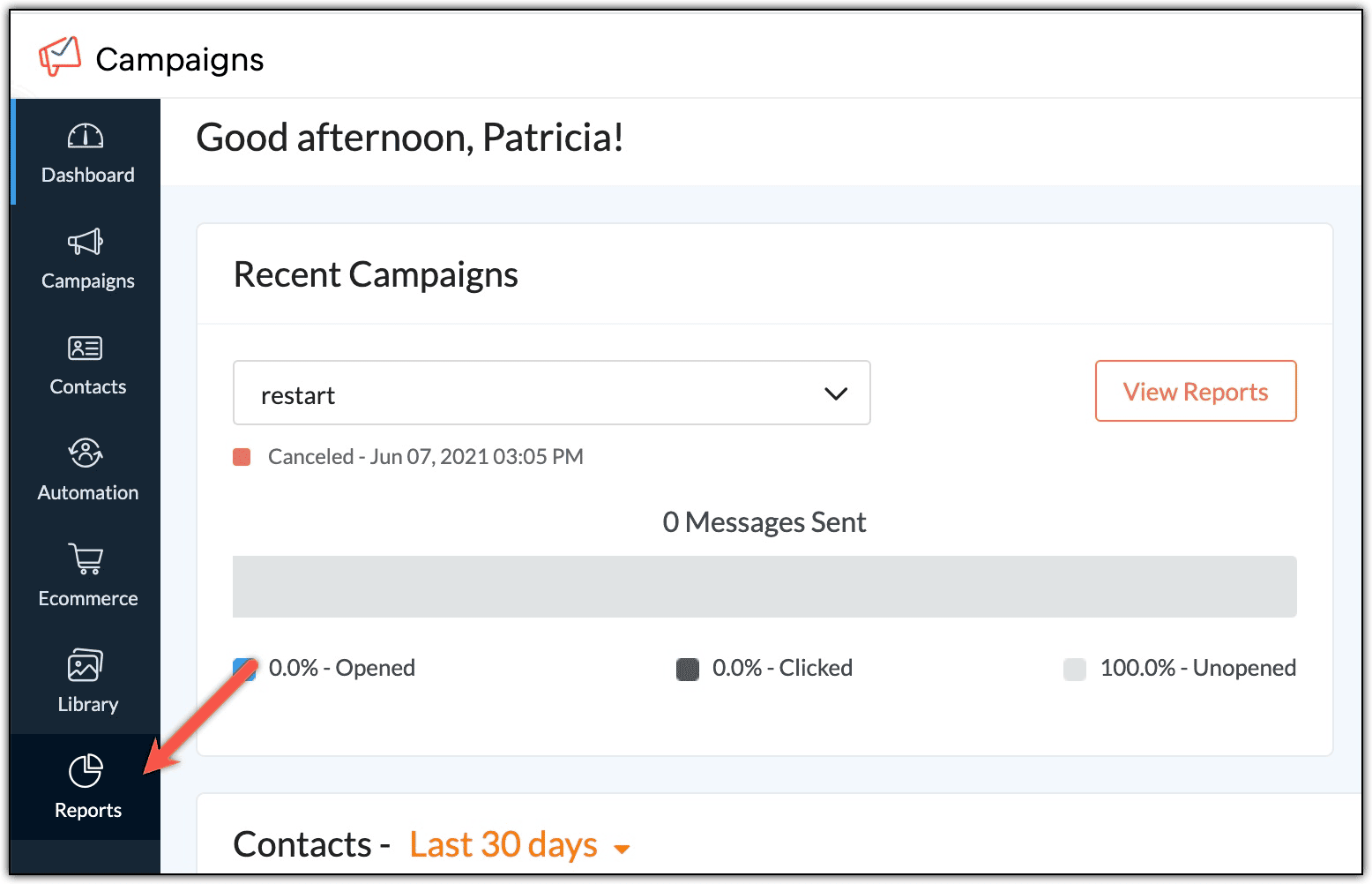
Click Sent Campaigns.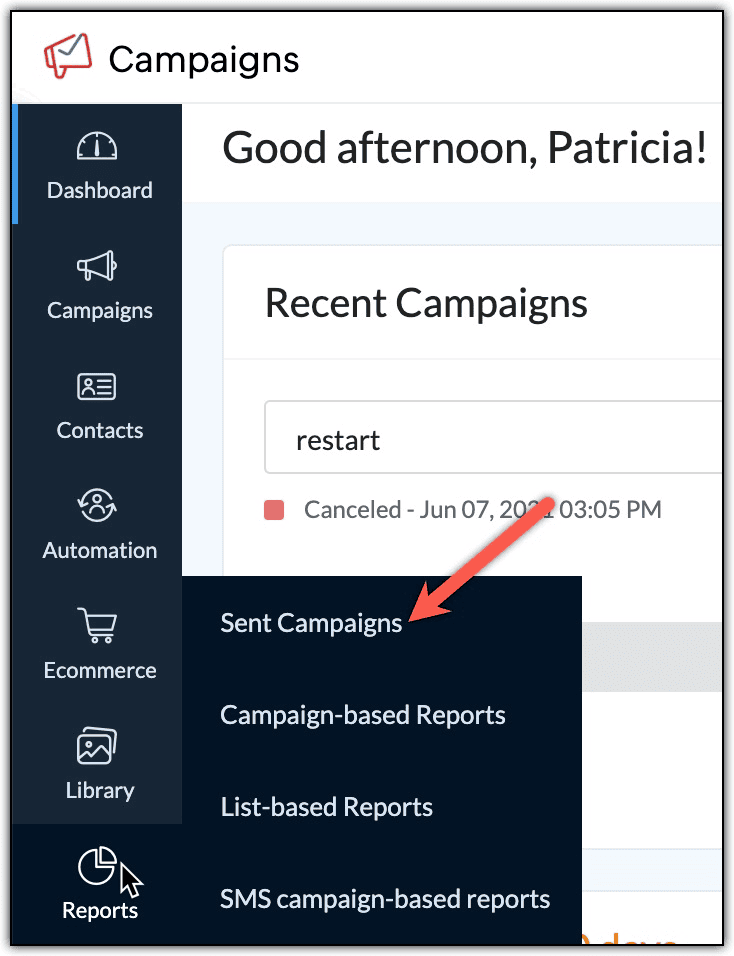
Click Unsubscribes. You will be able to view the reason for the unsubscribe under Feedback.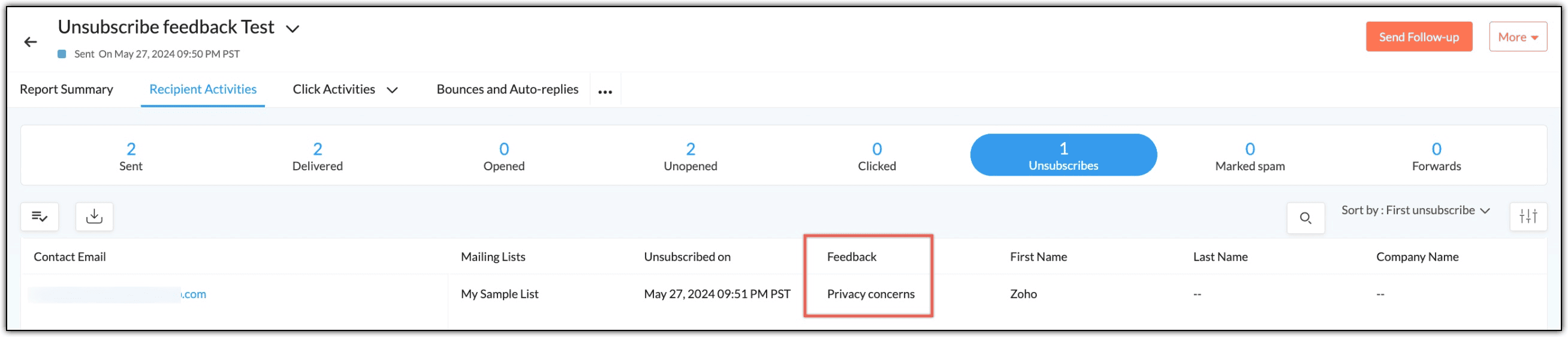
List Summary
Given below are the steps to view unsubscribe feedback within the List Summary of Zoho Campaigns.
From the Navigation toolbar, choose Contacts.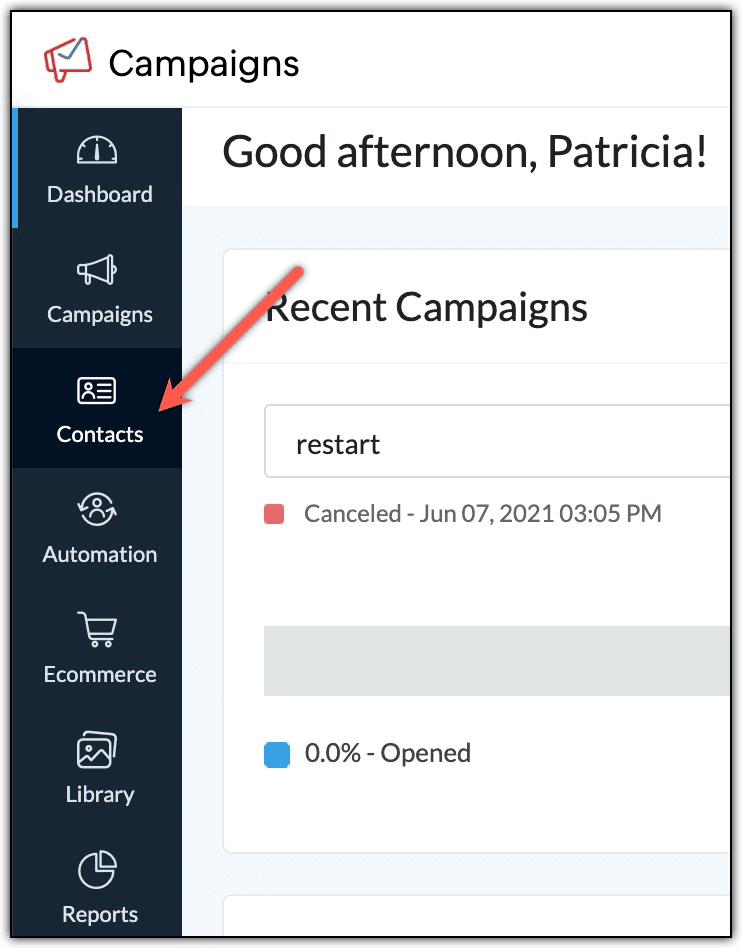
Click Manage Lists.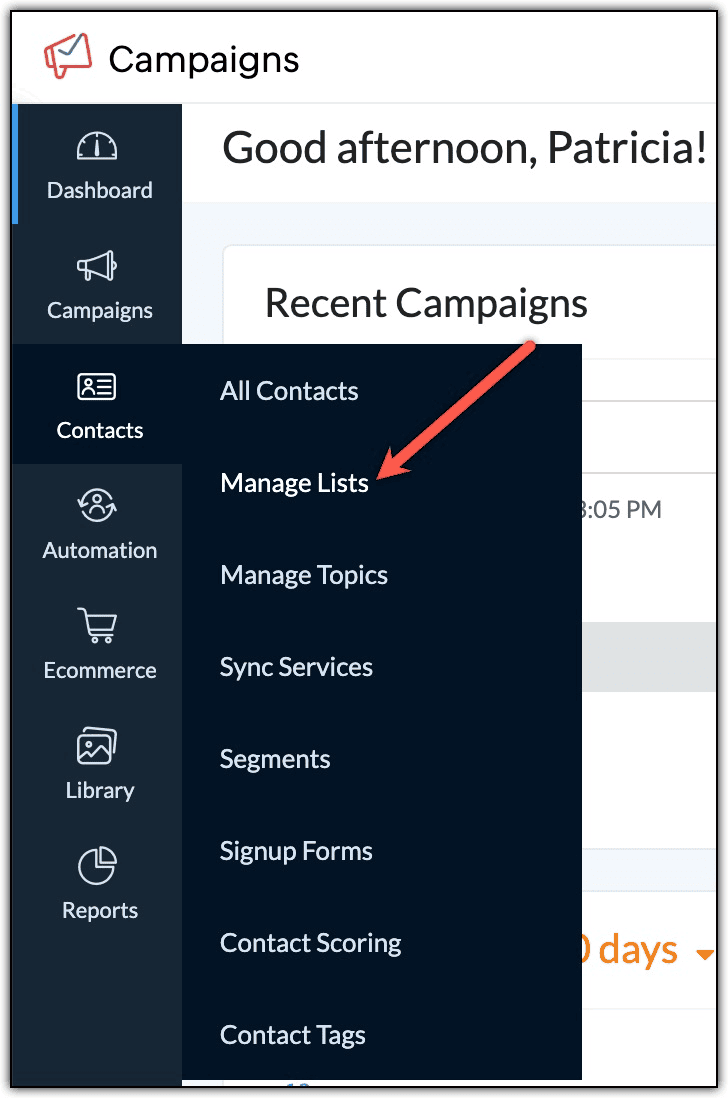
Click on the List you wish to see the list summary for.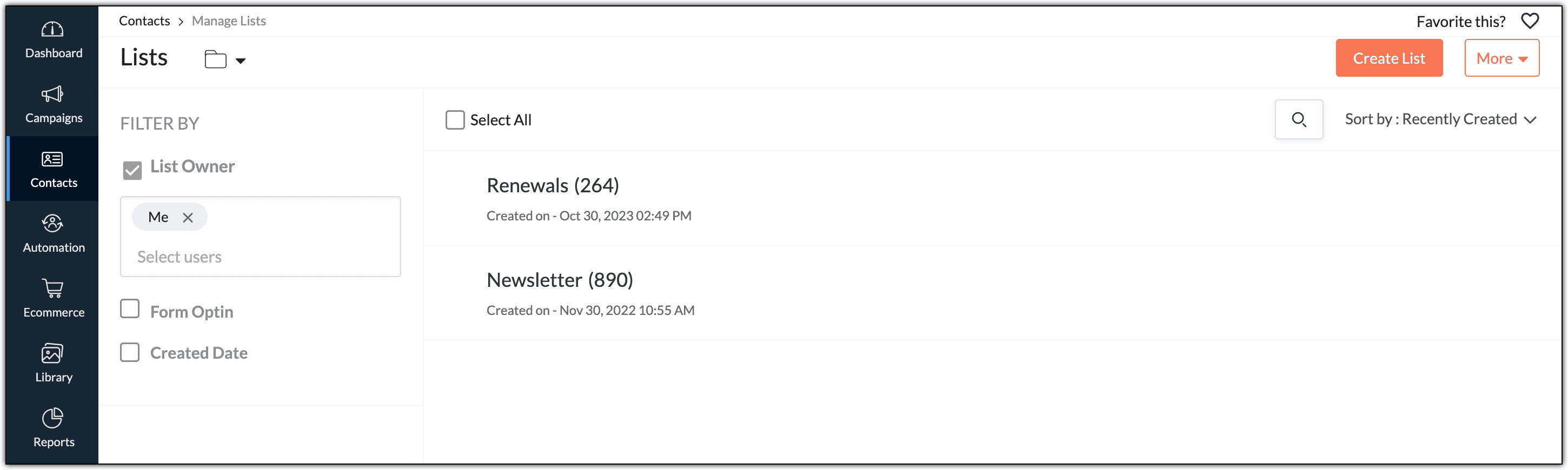
Click Unsubscribes. In the pie chart, you can see the reasons why contacts have unsubscribed from the list.
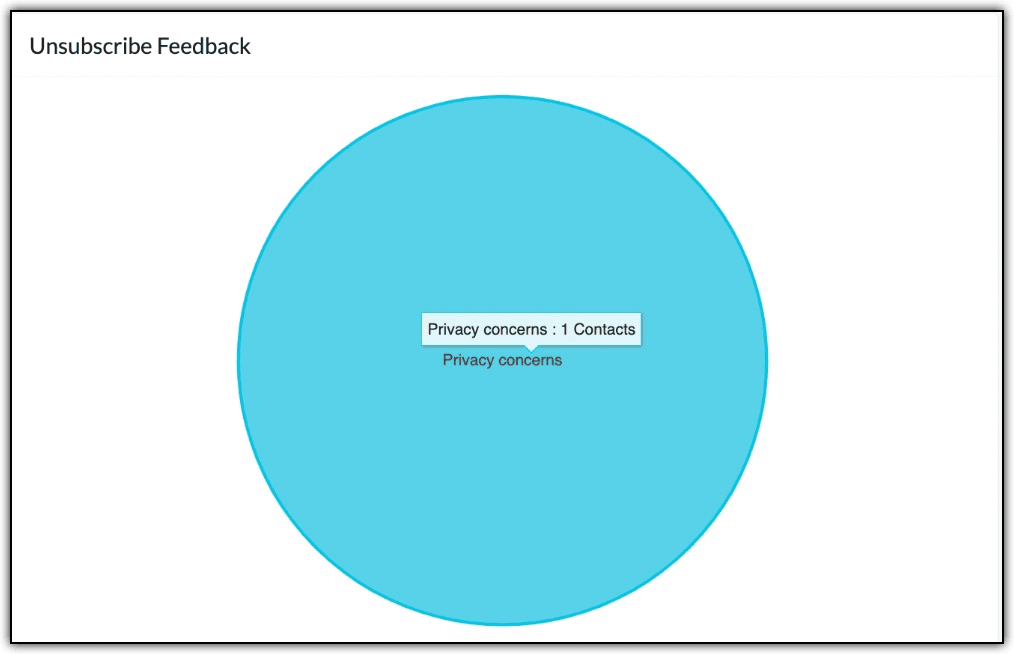
But in order to obtain feedback in the first place, you need to enable the unsubscribe feedback form (if you haven't done already). Here are the steps:
1. Click Settings icon on the top-right corner of the screen.
2. Choose Signup Pages and Emails under Customization.
3. Click the 'Unsubscribe Feedback' page optio
4. In the window that appears, under the 'Unsubscribe feedback' page option, click Enable.
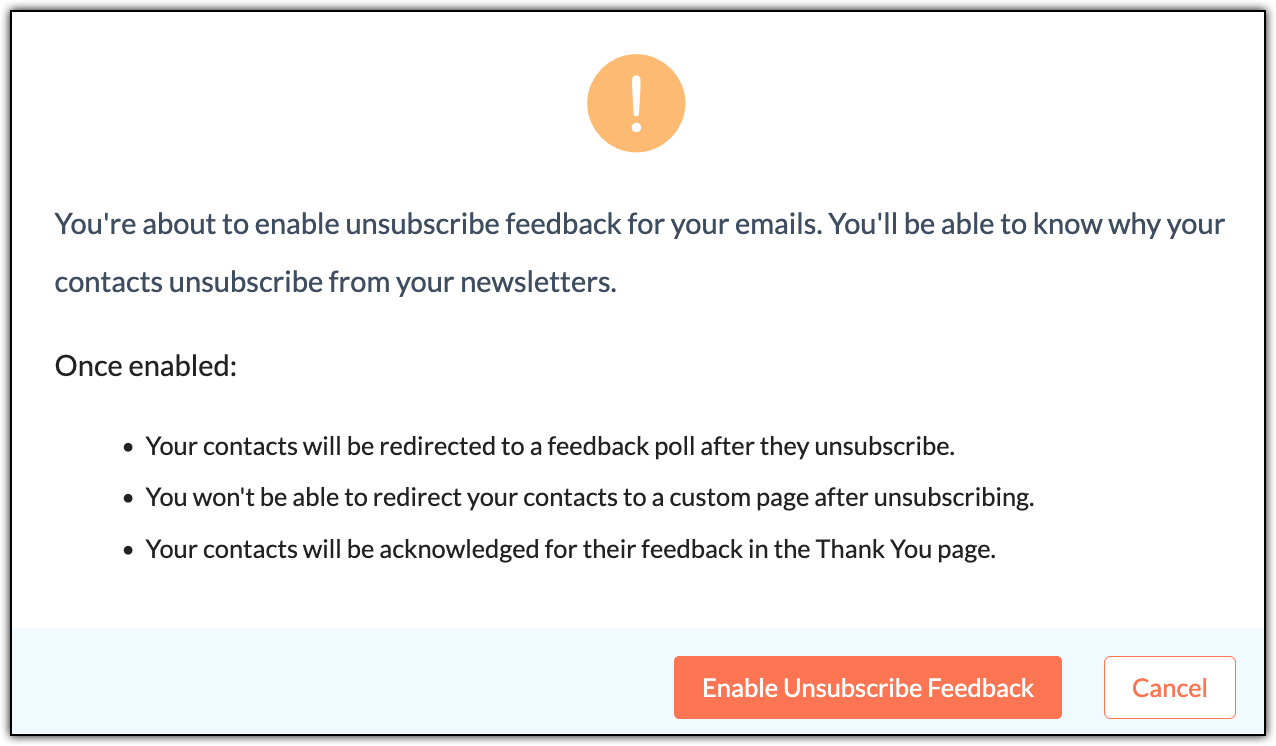
5. In the pop-up that appears, click the Enable Unsubscribe Feedback button.
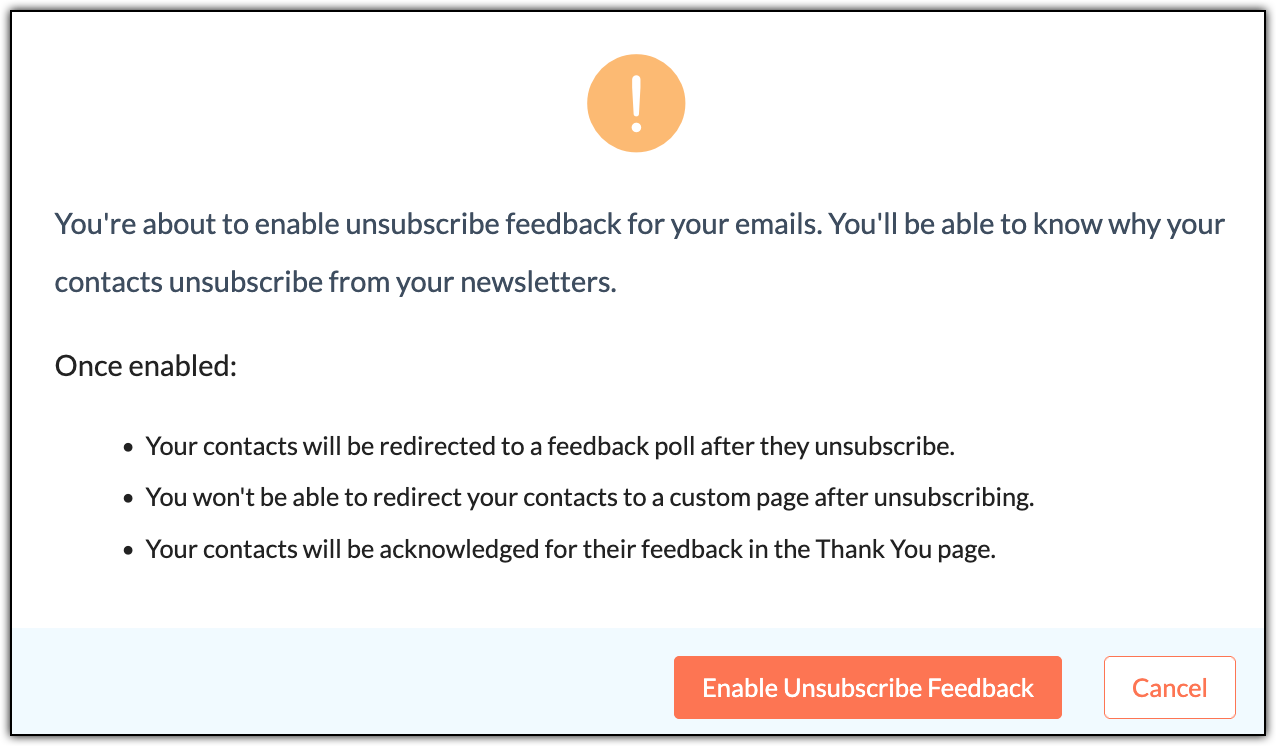
This will enable the option to receive feedback when your contacts unsubscribe.
For further information, please refer this
help document.
Note:
After you enable the unsubscribe feedback form in Settings, you'll find two tabs namely:
Opt out from organization
Data Erasure
When your contacts click the unsubscribe button in your campaigns, they'll see the Unsubscribe button. But they'll also see the Erase my data checkbox.
If they tick this and unsubscribe, they can't provide feedback. Hence, your reports will not show any feedback for such contacts who chose to erase their data.
11. How long will my campaign reports be saved in my account?
At Zoho Campaigns, we'll retain the information related to past campaign reports such as opens, clicks, email addresses and related activities for a period of five years.
Note: After five years, you can only view the overview of the report rather than the detailed report summary.
12. What does ‘marked as spam’ mean?
‘Marked as spam’ means a recipient has reported your email as junk or spam using their email client.
This includes:
Spam complaints are tracked in campaign reports and should be monitored closely, as high spam complaints can negatively impact deliverability.
