Set up sync with Bigin - New Version
There are two types of sync between Bigin and Zoho Campaigns that you can set up.
- Immediate Sync : After you setup and initiate an immediate sync, any new record that is added in Bigin will be automatically updated in Campaigns. Your records will be up-to-date without any lag. Using immediate sync, you can only sync records from your Contacts module in Bigin.
- Periodic Sync : Set up this sync to schedule periodic syncing of all your records between Bigin and Campaigns on a daily, weekly, or monthly basis. Using periodic sync, you can import records from the Contacts, Companies, and Deals module in Bigin.

We have recently updated to a new Bigin integration model in Zoho Campaigns. Please view the updated help document, if you've migrated to the latest integration model.
Initiating Immediate Sync
You can initiate an immediate sync with Bigin to import records from your Contacts module in Bigin. Once you initiate an immediate sync, records from Contacts module will be imported and the new records that are added in Bigin will also be automatically imported.
To initiate immediate sync with module Contacts:
- From the navigation toolbar, choose Contacts and select Sync Services.
- Mouse over Bigin and click New Sync.
- Mouse over Immediate Sync and click Create Sync.
- Select All Contacts/Custom View to sync either all records from Contacts module or only the records from a custom view in that module.
- Select the mailing list to which you want to sync the records.
- Select the topic to associate the contacts to be synced. This step is applicable only if you have configured other topics in addition to the default topic (Marketing).
- If you have email opt-out contacts and converted leads, you can either include them from the import, remove them from mailing list or remove from Zoho Campaigns by selecting the respective radio button.
- Click Next at the bottom-right.
- Setup the field mapping and click Initiate at the bottom-right.
Initiating Periodic Sync
You can initiate a periodic sync with Bigin to import records from modules Contacts, Companies and Deals from Bigin to Campaigns at intervals that you define. New records that are added in the specific module will be imported at the defined intervals.
To initiate a periodic sync:
- From the navigation toolbar, choose Contacts and select Sync Services.
- Click New Sync.
- Mouse over Periodic Sync and click Create Sync.
- Select the module that you want to import contacts from.
- Select All Leads/All Contacts/All Accounts/All Deals/All Custom Module to sync all records depending on the respective modules that you have selected.
- Select Criteria to define conditions to filter records from CRM account.
- Select the mailing list to which you want to sync the records.
- Select the topic to associate the contacts to be synced.
- If you have email opt-out contacts and converted leads, you can either include them from the import, remove them from mailing list or remove from Zoho Campaigns by selecting the respective radio button.
- Select the frequency of data retrieval i.e either once, daily, weekly or monthly.
- Select the time at which you want the sync to occur periodically.
- Choose if you want import all data or only the data added after a specific time.
- Click Next.
- Setup the field mapping and click Initiate.
 To avoid multiple syncs to a custom view, please make use of periodic syncs rather than creating new immediate syncs to import data at regular intervals.
Import records based on criteria
While setting up the synchronisation of records between Bigin and Campaigns, you can define certain criteria for the import and only the records that match the set criteria will be imported. To import records based on criteria in the sync set up, choose Criteria. Further follow the same steps for initiating a sync as stated in the sections above.
Field Mapping
Basic details such as email address, first name, and last name are pre-mapped.
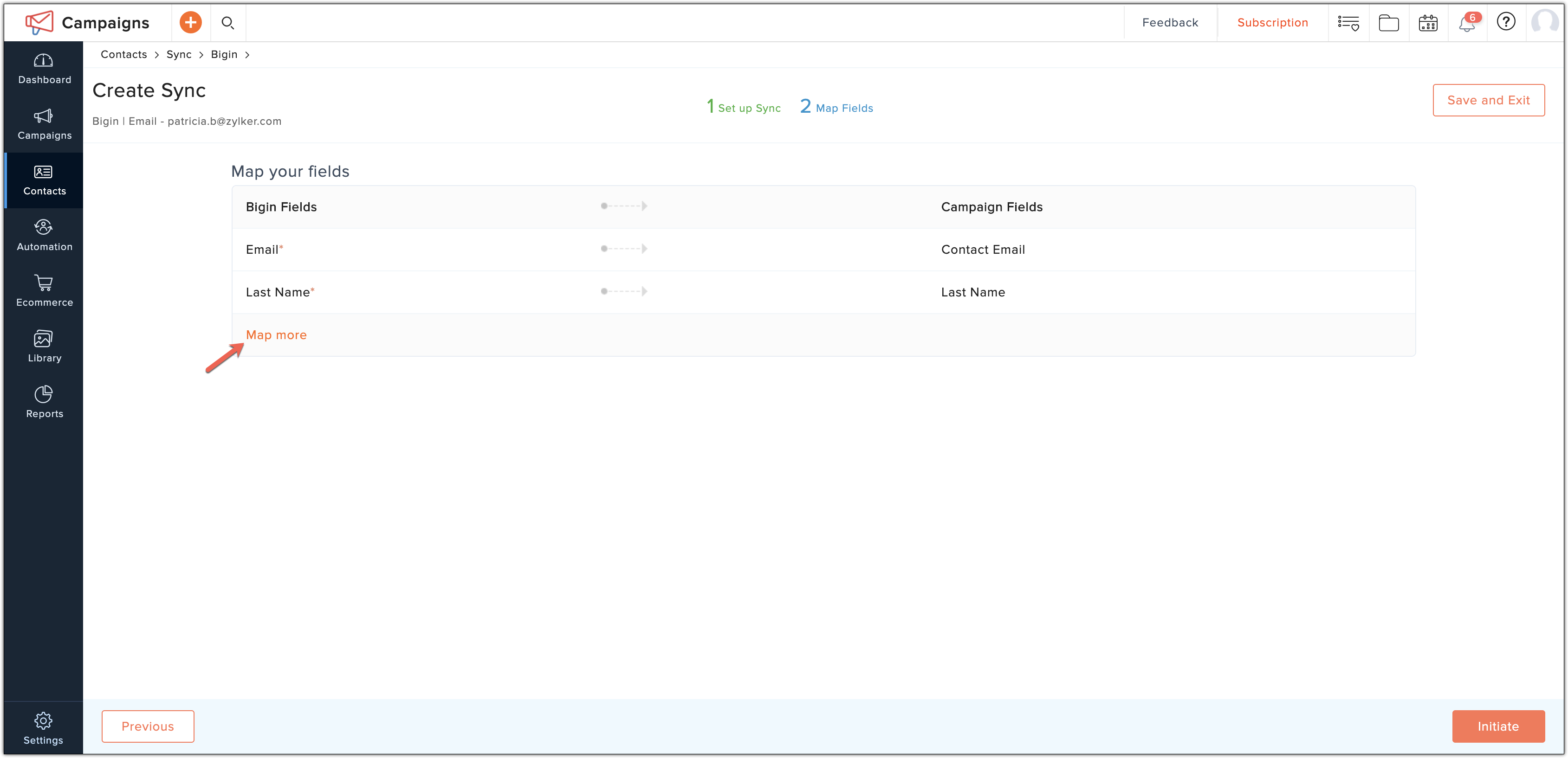
Click Map more fields if you want to add more fields to the mapping.
Click Add after mapping the respective fields.
Sync Detail View
How do I edit field mapping?
You can edit the set field mapping in a sync detail view. Go to Active Syncs page and click View Details on the respective sync for which you want to view the details.

You can re-map or map more fields for your sync settings by clicking Edit Mapping in the Sync Detail View.
You can re-map or map more fields for your sync settings by clicking Edit Mapping in the Sync Detail View.
How do I edit record retrieval details?
You can edit the retrieve details such as retrieve interval, data to be retrieved and sync contacts configuration by clicking Edit Retrieval Details present in the Sync Detail View.
Bigin to Campaigns settings
- From the navigation toolbar, choose Contacts and select Sync Services.
- Click Active Syncs under Bigin.
- Click Setup.
- Click Edit.
- In this section, you can do the following:
- Update fields with empty values – Enable this option to update empty values from Bigin to Campaigns. This will update the synced contact data based on changes in Bigin.
- Update Zoho Campaign Activities - Enable this option to update any changes that happens in contacts with respect to campaign and autoresponders sent from Zoho Campaigns.
- Update fields with empty values – Enable this option to update empty values from Bigin to Campaigns. This will update the synced contact data based on changes in Bigin.