Creating an audience dashboard
Overview
The Audience Dashboard is a dedicated dashboard created for a specific audience to ensure the right information reaches the right people.
For example, managers in a company can be grouped as an audience and provided with a dashboard tailored to their updates, tasks, and resources.
How is it useful?
The Audience Dashboard is a customized version of the regular company dashboard, except that access is restricted to specific audiences within the network.
It helps administrators:
- Restrict dashboard access to selected audiences
- Ensure users view only relevant dashboard content
- Share company updates and widgets with targeted users
This makes it easier to deliver a more focused and personalized dashboard experience for different groups in the network.
Who can create/update the Audience Dashboard?
The Audience Dashboard can be created by:
- Network Admins
- Custom roles with dashboard management permissions

All users who are part of the audience can access the dashboard.
How to create the Audience Dashboard
- Go to Home from the left menu.
- Click Create Dashboard.
- From the dropdown, select For Audience.
- In the pop-up, enter your audience name and select audiences to map.
- Click Create.
How many audience dashboards can I create in my network?
You can create up to 25 audience dashboards in the network.
Setting landing page for dashboard
A network can have up to 20 audience dashboards, in addition to the Network Dashboard and Personal Dashboard. To make dashboard navigation more organized and accessible, admins and dashboard managers can reorder dashboards displayed on the Home page.
However, the Network Dashboard will always remain the first dashboard in the list.
Note- By default, the Network Dashboard appears first, the Personal Dashboard appears last, and all audience dashboards are displayed in between.
Reorder dashboards
- Go to Home from the left menu.
- Click the Customization icon in the top-right corner.
- From the extended menu, drag and rearrange the dashboards based on your preference.
Admins and dashboard managers can also decide whether users are allowed to choose their own landing page when they access Home page.
If this option is disabled, all users will land on the Network Dashboard by default.
To allow users to choose their landing page
- Go to Home.
- Click the Customization icon in the top-right corner.
- From the extended menu, toggle this to enable landing page preference option for users.
Once enabled, users can choose their preferred landing page from the same settings.
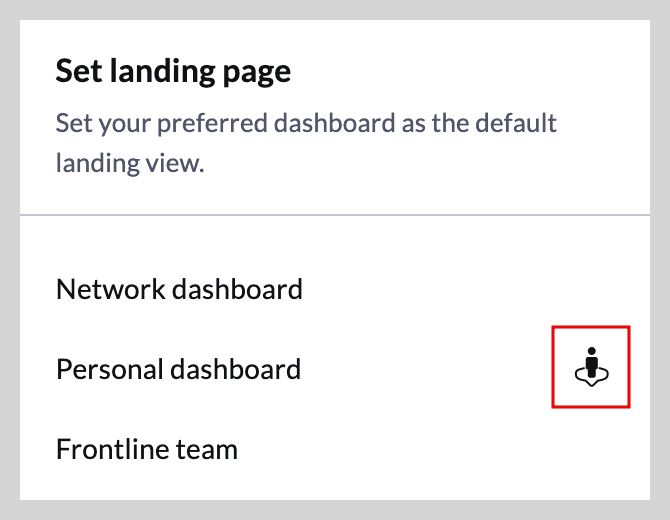
However, the Network Dashboard will continue to appear first in the dashboard list, while the dashboard selected as the user’s landing page will appear second.
Note- When user preference is enabled, the customization menu will include the following options:
- Organize dashboards (Visible only to admins and dashboard managers)
- Set landing page (Visible to all users)
 If you delete an audience associated with an Audience Dashboard, the dashboard will no longer be accessible to its members. However, admins can edit the dashboard and assign a different audience if required.
We hope you find this useful! For more information or doubts, get in touch with us at support@zohoconnect.com. We're happy to help!