Creating and hosting a video town hall
Overview
Zoho Connect’s Video Town Hall feature allows organizations to host live video sessions for employees or community members. These sessions are perfect for company-wide updates, training, Q&A, and interactive discussions.
This guide explains how to create, host, manage a video town hall.
Creating a Video Town Hall
- Go to Town Hall from the left menu.
- Click + New Town Hall in the bottom-left side.
- In the pop-up, enter session name and description.
Select Live Broadcast. - Choose Start Now for an instant session or Schedule for later to set a date and time.
- Select who can attend the session.
- Optionally, click Add Panelist to add assistants for you to the session.
- If required, you can add tags and enable recordings.
- Click Start.
- Set your video and audio preferences and click Start Streaming.
Starting a scheduled video town hall immediately
Sometimes you may want to start a video town hall earlier than planned.
To do that:
- Go to Town Hall from the left menu.
- From the extended menu, go to Upcoming sessions.
- Select the town hall you'd like to start immediately.
- Click Start Now.
Alternatively, open the feed post of the town hall you want to start immediately.
Click Start Now.
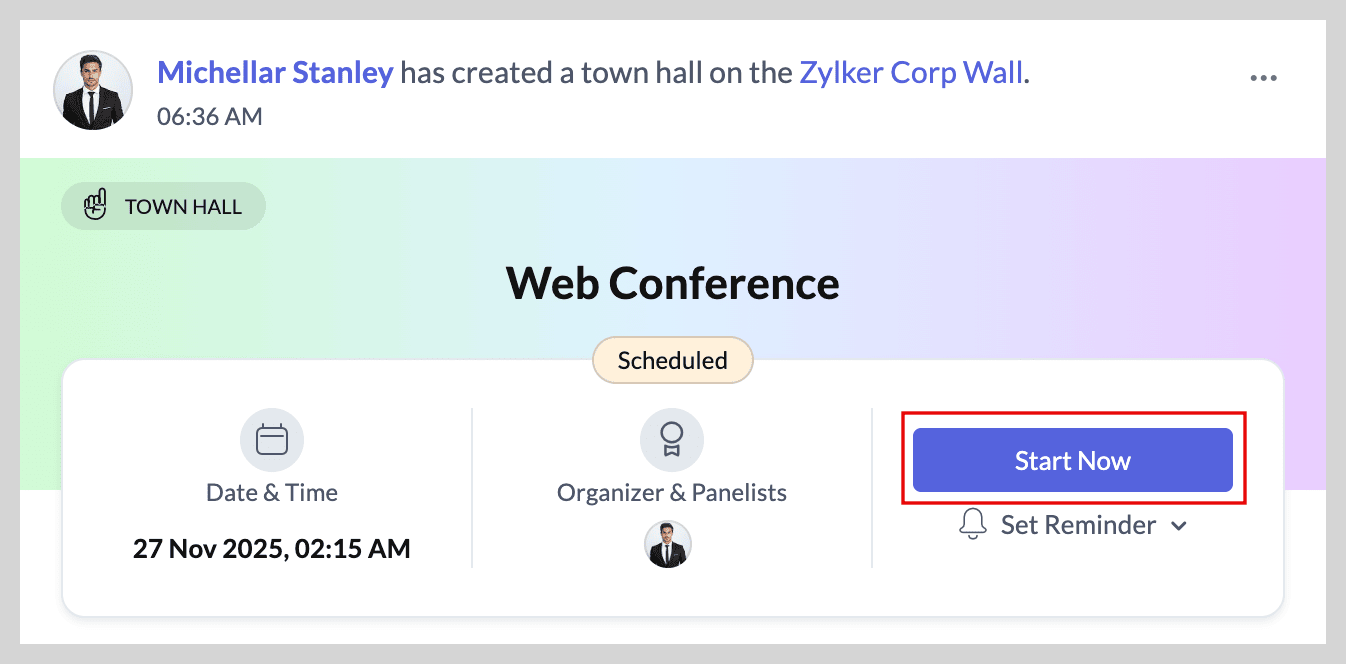
 Use Set Reminder to receive a notification prior the event.
We hope you find this guide useful! For more questions or feedback, get in touch with us at support@zohoconnect.com. We're happy to help!