Encryption using Private Key in Zoho Creator
1. In a nutshell
Bring Your Own Encryption Key (BYOK) allows you to encrypt your field data using a private key you configure and manage in Zoho Directory. This gives you direct control over your encryption, ensuring compliance with your organization's security policies while maintaining Zoho Creator's encryption standards. You can read more about encryption in Zoho here.
2. Availability
- BYOK is available exclusively upon request to our support team and is restricted to paid plans.
- Only the super admin and admins can add and manage keys in the Encryption (BYOK) tab.
3. Overview
By default, Zoho Creator encrypts stored data using Data Encryption Keys (DEK), which are further protected using a Key Encryption Key (KEK) managed by Zoho. On adding your own key (BYOK), you can replace Zoho’s default KEK with your own, allowing you to retain control over the encryption and decryption process.
This feature is particularly useful for organizations with strict regulatory requirements or internal security policies that mandate the use of their own encryption keys. BYOK applies to all fields that use encryption like data stored in media fields, such as file uploads, images, signatures, audio, and video, as well as form fields where the encrypt data field property is enabled.
While BYOK does not change Zoho Creator’s encryption standards, it ensures that control over encryption keys remains with you. Learn more about encryption in Zoho Creator.
4. Navigation guide
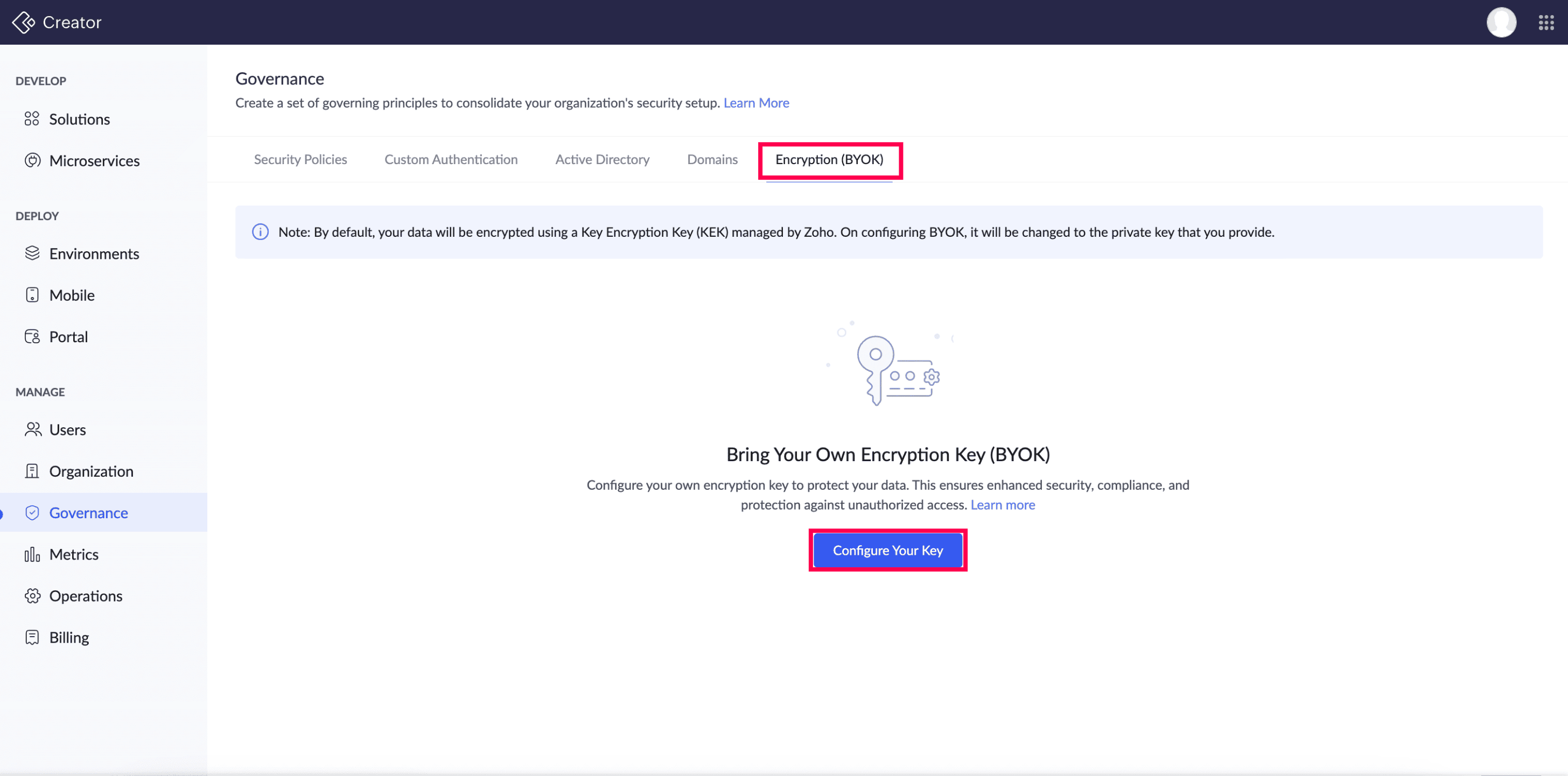
Once you Sign In to your Creator account, you can find Governance under the MANAGE section on the left-side pane of your dashboard. Once there, you can navigate to the Encryption (BYOK) tab and click Configure Your Key. This will redirect you to the Zoho Directory page. On this page, you can provide the required details to set up your encryption key.
4.1 Configuring your encryption key
Zoho Directory handles encryption key management for Zoho Creator. You can configure your encryption key using one of the following supported external Key Management Services (KMS):
- Google Cloud Key Management Service
- AWS Key Management System
- Thales CipherTrust Manager
- Fortanix Data Security Manager
On clicking Configure, you'll be taken to the Zoho Directory page to add and manage your encryption keys. The following documentations will walk you through the process to configure Zoho Directory for key management.

Note: To get an overview of BYOK and how it is used in Zoho Directory, click here.
- Add Key From An External Key Manager - Learn the steps to add a key from an external key manager for your application securely
- Upload Key - Learn how to upload your own encryption key to Zoho Directory
- Edit, Change, And Delete Key - Learn how to edit, change, and delete your own encryption key to Zoho Directory
5. Points to note
- When you configure your own encryption key through a specific service, it replaces Zoho's default encryption key. If you remove your configured key, Zoho's encryption will automatically resume.
- Once the BYOK key is permanently deleted, the DEK cannot be retrieved, and the actual data will be inaccessible. However, the encrypted data will remain in the Zoho database.