Configure Zoho Recruit integration in workflows
Zoho Creator allows data to be automatically pushed to Zoho Recruit on form submission using workflows.
To configure the action:
- Select Successful form submission under the When to trigger workflow dropdown while creating a new workflow.
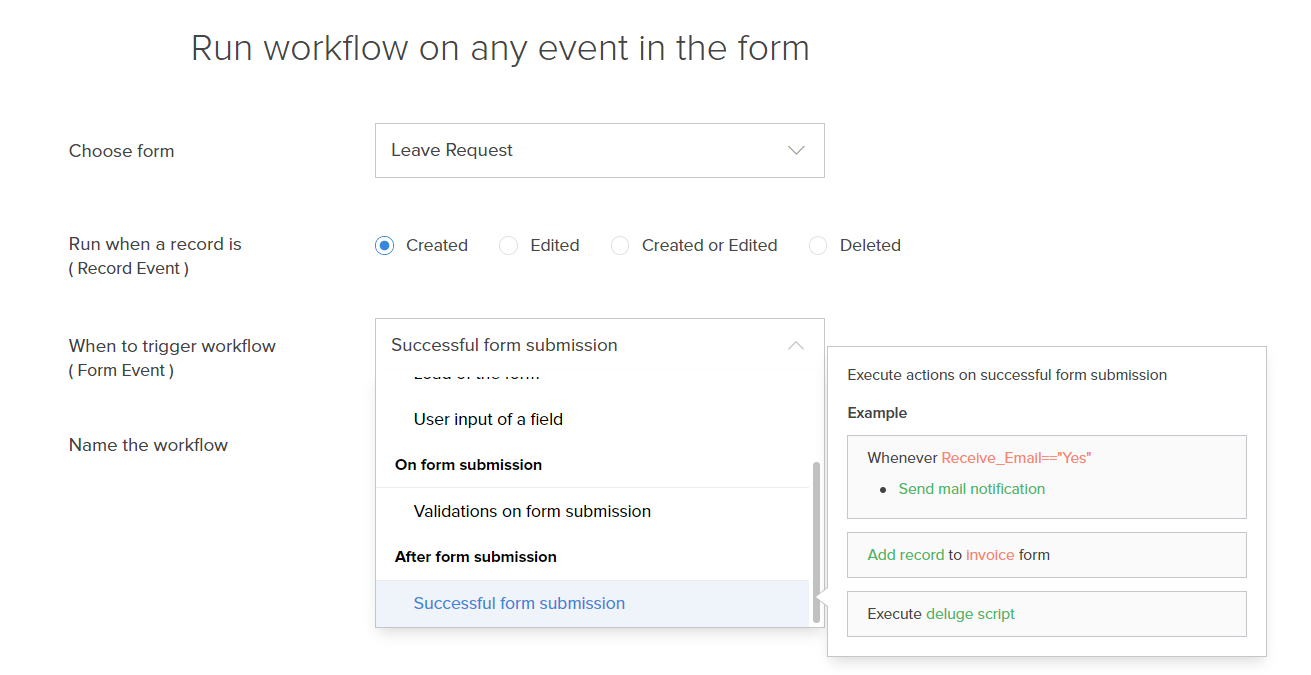
- Click the Add New Action block. The Add New Action window will slide in from the right.
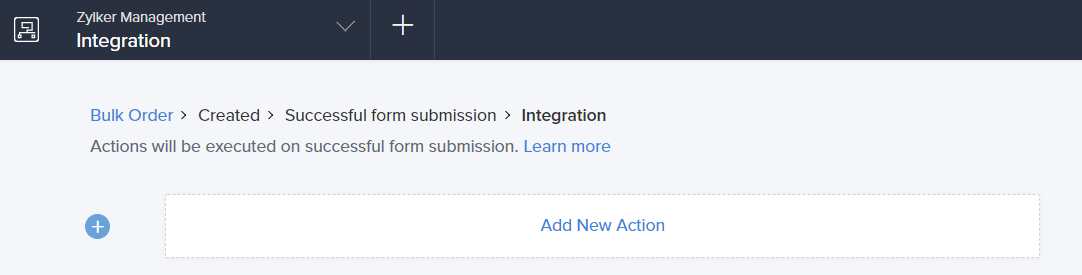
- Zoho Creator executes the action whenever there is an activity on the form. You can run the action for selected records by setting the criteria. Refer to the Set criteria page to learn more about setting criteria in a workflow.

- Select Integrations action type.
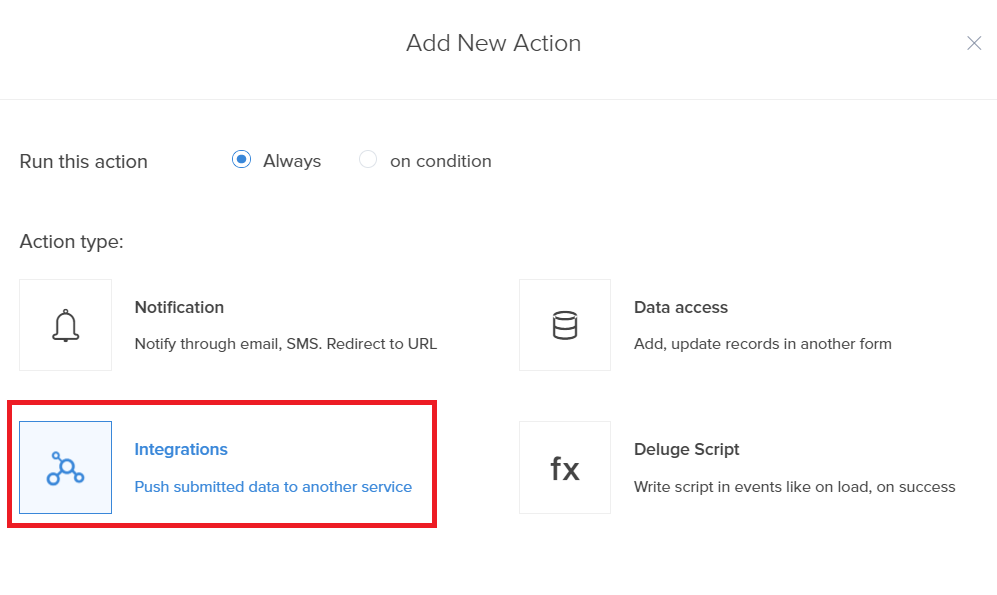
- Choose Zoho Recruit from the Service list.
- Select the Zoho Recruit action you want to perform.
The following are the supported actions: - Create Candidate
- Create Client
- Create Contact
- Create Job Opening
- Based on the action you have selected, you can create a connection or select from existing connections:
- Add a new connection: Use Add Connection if none exist, or the + icon to add another. The selected action is automatically assigned and cannot be changed.
- Select a connection: Choose an existing Zoho Recruit connection from the drop-down list based on the selected action. Select Authorize to authorize any unauthorized connection before continuing.
- Based on the selection made in the Action field, Zoho Creator lists the mandatory and other fields
- Mandatory fields - These are the required fields in the chosen Zoho Recruit action that must be mapped to a corresponding field in Zoho Creator. The drop-down lists the fields on your Creator form. Select the required field.
Note: The mandatory fields vary based on the selected service and module. - Other fields - You can map fields in the chosen Zoho Recruit action to the fields in your Zoho Creator form. This is optional. Click the + icon to map more fields.
- The action will be added when Save is selected.
- Click Done in the top-right corner of the screen.
Related Topics