Import Usage Data to CRM from Analytics tools
To export your usage data report from your Analytics tool, use the respective guides: Google Analytics/MixPanel.
After export, go to the Zoho CRM page and follow the steps below on how to import the usage data into the CRM.
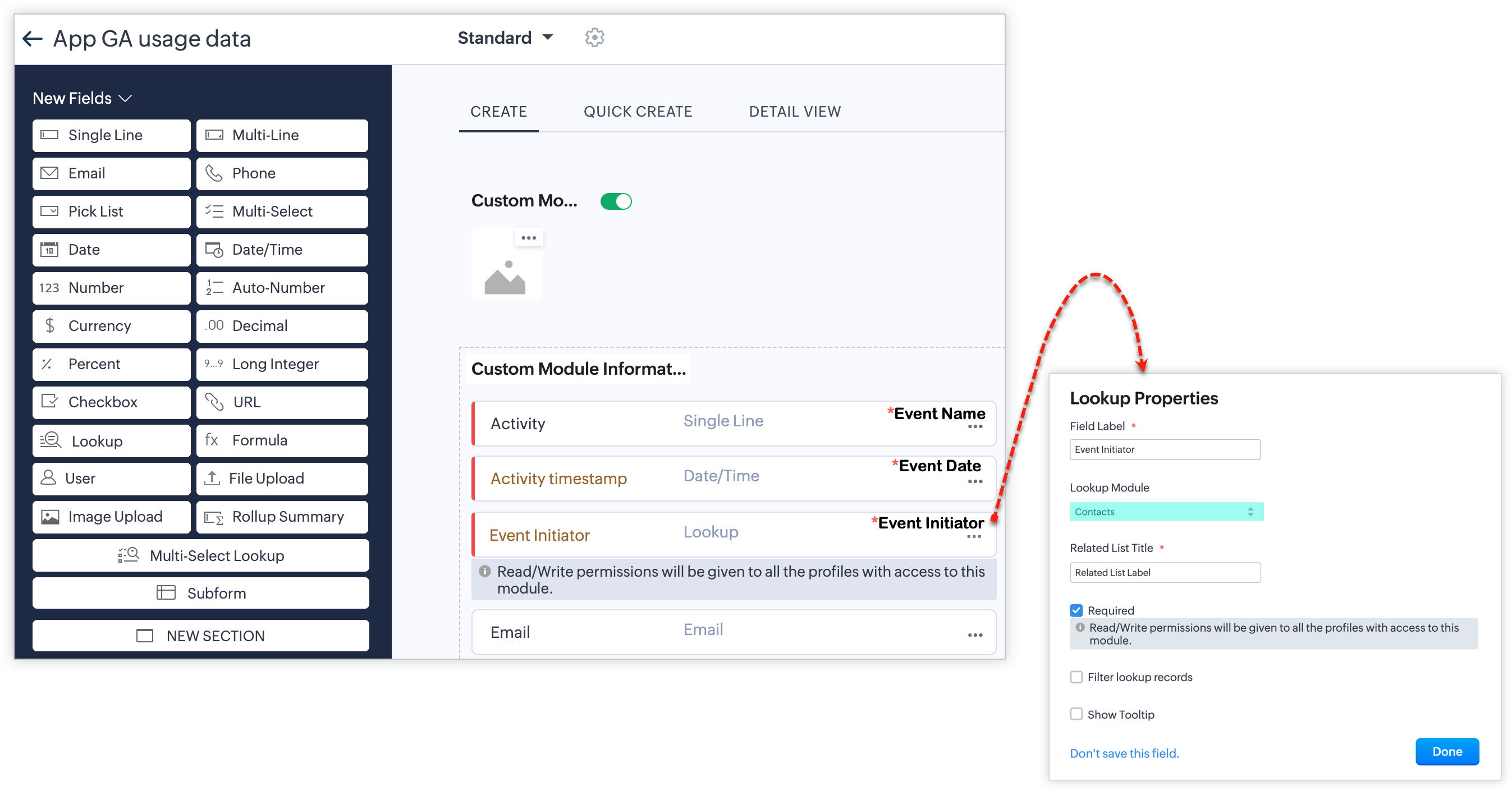
1. Click the More (•••) option in the top bar and click +Create New Module at the bottom.
2. Name the module and the layout.
3. Create the three mandatory fields that would map to the following field types during Event Mapping: Event name (Single line), Who Initiated the Event (Lookup), and Event Time (Date or Date/Time).
|
Field Type
|
Data types
|
Description
|
Sample data
|
|
Event Name
|
Single line
Multi-line
Picklist
Lookup
|
The name of the user's action captured
|
|
|
Who Initiated the Event
|
Lookup
|
The entity that initiated the event on your website or app helps identify the user
|
|
Event Timestamp
|
Date
Date/Time
|
The exact date and time of the event occurrence provides temporal context and allowing time-based analysis
|
|
4. For the lookup field type, choose the exact lookup module where your customers' identity data is stored.
5. Click Save.
6. Create other fields. Following are the non-mandatory field types which can also be mapped to your CRM fields for more accurate data insights by Zia. Creating some or all of these fields is optional.
|
Field Type
|
Data types
|
Description
|
Sample data
|
|
Event Type
|
Single line
Multi-line
Picklist
Lookup
Multi-select
|
The type of event that took place helps categorize and analyze different types of user actions.
|
|
| Event Duration |
Single line
Number
Formula
|
The duration of time the event lasted, to understand user engagement levels and behavior patterns. The field can store minutes or seconds, or hours for all records.
|
|
|
Event Location
|
Single line
Multi-line
Picklist
Lookup
Multi-select
URL
|
The geographical location or region from where the event originated, providing insights into geographic trends and user demographics.
|
|
|
User Attributes
|
Single line
Multi-line
Picklist
Lookup
Multi-select
|
Attributes or characteristics of the user initiating the event that aid in personalization and segmentation analysis.
|
|
|
Event Context
|
Single line
Multiline
Picklist
Lookup
Multi-select
|
Understanding the specific item, product, service, or entity on which the event was initiated, allowing for targeted analysis and correlations.
|
|
Device Information
|
|
Specifies the type of device and/or mobile device model |
|
7. Import data from any source in supported file formats. Let's say, you have exported the data as a CSV file. Go to the custom module you have created and click Import [Module name].
8. Map the import fields with the Zoho CRM module fields. Remember to map the three mandatory module fields that you created in step 2 with the appropriate import fields and click Next.
9. In the next page that follows, configure the assignments as required and click Finish.
Your import is now scheduled, and the data will soon be displayed in the respective module.
Learn more about importing data into your CRM.
Learn more about importing usage data to CRM via DataPrep.
Learn more about importing usage data to CRM via DataPrep.