Smart Scan
Overview
Smart Scan is an AI-powered OCR (Optical Character Recognition) field in Zoho Forms that extracts data from uploaded images and automatically fills mapped form fields. Respondents can upload an image (e.g., a document, ID card, or business card), and Smart Scan will extract key details such as names, addresses, and contact numbers, saving time and reducing typing errors. This makes data collection faster, easier, and more accurate. Respondents can review and edit the extracted data before submitting to ensure accuracy. This field is a great example of Zoho Forms using AI to make forms smarter and more efficient.
Why use Smart Scan?
Save time by automatically extracting and filling text from images.
Eliminate the need for manual typing.
Improve the accuracy and speed of form submissions.
Ideal for forms that collect data from documents, ID cards, invoices, or business cards.
Adding the Smart Scan field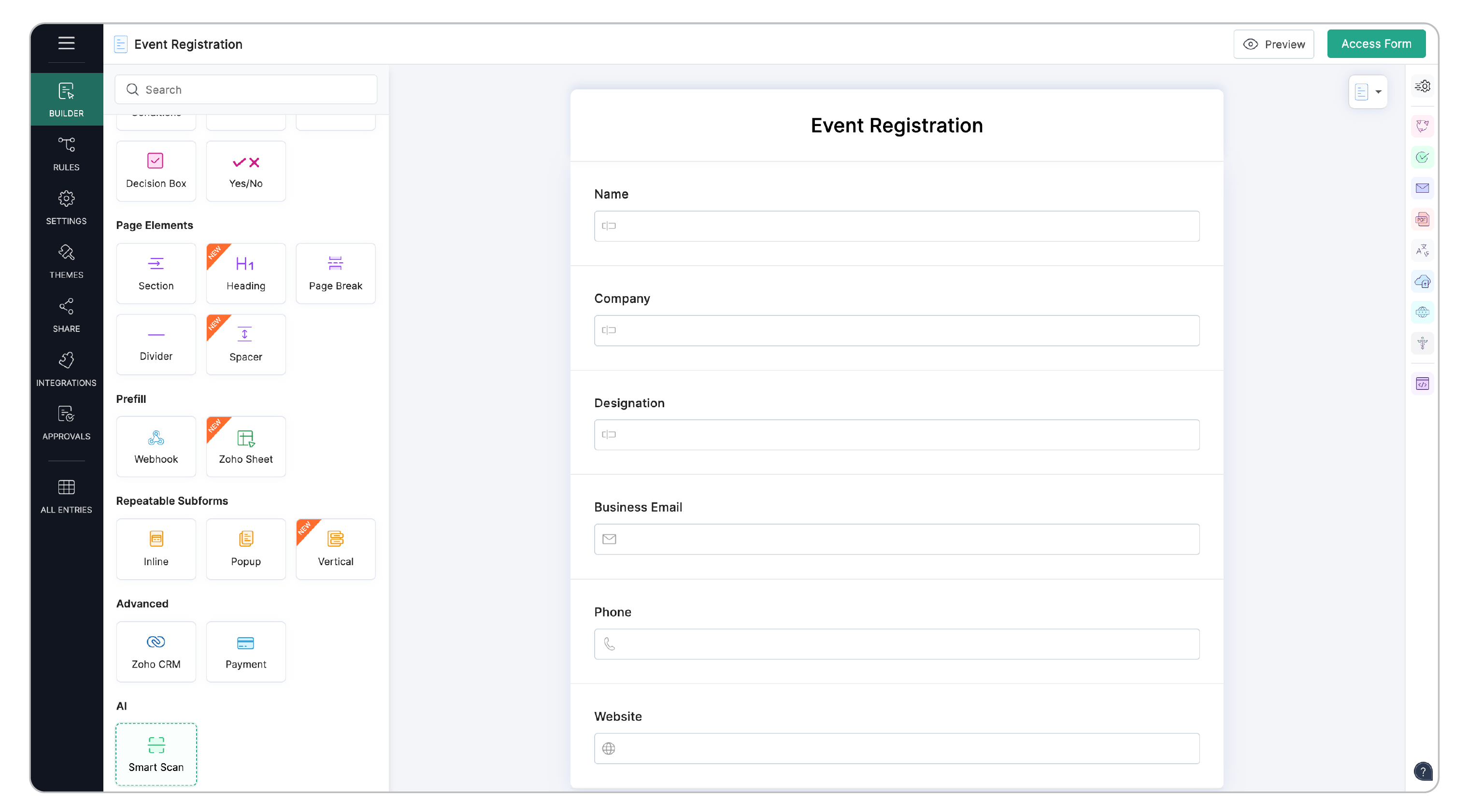
Adding the Smart Scan field
To add Smart Scan field in your form,
Navigate to your form builder, then locate the Smart Scan field under the AI section.
Click or drag and drop into your form.
Position the field where you want the respondents to upload their image.
 Note:
Note:- Those fields, which can't be auto-filled with any data, are not supported in Smart Scan, and cannot be mapped.
- Smart Scan field cannot be added when the form only has unsupported fields.
Field Category | Supported Fields | ||
Basic info | Name, Address, Email, Website, Phone | ||
Textbox | Single line, Multi line | ||
Number | Number, Decimal, Currency | ||
Date & Time | Date, Time, Date-time, Month-Year | ||
Choice | Dropdown, Radio, Checkbox, Multiple choice, Decision box, Image choice | ||
Rating scales | Rating, Slider | ||
Configuring Field Mapping
After adding the Smart Scan field, a popup appears for mapping extracted data to your form fields. You can configure the mapping by either uploading a sample image or setting it up manually.
Option1: Upload an Image
Click on Choose Image or drag-and-drop a sample image to upload.
Smart Scan extracts the data and displays it as keys in the Key for Auto-fill dropdown.
Map each key from the dropdown to a relevant form field.
This field will be auto-filled in the live form whenever a respondent uploads an image in the Smart Scan field.
If certain keys are missing in the extracted data, you can manually add and map them. If no image was uploaded, the Extracted Data section will remain empty, and you have to configure mappings manually. These are explained below.
Option2: Configure Manually
Click Configure.
In the Key for Auto-fill input, manually type the expected key name.
Map it to the appropriate form field.
Repeat for all fields you want auto-filled.
Once all required fields are mapped, click Save.
If you want to change mappings later, click Edit Field Mapping in the builder view. You can re-upload a new image and map again, or edit existing mappings manually.
- At least one form field must be mapped to add the Smart Scan field to your form.
- Each form field can only be mapped once.
- Prefill-Webhook fields cannot be mapped within a Smart Scan field.
- Auto-fill from Smart Scan field is not supported if the form is embedded on your website using the HTML/CSS Embed option.
Using Smart Scan in Live Form
Once you’ve configured the Smart Scan field and published your form, here’s what the form respondents will experience:
Respondent uploads an image via the Smart Scan field.
AI-powered OCR will process the image, extract data, and auto-fill the mapped form fields.
All auto-filled fields remain editable — respondents can review and manually edit them before submitting the form.
So even if data extraction fails, respondents can still complete and submit the form manually.
- Only .png, .jpg, or .jpeg formats are supported. For any other format, an error will be thrown in the live form.
- Poor-quality images may lead to partial or no auto-fill. For best results, use a clear, well-lit image with visible text.
- If AI credits are exhausted or unavailable, Smart Scan will not auto-fill fields. An error will be displayed, and respondents can enter the details manually to continue.
For better understanding, check out this example of an Event Registration form that uses Smart Scan to auto-fill attendee details from business cards.
Smart Scan field Properties
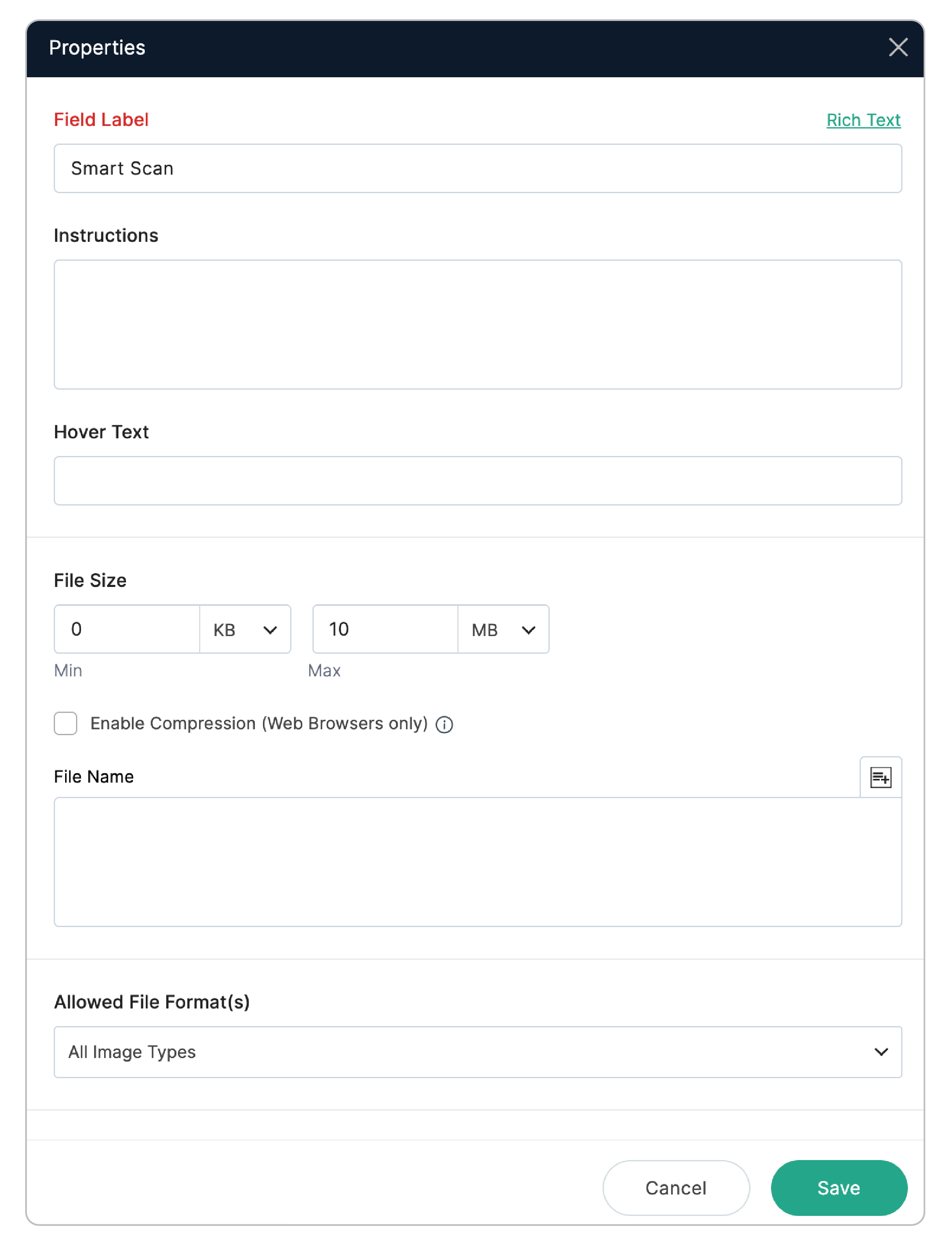
The Smart Scan field shares most properties with the Image Upload field, except:
Image Upload Limit: Fixed at 1 (one image per field is allowed).
Allowed File Format(s):.jpg, .jpeg, .png only.
You can restrict to one or multiple formats, or allow all three.
- Unsupported formats will trigger an error, and auto-fill will not work. Respondents can still submit manually.
- The Smart Scan field currently processes only one image upload per field.
- Large file uploads option is not supported for forms with Smart Scan fields.
AI Credits and Usage Limits for Smart Scan
What are AI Credits?
The Smart Scan field uses AI to recognize text from uploaded images. Each time a respondent uploads an image, an AI call is made to process and extract the data, which is then auto-filled in the mapped form fields.
1 image processed = 1 AI call = 1 AI credit consumed
AI credits per plan:
Plan name | AI Credits |
Trial | 100 |
Free | 50 |
Basic | 1000 |
Standard | 2000 |
Professional | 4000 |
Premium | 6000 |
ZohoOne | 6000 |
What happens when credits are exhausted?
If you run out of AI credits:
The Smart Scan feature will be temporarily unavailable until credits are back.
Uploaded images will not be processed or auto-filled. Respondents can still fill out the form manually.
To resume Smart Scan usage, you have to add more credits. For that, you can:
Upgrade your subscription plan.
Purchase an AI Credits Add-on.
 If you want to increase this limit, you must purchase the AI Credits Add-on from the Subscription page. This is a non-reurring (one-time) use add-on and will not get affected by your subscription cycle. Zoho One customers must contact the Zoho One support team ( support@zohoone.com ) to purchase AI Credits Add-on. EU customers write to support@eu.zohoone.com.