Subforms
Overview
A Subform is a secondary form that lets you add multiple line items to your primary form. A Subform can be used in order forms, booking forms, application forms, and more to collect additional details associated with the primary form.
For example, when respondents place orders using your order form, they can add multiple products as entries in a Subform, and the number of products can vary with each order.The Subform responses can be included in the Thank You page and email notifications as a table or a summary. The values from a Subform can be used in the Formula field to perform calculations and while collecting payments from your respondents.
Zoho Forms offers three different Subform types:
- Inline Subform
- Popup Subform
- Vertical Subform
Types of Subform
Inline Subform
Popup Subform
The Popup view is useful when your Subform contains a large number of fields. When a respondent clicks + Add Entry in the live form, the Subform opens in a popup for each entry. Only a summary of the entries is shown in the form.
The + Add Entry label in the Subform can be renamed according to your preference under Subform Properties.
Vertical Subform
 Note:
Note:- Vertical Subforms are supported only in the new version of themes.
- Card forms support only Popup Subforms.
Adding a Subform
To add a Subform to your form,
Drag and drop the Subform field from the form fields in the left pane onto your form builder.
Drag and drop the required fields into the Subform and configure its Properties.

Subform Properties
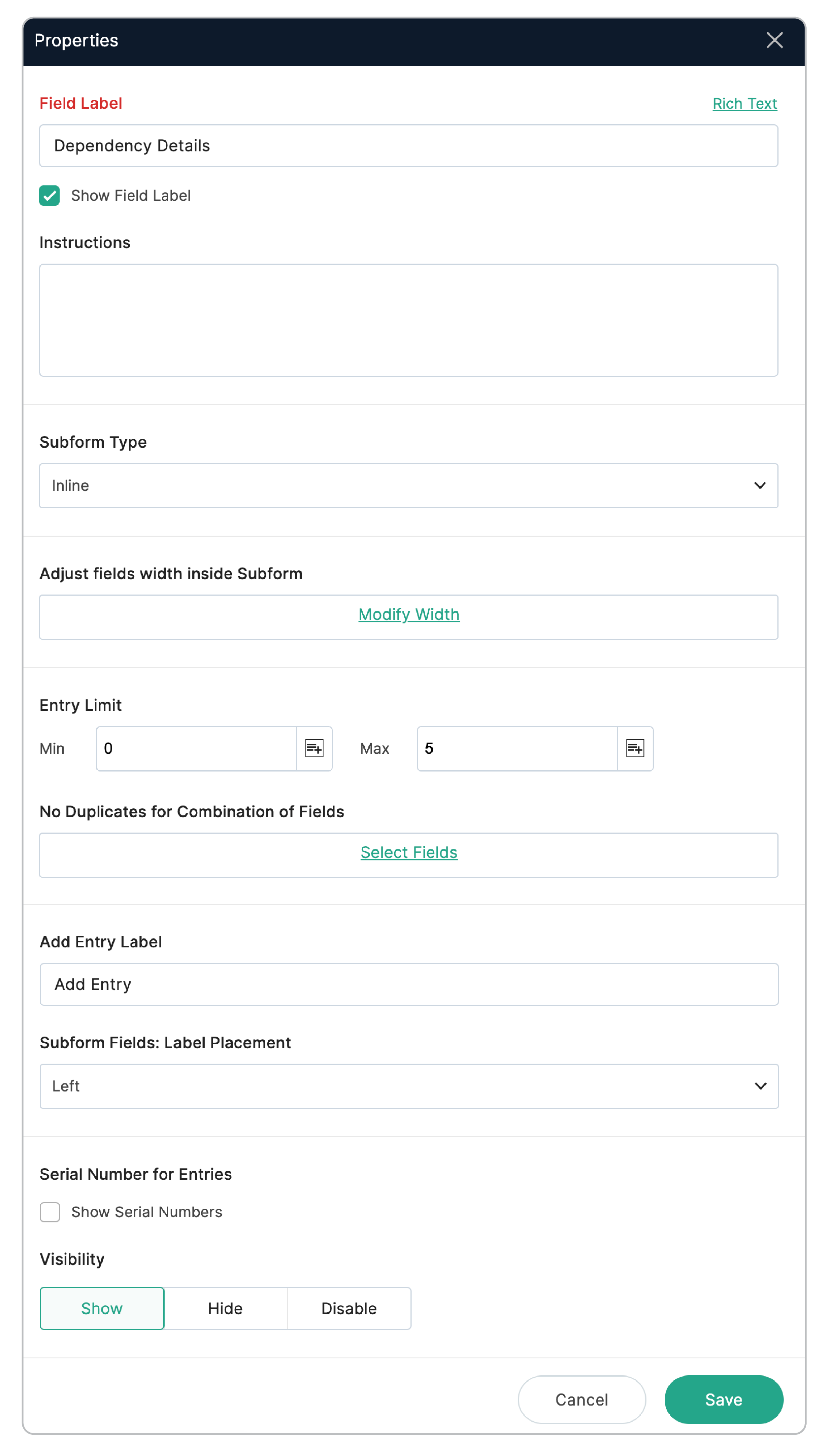
Subform Type
Subform Entry Limit
- To set a constant entry limit, enter the minimum and maximum values under Entry Limit in Subform properties.
- To set a limit based on form inputs, select the respective fields instead of entering values under Entry Limit in Subform properties.
Validate duplicates in the Subform
When you do not want duplicate entries in your Subform, you can apply the duplicate check validation. You can configure this for individual fields as well as for a combination of fields.
- Click the Subform field and open the field Properties pane.
- Under Validation, select No duplicates.
With this option, you can select a combination of 2 or 3 Subform fields and restrict duplicates only when all values of the selected set of fields are duplicated. For example, if the Phone and Email fields are selected as a combination, the entry will be marked as duplicate only if both the Phone and Email fields contain duplicate values in a row. If not, the entry will be accepted as valid.
- Click the Subform header and open the Subform Properties.
- Under No Duplicates for Combination of Fields, click Select Fields.
- In the pop-up, pick the fields that you want to check duplicate entries for and click Save.
- Supported field types for validation: Single Line, Number, Phone, Email, Date, Time, Date-Time, Dropdown, Radio,Website.
- For a specific Subform, you can either configure validation for individual fields or validation for a combination of fields.
- You can select a maximum of three fields as a combination to be checked for duplicates.
- Duplicates will be validated only within the selected Subform. Values from outside the selected Subform and other form entries will not be validated.
Serial numbers for Subform entries
To display the serial numbers for the live Subform entries,
- Go to the Subform Properties.
- Under Serial Number for Entries, select Show Serial Numbers, and save the Subform.
Sum of field entries in a Subform
You can choose to display the sum of all the numeric values entered for a field in your Subform.
To do so,
- Click on a Numeric field in a Subform and open the Field Properties.
- Under Sum of Subform Entries, enable the Show Field Total option.
The sum of field entries from a Subform can be included in the Thank You page and email notifications by merging the Subform responses using the merge tags.
Supported Field Types: Number, Decimal, Currency, Formula, Slider
Set Custom Range for form fields
- Go to the Properties pane of the field and select Values from the Format dropdown.
- Select the required fields for the Min and Max values by clicking the Merge icon. The input entered by a respondent in the selected fields will determine the range for that field.
Supported fields that you can select using the merge icon to set the Range:
Number, Decimal, Currency, Slider, Rating, Formula