Reviewing Form Entries
When you are designated as an approver for form entries, Zoho Forms offers 3 ways to review and take action on submissions:
The Approvals List View
The Approvals list provides a comprehensive overview of all form entries awaiting your approval. To access this view,
- On your forms listing page, under Manage, click My Approvals.
- You will see the list of forms that you have been assigned to as an approver and forms for which you are the form approval admin. Hover over the form for which you wish to review entries.
- You have several filtering options to manage your entries more effectively:
- All Entries: Displays every entry that has been submitted, regardless of its approval status.
- All Pending Entries: Shows only the entries that are awaiting approval from you as well as other approvers. This filter is available only if you are the form approval admin.
- My Pending Entries: Filters the list to show only entries that are awaiting your approval.
- My Reviewed Entries: Displays the entries that you have already reviewed.
By selecting the appropriate filter, you can easily manage and prioritize your approval tasks. - You can also further narrow down the filter to view your pending and all pending entries by approval levels.
In-app Notifications
Once a user is added as an approver for a particular level, each time a form entry is submitted for review, they will be notified via an in-app notification.
When an entry is received for approval, the approvers have the option to approve or deny it, as shown.
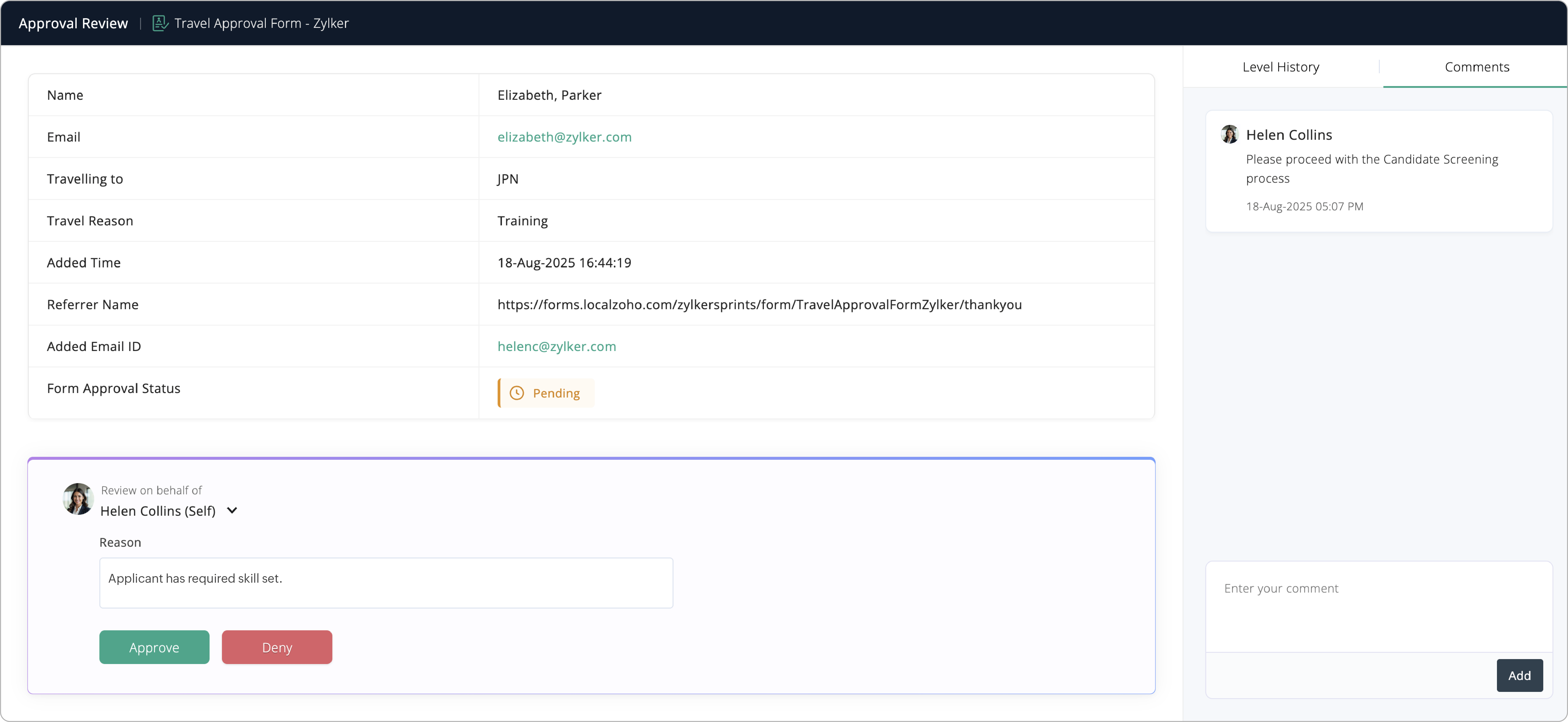
They can also include a reason for their decision, or provide information to proceed further for the other approvers in the process.
Approvers can additionally leave comments while reviewing an entry in the
Comments
section and engage in discussions
with the other approvers.
The approval admin can approve or deny entries on behalf of other approvers, skip all levels of approval and include a reason as shown, and monitor the entire approval process.
Email Notifications
Once a user is added as an approver for a particular level, each time a form entry is submitted for review, they will be notified via an email if the email template has been configured while setting up the approval system.
The email will consist of a link to the record to be reviewed. On clicking the link, the approver will be taken to the record review page to approve or deny the record.

The email will consist of a link to the record to be reviewed. On clicking the link, the approver will be taken to the record review page to approve or deny the record.