Sending Email Notifications in Approval Process
You can set up email notification templates to notify your users and respondents during the approval process. If you choose to add Microsoft 365 users as approvers, you can create a separate email template to notify them when they receive a form entry for review.
Notify approvers when a new record is submitted for approval
When a record is submitted for approval in a level, you can notify the approvers in that level by sending them an email with a link to the record that they have to approve.
To do so,
-
While setting up a level of approval, select Record Review Notification under Notifications.
 Note: You can send reply-to emails to specific addresses mapped with assign value on choice-based fields like Checkbox, Dropdown, Radio, Multiple Choice, and Image Choice in the Record Review Notification pop-up.
Notify respondents/approvers when this level is marked as complete
When a record is approved in a level and passed on to the next level, you can choose to update the status of approval to your respondents and approvers by sending them an email.
To do so,
-
While setting up a level of approval, select Level Complete Notification under Notifications.
- To customize your email notifications further and create visually engaging emails, click on Use Advanced Editor. You can also include the Level Review History field to display the current level's approval status, along with the approver name, decision, reason, and timestamp. For additional customization options, refer to the Field Properties section for this field.Note: You can send level approval email notifications to specific addresses mapped with assign value on choice-based fields.
Configuring email template for Microsoft 365 approvers
When you add Microsoft 365 users as approvers, you can configure a separate email template to notify them when they receive a new form entry for review. When notified, they can view the form entry and approve or deny the record directly from their outlook email.
To set this up,
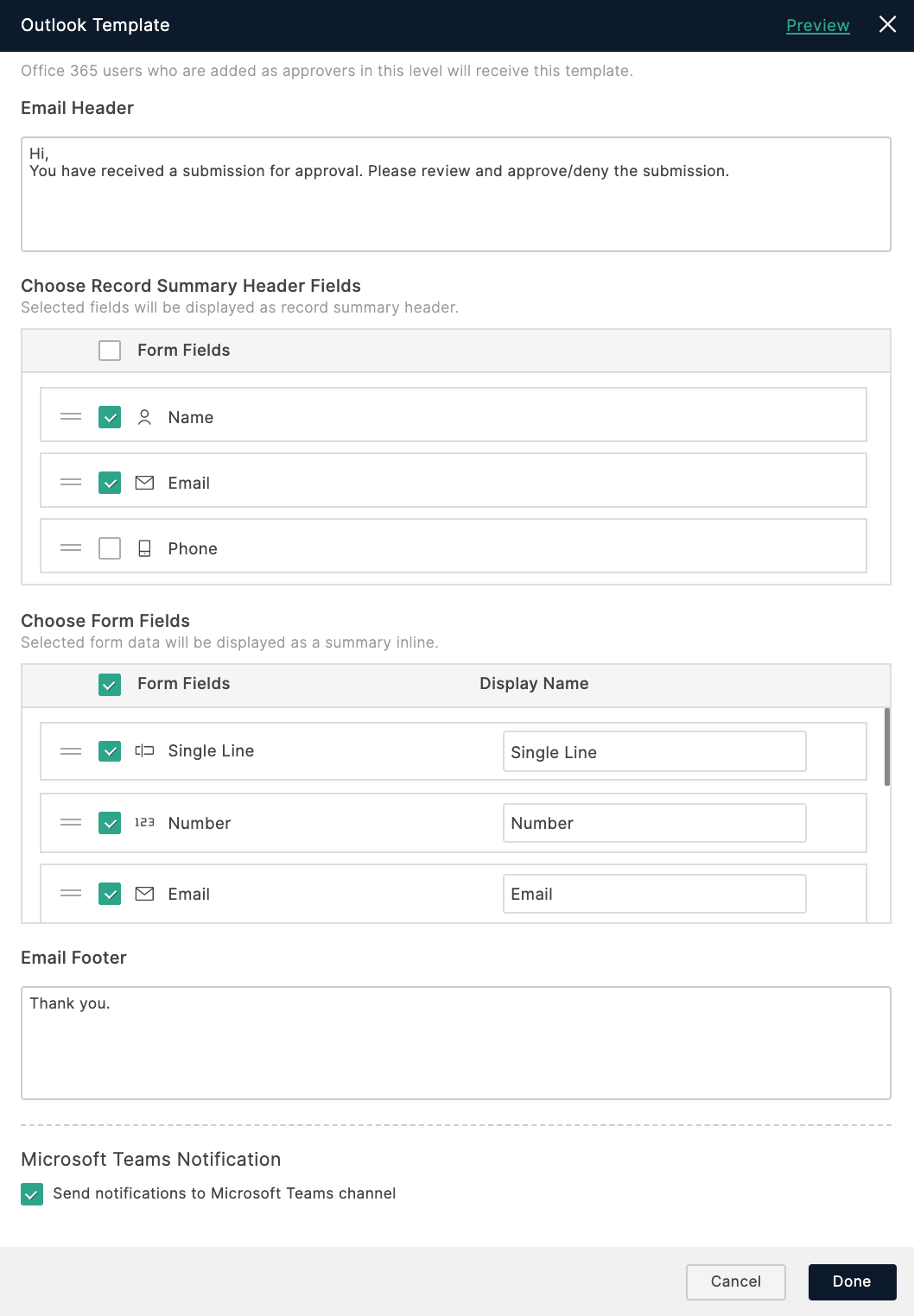
- While setting up a level of approval and configuring the email notification template under Notifications, click
near the Message section to create the template.
- Personalize the Email Header and Email Footer messages of the template.
- Under Choose Record Summary Header Fields, select from the Name, Phone, Email and Address fields in your form that you wish to display as record summary header in the email notification.
- Under Choose Form Fields, select the form fields to be displayed as a summary inline and enter a Display Name for each selected field.
- If the approver uses Zoho Forms app in Microsoft Teams, you can choose to send the approval notifications to the Microsoft Teams channel with actionable cards to approve or deny the request each time a form entry is received as shown.
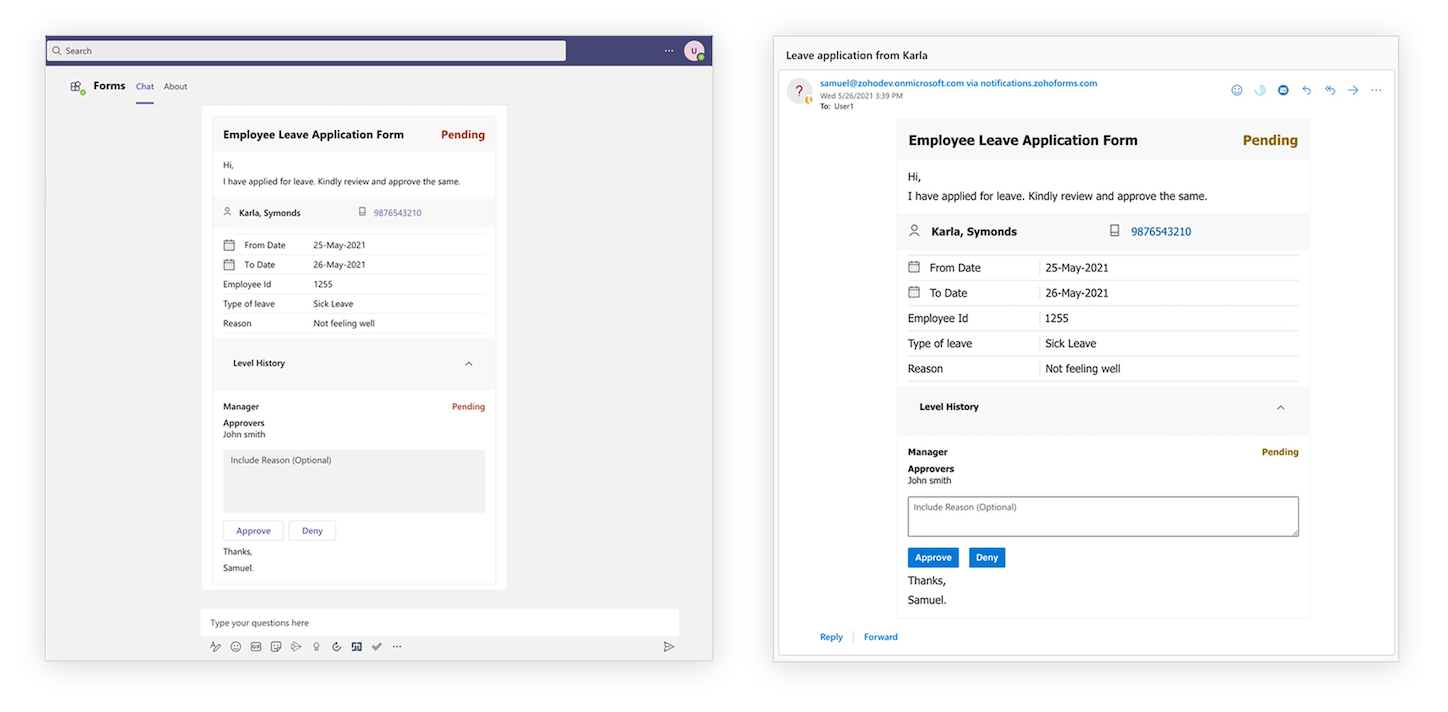
 Note: To start receiving the notifications in the Microsoft Teams channel, the approver must give Setup command in their personal Zoho Forms App chat.
 - Click Preview in the top-right corner of the template to see how the email renders in real time.
- Click Done to save this template.
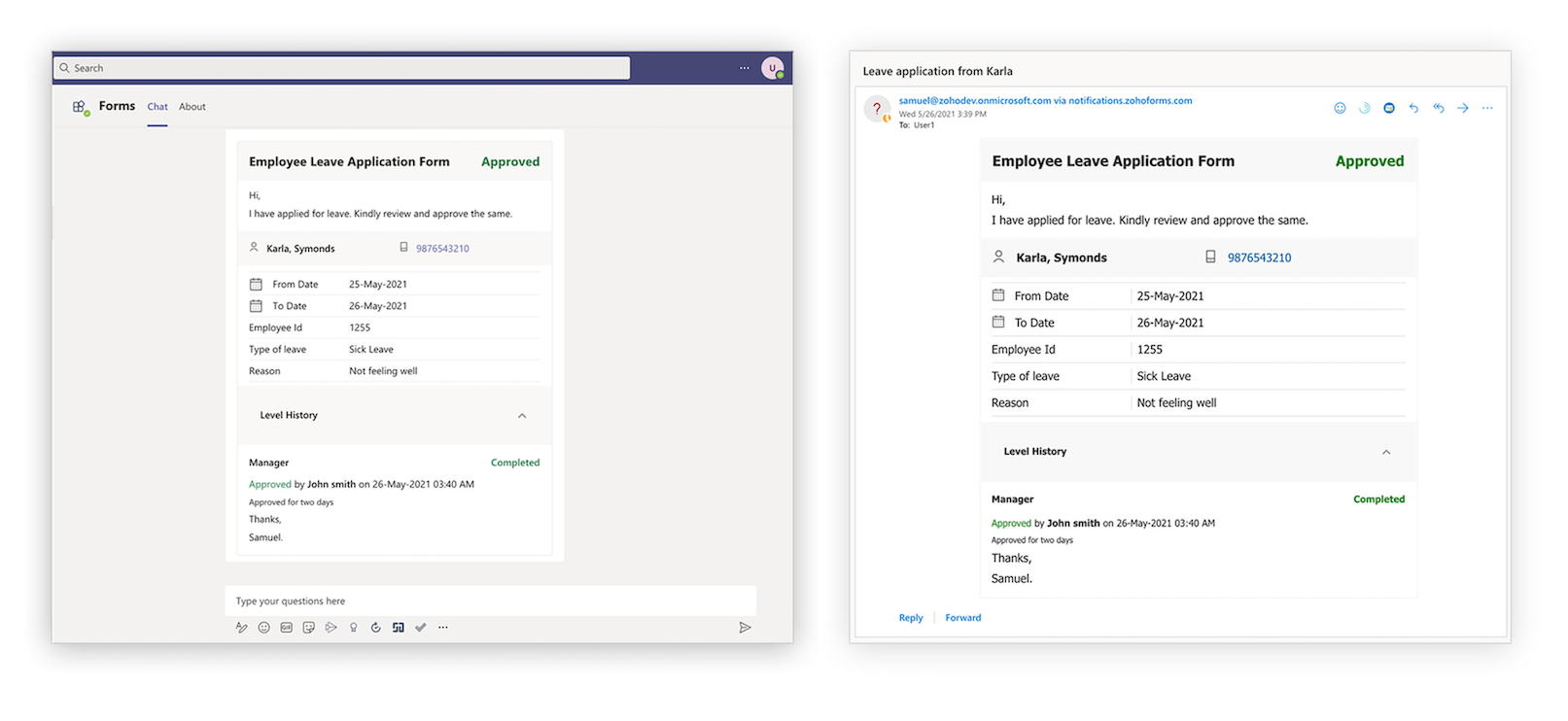
When the approver approves or denies a request, the card is refreshed and the status of the request is updated in both Outlook and Microsoft Teams channel (if you have chosen to notify in Microsoft Teams).
Note:
- When both the Office 365 users and your organization users are added as approvers for the same level, only the Office 365 Users will be notified with this email template.
- If you delete this template, Office 365 Users will receive the email that is configured for the organization users.