Form Rules
With the Form Rules, you can choose to trigger different actions upon form submission if the defined conditions are satisfied. You can automatically trigger emails, assign tasks, decide on the Thank You page to be displayed or redirect the respondents to another form or a website.
For example, if you want potential leads to ask questions regarding your product, you can use a Multi Line field to allow them to do so. Configure a Form Rule to send an email as well as assign task to the relevant person in your organization to respond to the enquiry.
If you want to send a copy of your product catalogue only to the interested customers, you can use a Radio field to know their response and configure a Form Rule to send the catalogue via email.
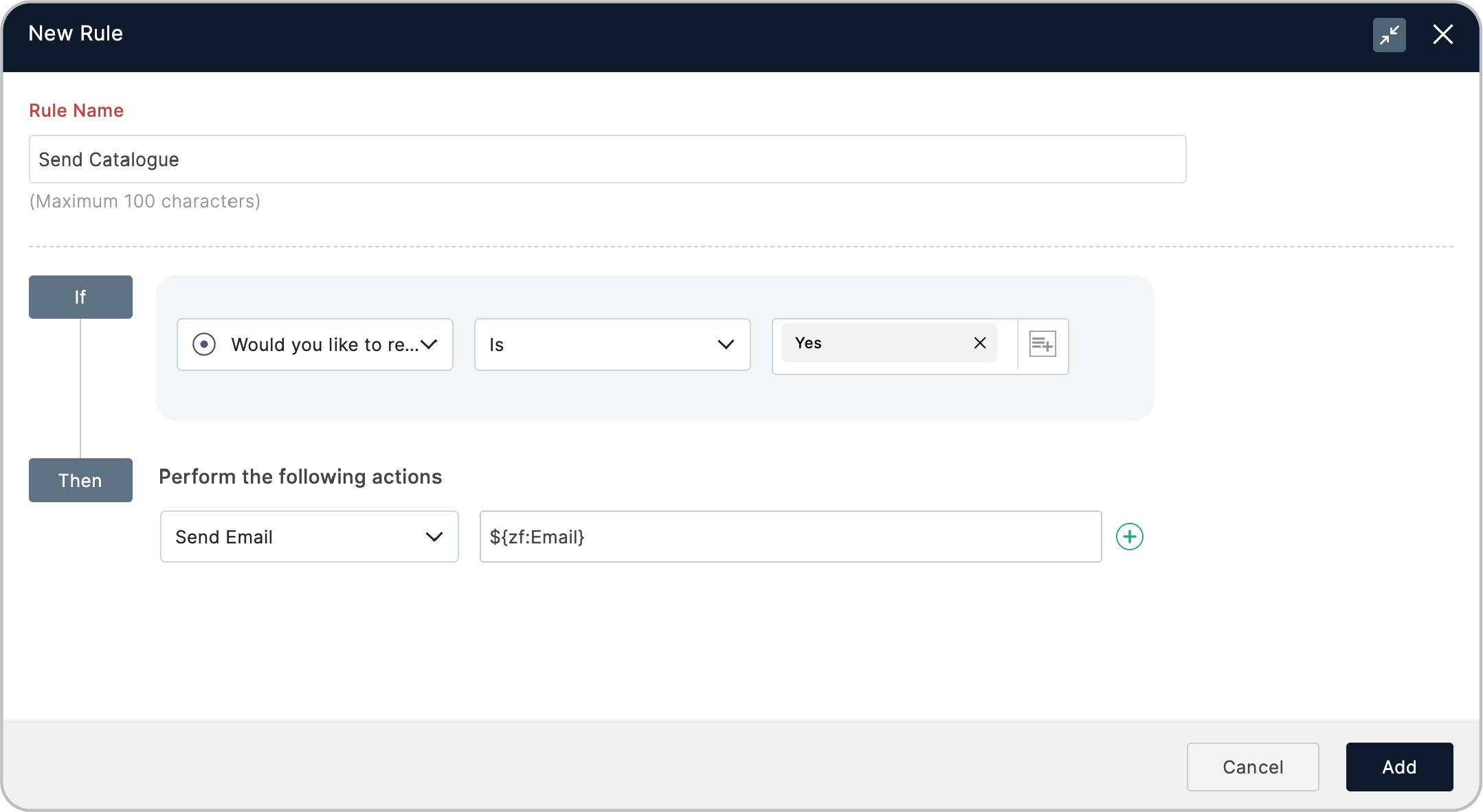
You can apply a form rule when:
- A new record is added to a form
- An existing record is updated in a form
Configuring Form Rules
Watch a quick video to configure Form Rules.
To create a Form Rule,
- After building your form, navigate to the Rules tab.
- Under Form Rules, go to the New Record or Update Record tab as per your requirement. Click Configure Now.
- Rule Criteria : A rule can be executed if any one condition is satisfied or only if all of the conditions are satisfied. To define this, choose Any/All of the following conditions are met from the dropdown in the If section.
- Define your conditions in the If section by choosing your form fields and the criterion they must satisfy. To add more than one condition click the
 icon.
icon. - Under Then, you can choose to perform the following actions if the defined conditions are satisfied:
- Redirect respondents : Redirect to a Thank You Page, another form, or website
- Assign a task to a user : Assign tasks to the users within your organization
- Send email notifications
- Send an SMS notification
 If your use-case requires the use of AND and OR operators within the conditions of the same rule, you can Switch to Advanced Rules . Note that once you switch, all the Form Rules you will configure for your form moving forward will be in the Advanced Rule format.
- Redirect respondents : Redirect to a Thank You Page, another form, or website
-
Once you have configured the rule(s), click Add and view the rule summary.
-
To add more rules, click
 in the top-right corner.
 -

Note:
- The option to redirect respondents to another form or a website is not available for an Updated Record.
- Form Rules for Updated Records are available only in our paid plans.
 Rules are case-sensitive which means the conditions trigger actions only when the case of the text in the defined condition matches the case of the respondent input. Check out an example to understand this better.
Redirecting respondents based on conditional rules
You can use this option to acknowledge your respondents with a Thank You Page, or redirect them to a form or a website if a certain set of defined conditions are satisfied when they submit a form entry.
To do so,
- Click Rules in your form builder and navigate to Form Rules.
- Click Configure Now and define your conditions to execute the workflow.
- Under Actions, select Redirect To and configure the Thank You Page or the Redirection options.
- You can display a Splash Message for a few seconds while the respondents are redirected to the Thank You page or the redirection page.
- Click Done and Add the rule.
- To configure more rules to redirect respondents, click +Rule, and repeat the above steps.
Note : Form Redirection is available only in our paid plans. Assigning tasks based on conditional rules
You can use this option to assign a task to a user within your organization if the defined set of conditions are satisfied.
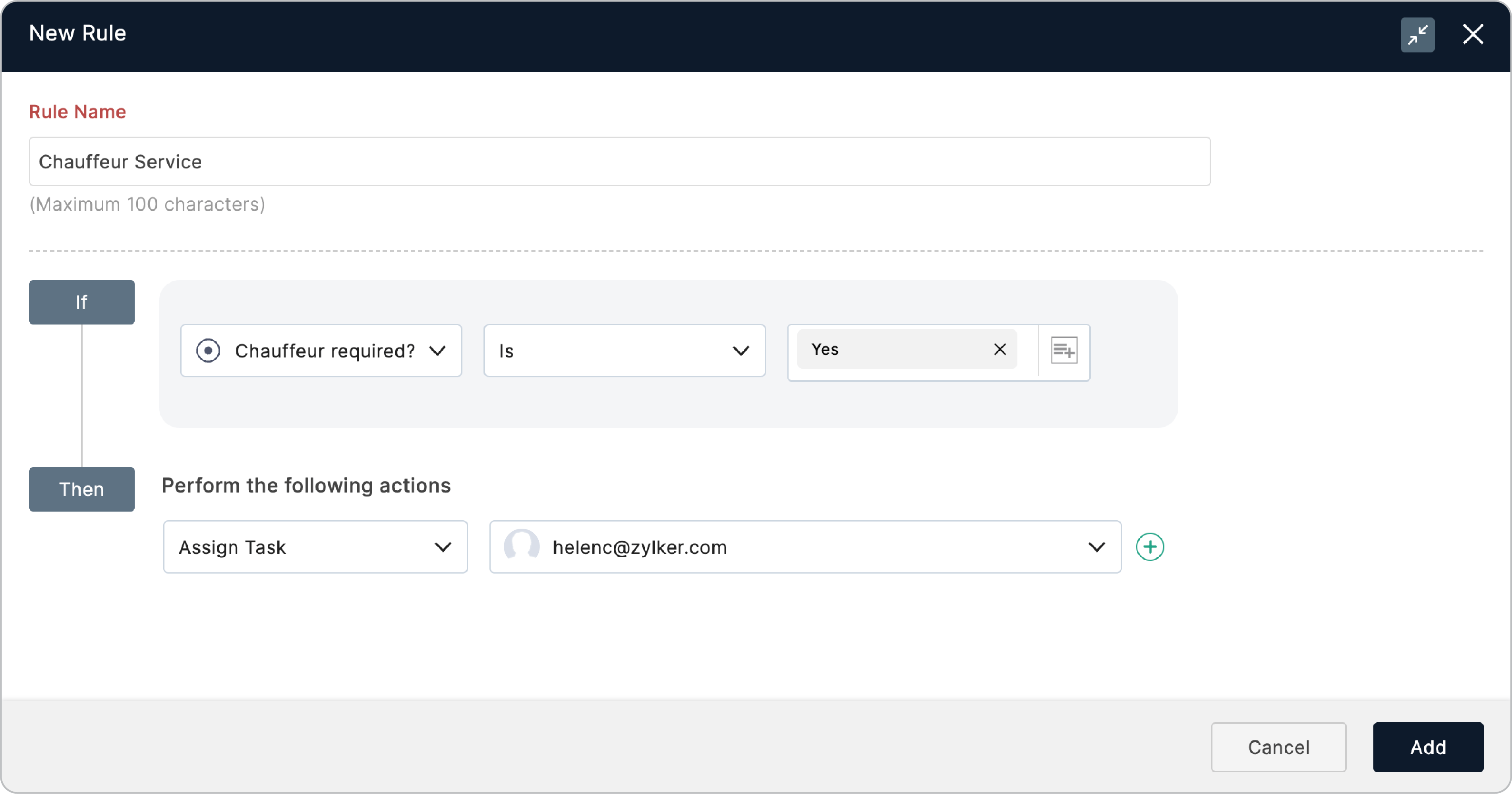
To do so,
- Click Rules in your form builder and navigate to Form Rules.
- Click Configure Now and define your conditions to execute the workflow.
- Under Actions, select Assign Task and choose the email address of a user within your organization.
- Click Add.
- To configure more rules to assign tasks, click +Rule and repeat the above steps.
Note: You can assign tasks only to the users within your organization.Learn more about tasks.
Sending emails based on conditional rules
You can use this option to trigger email notifications to yourself, your respondents and the users within your organization if your defined set of conditions are satisfied.
To do so,
- Click Rules in your form builder and navigate to Form Rules.
- Click Configure and define your conditions to execute the workflow.
- Under Actions, select Send Email and configure the email notification template.
- Click Done and Add the rule.
- To configure more rules to send email notifications, click +Rule, and repeat the above steps.

Note:
You can also send emails to specific addresses mapped with assign value on choice-based fields like Checkbox, Dropdown, Radio, Multiple Choice, and Image Choice.
You can also send emails to specific addresses mapped with assign value on choice-based fields like Checkbox, Dropdown, Radio, Multiple Choice, and Image Choice.
Sending SMS notifications based on conditional rules
You can use this option to send SMS notifications to yourself, respondents and the users within your organization if your defined set of conditions are satisfied.
To do so,
- Click Rules in your form builder and navigate to Form Rules.
- Click Configure and define your conditions to execute the workflow.
- Under Actions, select Send SMS and configure the notification template.
- Click Add.
- To configure more rules to send email notifications, click +Rule, and repeat the above steps.
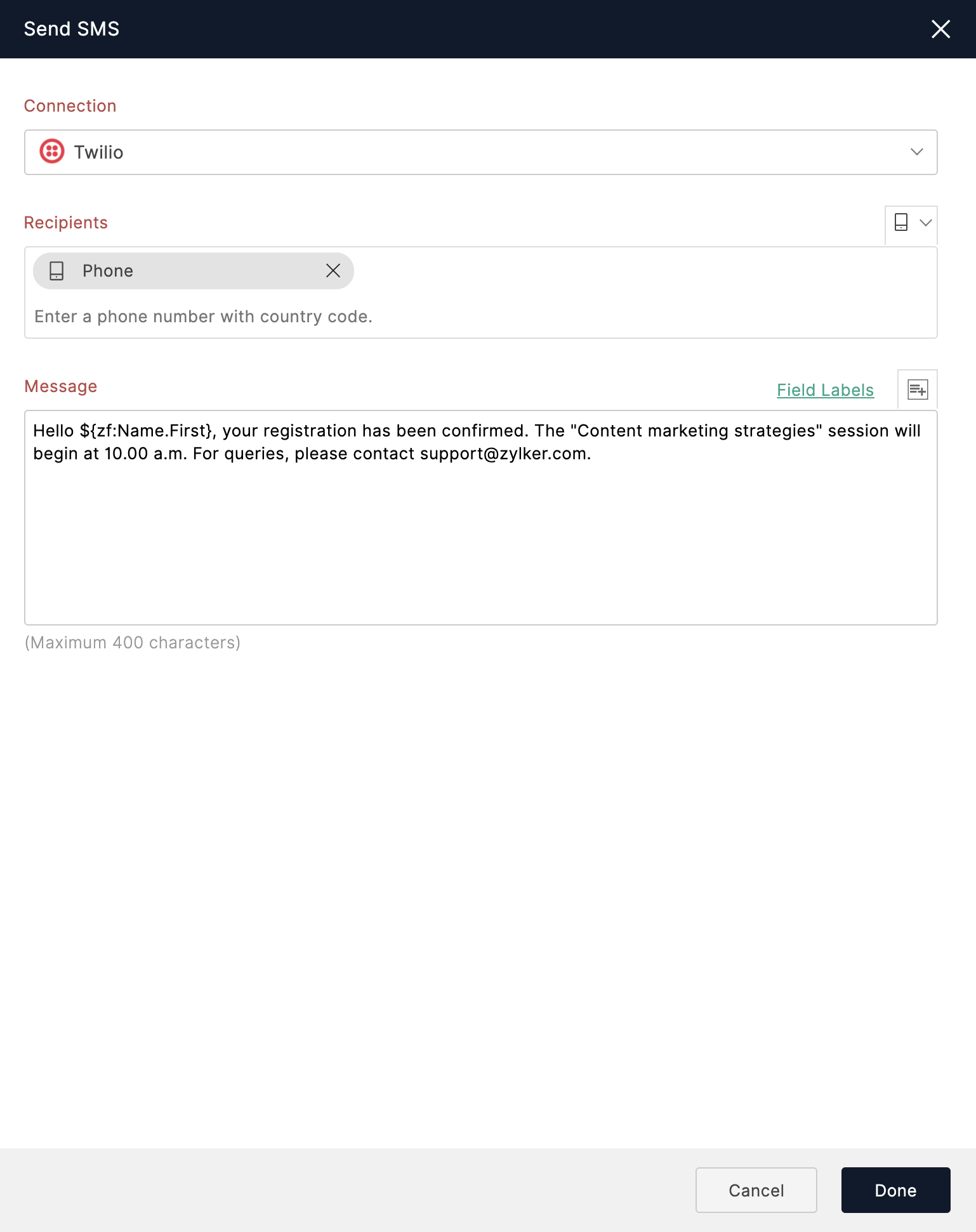
Learn more about SMS notifications.
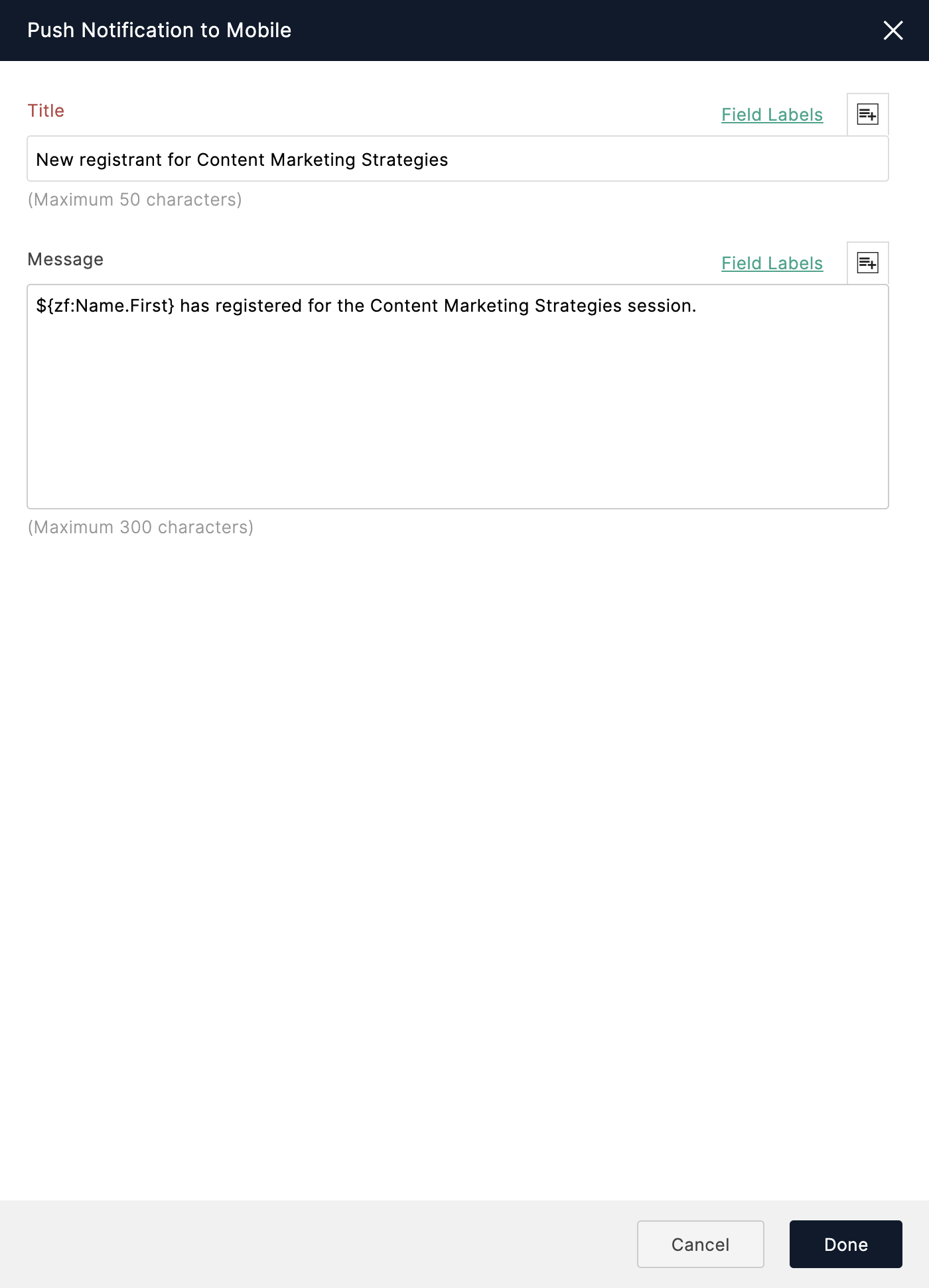
Sending Push Notification based on conditional rules
You can trigger Push Notifications to your mobile phone for different sets of conditions based on your business workflows.
To do so,
- Click Rules in your form builder and navigate to Form Rules.
- Click Configure and define your conditions to execute the workflow.
- Under Actions, select Push Notification to Mobile.
- Configure a Notification Template for this workflow and click Add.
 Note: To set Form Rules by comparing the values of two fields within a form, use Field-to-Field Comparison in Advanced Rules. Learn more
Supported Operators
Text and field Comparison
- Is: Checks if the selected field is equal to the set value
- Is Not: Checks if the selected field is not equal to the set value
- Is Empty: Checks if the selected field is empty
- Is Not Empty: Checks if the selected field is not empty
- Contains: Checks if the selected field contains a value in the condition
- Not Contains: Checks if the selected field does not contain a value in the condition
- Contains Any Of: Checks if a field contains any of the selected choices
- Contains All Of: Checks if a field contains all of the selected choices
- Contains None Of: Checks if a field contains none of the selected choices
- Starts With: Checks if the selected field starts with the given value
- Ends With: Checks if the selected field ends with the given value
Choice and selection
- Other Choice Is Not Empty: Checks if a value is entered in the Other choice
- Is Any Of: Checks if any of the choices chosen in the condition match
-
Is None Of: Checks if none of the choices chosen in the condition match
Numeric Comparison
-
Less Than: Checks if a number is less than a given value
-
Greater Than: Checks if a number is greater than a given value
-
Less Than or Equal To: Checks if a number is less than or equal to a given value
-
Greater Than or Equal To: Checks if a number is greater than or equal to a given value
-
Between: Checks if a number/date is between 2 given values
-
Not Between: Checks if a number/date is not between 2 given values
Date and Time Comparison
Day of the week
-
Day Is: Checks if a date falls on the selected day of the week
-
Day Is Not: Checks if a date does not fall on the selected day of the week
-
Is Any of Selected Days: Checks if a date falls on any of the selected days of the week
-
Is None of Selected Days: Checks if a date does not fall on any of the selected days of the week
Relative Days
-
Is Previous Day: Checks if a date falls on the previous day
-
Is Current Day: Checks if a date falls on the current day
-
Is Next Day: Checks if a date falls on the next day
-
Is Before [x] Day(s): Checks if a date falls 'x' number of days before the current date
-
Is After [x] Day(s): Checks if a date falls 'x' number of days after the current date
Week
-
Is Previous Week: Checks if a date falls in the previous week
-
Is Current Week: Checks if a date falls in the current week
-
Is Next Week: Checks if a date falls in the coming week
Month
-
Is Previous Month: Checks if a date falls in the last month
-
Is Current Month: Checks if a date falls in the current month
-
Is Next Month: Checks if a date falls in the next month
-
Month Is: Checks if a date falls in selected month of the year
-
Is Any of Selected Months: Checks if date falls in any of the selected months of the year
-
Is None of Selected Months: Checks if date does not fall in any of the selected months of the year
Year
-
Is Previous Year: Checks if a date falls in the last year
-
Is Current Year: Checks if a date falls in the current year
-
Is Next Year: Checks if a date falls in the coming year
-
Year Is: Checks if a date falls in selected year
Past and Future
-
Is in the Past: Checks if a date falls in the past
-
Is in the Future: Checks if a date falls in future
Time
-
Time Is Before: Checks if the time falls before the specified time.
-
Time Is After: Checks if the time occurs after the specified time.
-
Time Is Between: Checks if the time falls between two specified times.
-
Time Is Not Between: Checks if the time is outside the specified time range.
-
Time Is: Checks if the time matches the specified time.
-
Time Is Not: Checks if the time does not match the specified time.
Time on previous day
-
Is Previous Day Before: Checks if the time on the previous day is earlier than a specified time.
-
Is Previous Day After: Checks if the time on the previous day is later than a specified time.
-
Is Previous Day Between: Checks if the time on the previous day is within a specified time range.
-
Is Previous Day Not Between: Checks if the time on the previous day is not within a specified time range.
-
Is Previous Day At: Checks if the time on the previous day matches a specified time.
-
Is Previous Day Not At: Checks if the time on the previous day does not match a specified time.
Time on current day
-
Is Current Day Before: Checks if the time on the current day is earlier than a specified time range.
-
Is Current Day After: Checks if the time on the current day is later than a specified time range.
-
Is Current Day Between: Checks if the time on the current day is between a specified time range.
-
Is Current Day Not Between: Checks if the time on the current day is outside a specified time range.
-
Is Current Day At: Checks if the time on the current day matches a specified time.
-
Is Current Day Not At: Checks if the time on the current day does not match a specified time.
Time on next day
-
Is Next Day Before: Checks if the time on the next day is earlier than a specified time.
-
Is Next Day After: Checks if the time on the next day is later than a specified time.
-
Is Next Day Between: Checks if the time on the next day is within a specified time range.
-
Is Next Day Not Between: Checks if the time on the next day is outside a specified time range.
-
Is Next Day At: Checks if the time on the next day matches a specified time.
-
Is Next Day Not At: Checks if the time on the next day does not match a specified time.
Boolean Comparison
-
True: Checks if logical TRUE value is returned
-
False: Checks if logical FALSE value is returned
The following table lists the operators that can be used with the corresponding field types to form a rule criteria in the If section:
|
Field Types
|
Supported Operators
|
|
| Name |
|
|
|
Name - First
Name - Last
|
|
|
|
Single Line
Multi Line Phone |
|
|
| Number Decimal Currency Rating Formula |
|
|
|
Website
|
|
|
| Address |
|
|
|
Address - Street Address
Address - Address Line 2
Address - City
Address - State/Region/Province
Address - Postal/Zip Code
|
|
|
|
Address - Country
|
|
|
| Email Website |
|
|
|
Date
|
|
|
Date-Time |
|
|
| Time |
|
|
| Decision Box Terms and Conditions |
|
|
| Radio Dropdown |
|
|
| Multiple Choice Checkbox Image Choices |
|
|
| Matrix Choice |
|
|
| Slider |
|
|
| Signature |
|