Form Properties
You can change your form's title and description, and set the position of the field labels in your form. To do so,
- In the form Builder, navigate to the top of the form and click the title of your form. The Form Properties pane will appear on the right.
In the Form Properties, you can modify the following:
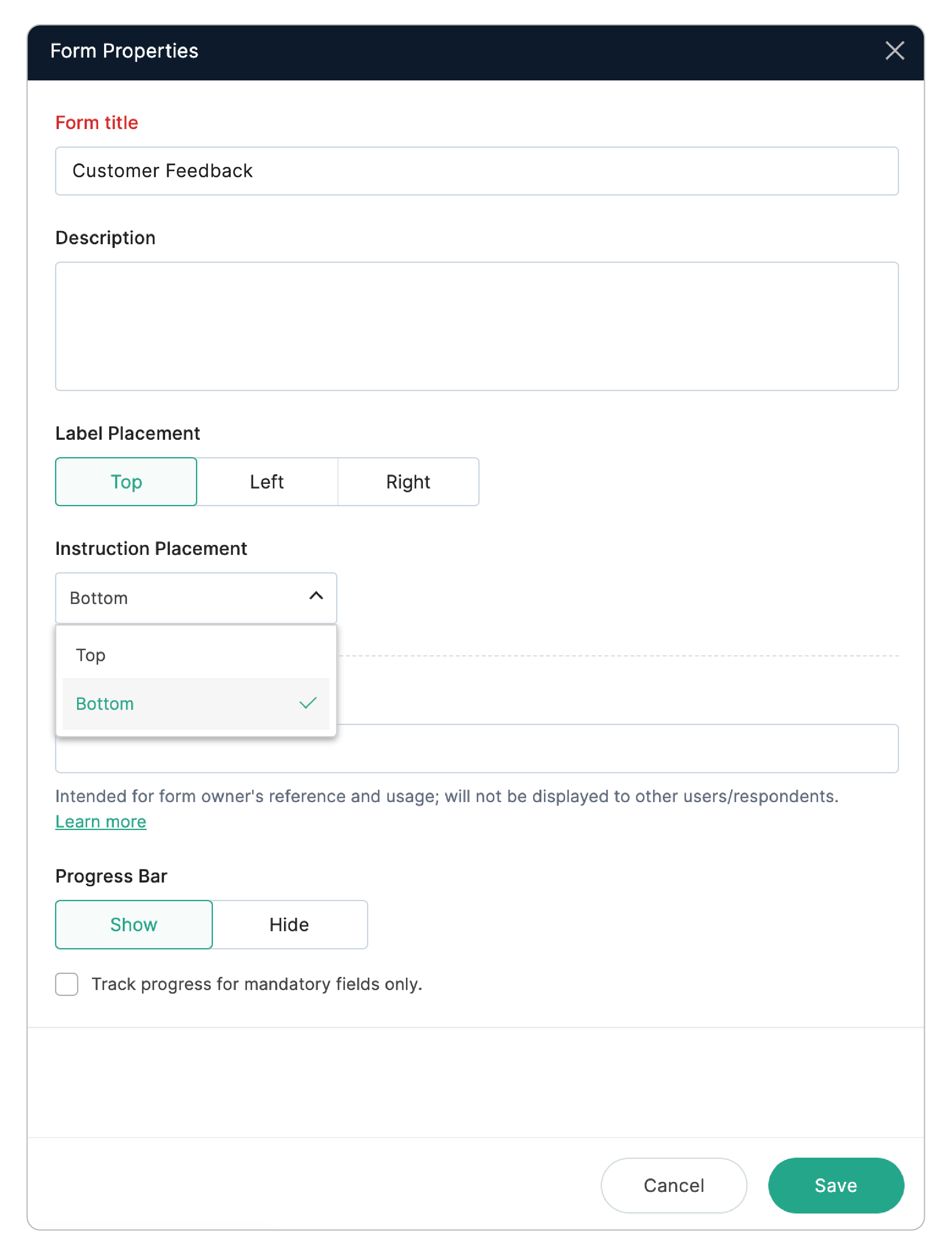
Form title
You can modify the title of your form here. By default, the Form title will be displayed in the live form. If you wish to hide the title, navigate to Settings > General > Display > Form Header and select the Hide option.
Description
You can add or modify the description of your form that will be displayed under the form title. You can include information such as instructions, and special notes in the description.
Label Placement
Label denotes the name of a field. For example: Single Line, Multi Line, Number, etc . You can adjust the position of the label to be in the Top, Left or Right of the fields in your form. The selected label position will be applied to all the fields added to your form.
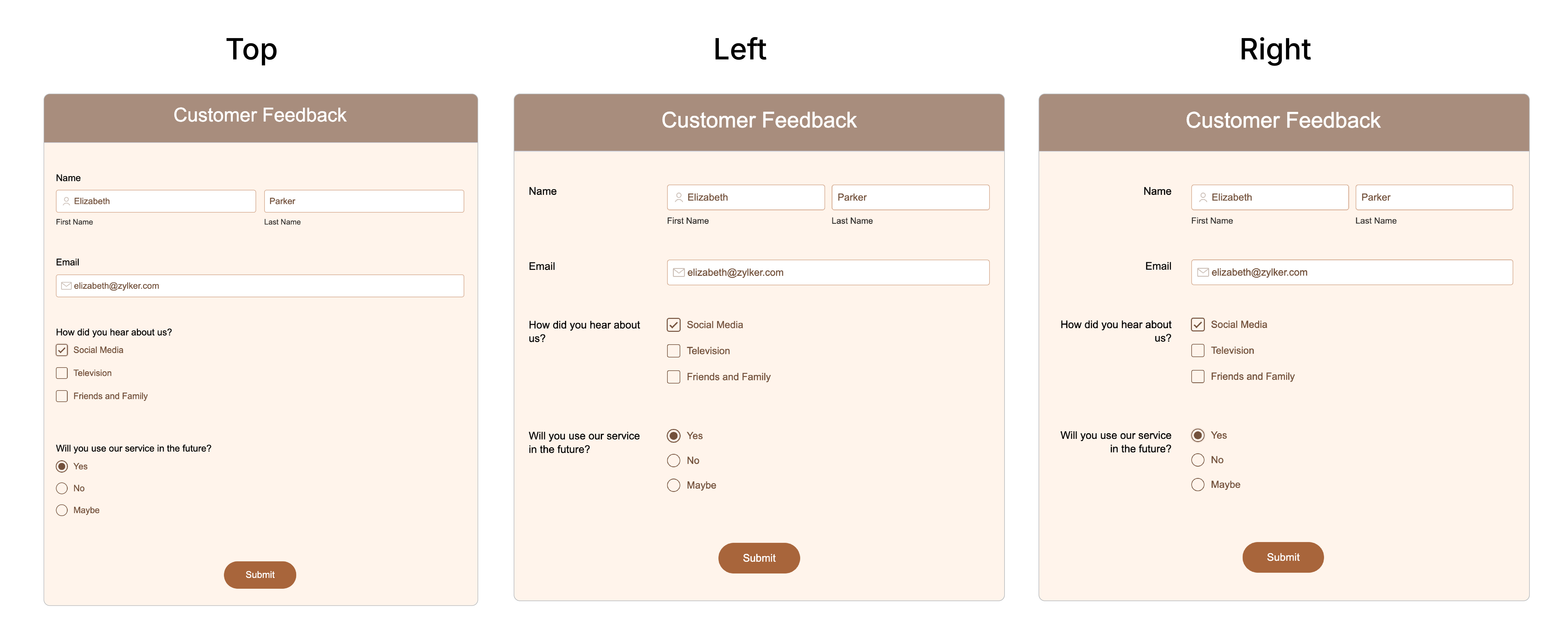
If you set the label placement to Top, you can choose whether the field instructions in your form, Instruction Placement should be aligned at the top or bottom of the field input box.
Form Nickname
Under Form Nickname, you can provide an alternate name to a form for your reference and usage. This name will appear in your form builder as well as in the My Forms listing. It will be visible only to the form owner and to the users with the Modify Form permission. Other users and respondents will see only the Form Title.
For example, if you have multiple forms with the same name, you can give a nickname to each form for easier identification.
For example, if you have multiple forms with the same name, you can give a nickname to each form for easier identification.
Progress Bar
The Progress Bar provides users with a visual representation of their form completion status.
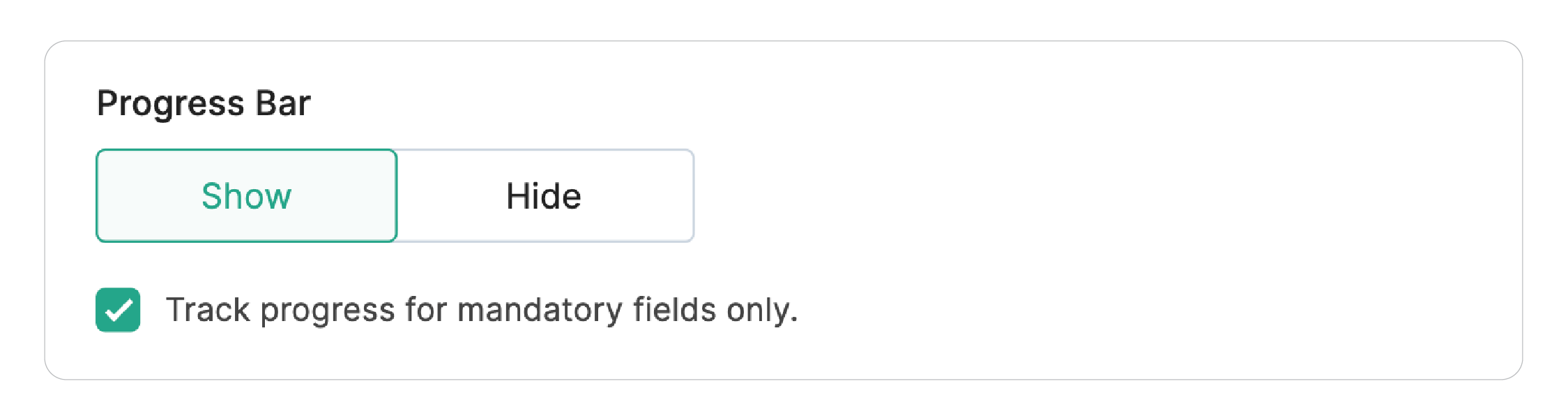
Show/Hide: Toggle the visibility of the Progress Bar at the top of your form.
Track mandatory fields only: Check this option if you want the progress to be tracked only when mandatory fields are completed, ignoring any optional fields. This gives users a more accurate sense of their required progress while excluding optional fields.
You can further customize the style and color of the Progress Bar in the Themes section.