Advanced Field Rules
Overview
With Advanced Field Rules, you can configure rules with a combination of AND/OR connectors between multiple condition groups to show or hide fields based on the input of respondents.
Let's look at Advanced Rules with some simple examples.
Order Form
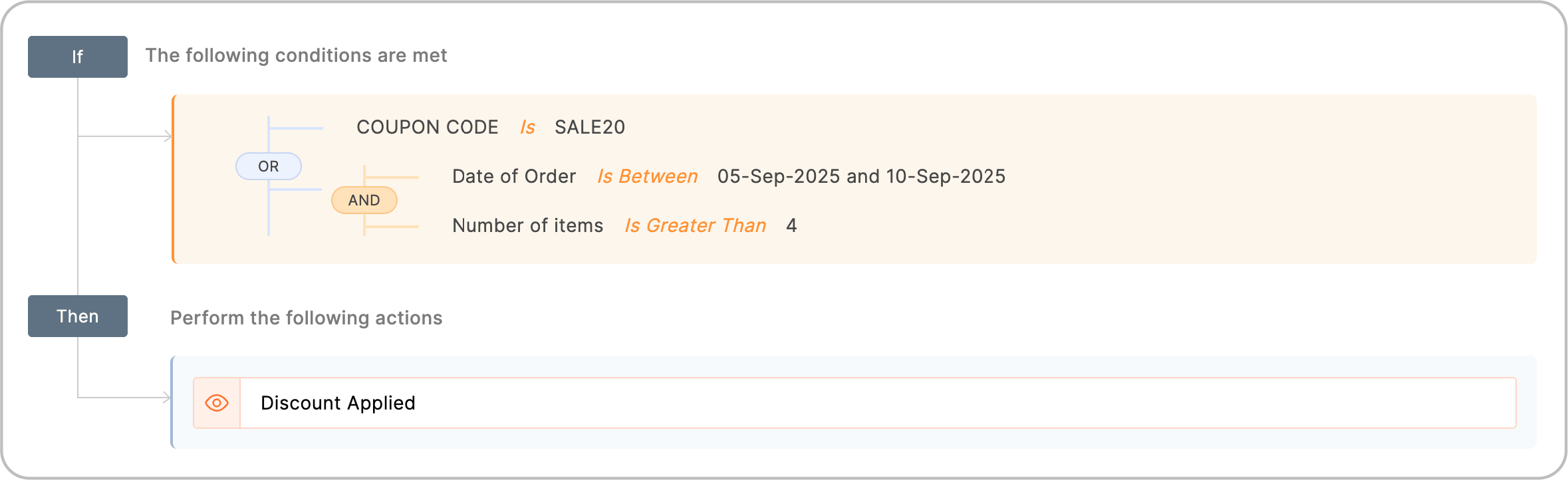
If you have an Order Form where you wish to provide discounts based on certain conditions such as:
If the (
Date of Order
is between
20 July 2022
and 30 July 2022
AND
Number of items
is
greater than
4 ) OR
Coupon Code
is
SALE20), THEN
the
Discount Applied field is displayed.
Job Application Form
Job Application Form
If you have a Job Application Form, and you wish to take in the resumes of only candidates with prior work experience:
If (
Year of graduation
is Not Empty)
AND
(
Currently Employed
is
Yes
OR Prior Work Experience
is Greater than 0), THEN display the Upload Resume
field.
Covid 19 Screening Form
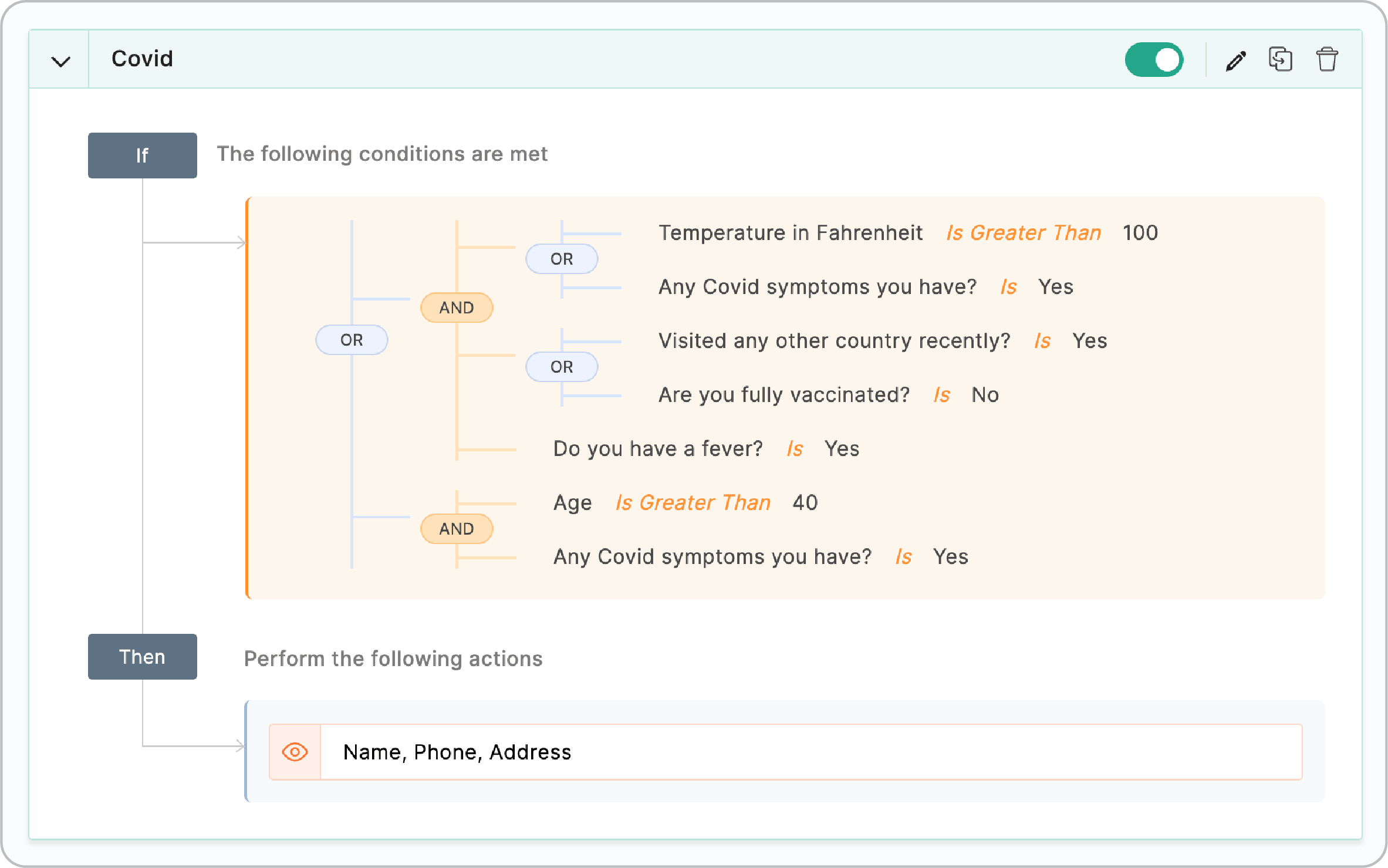
If you have a Covid Screening Form where you wish to collect relevant patient details based on the health conditions selected such as:
Configuring Advanced Field Rules
To configure a combination of rules with AND/OR connectors together,
-
In your form builder, navigate to Rules > Field Rules.
-
Click Configure Now
to configure a new rule.
-
By default, the rule configuration in the New Rule
pop-up will be in the Basic Field Rule format. To switch to Advanced Rules, click the Switch to Advanced Rules option in the top-right corner (You will find this option in the New Rule
pop-up if this is your first Field Rule after clicking Configure Now ).
When you switch to Advanced Rules, all of the Field Rules that you will configure for your form will be in Advanced Rule format. Learn more about switching from basic to advanced rules. -
In the If section, define your conditions by choosing your form fields and the criterion they must satisfy. To add more than one condition, click the
 icon. You can use the AND/ OR connectors to connect your conditions together. You can switch between the connector as required by clicking them.
-
Click
+Add Sub-group / +Add group to define more conditions with AND, OR
connectors to suit your logic.
For example: If Coupon Code is SALE20 OR (Date of Order is between 20 July 2022 and 30 July 2022 AND Number of items is greater than 4 ):
-
You can see a summary of the logic you used to build the criteria under
Rule Expression.
-
In the
Then section, choose to
Show/Hide
fields or Grouped Choices in your form when your conditions are satisfied. Click the
icon to define more than one action.
-
Once you have configured the rule(s), click Add to save and view the rule summary.
-
To add more rules, click
 in the top right corner.
 - You can enable or disable the rule using the toggle on the right. This allows you to temporarily pause the rule's logic without having to delete it.
Note:
-
A condition field should come prior to the Action field in the form builder for the rule to work.
- Once you choose a particular action (Show/Hide) for a field, you will have to continue using the same action on that field in any rule elsewhere. For example, if you choose to Hide the Phone field, you must use the Hide action to use the Phone field elsewhere in the Then section.
- You can add only up to 5 groups within a group.
- You can add only up to 20 conditions within a group in a rule.
-
Subform fields cannot be used to configure the conditions/actions of the Field Rules.
- Advanced Rules are available only in our paid plans.
When a Formula field is used in Advanced Rules
If a
Formula
field is used in the rules, the field(s) involved in the formula must be placed prior to the Formula field in the form.
For example, if you are calculating the Total Cost of a product after applying discount:
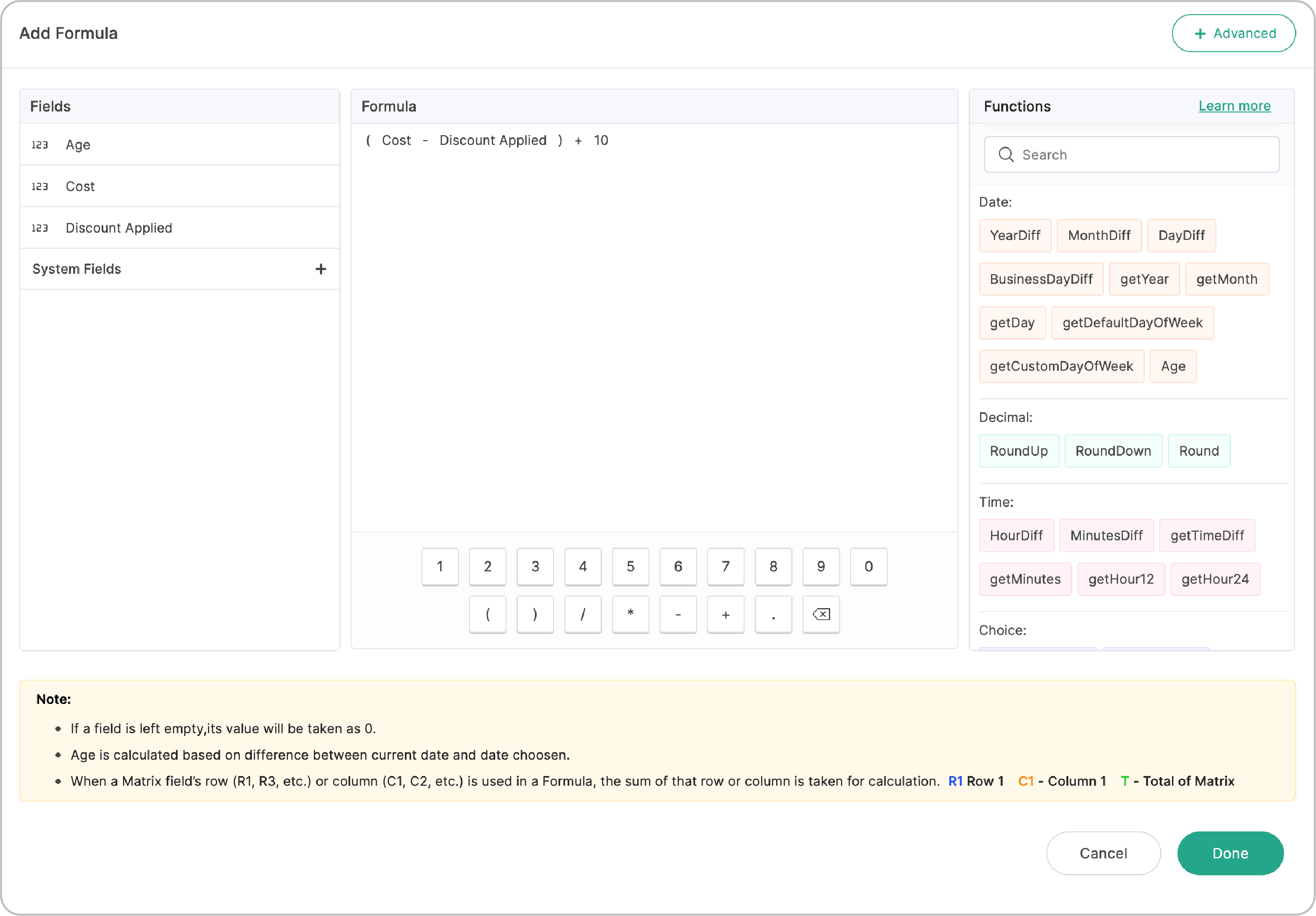
Here, the fields involved in the formula of
Total Cost
are
Cost
and
Discount Applied. These 2 fields must be placed prior to the
Total Cost
field in the form as shown.
 Rules are case-sensitive which means the conditions trigger actions only when the case of the text in the defined condition matches the case of the respondent input. Check out
an example to understand this better.
Rules are case-sensitive which means the conditions trigger actions only when the case of the text in the defined condition matches the case of the respondent input. Check out
an example to understand this better.