Zoho Projects Integration
Integration Setup
To integrate your form with Zoho Projects,
Navigate to the Integrations tab and click Zoho Projects under Task Management & Finance from the left menu.
Click Integrate.
Select the Portal Name and the Project Name.
- Select the Module Type. In this example, we use Task.
You can choose Task, Issue, or Custom Module depending on your requirement. - Select the Task List under which you want to add the Tasks in Zoho Projects.
The field displayed here varies based on the module selected: Task List for Task, Issue Type for Issue, and the Module Name for Custom Module. Note: If you do not select a Task List, all the new tasks created with this integration will be added under Tasks > General in Zoho Projects.
 Map the Zoho Projects fields with the corresponding Zoho Forms fields.You can map certain Zoho Projects fields to manual inputs by selecting the Add Input Manually option.
To map more fields, click + Add Fields.
- To push the form attachments to Zoho Projects, select Yes under Attachments and choose the required File Upload and Image Upload fields in your form. The files and images uploaded to the chosen fields will be pushed to the Documents section of the respective module (Task/Issue/Custom Module) in Zoho Projects.
You can also choose to push the Default Template, Custom Template(s), PDFs sent in form submission workflows, and PDFs sent in approval process as attachments to Zoho Projects.
If you choose PDFs in form submission workflows, the PDF template sent to the respondent after submitting the form (for example, the PDF downloaded from the Thank You page, or any PDF sent via email notification) will be pushed to Zoho Projects as an attachment.
If you choose PDFs in approval process, the PDF template sent to the respondent along with the Final Approval Email will be pushed to Zoho Projects as an attachment.
Click Integrate to save your settings.
Note: When a respondent's input does not match the Zoho Projects' input parameters, record creation will fail even on successful form submission. This can be checked under All Entries > Zoho Projects Status.
Supported Field Types
The following Zoho Forms fields can be mapped to the respective fields in Zoho Projects.
| S. No | Zoho Projects Field | Supported Zoho Forms Fields |
| 1 | Single Line | Single Line, Multi Line, Name, Address, Phone, Email, Date, Time, Date-Time, Website, Unique ID, Radio, Multiple Choice, Checkbox, Number, Decimal, Currency, Slider, Rating, Formula, Dropdown, Image Choices, Terms and Conditions |
| 2 | Multi Line | Single Line, Multi Line, Name, Address, Phone, Email, Date, Time, Date-Time, Website, Unique ID, Radio, Multiple Choice, Checkbox, Number, Decimal, Currency, Slider, Rating, Formula, Dropdown, Image Choices, Terms and Conditions |
| 3 | ||
| 4 | Phone | Phone |
| 5 | Pick List | Dropdown, Radio |
| 6 | User Pick List | -None- (Manual input required) |
| 7 | Date | Date |
| 8 | Date & Time | -None- |
| 9 | Decimal | Decimal, Number, Formula, Currency |
| 10 | Formula | -None- |
| 11 | Number | Number |
| 12 | URL | Website |
| 13 | Task Name / Issue Name / Title | Single Line, Multi Line, Name, Address, Phone, Email, Date, Time, Date-Time, Website, Unique ID, Radio, Multiple Choice, Checkbox, Number, Decimal, Currency, Slider, Rating, Formula, Dropdown, Image Choices, Terms and Conditions |
| 14 | Task Owners | -None- (Manual input required. Only the users associated with a project can be selected.) |
| 15 | Duration | Number, Rating, Slider |
| 16 | Start Date | Date |
| 17 | End Date | Date |
| 18 | Priority | Dropdown, Radio |
| 19 | Percentage | Decimal, Number, Formula, Currency |
| 20 | Checkbox | Decision Box |
| 21 | Currency | Decimal, Number, Formula, Currency |
| 22 | Recurrence | -None- |
| 23 | Reminder | -None- |
| 24 | Task Description / Issue Description | Single Line, Multi Line, Name, Address, Phone, Email, Date, Time, Date-Time, Website, Unique ID, Radio, Multiple Choice, Checkbox, Number, Decimal, Currency, Slider, Rating, Formula, Dropdown, Image Choices, Terms and Conditions |
| 25 | Multi Select | Multiple Choice, Checkbox |
Supported Assign Value Types
When you integrate Zoho Forms with Zoho Projects, you can use the assign values option in your Zoho Forms fields to send data to Zoho Projects. The table below shows Zoho Forms field types and their assigned values can be mapped to specific Zoho Projects fields.
| S. No | Zoho Projects Field | Supported Assign Value Types from Zoho Forms Fields |
| 1 | Single Line | Dropdown, Radio, Image Choices, Multiple Choice, and Checkbox: all assign values types are supported. |
| 2 | Multi Line | Dropdown, Radio, Image Choices, Multiple Choice, and Checkbox: all assign values types are supported. |
| 3 | Dropdown and Radio: assigning email values is supported. | |
| 4 | Decimal | Dropdown and Radio: assigning number values is supported. |
| 5 | Number | Dropdown and Radio: assigning number values is supported. Note: Mapping to a Zoho Projects Number field requires whole numbers; ensure the Zoho Forms field is configured with 0 decimal places in the builder. |
| 6 | Task Name | Dropdown, Radio, Image Choices, Multiple Choice, and Checkbox: all assign values types are supported. |
| 7 | Duration | Dropdown and Radio: assigning number values is supported. Note: Mapping to a Zoho Projects Duration field requires whole numbers; ensure the Zoho Forms field is configured with 0 decimal places in the builder. |
| 8 | Percentage | Dropdown and Radio: assigning number values is supported. |
| 9 | Currency | Dropdown and Radio: assigning number values is supported. |
| 10 | Description | Dropdown, Radio, Image Choices, Multiple Choice, and Checkbox: all assign values types are supported. |
| 11 | Multi Select | Multiple Choice and Checkbox: all assign values types are supported. |
Add Input Manually while mapping fields

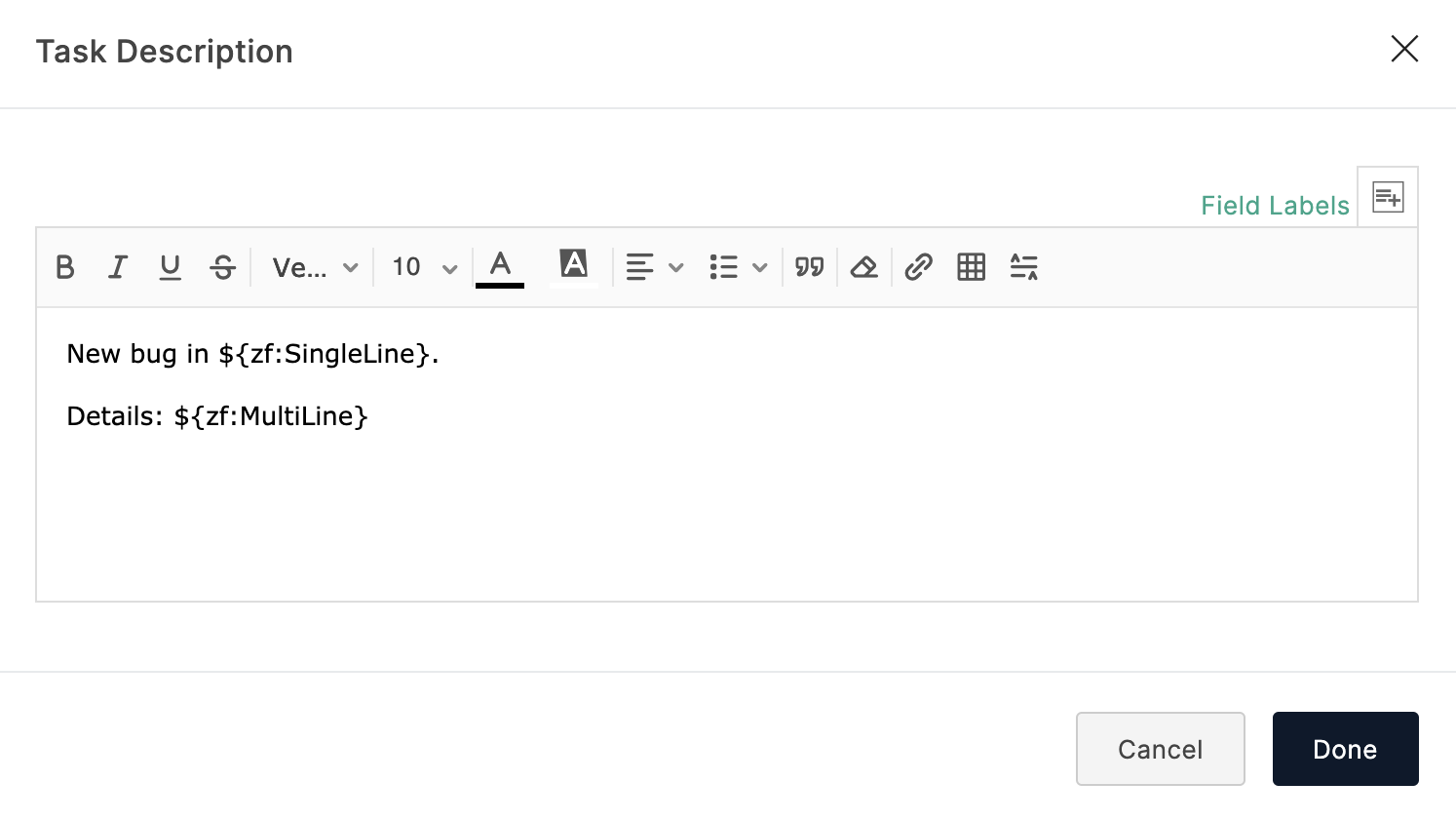 Note: Task Description is specific to the Task module and Issue Description is specific to the Issue module. Both are description fields in their respective modules and serve the same purpose.
Set Alert on Integration Failure
Once your integration settings are saved, you can choose to receive an email alert if the integration fails.
To do so,
Click Set Alert in the top-right corner.
Configure the email alert template and click Save.
To stop receiving email alerts on integration failure, click Remove Alert.
Note:
The option to set an email alert on integration failure is available only in our paid plans.
You can send email alerts to a maximum of 5 users within your organization.
An email alert will be triggered only on the first occurrence of integration failure every 24 hours.