Quick Start Page
The Quick Start page of Zoho IoT serves as your gateway to efficiently harnessing the power of IoT technology. Whether you're new to the Zoho IoT application or looking to deepen your expertise, this page provides comprehensive links to essential features such as adding and onboarding devices, viewing license usage information, accessing help documentation, step-by-step tutorials, and so on.
The Quick Start page is displayed for Administrator and Developer on accessing the application.
This menu can be hidden by deselecting the Application Preference > General Tab > Quick Start option.
The main tabs in the Quick Start screen are: Overview, Usage, What's New, and Announcement. You can use the access points in these screens to access the various features in the application easily.
Overview Tab
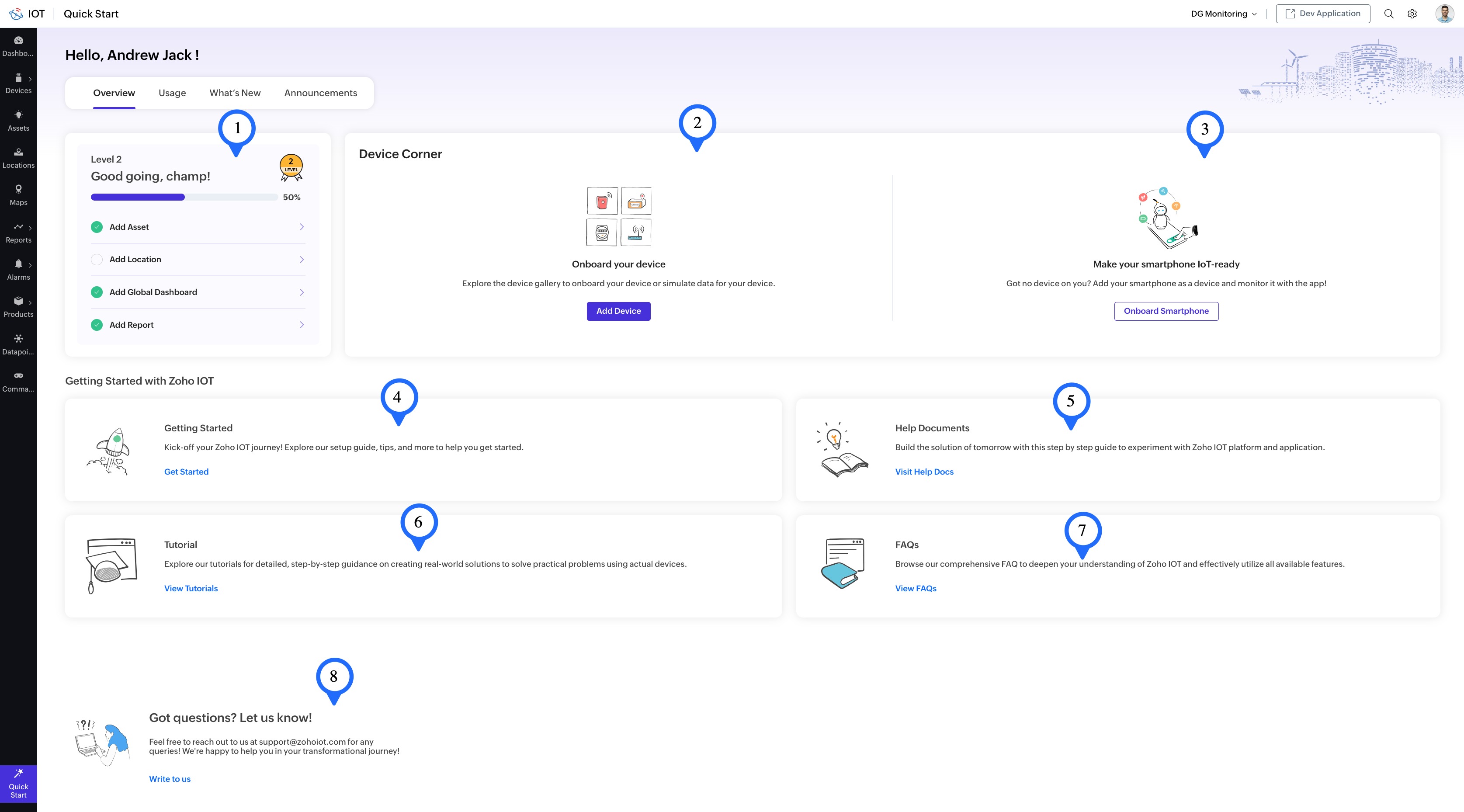
Image: Overview tab of the Quick Start page
Level 1
The options available in Level 1 are listed below with description.
- Add Device: Displays the device list view from where you can add the devices in the application by clicking the Explore Device text link. Else, you can add the device from the Device Corner section in the page.
- Connect Device: Displays the device list view by clicking the Explore Device text link from where you can connect the devices in the application.
- Receive & Parse Data: Displays the connected device list by clicking the Exploer Device link from where you can receive and store data into the application.
- Configure Overview Dashboard: Displays the device list view from where you can access and configure the overview dashboard for a particular device.
- Configure Alarms: Displays the alarms rule creation page from where you can configure new alarm rules.
Note: To complete, click on MARK as COMPLETE. On doing this though the section activity has not been completed, the section will be marked as complete. For each section the Completion Status is denoted by the green icon.
Level 2
The options available in Level 1 is listed below with description.
- Add Asset : Displays the asset's list view on clicking the Explore Asset text link from where you can add assets in the application.
- Add Location : Displays the location's list view on clicking the Explore Asset text link from where you can add locations in the application.
- Add Global Dashboard : Displays the global dashboard on clicking the Explore Dashboard text link from where you can add dashboard & wdigets in the application.
- Add Report : Displays the reports view on clicking the Explore Reports text link from where you can add reports in the application.
- Add Custom Field : Displays the device's list view on clicking the Explore Custom Fields text link.
- Invite Developers : Displays the user's list view on clicking the Invite Developers text link from where you can add users in the application.
Device Corner
The two sections available under device corner is listed below with their description.\
- Add Device: Displays the Add Device form from where you can select the device model and add the device in the application. Even without the device, you can proceed from here to simulate and parse data in the application.
- Onboard Start Phone: Directly onboard your smartphone as a device in the application using the Mobile App from here.
Getting Started with Zoho IoT
The sections available under getting started is provided below:
Getting Started
View the device model creation to onboarding documents from the Getting Started section. -- link to device model document.
Help Documents
View the Zoho IoT help documentation.
Tutorial
View the Zoho IoT tutorial to build your own application.
FAQ
Refer to the Device FAQ section for more details.
Support
Write to Us @support: Contact us for any support related to Zoho IoT.
Usage Tab
Image: Usage tab of the Quick Start page
Subscription Details
Displays your current subscription plan.
Rate Limit Info
Displays the maximum limit for the various entities and processes such as device messages, mail notifications, datapoints, alarm rules, custom functions, webhooks, API calls, throttling of messages, etc.
Usage Summary
Displays the usage summary based on the subscription plan.
- Devices/Assets: Displays the count of devices, assets, and device types in the application.
- Locations: Displays the count of assets in the application.
What's New Tab
This section displays the new features, enhancements, and bug fixes in the application in chronological order.
Announcements
Disabling the Quick Start Page
The Quick Start page which is displayed on accessing the application can be disabled from the Application Preference settings.
To disable the quick start page:
1. Access the Developer Application.
2. Click on the Setup icon on the top-right corner of the screen.
3. Click Application Preference in the left pane, then click General.
4. Set toggle button to OFF to disable the Quick Start page being displayed.