Publishing and Sharing
How do I add the link in bio page to my social platforms?
Once you've added all the components to the page, you can publish it by clicking Publish now on the right-side section of your dashboard. Once the page is published, you just have to copy the URL shown in the preview and paste it in your social profile's bio section.
Why aren’t my changes visible on my public page?
Changes you make to your bio page are saved as drafts. To make your updates visible to visitors, click Publish Now in the top-right corner. Only published changes appear on your public bio page.
How do I add my Linkthread URL to my social media bio?
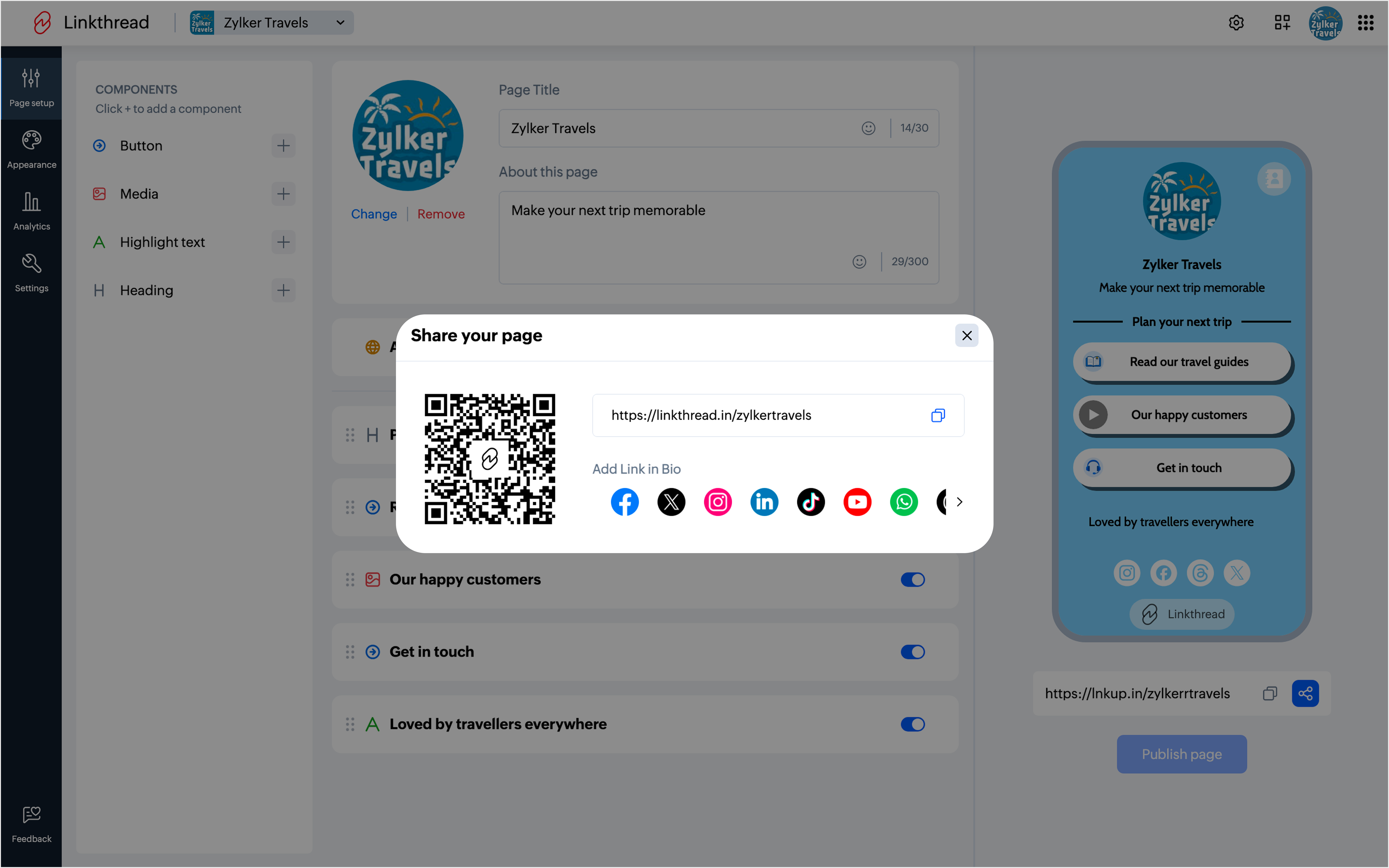
You can add your Linkthread URL from the Share section.
Go to the Share option below the page preview and select Share in Bio. Choose your preferred social media platform and follow the on-screen instructions to add your Linkthread URL to your profile.
For detailed steps, check this out - Share your link.
Where can I use my Linkthread URL?
You can add your Linkthread URL anywhere you want to direct people to your bio page, such as the bio section of your social media profiles, websites, email signatures, portfolios, or marketing campaigns.
Can I edit my page URL?
Yes. You can change the page name that appears in your Linkthread URL from Settings -> Account Information -> Domain Name.
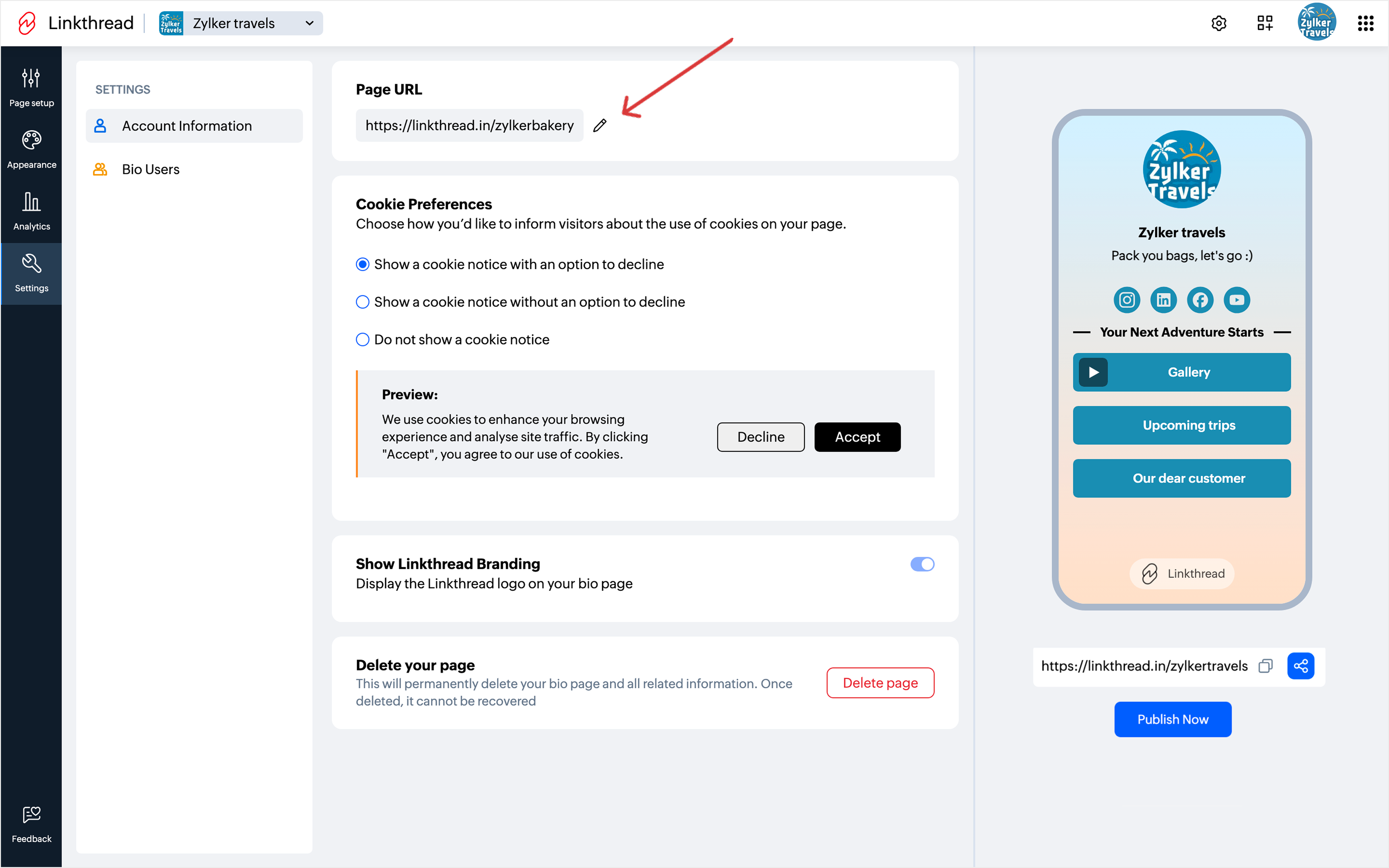
 Note: Only Portal Admins and Bio Admins can edit the page URL.
Can I download a QR code for my Linkthread page?
Yes. Linkthread lets you download a QR code for your bio page.
Go to the Share section below the preview, open the QR Code tab, and click Download. You can then use the QR code on event banners, business cards, brochures, posters, or any printed material.