Continuous Review Based Appraisal Cycle
A continuous review based appraisal cycle enables you to evaluate employee performance by analyzing continuous review scores and ratings over a set period. This process allows you to gather ongoing performance data and provides comprehensive final feedback. Based on these ratings, you can make decisions regarding promotions and salary increases for employees.
Enable Continuous Review based Appraisal Cycle

Before enabling a Continuous Review–based appraisal cycle, ensure that Continuous Review is activated and the review cycles are conducted to gather feedback from employees and/or their reporting managers, refer to Set Up and Run Continuous Review.
To enable continuous review based appraisal cycle:
- Navigate to Settings > Performance > Configuration > Appraisal Review.
- Enable Continuous Review Based Appraisal Cycle.
Create Continuous Review Based Appraisal Cycle
To create a continuous review based appraisal cycle:
- Navigate to Operations > Performance > Appraisal > Appraisal Cycle.
- Click Add > Add a Continuous Review Based Cycle.
- Click Apply on the desired template based on how you want to run the appraisal cycle. You can choose from the following options, depending on your organization's preferences.
- Continuous review based cycle with only Manager review
- Continuous review based cycle with Self appraisal and Manager review
- The Add Appraisal Cycle configuration section will appear, allowing you to set up the Appraisal Cycle. Let's proceed with the setup process step by step.
1. Basic Details
In the Basic Details tab:
- Enter a name for your appraisal cycle. For example, Yearly Appraisal 2025.
- Select the period for which your employees are being evaluated.
- Enter Additional note about the appraisal cycle, if required.
- Attach a Guideline Document for this appraisal cycle for reference.
- Click Next to proceed.
2. Applicability
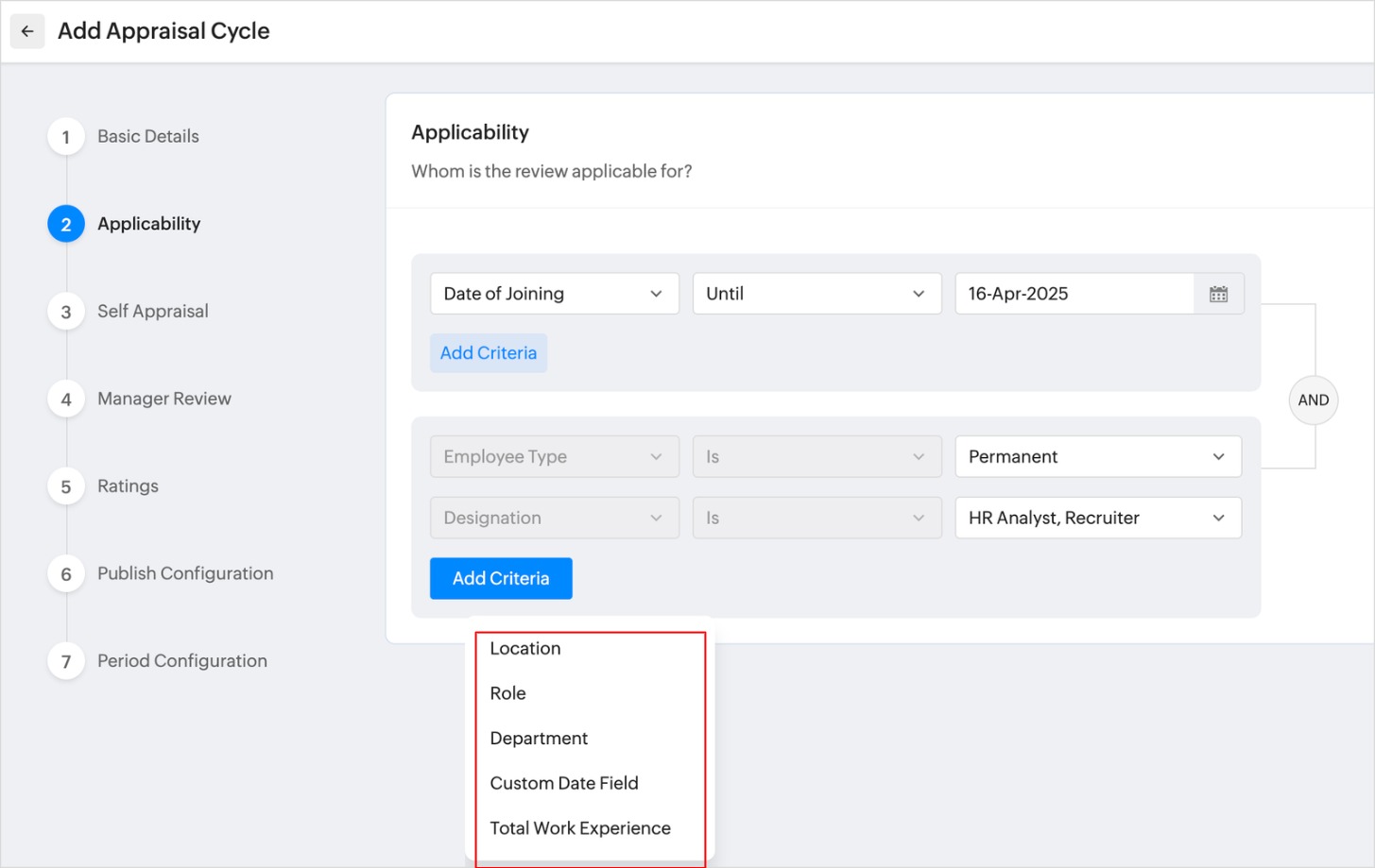
In the Applicability section, select the employees to whom this appraisal cycle should apply. You can set applicability based on Date of Joining, Employment Type, Designation, Location, Role, Department, Custom Date Field from the employee form, and Total Work Experience.
3. Self Appraisal
Self-appraisal is the process of individuals evaluating their own performance.
This tab appears only if the continuous review appraisal is created based on both self and manager reviews.
- In the self appraisal tab, enable and select the qualitative parameters to be included in the appraisal cycle. You can enable review questions and set comments as mandatory.You can tag review questions to employees in Operations > Performance > Methods > Review Questions.
- At the top right there are options to preview the self appraisal from the employee perspective and customi the self appraisal form.
- Select the Self-Appraisal Template check box, to upload appraisal guideline document. Supported file formats include PDF, .DOCX, and .XLS.
- After setting up Self Appraisal click Next.
4. Manager Review
Manager review is the final stage of feedback given by the reviewers chosen for this appraisal cycle.
- In the Manager Review tab, enable and select the qualitative parameters to be included in the appraisal cycle. You can enable review questions and set comments as mandatory.You can tag review questions to employees in Operations > Performance > Methods > Review Questions.
- Select the manger reviewers for this appraisal cycle. You can add multiple review levels.
- You can also configure approval process for final level review by selecting Enable review approval for only final level review check box. For setting up approvals, refer to Approvals - Overview & Use Cases.
- After setting up Manager Review click Next.
5. Ratings
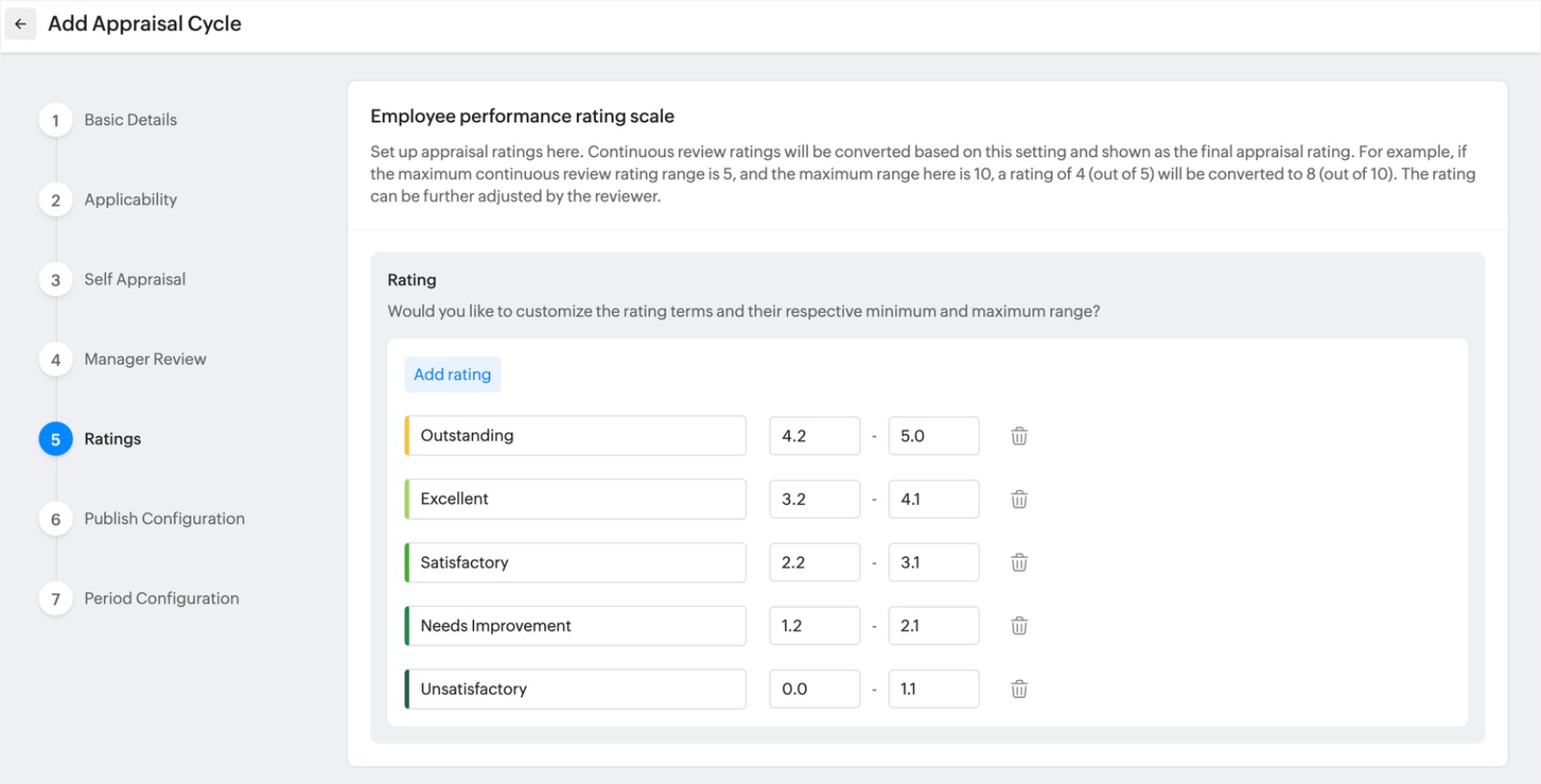
Set up appraisal ratings here. Continuous review ratings will be converted based on this setting and shown as the final appraisal rating. For example, if the maximum continuous review rating range is 5, and the maximum range here is 10, a rating of 4 (out of 5) will be converted to 8 (out of 10). The rating can be further adjusted by the reviewer.
6. Publish Configuration
In the publish configuration section:
- Select the rating publish type as either Manual or Automatic:
Manual: Ratings are published upon clicking the Publish button.
Automatic: Ratings are published automatically on the set date and time, you can set publish date and time in Period Configuration section. - Select the required appraisal outcomes that must be shared with the appraisee upon publishing the review.
- Select who can share results, by default administrators can publish and share the rating results to employees, additionally you can select Final reviewer and Reporting Manager if required.
- You can also allow employees to share the feedback on the appraisal process by selecting the share feedback option.
- After setting up the Publish rating, click Next to proceed.
7. Period Configuration
- Select the Appraisal Process Period: The total duration encompassing all appraisal activities, from initiation to completion. Ensuring the entire appraisal process is conducted within a set timeframe.
- Select Self Appraisal Period: The timeframe for employees to complete their self-assessments.
- Select the Manager Review Period: The timeframe allocated for the Manager reviewers to complete the Manager review for the employees.
- Select Publish Ratings period: The timeframe during which final performance ratings can be published and officially released to employees.
- Upon setting up the period configuration, click on Submit.
Active Cycles
After creating an Appraisal Cycle, you can manage it by navigating to Operations > Performance > Appraisals and selecting the Active Cycles tab. Here, you can view all active appraisal cycles. Continuous review–based appraisal cycles are highlighted with a banner. Additionally, you can view the total number of appraisees for each cycle, manage users by including or excluding them, and edit the appraisal configuration.
Start Cycle
To initiate the created continuous review based appraisal cycle, click on Start Cycle, this action officially begins the appraisal cycle and enable evaluations to proceed as configured.