Task Layout Rules
Layout Rules in Zoho Project helps you customize your Add Task form layout based on the certain conditions and criteria. To create a layout rule, you must create a condition and an action.
Benefits
- Optimize your task forms by viewing fields based on matching condition.
- Mandate specific fields based on value in another field.
- Create a customized flow using dependent layout rules. View a related drop-down based on the selection in a pick list.

Feature Availability: Enterprise Plan and above.

Conditional Layout Rule allows for changing the property of a field based on certain conditions. For e.g., the rule is set to execute on task creation and task update. If the
priority of the task is high and initial quantity (a custom field) is not given, the rule
will mandate that Due Date and Quantity fields must be filled before the task can be added.
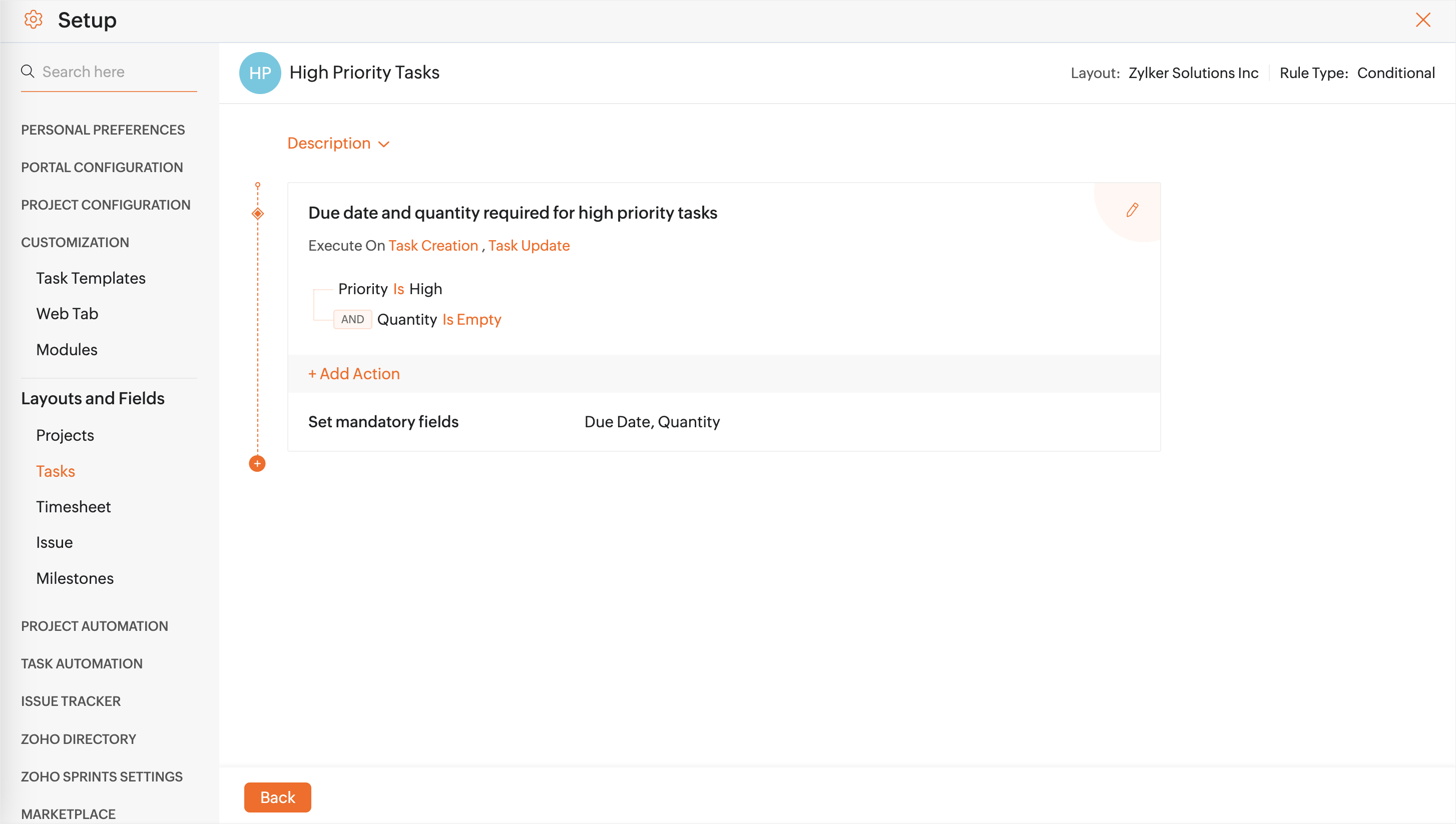
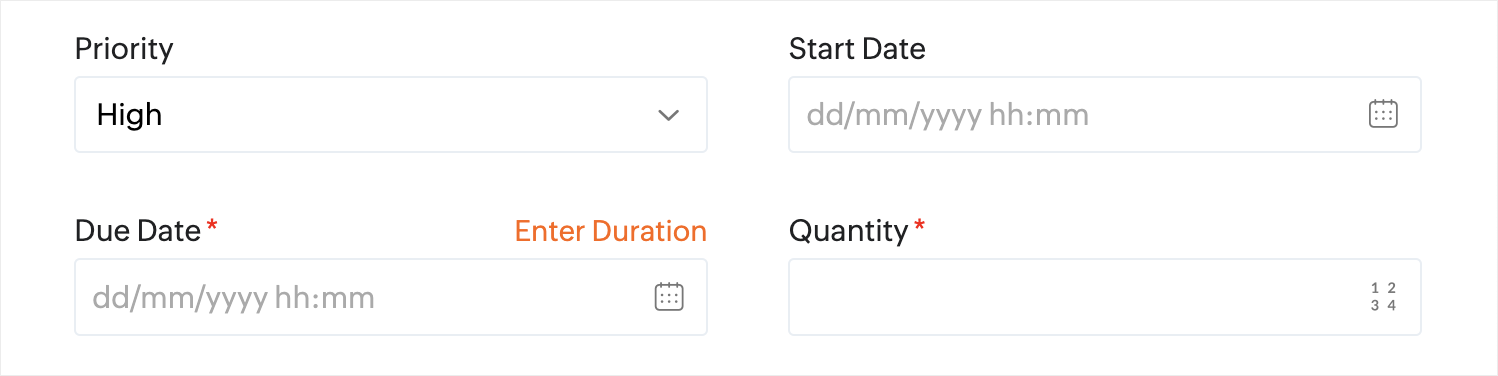
Here, the rule is set to execute when a task is created or. updated. The condition for the rule is set to Priority is High and Quantity field is empty. If both these conditions match, the Due Date and Quantity fields will be marked as mandatory fields in the Add Task form as shown below.
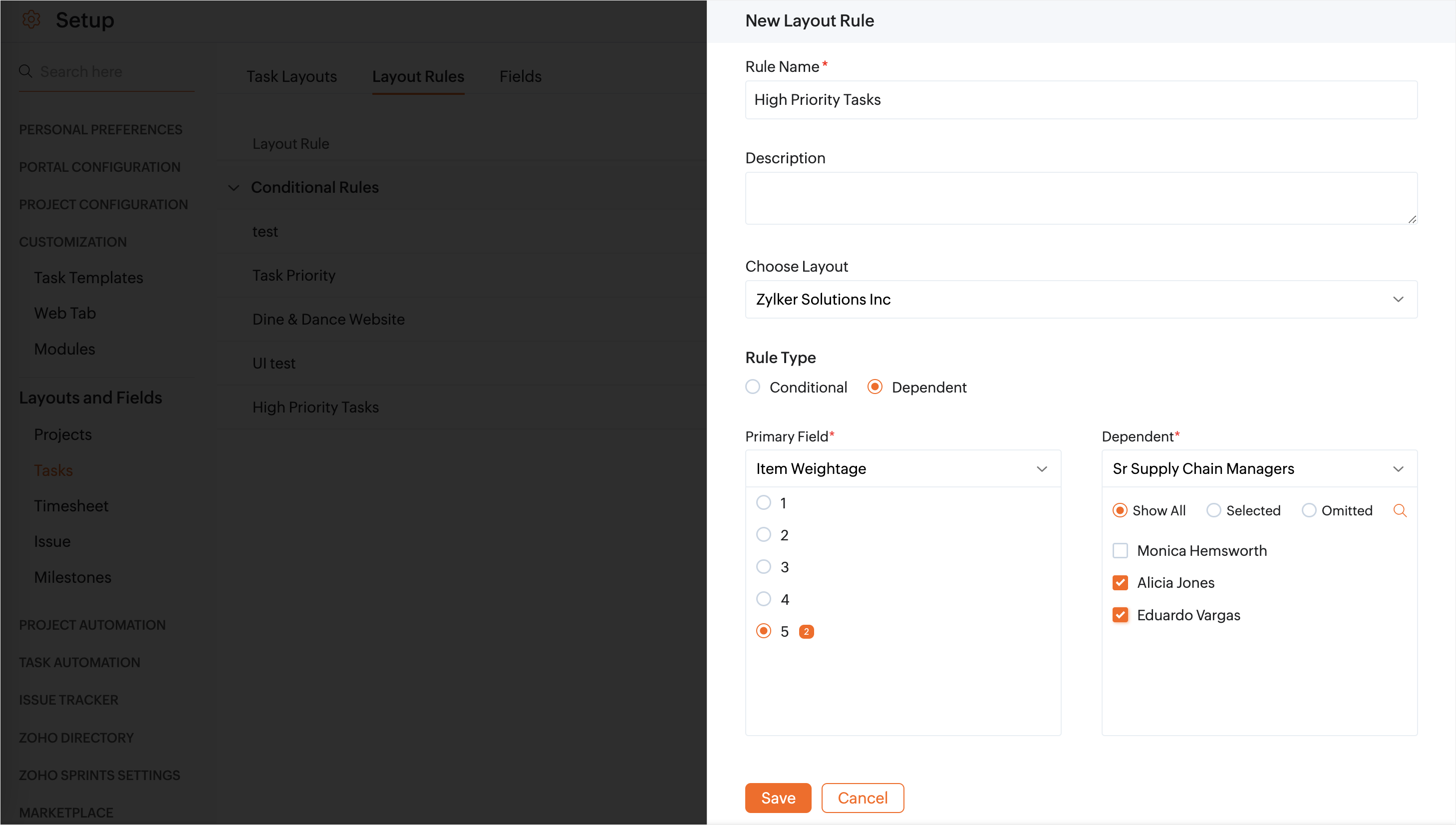
Dependent Layout Rule allows users to view specific values in a field on the Add task form, based on a value selected in another field. For e.g., an organization assigns weightage to items when tracking material, and items with
higher weightage are to be tracked by specific managers. So a dependent
layout rule is created as shown. The primary field is set as Item
Weightage and the highest weightage is selected. Then the dependent
field is set to Sr Supply Chain Managers and specific individuals are
selected.
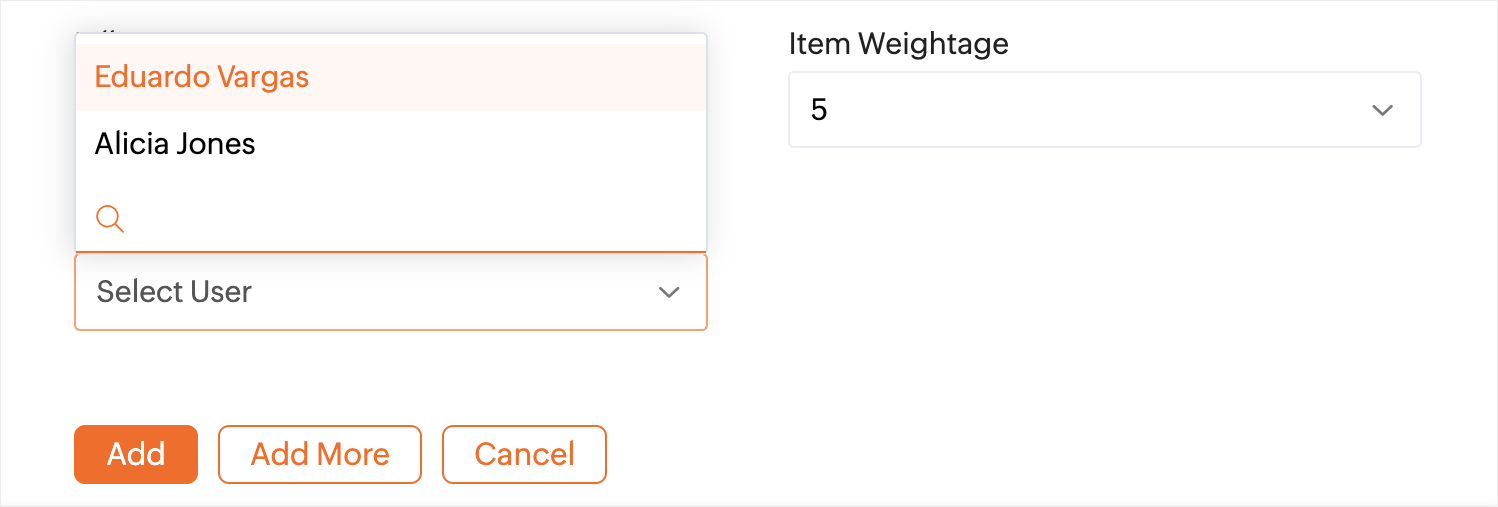
When adding a task or updating a task, if the Item Weightage is set to 5, only these selected users will be shown in the Sr Supply Chain Managers field.
Create Layout Rule
- Click
in the upper-right corner of the top navigation band.
- Navigate to Customization > Layouts and Fields > Tasks > Layout Rules tab.
- Click New Layout Rule in the upper right corner.
- Enter the Rule Name, Description, and choose an existing Layout. If there are not any created layouts, the system will only list the default layout in the drop-down.
- Select the Rule Type and create a rule.
- Conditional Layout Rule: Use the conditional layout rule to change the property of a custom field.
- Dependent Layout Rule: Use the dependent layout rule to change the value of the custom picklist fields.
- If you have selected Conditional, choose the trigger to Execute On; Choose a condition to initiate Rule. If you have selected Dependent, choose the Primary Field and the Dependent.
- Click Save.
If the Rule Type is Conditional and the condition field is set to 'Is updated,' you can only add 'Set Mandatory Field' as an action.

Priority, Start Date, End Date, and Completion Percentage are the default fields that can be used in Layout Rules. If multiple conditions are set, the first matching condition and its corresponding actions will be executed. The subsequent conditions will not be checked.
Edit Layout Rule
- Click
- Navigate to Customization > Layouts and Fields > Tasks > Layout Rules tab.
- Hover over a layout rule and click
to view options.
- Click Edit.
- Modify layout rule information.
- Click Save.
Delete Layout Rule
- Click
- Navigate to Customization > Layouts and Fields > Tasks > Layout Rules tab.
- Hover over a layout rule and click
 to view options.
 - Click Delete.
- Confirm your action.
Create Action
Once a condition is created, the user can add actions like showing fields, showing sections, or enabling/disabling mandatory fields.
Show fields
- Click
- Navigate to Customization > Layouts and Fields > Tasks > Layout Rules tab.
- Click on the rule which you would like to add action.
- Click Add action and select Show fields.
- Select the fields you would like to display.
- Click Save.
Show sections
- Click
- Navigate to Customization > Layouts and Fields > Tasks > Layout Rules tab.
- Click on the rule which you would like to add action.
- Click Add action and select Show sections.
- Select the sections you would like to display.
- Click Save.
The default section will not be displayed under "Show sections".
Set mandatory fields
- Click
- Navigate to Customization > Layouts and Fields > Tasks > Layout Rules tab.
- Click on the rule which you would like to add action.
- Click Add action and select Set Mandatory Fields.
- Select the fields which you would like to set as mandatory.
- Check the Clear the current value and prompt for a new value when triggered checkbox if you want to prompt for new values for the mandatory fields.
- Click Save.
The Clear the current value and prompt for a new value when triggered checkbox will be only available when the condition field is set to 'Is updated'.
Remove mandatory field
- Click
- Navigate to Customization > Layouts and Fields > Tasks > Layout Rules tab.
- Click on the rule which you would like to add action.
- Click Add action and select Remove Mandatory Field.
- Select the mandatory fields which you would like to remove.
- Click Save.
Disable field
- Click
- Navigate to Customization > Layouts and Fields > Tasks > Layout Rules tab.
- Click on the rule which you would like to add action.
- Click Add action and select Disable Field.
- Select the fields which you would like to disable.
- Click Save.
If a field is set as mandatory, it cannot be disabled.
Limitations:
- A layout rule can have a maximum of 35 conditions
- Users can add upto 200 conditions per layout.
- There is no restriction on the number of rules that can be associated with a single layout, however, the above restrictions must be satisfied.