Multi-Factor Authentication in Test Cases
In a nutshell
MFA support in Zoho QEngine allows you to automate testing of TOTP-enabled services without failing at the authentication step. By configuring your MFA-protected accounts in the project settings, QEngine generates the required one-time password automatically during test execution. This keeps automated test runs uninterrupted without requiring manual authentication.
1. Overview
Websites or accounts require users to be signed in, usually with a username and password to secure them. However, for added security, they may also opt for the use of Multi-Factor Authentication (MFA), such as Push Notifications, QR Code Scans, or Time-Based One-Time Passwords (TOTP).
Testing these MFA-enabled services can be challenging due to the additional authentication step required to access the service. If this step isn't automated, testing operations may stall, requiring users to manually manage cookies for logging in. This can become a bottleneck in testing automation. Zoho QEngine addresses this issue by offering support for testing TOTP-enabled services. By configuring your accounts or services within the project's MFA module, access and authentication are seamlessly handled in the backend. This allows for secure and automatic authentication according to your configured MFA process, ensuring full automation of your testing.
2. Steps to configure TOTP details
Navigate to Settings > MFA.
- Click Configure TOTP to add your service details.
- Provide the Name and other details that are necessary to generate the TOTP, such as Secret Key, Algorithm, Digits and Validity.
Here, the name given will be used to invoke the MFA within the test cases. Learn How

Note:
- To fetch the MFA configuration details like Secret Key, Algorithm, Digits, and Validity, check your service's accounts page or consult your service provider. These details are usually provided when you set up authentication for your service.
For example, the secret key is received while you set up OTP authentication for your Zoho Accounts. Learn how - The algorithm used for authentication differs for each service; typically, SHA1 is used. Verify the algorithm for your service with your service provider.
- Click Configure.
Now that you've configured the service whose TOTP has to be generated, you can use them in your test cases.
3. Manage MFA
Zoho QEngine allows you to perform the edit and delete actions for the configured MFAs.
Note: The following roles have permission to edit or delete the configured MFA: - Super admin
- Admin
- Manager, who has access to the respective project
- Tester, who has configured the services or accounts
To perform the edit or delete actions:
Hover on the required configured service to which you want to perform the changes. Click the edit icon to make changes.
- Similarly, hover and click delete icon to remove the required configured service.
Note: MFAs referenced in test cases should be removed from those test cases before they can be deleted.
4. Using MFA inside test cases
MFAs can be supplied as a parameter to any required task. The following syntax returns a TOTP, generated based on the configured details:
- mfa.<name>
Parameter | Description |
<name> | Name of the service to be invoked. This is the name you have given while configuring details of the MFA. |
5. Use Case
Let's look at usage in detail with a simple example. Consider a scenario where you want to test a login functionality. In addition to the usual password security, the website expects a TOTP.
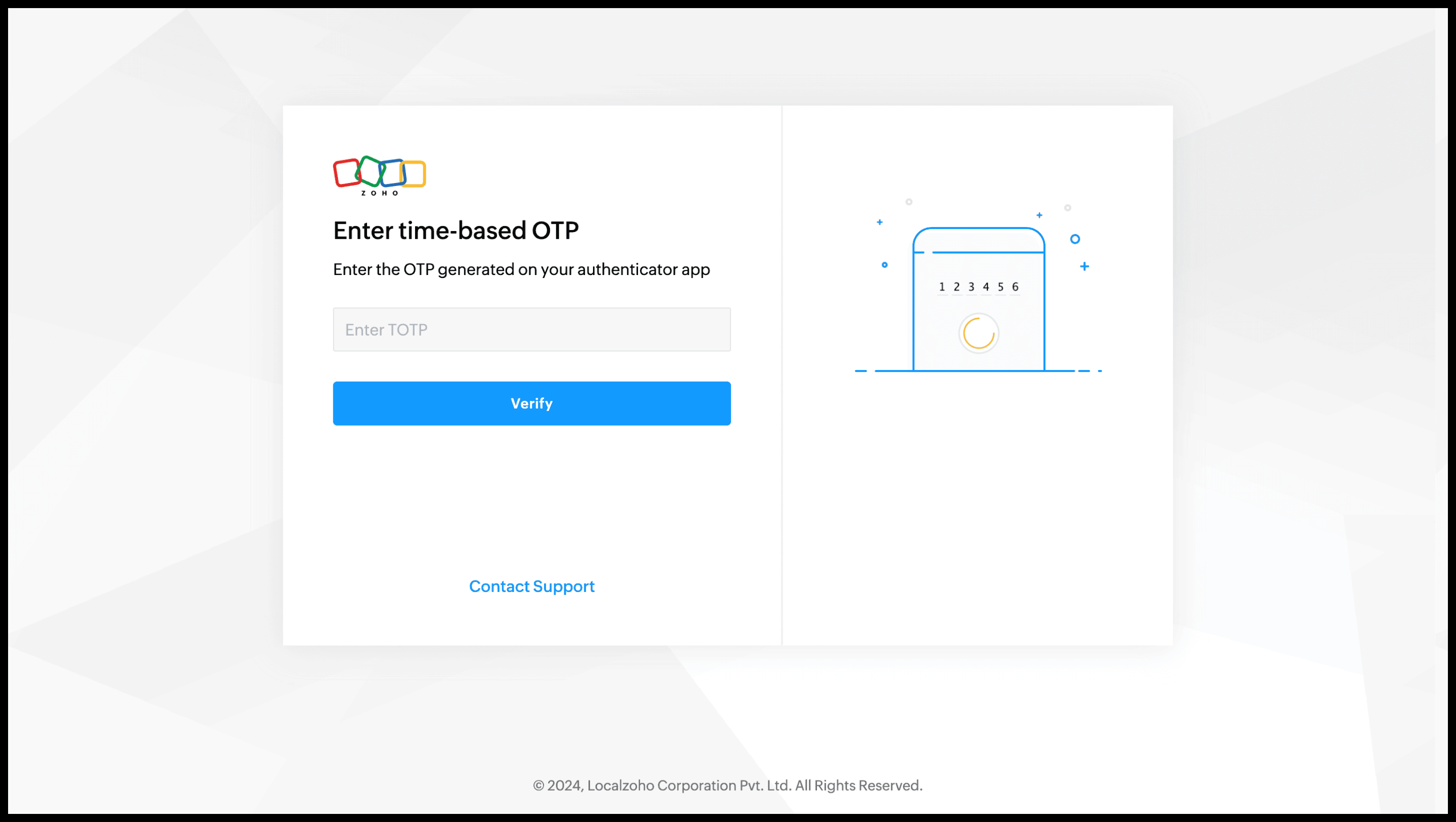
The following are two steps for automating this login process using Zoho QEngine:
- Navigate to the MFA module and create one with the Name - ZWATCH. Provide the TOTP details such as Secret Key, Algorithm, and Validity.
- Invoke the configured MFA in the testcase that tests the login functionality of the Zylker Watches website. The following script sets the generated TOTP as value of the input TOTP field.
- setValue (<locator> , <mfa.ZWATCH> ) ;
Here,
- <locator> parameter is the locator of the field that requires to input the TOTP
- mfa.ZWATCH returns the TOTP generated based on the provided configuration