Create a Pop-Up Survey
Overview
A pop-up survey appears as an overlay on your website, automatically prompting visitors to share their feedback without navigating away from the page. This is an effective way to capture real-time feedback from website visitors and improve user experience based on their responses.
How to create a pop-up survey
- Select a survey and go to the Publish tab.
- Click Add New Collector.
- Click Create under the Public Link option in the Public Access section of the Builder tab to publish your survey.
- Click Configure & Regenerate to customize your pop-up survey.
Customize Pop-Up Survey
Pages with Pop-Up
- Show on all pages: Displays the pop-up on every page.
- Show on chosen pages: Displays the pop-up on selected pages only.
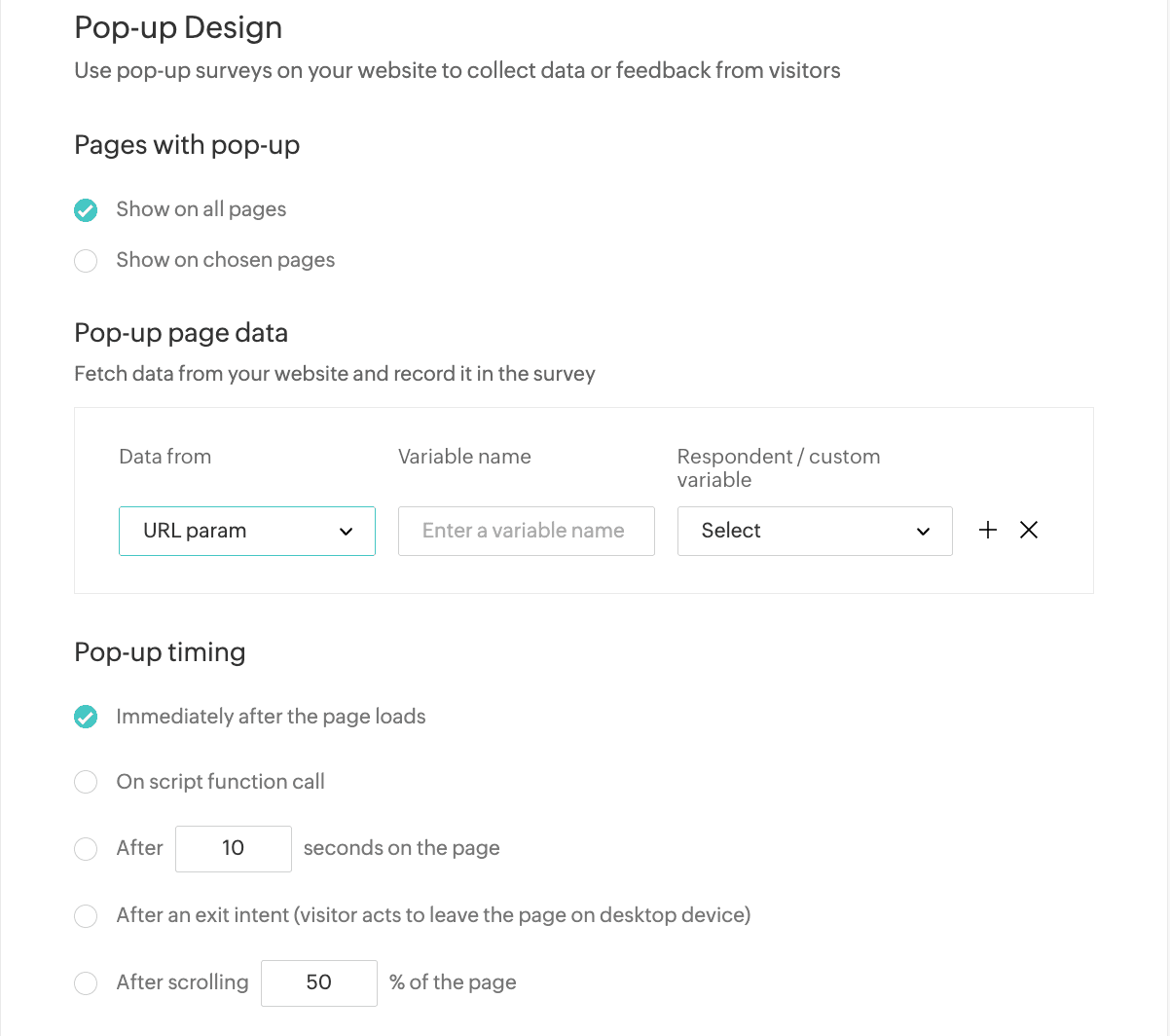
Pop-Up page data
Click the Data from dropdown list and select one of the following to fetch data from your website and record them in the survey.
- URL Param - Select URL param to get data from an URL parameter in the survey link.
- Data from - Select URL param.
- Variable name - Enter a variable name sent in the URL for which data is to be retrieved.
- Respondent / custom variable - Map the respondent variable name to be used in the survey. Click Create Custom Variable to create a variable to map the URL parameter in the survey.
- Cookie Value - Select Cookie Value to get data from cookies.
- Data from - Select Cookie Value.
- Variable name - Enter a variable name to search in the cookies for which data is to be retrieved.
- Respondent / custom variable - Map the respondent variable name to be used in the survey. Click Create Custom Variable to create a variable to map the cookie parameter in the survey.
- Script Variable - Select Script Variable to get data from scripts.
- Data from - Select Script Variable.
- Variable name - Enter a variable name to search in the script for which data is to be retrieved.
- Respondent / custom variable - Map the respondent variable name to be used in the survey. Click Create Custom Variable to create a variable to map the script parameter in the survey.

Note: The respondent or custom variable will be hidden in the live survey but shown in the reports. Learn more about custom variables.
Pop-Up Timing
Select from the following in the Pop-up timing section to choose when the pop-up should appear.
- Immediately after the page loads - The survey appears as soon as the page loads.
- On script function call - Trigger the pop-up by calling the zsShowPopup() function.
- After __ seconds on the page - Enter a value for the number of seconds after which the survey should appear.
- After an exit intent - When the respondent tries to leave a page.
- After scrolling __ % of the page - The pop-up appears after the respondent scrolls the specified percentage of the page.
- Pop-Up Position - Select from the following in the Pop-up position section to set an alignment for the pop-up.
- Top left
- Top right
- Center
- Bottom left
- Bottom right
- Pop-Up Height
Select one of the following options in the Pop-up height section to set the height (between 350px and 700px) of the pop-up.
- To always keep the height fixed, enter the height in the Fixed height field.
- Adjust the height based on the question size by entering the minimum and maximum height required in the Minimum height and Maximum height fields respectively.
Minimize Pop-Up
Select one of the following options in the Minimize pop-up section to choose the view when the pop-up is minimized:
- Minimize the pop-up only on the current page.
- Always keep the pop-up minimized until the user maximizes the survey.
Close Pop-Up
Select one of the following options in the Close pop-up section to choose the view when the pop-up is closed:
- Close the pop-up only on the current page
- Do not show this again
Pop-Up Options
Select the required options from the Pop-up options section.
- Choose Hide pop-up if you want to hide the pop-up when the survey is redirected to a custom end page based on a restriction that has been set up.
- Choose the Freeze the page checkbox if you want to freeze the page when survey is opened.
Click Regenerate Script to generate your script. You can use the generated script on all the pages of your website after the <body> tag.
Sample Script
<script>(function(w,d,s,u,f,m,n,o){o='https://survey.zohopublic.in';w[f]=w[f]||function(){(w[f].p=w[f].p||[]).push(arguments);};m=d.createElement(s),n=d.getElementsByTagName(s)[0];m.async=1;m.src=o+u;n.parentNode.insertBefore(m,n);zs_intercept(o,'survey-id',{"minimizeView":1,"displayPeriod":3,"hideEndPage":true,"pageScrollAmount":40,"height":690});})(window, document, 'script', '/api/v1/public/livesurveys/vsNJO1/popup/script', 'zs_intercept');</script>