Preview
Preview how a survey will look on smartphones, tablets and desktops at any point before or after it is published. This preview can be shared with your friends and colleagues to gather their opinions on the theme you've used. However, you cannot collect responses in a preview. Also, previews won't show end page logic.
To preview how your survey will look right from the My Surveys page:
- Click the Zoho Survey logo in the upper-left corner of the page.
- If you're an Enterprise user, click the department you'd like to access. The My Surveys page will appear.
- Hover over the survey you want to preview and click
 .
. - You can share this preview with anyone by clicking the Share the preview URL tab in the Review popover. You can disable and enable this review link at any point in time.
- Published surveys will show Access instead of Preview. Click Access
 to see the live survey.
To preview how your survey would look from the Summary page:
-
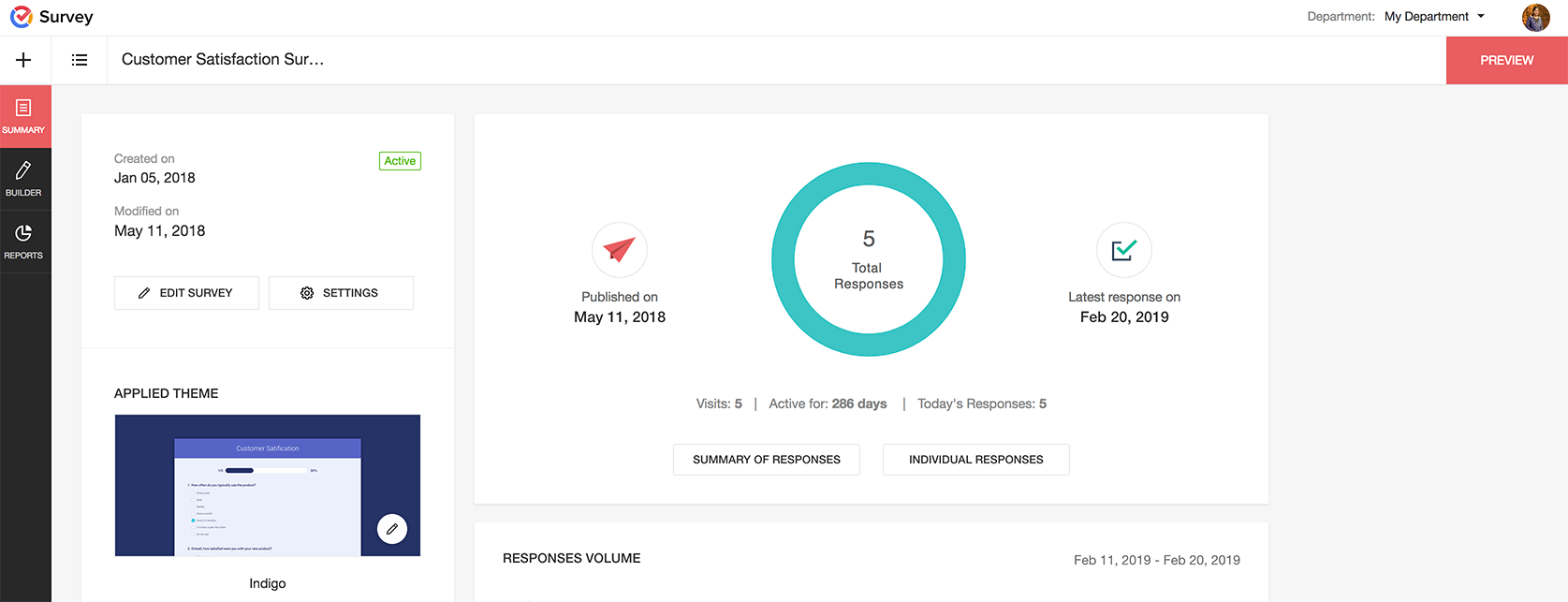
Go to the Summary page of your survey.
-
Click Preview on the top-right corner of the page to see how your survey will appear on a computer desktop, tablet, or smartphone, before sending it out to your audience.

-
You can share this preview with anyone by clicking the Share the preview URL tab in the Review popover. You can disable and enable this review link at any point in time.
To preview how your survey would look from the Survey Builder page:
-
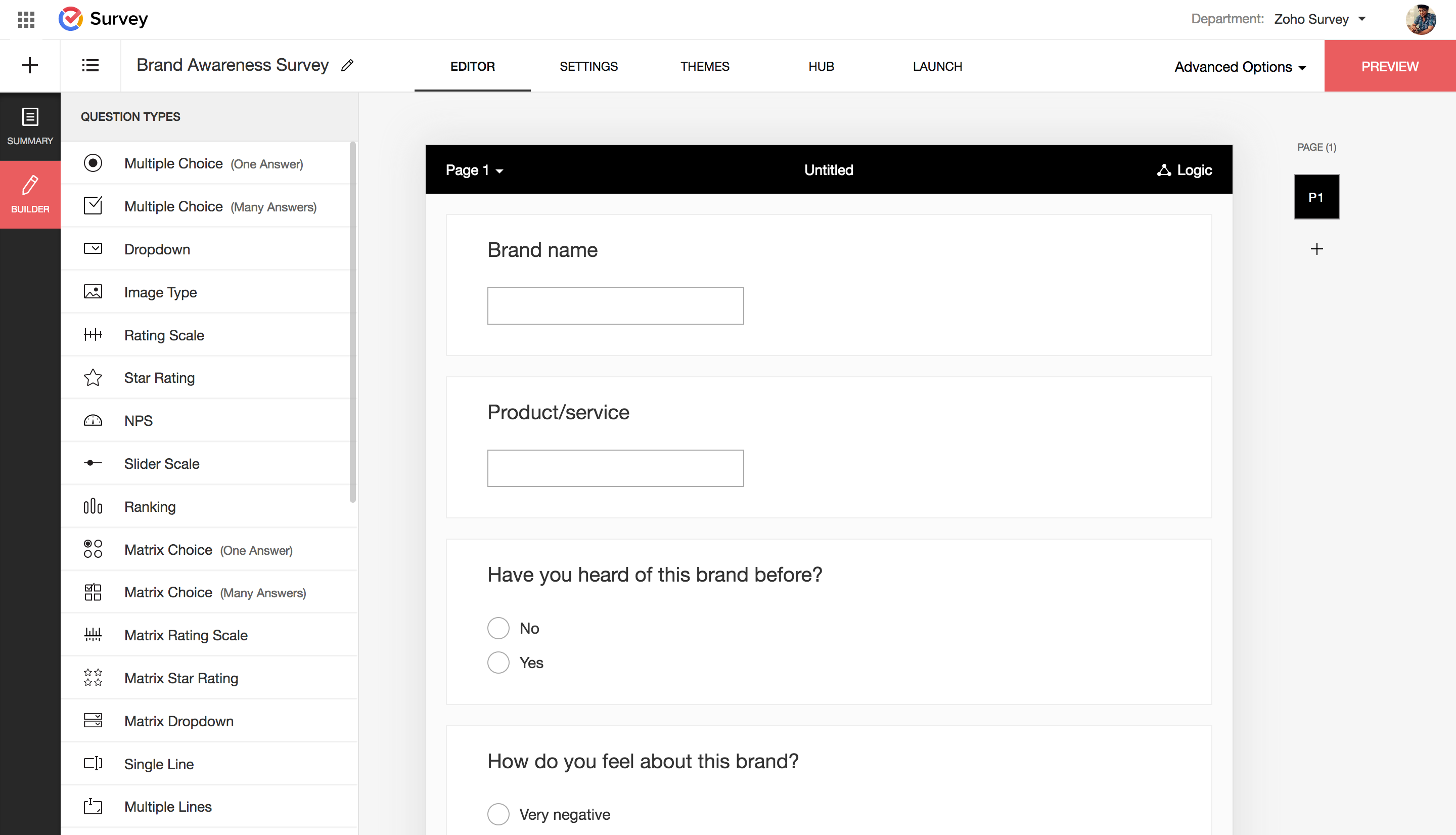
Go to the Builder page of your survey.
-
Click Preview on the top-right corner of the page to see how your survey will appear on a computer desktop, tablet, or smartphone, before sending it out to your audience.
-
You can share this preview with anyone by clicking the Share the preview URL tab in the Review popover. You can disable and enable this review link at any point in time.
To preview a theme:
- Go to the Themes tab in the survey's builder.
-
Hover over the theme and click the Preview option.
-
You can also click Preview on the top-right corner of the page to see how your survey will appear on a computer desktop, tablet, or smartphone, before sending it out to your audience.
-
You can share this preview with anyone by clicking the Share the preview URL tab in the Review popover. You can disable and enable this review link at any point in time.
To preview a template:
-
Click Create Survey, or the + icon in the upper-left corner of your screen.
-
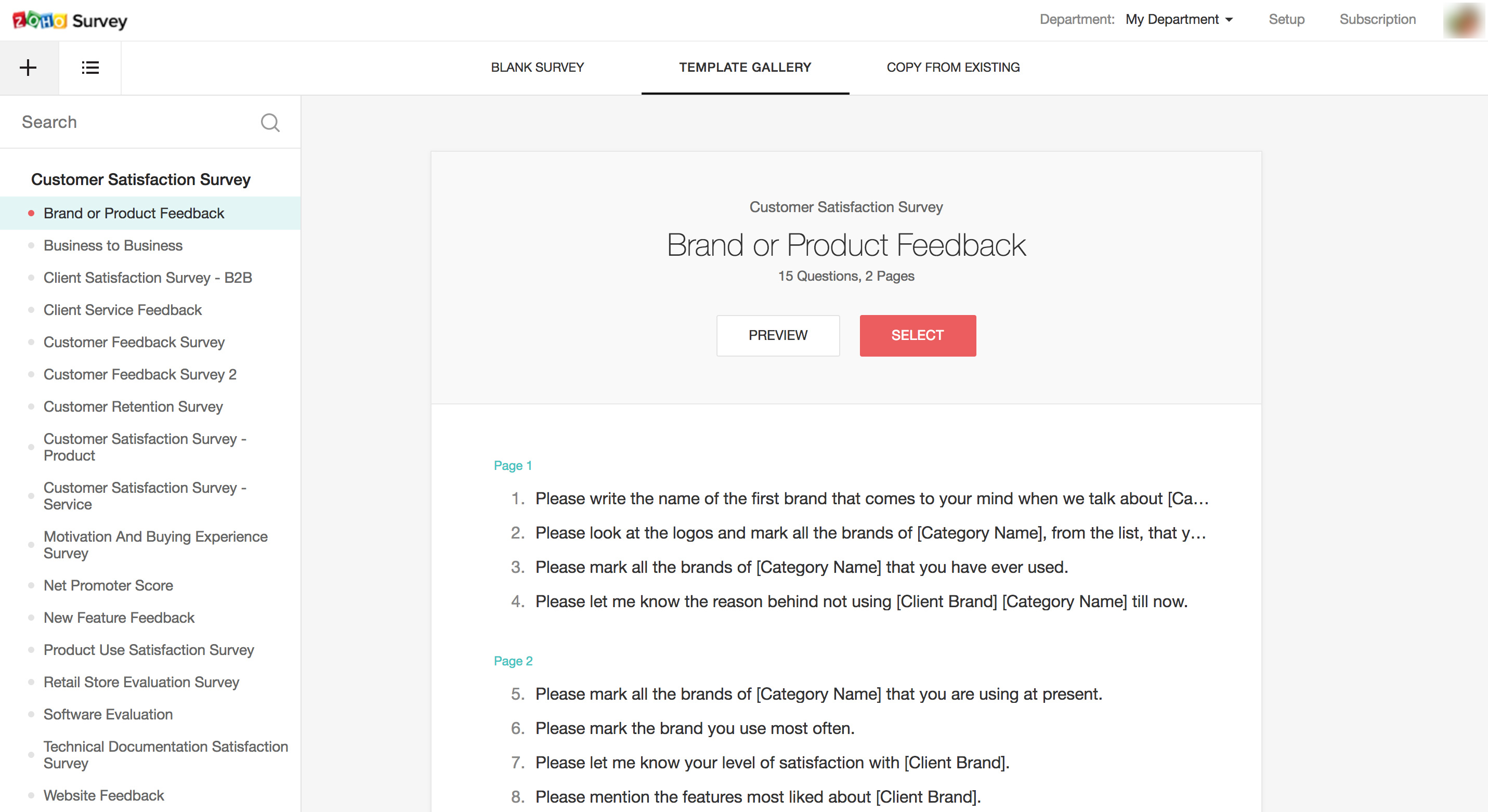
- Search and pick the template you'd like to use and click the Preview button to see the template.
To access more options:
-
Click Preview on the top-right corner of the page.
-
Click Options and turn the Enable Comments toggle button on if you want to show the comments in your survey preview.
- Turn the Ignore Validations toggle button on if you choose to ignore validations in the preview.
- Turn the Hidden Questions toggle button on to show all hidden questions, and choices hidden using logic (display logic, piping logic - insert variables) in the preview.
- Click the adjacent dropdown to navigate to the other pages in the survey.
- Click Review to share your survey with your friends or colleagues for feedback.