How to Create Multiple Choice Questions in Zoho Survey | Online Help Guide

Multiple Choice (One Answer/Many Answers)

The Multiple Choice (One Answer) question type helps respondents choose one answer from a list of choices that you define. Added to this, you can include an 'Other' choice field to prompt the survey respondents to type in their own answers if the defined choices are not applicable to them. 
For example, assume that you've been running a cafe for the past two years. You would want to conduct a survey for customer feedback every once in a while right? You'd like to know how they learned about your cafe, so a multiple-choice question would work best for this purpose.

Multiple choice (one answer) question sample:


The Multiple Choice (Many Answers) question type helps you choose one or more answers from a list of choices you define. It also lets you add an 'Other' choice field to prompt the survey respondents to type in their own answers if the defined choices are not applicable to them. Both multiple-choice (one answer) and multiple-choice (many answers) question types can be added in the same way to the survey.
For example, in a cafe customer feedback survey, you could use a multiple choice (many answers) question to find out your customers' coffee preferences.

Multiple choice (many answers) question sample:

To add a multiple choice (one answer or many answers) question in my survey:

  1. Click Multiple Choice (One Answer) or Multiple Choice (Many Answers) in the question types listed on the left pane. You can also drag and drop the question type to the builder. Also, you can change the question type by clicking the dropdown next to the question type in the question editor. However, the choices for question change are related only to the question type you have selected. For example, if you have placed a Multiple Choice question type in the survey, you can only change it to one of its variants in the dropdown list like Multiple Choice (One Answer), Multiple Choice (Many Answer), Dropdown (One Answer), Dropdown (Many Answers), or Rating Scale. 
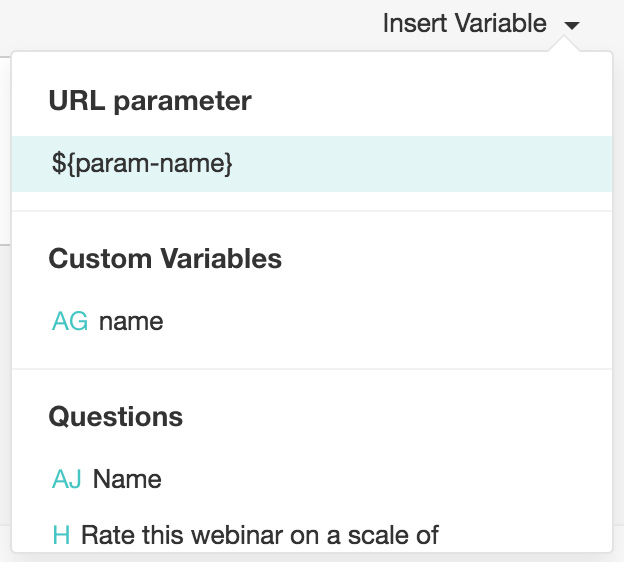
  2. If you want to pipe in custom variables or variables from previous questions and customize the follow-up questions, click the arrow next to Insert Variable right above the Question box and select the variable you want to use from the list. Read more about it on Piping
    Insert variable feature in survey
  3. If you want to mark the question mandatory, select the Make this question mandatory checkbox.
    1. If you want to make changes to the default Error message text that displays, edit the content in the text box.
    2. In the Required number of choices dropdown list, select the number of rows you want to keep as mandatory. This can be in the form of at least, at most, exactly or in between. This option appears only if the Make this question mandatory checkbox is selected.
  4. In the Answer box, you can add the answer choices in the following ways:
    1. If you are copying and pasting the choices in the Answer box, make sure you type in each choice on a separate line. 
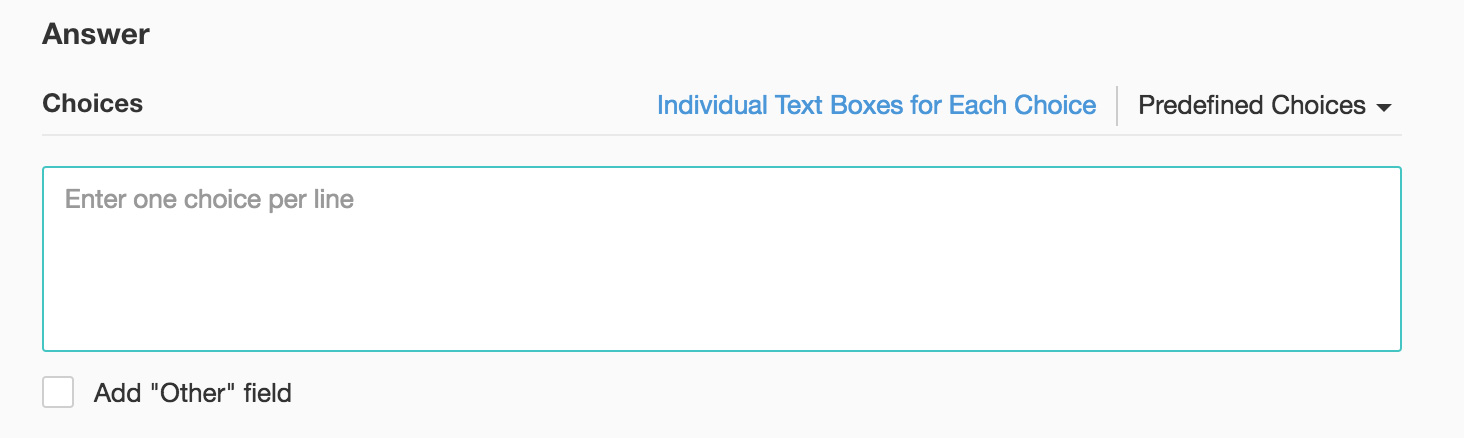
      Create online surveys
    2. If you want to add choices separately, click Individual Text Boxes for Each Choice right above the Answer box, and start adding choices. Click + to add more boxes, and click X to delete choices. 
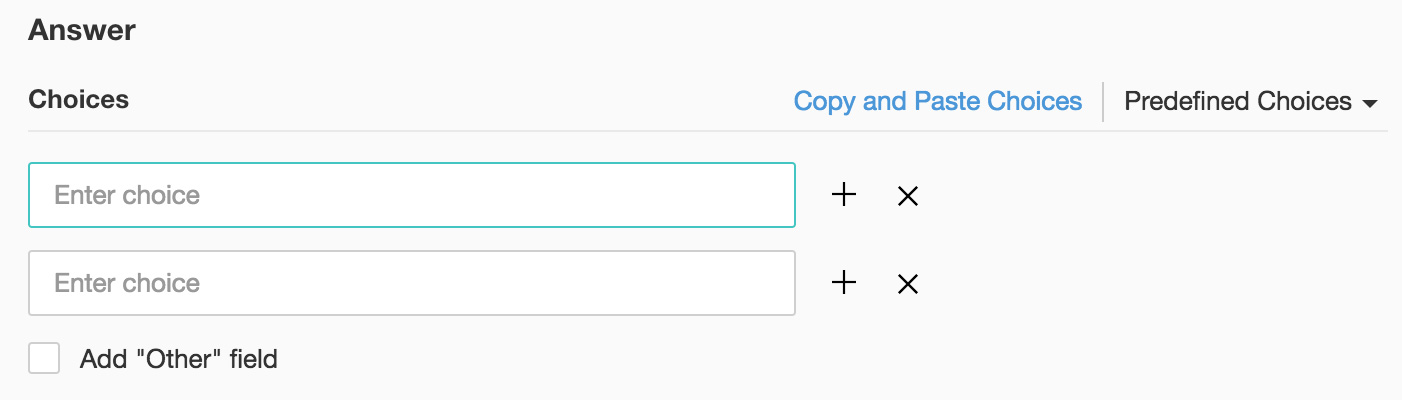
      Create online surveys
    3. If you want to add choices that are predefined, click Predefined Choices and select the choice you want to use in the survey. 
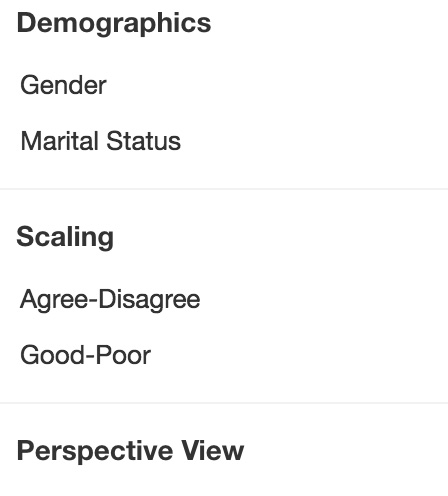
      Create online surveys
    4. If you want to add the Other Choice field along with your answer choices, click Add 'Other' field. If you want to make changes to the default Field label text that displays, edit the content in the text box. This option appears only if the Make this question mandatory checkbox is selected in the Multiple Choice (Many Answers) question.
    5. Select the appropriate option in the Choice display format to set the display format for your answer choices.
  5. To learn what else you can do with the question, click Advanced options. You can perform the following actions: 

    1. Select Change the order of choices. You can perform the following actions here:
      1. Randomize for each respondent - To change the order randomly for each respondent
      2. Flip for each respondent - To show the choices in the opposite order for each respondent
      3. Rotate for each respondent - To rotate the choices for each respondent
      4. Ascending sort - To arrange the choices in the ascending order
      5. Select Don't randomize the last few choices if you want to select the number of choices that needn't be randomized
    2. To add a comments box, select Add 'Comments'  field. If you want to change the name of the field, in the Comments field label box, type in the new field name.  
    3. The autofill or prepopulate answer feature allows you to prepopulate single-variable survey responses automatically before sending them to respondents. To prepopulate answers for a known respondent, select Prepopulate answer.

      In addition, disable the Editable checkbox to restrict the responders from editing the pre-populated answer you have configured.
    4. Question hint is used to add hints to your question and help your respondents get a clear idea of what your questions are all about. This feature is optional and is available only for certain types of questions. 
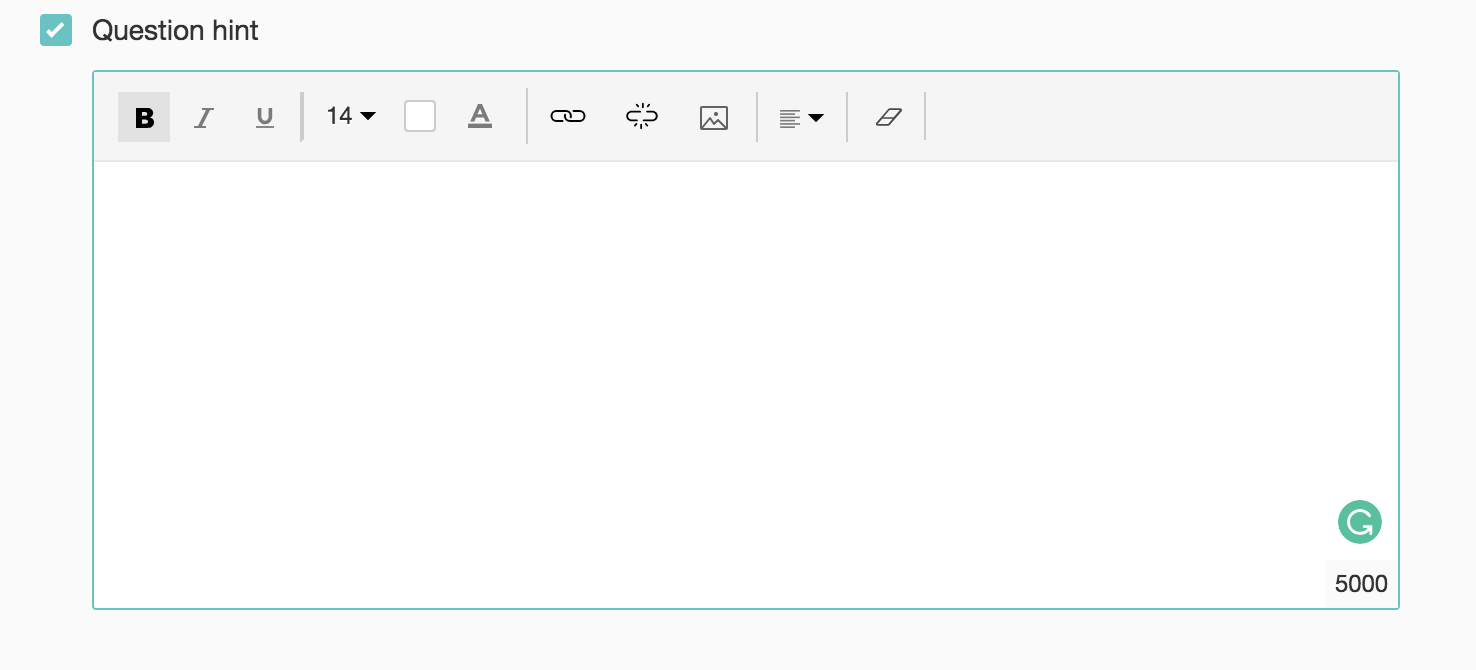
      Add survey question hint
  6. Switch to the Display Logic and Answer Display Logic tabs to add a logic condition to the question and answer choices respectively.
  7. Click Save.
  8. To discard the changes, click Cancel.

Choices exclusive of one another

Mark choices as exclusive is a feature you can enable when you don't want respondents to be able to select any other option after selecting an answer to a question. Using this feature, you can restrict your respondents to only one answer option for any given question that has multiple answer options. This feature is required for certain questions, since respondents may accidentally alter their choices after answering the questions. 
When you enable the mark choices as an exclusive feature, other choices in the multiple-choice question are automatically disabled, restricting respondents from choosing more than one answer. If respondents prefer to select a different choice, they have to deselect the exclusive choice. This feature can be applied to various types of multiple-choice questions (multiple-choice questions, image multiple-choice questions, and matrix multiple-choice questions). In other cases, you can also use it for "none of the above" answers, which is a non-specific field.

To mark a choice as exclusive:

  1. Click Multiple Choice (Many Answers) in the question types listed on the left pane.
  2. Click Advanced options and select Mark choices as exclusive.
  3. Select the option(s) you want to mark as exclusive.
  4. Click Save.


        Create. Review. Publish.

        Write, edit, collaborate on, and publish documents to different content management platforms.

        Get Started Now


          Access your files securely from anywhere

            Zoho CRM Training Programs

            Learn how to use the best tools for sales force automation and better customer engagement from Zoho's implementation specialists.

            Zoho CRM Training
              Redefine the way you work
              with Zoho Workplace

                Zoho DataPrep Personalized Demo

                If you'd like a personalized walk-through of our data preparation tool, please request a demo and we'll be happy to show you how to get the best out of Zoho DataPrep.

                Zoho CRM Training

                  Create, share, and deliver

                  beautiful slides from anywhere.

                  Get Started Now


                    Zoho Sign now offers specialized one-on-one training for both administrators and developers.

                    BOOK A SESSION


                                Quick LinksWorkflow AutomationData Collection
                                Web FormsEnterpriseOnline Data Collection Tool
                                Embeddable FormsBankingBegin Data Collection
                                Interactive FormsWorkplaceData Collection App
                                CRM FormsCustomer ServiceAccessible Forms
                                Digital FormsMarketingForms for Small Business
                                HTML FormsEducationForms for Enterprise
                                Contact FormsE-commerceForms for any business
                                Lead Generation FormsHealthcareForms for Startups
                                Wordpress FormsCustomer onboardingForms for Small Business
                                No Code FormsConstructionRSVP tool for holidays
                                Free FormsTravelFeatures for Order Forms
                                Prefill FormsNon-Profit

                                Intake FormsLegal
                                Mobile App
                                Form DesignerHR
                                Mobile Forms
                                Card FormsFoodOffline Forms
                                Assign FormsPhotographyMobile Forms Features
                                Translate FormsReal EstateKiosk in Mobile Forms
                                Electronic Forms
                                Drag & drop form builder

                                Notification Emails for FormsAlternativesSecurity & Compliance
                                Holiday FormsGoogle Forms alternative GDPR
                                Form to PDFJotform alternativeHIPAA Forms
                                Email FormsFormstack alternativeEncrypted Forms

                                Wufoo alternativeSecure Forms

                                TypeformWCAG


                                    All-in-one knowledge management and training platform for your employees and customers.

                                              Create. Review. Publish.

                                              Write, edit, collaborate on, and publish documents to different content management platforms.

                                              Get Started Now


                                                                You are currently viewing the help pages of Qntrl’s earlier version. Click here to view our latest version—Qntrl 3.0's help articles.


                                                                    Manage your brands on social media


                                                                      • Desk Community Learning Series


                                                                      • Digest


                                                                      • Functions


                                                                      • Meetups


                                                                      • Kbase


                                                                      • Resources


                                                                      • Glossary


                                                                      • Desk Marketplace


                                                                      • MVP Corner


                                                                      • Word of the Day


                                                                      • Ask the Experts


                                                                        Zoho Sheet Resources


                                                                            Zoho Forms Resources


                                                                              Secure your business
                                                                              communication with Zoho Mail


                                                                              Mail on the move with
                                                                              Zoho Mail mobile application

                                                                                Stay on top of your schedule
                                                                                at all times


                                                                                Carry your calendar with you
                                                                                Anytime, anywhere


                                                                                      Zoho Sign Resources

                                                                                        Sign, Paperless!

                                                                                        Sign and send business documents on the go!

                                                                                        Get Started Now


                                                                                                Zoho TeamInbox Resources


                                                                                                          Zoho DataPrep Demo

                                                                                                          Get a personalized demo or POC

                                                                                                          REGISTER NOW


                                                                                                            Design. Discuss. Deliver.

                                                                                                            Create visually engaging stories with Zoho Show.

                                                                                                            Get Started Now


                                                                                                                                • Related Articles

                                                                                                                                • Dropdown (One Answer/Many Answers)

                                                                                                                                  The Dropdown (One Answer) question type allows the respondent to select only one answer from a list of choices provided by you in the dropdown. For example, assume that you're planning to rebrand your cafe and want to conduct a survey to understand ...
                                                                                                                                • Long Answer

                                                                                                                                  The Long Answer question type allows your respondents to write long, open-ended answers in a textbox. You can set the character limit and the textbox size in the advanced options section. The maximum response size is limited to 5000 characters, which ...
                                                                                                                                • Create Custom Variables for URL Parameters

                                                                                                                                  Overview Define custom variables to capture and store URL parameter values passed into your survey. Use these when the parameter you need is not available in the default dropdown list. Custom variables can store text, email, number, date, or choice ...
                                                                                                                                • Distribute Surveys as an Inline Email via Zoho CRM

                                                                                                                                  Overview Inline email allows you to embed a question from your survey in an email. Select a question, and you can distribute the survey over email using an HTML snippet that works with any email marketing software. Selecting an answer from the email ...
                                                                                                                                • Distribute Surveys as an Inline Email via Zoho Desk

                                                                                                                                  Overview Inline email allows you to embed a question from your survey in an email. Select a question, and you can distribute the survey over email using an HTML snippet that works with any email marketing software. Selecting an answer from the email ...
                                                                                                                                  Wherever you are is as good as
                                                                                                                                  your workplace

                                                                                                                                    Resources

                                                                                                                                    Videos

                                                                                                                                    Watch comprehensive videos on features and other important topics that will help you master Zoho CRM.


                                                                                                                                    eBooks

                                                                                                                                    Download free eBooks and access a range of topics to get deeper insight on successfully using Zoho CRM.


                                                                                                                                    Webinars

                                                                                                                                    Sign up for our webinars and learn the Zoho CRM basics, from customization to sales force automation and more.


                                                                                                                                    CRM Tips

                                                                                                                                    Make the most of Zoho CRM with these useful tips.


                                                                                                                                      Zoho Show Resources