Publish Your Survey
After you complete a survey, you'll need to publish it using the Launch tab. Here, you can set options to distribute your survey, apply restrictions, and close the survey when you want to stop receiving responses. The Launch tab also displays the language the survey has used.
To publish your survey:
- Go to the Launch tab.
-
Click Publish in the Publish section.
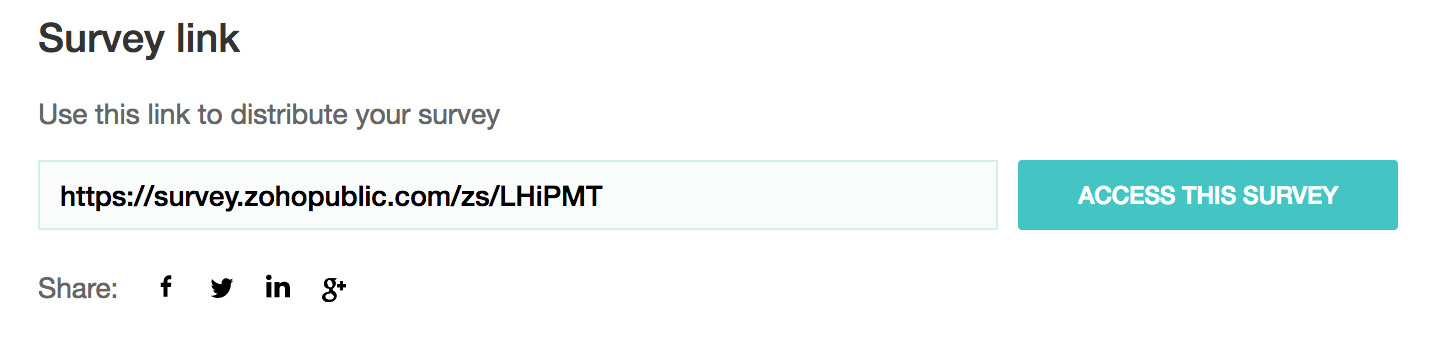
- Locate the survey's URL in the Online section.
- You can use this URL to distribute your survey by either copying the web link and pasting it into an email message or by sharing the survey through social media websites such as Facebook, Twitter, LinkedIn, or Instagram.
-
Click Access This Survey to access the live form of the survey.
|
Note
|
|
All responses will be anonymous by default unless you explicitly ask for your respondents' personal details. To identify the respondents, you should either set up custom variables prior to sending out the survey or send the survey via email distribution.
|
SSL Protection
All our surveys are SSL-protected. Secure Sockets Layer or SSL is a standard security protocol that is used to establish encrypted links between a web server and a browser in any online communication. This technology ensures that all the data that is being transmitted between the web server and browser remains encrypted.
QR Code
To make a QR code for your survey:
- Click the Launch tab.
- Click QR code on the left pane.
- Click Download. The code will be downloaded to your device as a PNG file.
- Add the QR code to your website. Users can scan the code with a mobile device and access the survey without any web URL.