Use Windows Hello to unlock Zoho Vault
Setting up Windows Hello in Zoho Vault

Learn how to configure Windows Hello on your PC.
To set up Windows Hello in Zoho Vault, make sure you’ve set up Zoho Vault for Windows and Windows Hello on your PC.
- Open the Zoho Vault app and unlock it.
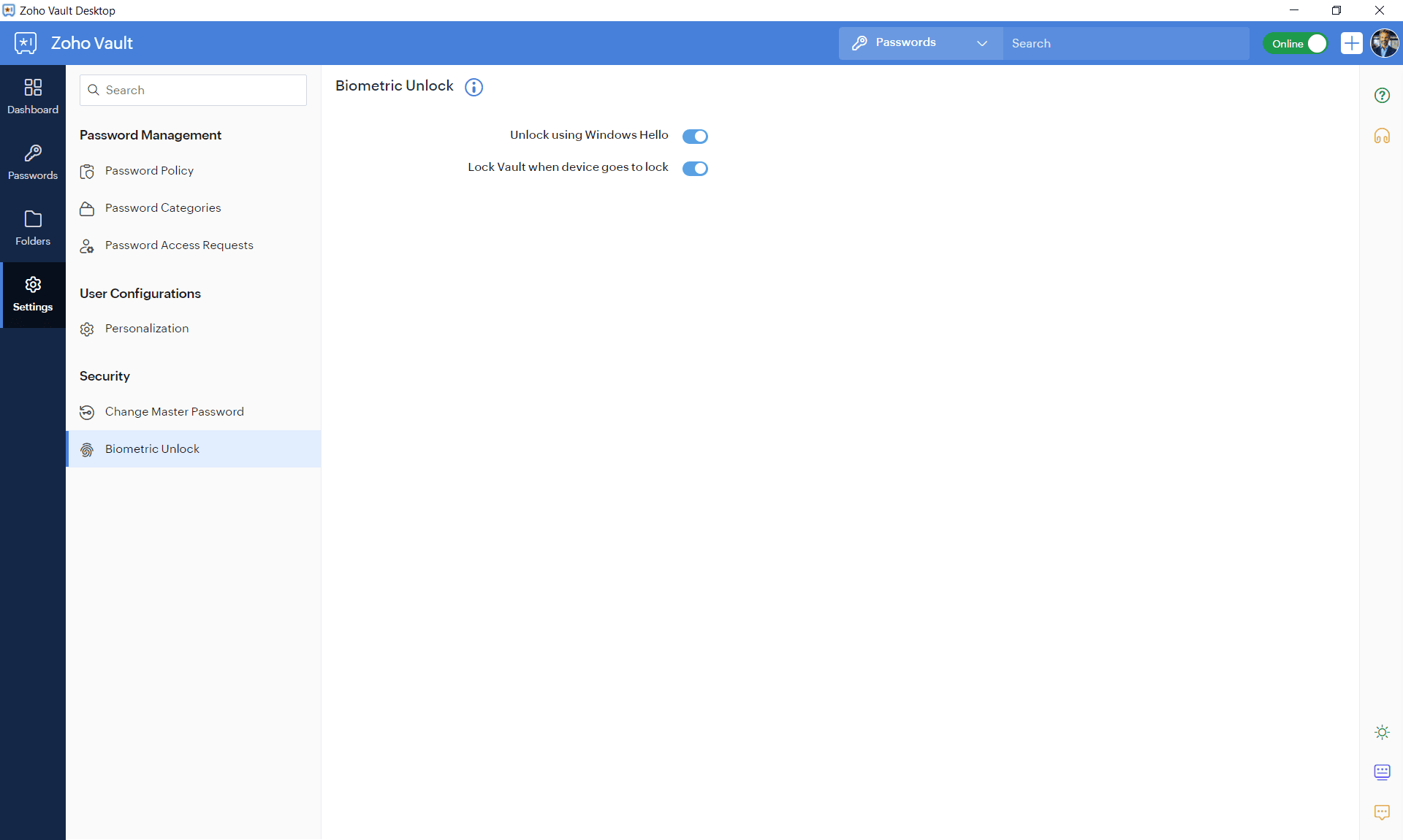
- Navigate to Settings and select Biometric Unlock.
- Toggle on Enable biometric lock using Windows Hello.
- You will be prompted to sign in using one of the Windows Hello methods (e.g., facial recognition, fingerprint recognition, or PIN) that you have previously configured for your Microsoft account.
Once Windows Hello is set up, open the Zoho Vault app again.
You will see a message saying “Making sure it’s you”. Use your preferred Windows Hello sign-in method to unlock Zoho Vault.
To use Windows Hello, you need Windows 10 or later and a compatible device. To check if your device supports it, go to Start > Settings > Accounts > Sign-in options.
Lock Vault when device goes to lock
When enabled, Zoho Vault will automatically lock when Windows locks. This option is available only if the Enable biometric lock using Windows Hello setting is turned on.