How to set the number of labels to print per record
Overview
You can set the number of labels to print for each record using a fixed value or a quantity from your data with Label Quantity in Writer's label templates and avoid duplicating records manually.
Steps
1. Create Label Template and connect a data source
2. Open the Configuration panel from the Automate Tab and locate Set Label Quantity.
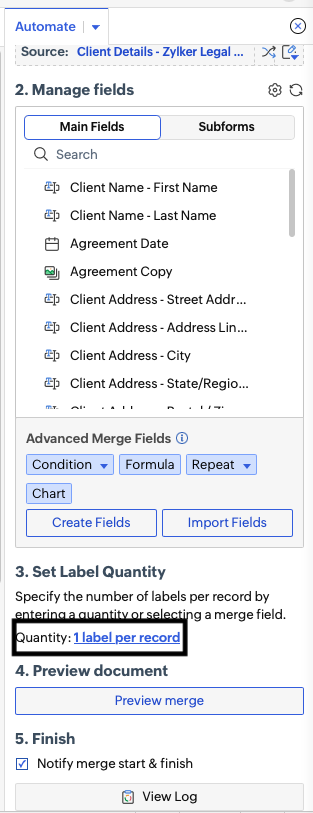
3. Click Quantity.
- If you wish to generate a fixed number of copies, enter a number.
- If you wish to dynamically generate the labels, click the + icon and map a field from your data source as the label count.
4. Click Preview Merge to see the required quantity of labels being generated for each record.