How to create and merge labels in Zoho Writer
Overview
Zoho Writer's label templates allow you to create professional, personalized, ready-to-print labels in Avery or custom specs in just a few clicks. You can create address, shipping, return address, and event badge labels. You can also define custom label sizes to match any physical label stock, apply a specific background to your labels, and control the quantity of labels printed per record. You can create labels in three ways in Zoho Writer:
- From Avery templates
- Using an existing PDF
- Using custom label dimensions
Prerequisites
- If you are importing an existing PDF, ensure the PDF is less than 10 MB.
Steps
How to create label template from scratch
1. Launch Zoho Writer dashboard and click Create New > Label Template > From Avery Templates.
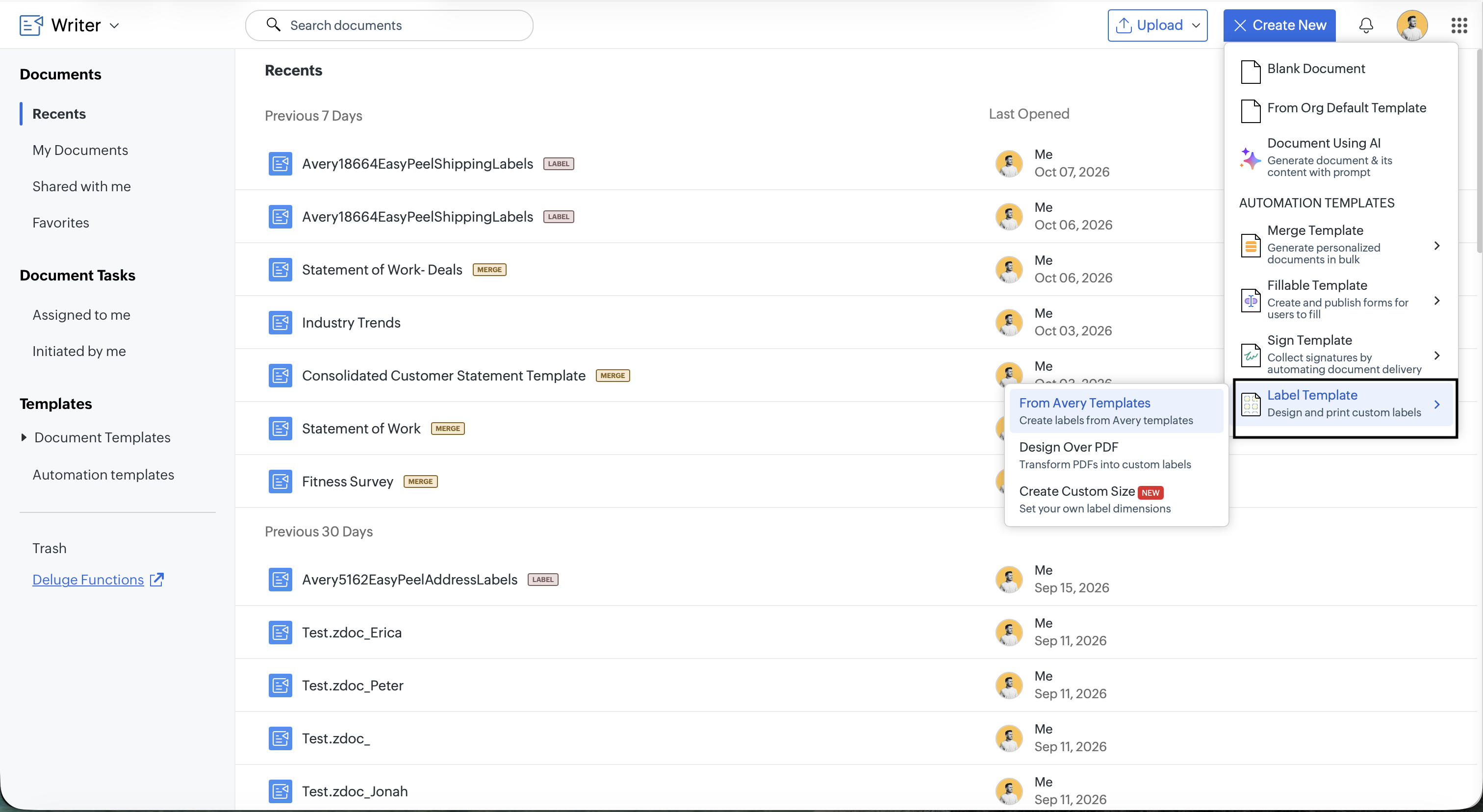
2. Choose your desired label category (Shipping, Address, Return Address) and label size and click Create. You can also search for labels by category or size.
How to create label template from a PDF
1. Launch Zoho Writer dashboard and click Create New > Label Template > Design Over PDF.
2. Import your PDF.
How to create custom labels
- Launch Zoho Writer dashboard and click Create New > Label Template > Create Custom Size.
- In the Create New Custom Label dialog, enter the label Width and Height, select the Page Size and Orientation, and configure the margins, columns, rows, and gaps under Advanced Options and click Create.
How to connect a data source
- Open the label template and click Select Data Source
- Connect your data source and click Import.
How to design labels
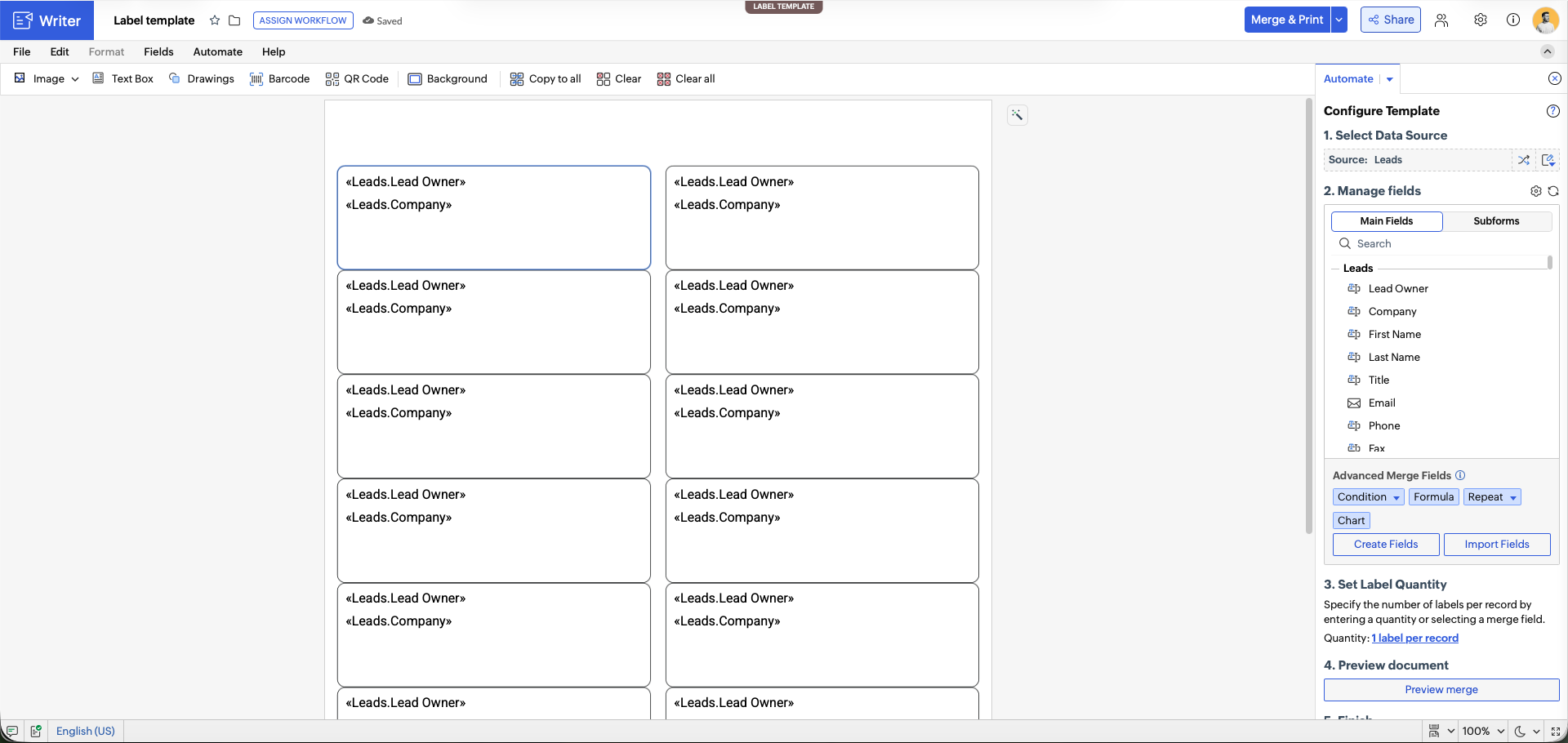
- Drag and drop the data source fields in the labels. You can apply the necessary formatting options to the labels such as paragraph style, font, font size.
- Click Background and choose a background color or upload an image to use as the label background.
- After designing your labels, you can:
- Use Copy to all to copy the design to all labels.
- Use Clear this label to clear the current label's design.
- Use Clear all labels to clear all the labels' designs.
How to set the quantity of labels generated per record
- In the Automate panel, locate Set Label Quantity.
- Click Quantity.
- If you wish to generate a fixed number of copies, enter a number.
- If you wish to dynamically generate the labels, click the + icon and map a data source field as the label count.
Note
- You can only upload PDFs with rectangle and square label area.
Pricing
Label templates are available under Zoho Writer's credit-based pricing model. One credit will be consumed for each label page downloaded. For example, downloading a 3-page label document will consume 3 credits.
Troubleshooting
1. Error symptom: The PDF upload fails
Possible cause: The uploaded PDF may exceed the size limit, might contain text, have more than one page, or doesn't have a shape.
Recommended solution: Ensure the PDF doesn't exceed 10 MB and has only one page and contains a shape. Here is a sample label PDF
Related Articles
- Getting started in document merge in Zoho Writer
- Zoho Writer automation templates data sources
- How to create custom labels
- Zoho Writer Automation Add-on: Credits and Pricing