How can a user change the settings for calls and meetings in Zoho Cliq?
To change the settings for calls and meetings in Zoho Cliq, do the following:
Navigate to Profiles and Settings and select Calls & Meetings.
You will find settings related to personalized configurations, recordings, background & filters and phone system (available for US and EU users). Select the category you want to make changes to.
Personalized Configurations
You can make configurations based on your needs and these configurations will be reflected only to you. You can enable the toggle button for the settings to reflect on your account.
- Show new message notification pop-ups
By enabling this, you will receive new message notifications during the meeting in the top-right corner. - Always turn off my video when I start/join a meeting
By turning this on, your video will be turned off by default when you start or join a video meeting, and you can turn it back on later. - Show every participant's name even during screen inactivity
By enabling this, even if your screen is not active, you will be able to see the participant's name in a video meeting. - Notify when I start talking with the mic on mute
By turning this on, you will receive a notification asking you to "Please unmute and speak" when you start speaking during meetings while the mic is muted. - Enable audio enhancement for calls and meetings
By enabling this, you will be able to turn on noise cancellation and enhance the quality of your calls and meetings.
Recordings
Here you can make configurations for meeting recordings. You can either select Record all meetings, Do not record or Use my last preference.

Note:
This will be the default setting for your meeting recording but you can change it in the settings once you start the meeting.
Backgrounds & Filters
Here you can select and apply background and filter settings for your video calls and meetings. You will have many options to set your background or filter based on the purpose of the meeting. You can check the preview before selecting the background or filter, as well as mirror your video in the meeting.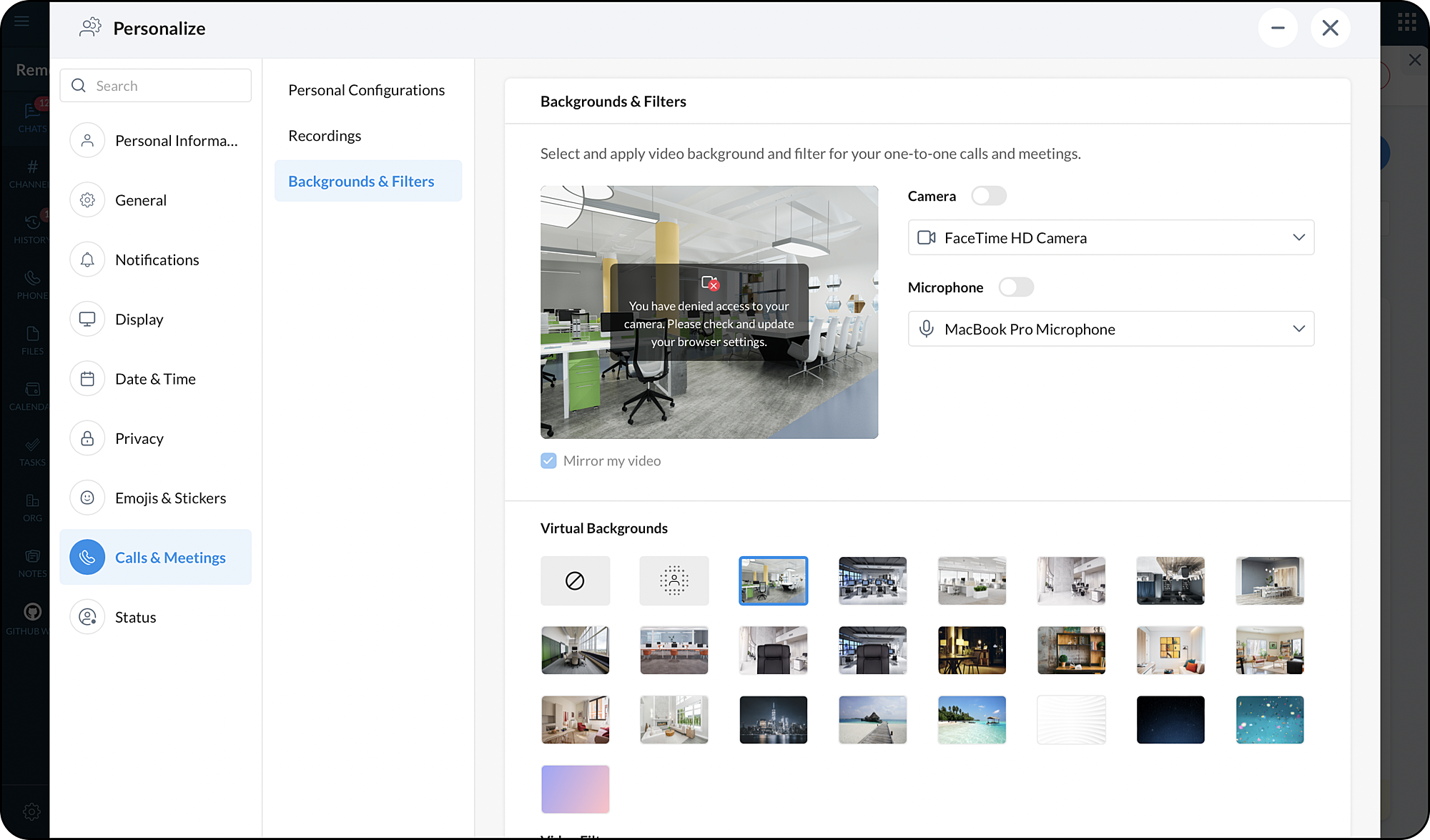
Phone System
Note:
Users in the US and EU can access this since Zoho Voice is only available in those two regions.
- Enable incoming call notification
By enabling this, you will receive sound notifications on incoming calls. - Display dial pad and hints to make calls
By enabling this, when you select Make a call from the quick actions menu, you will be able to see the phone call option. By selecting the phone call option, a dial pad will appear.
Note:
- Hints to make a phone call when a user profile displays a phone number, when a contact card or contact number is posted as a message.