Creating posts in Feeds
Choose a post type
The Feeds editor supports multiple post types so you can match the format to your purpose.
Create conversations, questions, ideas, announcements, and polls
You can create these post types from the feed editor:
- Start a conversation to spark open discussion and invite viewpoints, stories, or best practices
- Ask a question when you need help, recommendations, or quick clarity
- Share an Idea to propose a suggestion or improvement and let others build on it
For ideas, you can choose an idea category from the available list, or post the idea without selecting a category. - Make an announcement to share important updates that everyone should see quickly.
For announcements, you can also pin the announcement while posting so it stays at the top of the Community Wall and remains more visible. - Start a poll to gather quick votes, preferences, and opinions
For polls with multiple choices, you can decide whether members can select a single option or multiple options.
Depending on this selection, in the Preference dropdown, you can:
- Set a closing date
- Choose when vote counts are displayed
- Manage who can view voters
- Allow or prevent members from modifying their votes
Create an event, broadcast, or conference
From the feed editor, you can also create event-based activity.
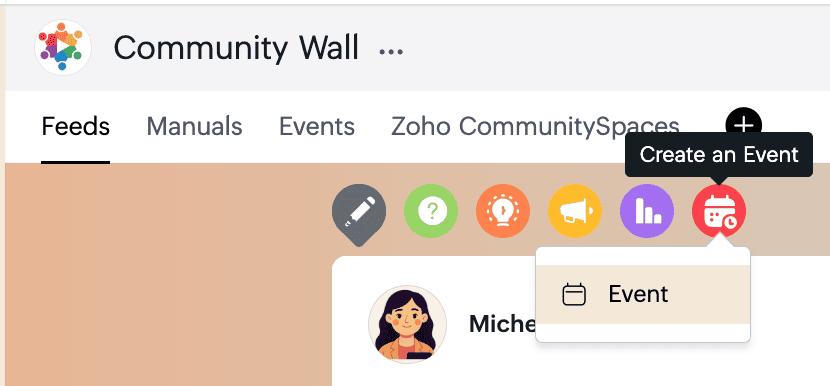
For a standard event, you can:
- Enter the title
- Set the Start Date and End Date and time
- Add the Location and Description
- Choose the Invitees
- Designate Assistants
- Configure RSVP options
- Attach supporting files
- Enable All Day, if needed
- Enable Repeat Event, if needed
- Enable Turn on time zone Support to create the event in a different time zone
To schedule a larger live-streaming session, use Start Broadcast from the right corner of the Community Wall. Broadcasts are useful for webinars and presentations.
In the New broadcast setup, enter the Session name, select the start time, add Presenters as co-hosts, and choose whether to record the live stream for later viewing.
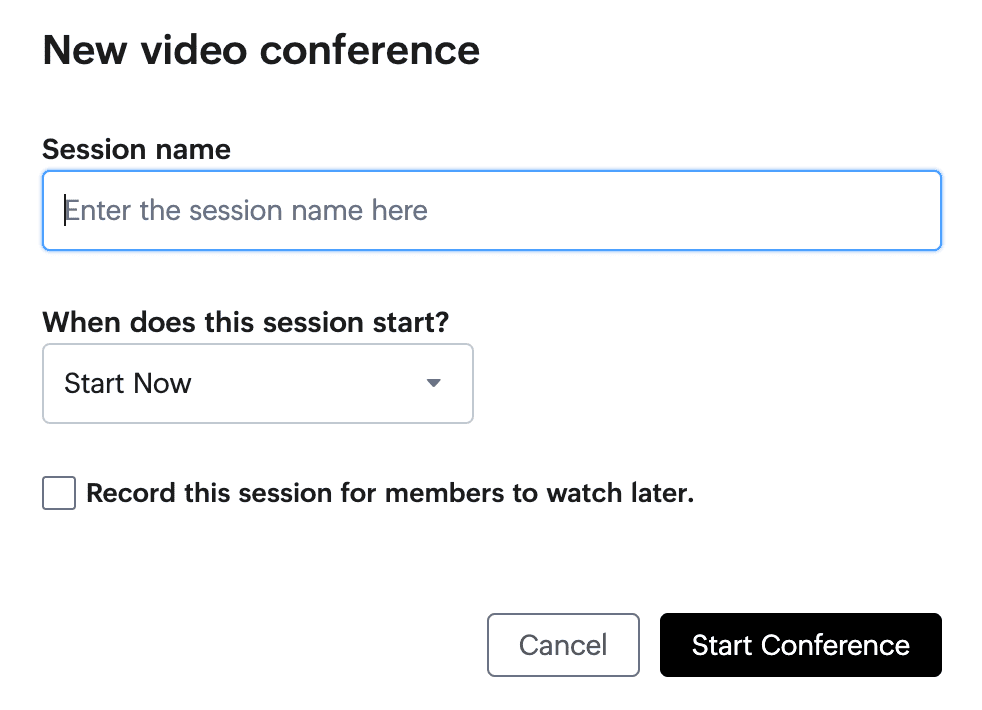
To start a smaller virtual meeting, use Start Conference.
In the New video conference setup, provide the session name, select the start time, and choose whether to record the session for members to view later.
Use essential feed editor options
The feed editor also includes these key options:
- Add Title to decide whether to post with or without a title
- Mandatory Read to mark content as essential
- Add Attachment to upload files
The file upload limits are:
200 MB for video files
100 MB for other file types, including documents, presentations, and images
200 MB for video files
100 MB for other file types, including documents, presentations, and images
The attachment menu includes multiple ways to add content, not just file uploads.
From the attachment menu, you can use:
- Browse to upload files from your device. You can also paste a copied image directly from your clipboard to upload it quickly.
- Whiteboard to create and attach visual content such as sketches, diagrams, or quick explanatory notes.
- Voice Note to record and attach an audio message directly to the post.
- Insert emojis to add emotion and context
- Formatting Options to turn rich formatting on or off
- Add tags to improve visibility
- To add a hashtag, enter a keyword and press Enter/Return. Relevant hashtags help others find your post more easily.
- Preview Post to review the final appearance of the content before it goes live.
- Manage to disable comments.
- Save draft to store unfinished work without publishing it.
You can revisit drafts from the Draft dropdown at the top of the feed editor. - Writing Assistant to generate and refine content using Zia.
- Schedule to publish the post later. To schedule, click the bottom arrow next to Share and select Schedule from the dropdown.
Select a preferred date and click Schedule. - Once you are satisfied with the content, click Share to publish it immediately.
 Next: Continue with Using advanced editor options in Feeds in Zoho CommunitySpaces to work with mandatory reads, formatting, tags, drafts, and writing assistance.