Using advanced editor options in Feeds
Mandatory Read
Use Mandatory Read when the content is essential and should be acknowledged by all recipients.
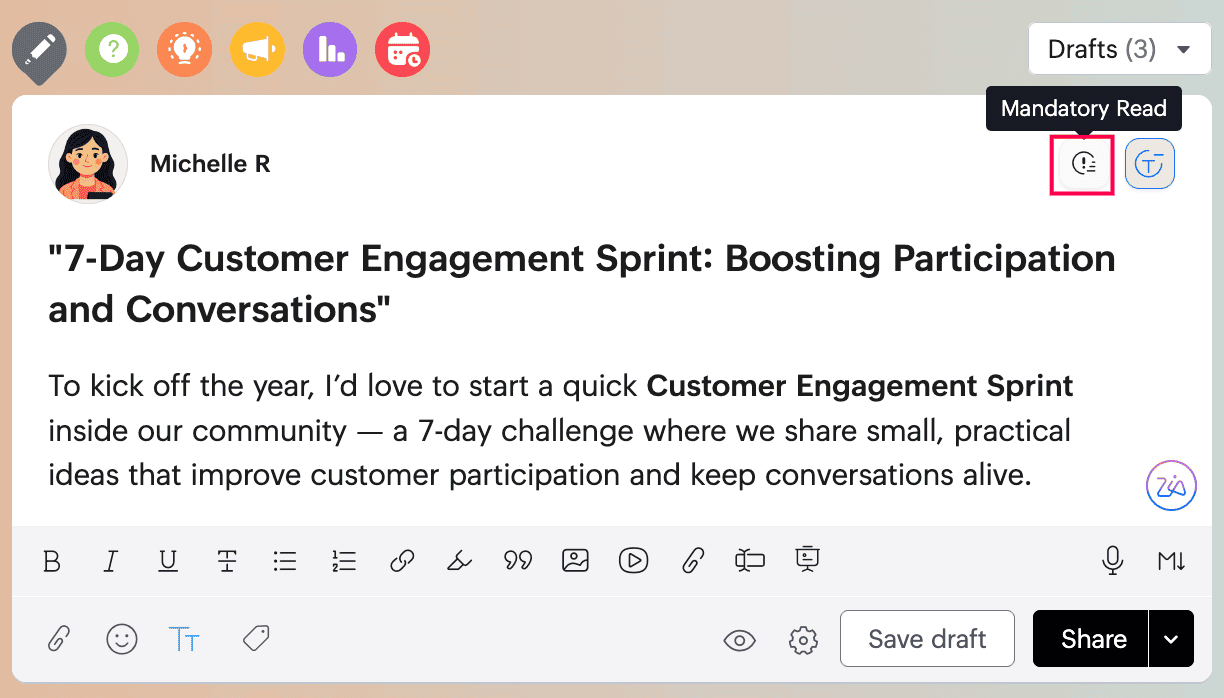
When you enable Mandatory Read, you can configure:
- A deadline for acknowledgement
- Reminders before the deadline
- Customize the acknowledgement from Mandatory Read settings
The post author can later use View Report from the Mandatory Read indicator strip to review who has acknowledged the post and who has not.
From the report, you can:
- Remind members individually using Send a Reminder
- Click Remind all
- Use Export to download the report with selected user details
Use Formatting and Trending Tags
Use Formatting Options to access rich formatting such as:
- Bold
- Italics
- Underline
- Strikethrough
- Bullets
- Numbering
- Hyperlink URLs
- Highlighting
- Quotes
- Inline images
- Inline videos
- Inline files
- Embed code
- Whiteboard
- VoiceNotes
- Markdown formatting
If you click a tag from the Trending Tags widget or from a feed post, the Tags view opens and shows all activities associated with that tag, including conversations, announcements, ideas, Town Halls, tasks, events, forums, and manuals.
From there, you can also click Follow Tag in the top-right corner to receive notifications for future activity using that tag.
Use the Writing Assistant
Use Writing Assistant in the bottom-right corner of the feed editor to refine or generate content while composing a post.
- Select the text you want to improve in the feed editor.
- Click Writing Assistant.
- Choose the action you want to perform.
You can use Writing Assistant to:
- Rephrase the selected content for better clarity or flow
- Check grammar and correct writing issues
- Suggest title based on the content you have written
- Predict intent to better understand the purpose of the content
- Change Tone to make the writing more formal, friendly, direct, or suitable for the context
- Change Length to make the content shorter or more detailed
After the result is generated, you can continue refining it until you are satisfied. You can then use options such as Replace to swap the original text with the generated version, Append to add the generated content below the existing text, Regenerate to create another variation, or Copy to reuse the generated content manually. You can also continue adjusting the result further with Change Tone or Change Length before inserting it into the post.
This helps you draft posts faster, improve readability, and shape the content before you publish it.
Start a private conversation
Use Start a Private Conversation to send private messages to community members. This option is only available in the My Feed editor.

Next: Continue with Managing posts and engagement in Feeds in Zoho CommunitySpaces to use post actions, comments, sharing, reminders, and summaries.