Managing posts and engagement in Feeds
Post management actions
Click the three-dot menu in the top-right corner of a post container to access post management actions.
The options you see depend on your permissions.
- Copy Post URL– Copy the direct link to the post for sharing. Hosts see Copy host URL and Copy member URL, since hosts and members currently access the community through separate URLs.
Use the appropriate URL based on whether you are sharing the post with a host or a member.
Members will only see Copy Post URL, which copies the member portal URL or the custom domain URL.
Edit this post – Update the post content after it has been published.
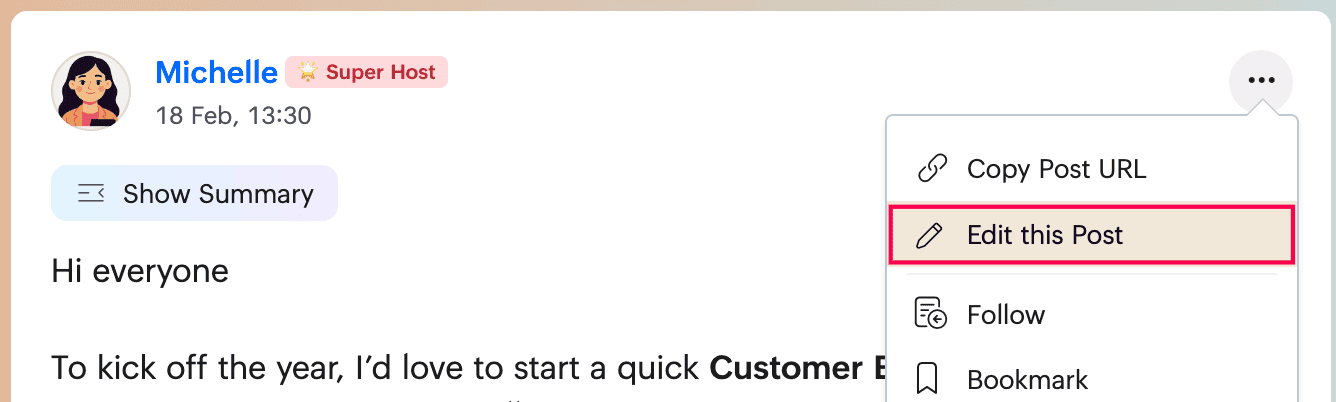
This option is available to the post author.
- Follow – Receive instant notifications whenever there is new engagement on the post, such as comments or reactions.
- Bookmark – Save the post for quick access later.
- Read Later – Mark the post so you can revisit it later. You can also set reminders for posts marked this way.
- Print – Print a physical or saved copy of the post content.
- Pin this post – Keep the post at the top of the feed wall for a selected duration so it remains more visible to members.
- Mark as Mandatory Read – Designate the post as required reading, so recipients recognize it as important and are required to acknowledge it.
- Move this post – Move a post from the Community Wall to a space, or from a space to the Community Wall, depending on where it should belong.
- Convert this post – Change the post from one type to another when the same content would be better suited in a different format. For example, you can convert:
- A conversation to an Announcement
- A conversation to an Idea
- A conversation to a Question
- A conversation to a Forum
- And vice versa
- Disable comments – Turn off comments for the post and prevent further discussion on it.
- Delete – Remove the post from the community.
The post author can delete their own post. The community’s superhost and hosts can delete any post if it is considered inappropriate.
These actions help you manage the visibility, format, engagement, and lifecycle of a post without needing to recreate it from scratch.
React, comment on, and summarize posts
React – Use reactions to express appreciation, agreement, or another emotional response without adding a comment. This helps acknowledge the post instantly and gives the author feedback.
Comment – Use comments to share feedback, ask follow-up questions, add suggestions, or continue the discussion directly under the post. Comments help turn a post into an active conversation where members can respond to both the original content and to one another.
Show Summary - Long posts can take time to read, and skipping them may mean missing important context. Use Show Summary, which gives you a crisp AI-generated summary of the post so you can scan the key points before reading everything in full.

This is available for posts that are more than 1,000 characters long, including conversations, forum posts, ideas, questions, and announcements. This works with the help of our in-house AI.
View Full Post - Use View Full Post or click the timestamp of the post, when you want a more focused reading and discussion experience.
This opens the post in a streamlined full view so you can read the entire content more comfortably, review the complete discussion thread, and better understand the context around the post. It is especially useful for long posts or posts with active engagement, where reading directly from the feed wall may feel limited.
Together, Show Summary and View Full Post help members decide how they want to engage with long content: quickly through an AI-generated summary, or in depth through the complete post view.
Share posts and private copies
Use Share to share posts to a space or privately with individual members.
In the share post view, click the Community Wall dropdown and choose the appropriate space. Sharing a post to a space creates a copy of that post.
You can also share a post privately with individuals using Start a private conversation or the padlock option.
Only posts on the Community Wall, private spaces, and public spaces can be shared.
Additional engagement tools
Use Add Task to turn a post into actionable follow-up when the conversation moves from discussion to execution. This is useful when you want to assign ownership and track the work instead of leaving the next step inside the feed thread.
In the create new task popup:
- Enter the task title
- Review the related conversation URL
- Add a checklist
- Choose where the task should be created
- Add assignees
- Attach files
- Set the start date, due date, reminder, priority, then create the task directly from the post
Use the eye icon to review the total number views and unique users who have viewed the post.

Next: Continue with Searching, attachments, and personal feed views in Zoho CommunitySpaces to use global search, open all attachments, and manage saved sections like drafts and bookmarks.