Sharing a new idea
Where to post an idea
You can post an idea in two ways:
- From the feed wall
- Directly from the Ideas module using Share an Idea in the top-right corner
Create the idea content
In the idea creation window:
- Enter a title in the Title field.
- Explain your idea in detail.
- Use text formatting, emojis, and the writing assistant to refine your suggestion.
- Add tags and attachments if needed.
Choose the space and category
- Select the space where you want to post the idea.
- Choose the appropriate category.
- If you want the idea to be read-only, open Manage and disable comments.
Save draft and share the idea
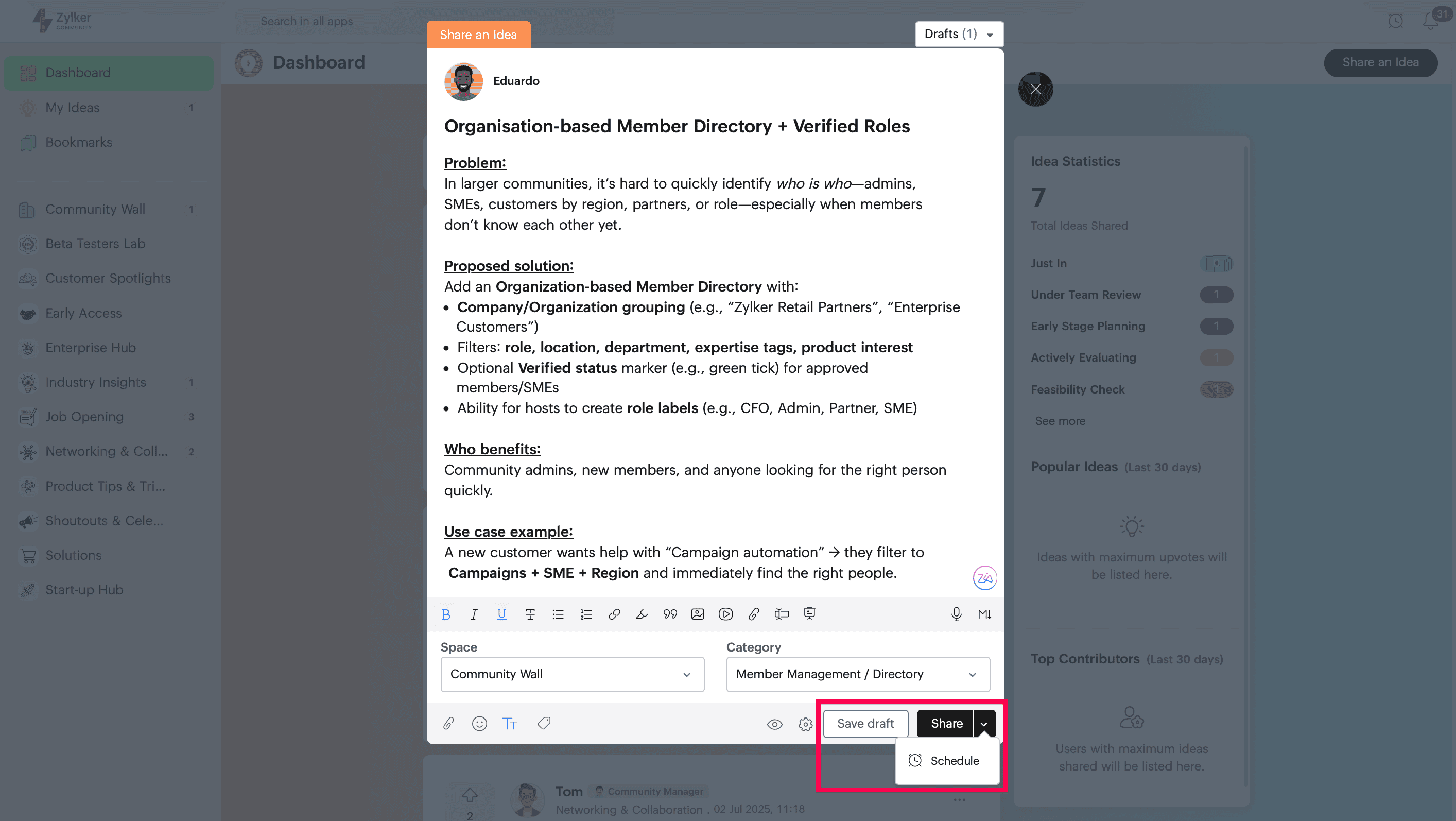
Use Save Draft to save the idea as draft and continue editing later. Once everything looks correct, click the down arrow to Schedule it for future time or Share to post your idea.

Next: Continue with Interacting with and managing ideas in Zoho CommunitySpaces to vote, comment, update status, and use per-idea actions.