Configuring space settings and paid options
Space settings
- Open the space you want to manage.
- Click the three-dot menu > Settings in the space.
This menu lets space admins control access, enable features, and manage lifecycle options for the selected space.
General settings, access type, and members settings
Use these sections in Settings to manage the basics of the space:
- General to update the Space Name, Description, URL and Logo.
- Access type to define the overall space type, such as Public, Private, Restricted, or Paid.

Note: For Public spaces, Settings > General lets you choose Allow anyone to join the Space, Users can request to join this Space, or Only admins can add users to this Space.
- Members to add people and manage their roles.
In Members, you can search for and Add members individually with Add Members,
or use Bulk Import CSV to add many members at once,
and use Manage, shown with the gear icon, to make someone a moderator or admin or to remove them.
Note: Only active community members can be added to a space.
Configure payments for a paid space
If it is a paid space, use Payments to configure subscription details. Before you set this up, make sure the payment portal is already configured in Community Settings.
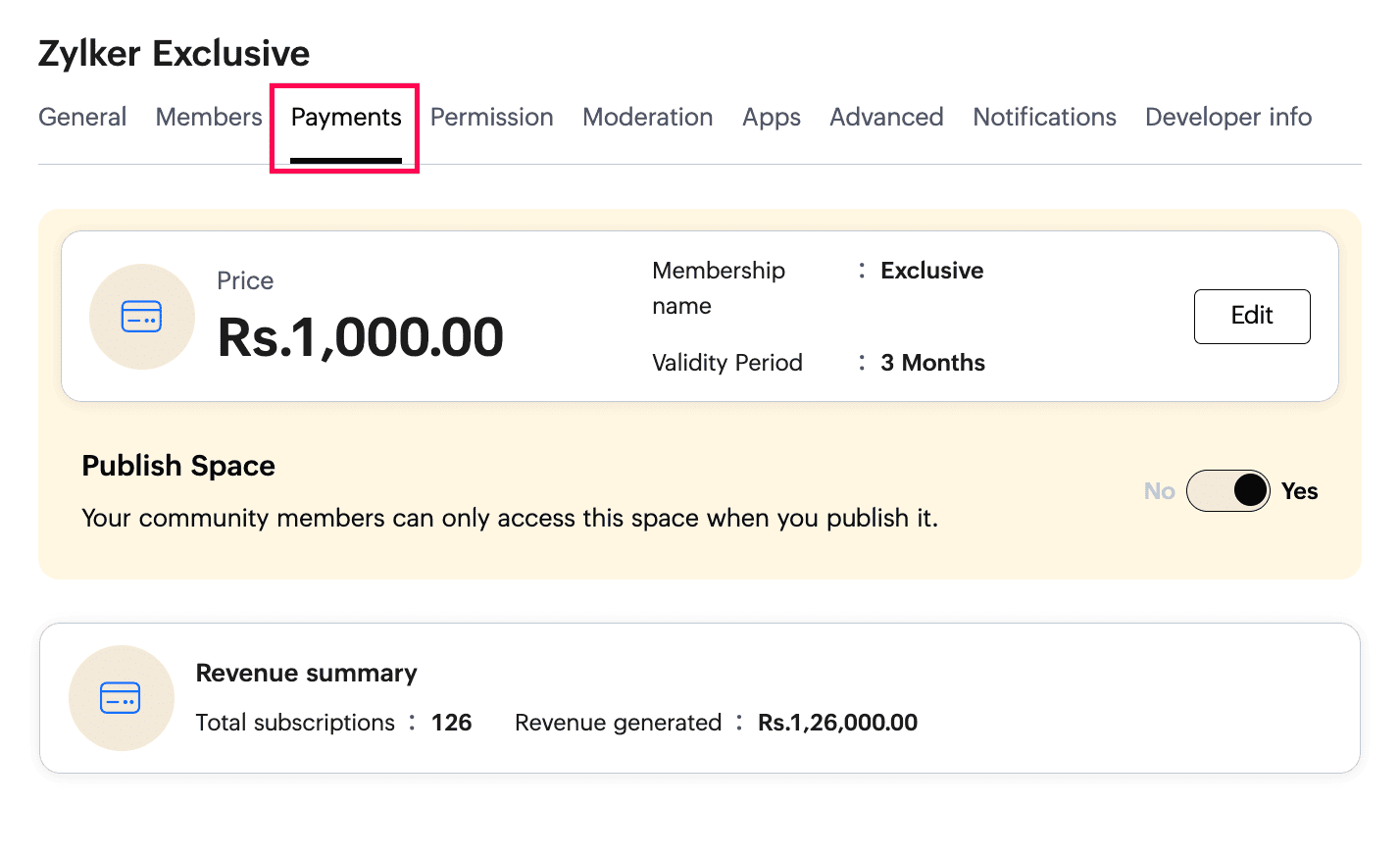
Click Edit to create a membership plan by entering Membership name, setting the Price, and choosing the Validity Period, then Save.
Once the setup is complete, Publish the space so it appears under Paid Spaces and becomes available for members to subscribe to and access.
You can also review a revenue summary showing the total subscriptions and revenue generated.
Note: To join a paid space, members must click Pay Now in the paid space access flow and complete the payment. If the payment is not completed immediately, they can click Check Payment Status anytime later to verify whether the transaction was successful. If the payment is successful, access to the space is granted.
Permissions, Moderation, and Apps
- Use Permissions to decide who can perform specific actions inside the space, such as:
- Who can post?
- Who can make announcements?
- Who can create Events?
- Who can create Manuals?
- Who can create Manuals?
- Who can change an Idea's status?
- Who can start a broadcast?
- Who can start a video conference?
- Who can mention?
- Depending on the action, you can assign permission to Everyone in this community / Only members of this Space, Only Space admins, Selected users, Selected roles. - Moderation: Enable moderation, decide what content needs review and from whom, assign moderators, and if needed whitelist members to bypass moderation.
- Apps lets you manage which apps are active in the space, such as Manuals, Events, Web Tabs, and Tasks. From this section, you can:
- Enable or disable the apps you want to use in the space.
- Choose Home or Feeds as the default landing page when members enter the space.
- Decide whether manual and event-related activities should appear in the space feed. When this is enabled, the system creates a feed post automatically when an event is created or a manual is published.
- Drag and drop apps using the three vertical dash icon to reorder them.
These settings help you align the space with your community’s permission structure.
Manage lifecycle, notifications, and developer info
Use these sections to manage the space over time:
- Advanced to manage the space lifecycle. Use Lock This Space to prevent new activity while keeping the space visible, Archive to retire the space and remove it from search results, and Delete to remove the space permanently.
- Notifications to control what members are notified about in the space. You can choose all activities, highlights, or no notifications for the space.Note: Members can still override these settings from their own notification preferences.
- Developer info to view technical identifiers. You can view technical identifiers such as scope and partition IDs.
Space admins should review these settings carefully to ensure the space operates according to community guidelines and member expectations.

Next: Continue with Managing additional space actions and personal notification preferences in Zoho CommunitySpaces to handle member exports, insights, personal alerts, and leaving a space.