Exploring inside a space
Understand what is inside a space
When you open a space, you will see a structure similar to the Community Wall, along with the apps that are enabled for that space. Each space also has its own dashboard.
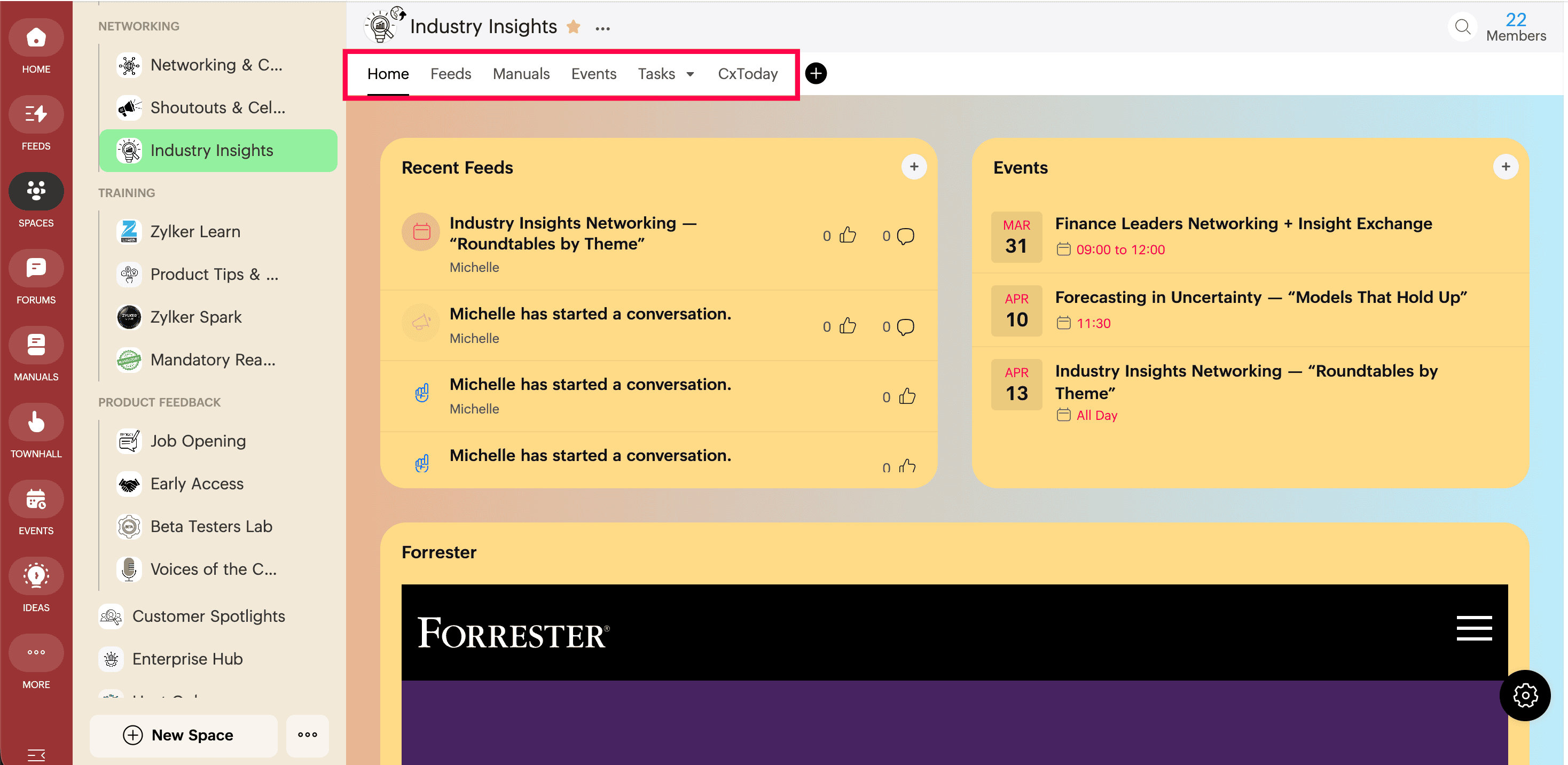
Use Home, Feeds, and Space Widgets
- Click Home to open the space dashboard and get a quick snapshot of what is happening in the space. Depending on the space configuration, you may also land on Home by default when you open the space.
Space admins can customize and manage the dashboard. - Click Feeds to view and participate in space-specific posts and updates. Review Space Widgets on the right side.
- Depending on your permissions, you can use Manage Widgets at the bottom of the Space Widgets section to enable system widgets and create custom widgets.
- Click Create New Widget to add custom widgets, such as HTML, Links, and Polls.
Use space apps and tools
Inside a space, you can also use these apps and actions:
- Manuals for guides and documentation created specifically for that space
- Events to view and manage space-related sessions.
- Task boards, if they are associated with the space
- Web Tab, if configured, to open web resources inside the space.
- The star icon to add the space to Favorites.
- Use Search at the top right to find posts, content, and resources within the space.
When you use Search, the global search bar opens with the selected space already applied as the advanced filter. - Live Broadcast and Video Conference, if permitted.
- Attachments to view all files shared inside the space in one place.
- Members to view the list of members in the space.

Next: Continue with Configuring space settings and paid options in Zoho CommunitySpaces to control access, members, permissions, subscriptions, and lifecycle settings.