Custom Buttons & Links Now Supported in Portals

We’ve just made portals in Zoho Recruit more powerful and customizable than ever! You can now bring the power of Custom Buttons and Links to your Candidate, Client, Vendor, and Custom Portals, enabling portal users to take direct action without recruiter or admin intervention.
What’s New?
Just like in your internal setup, you can now add custom buttons and links that:
- Trigger background checks,
- Link to meeting schedulers,
- Launch third-party tools,
- Or even execute complex Deluge functions…
...directly from your candidate, client and custom portals.
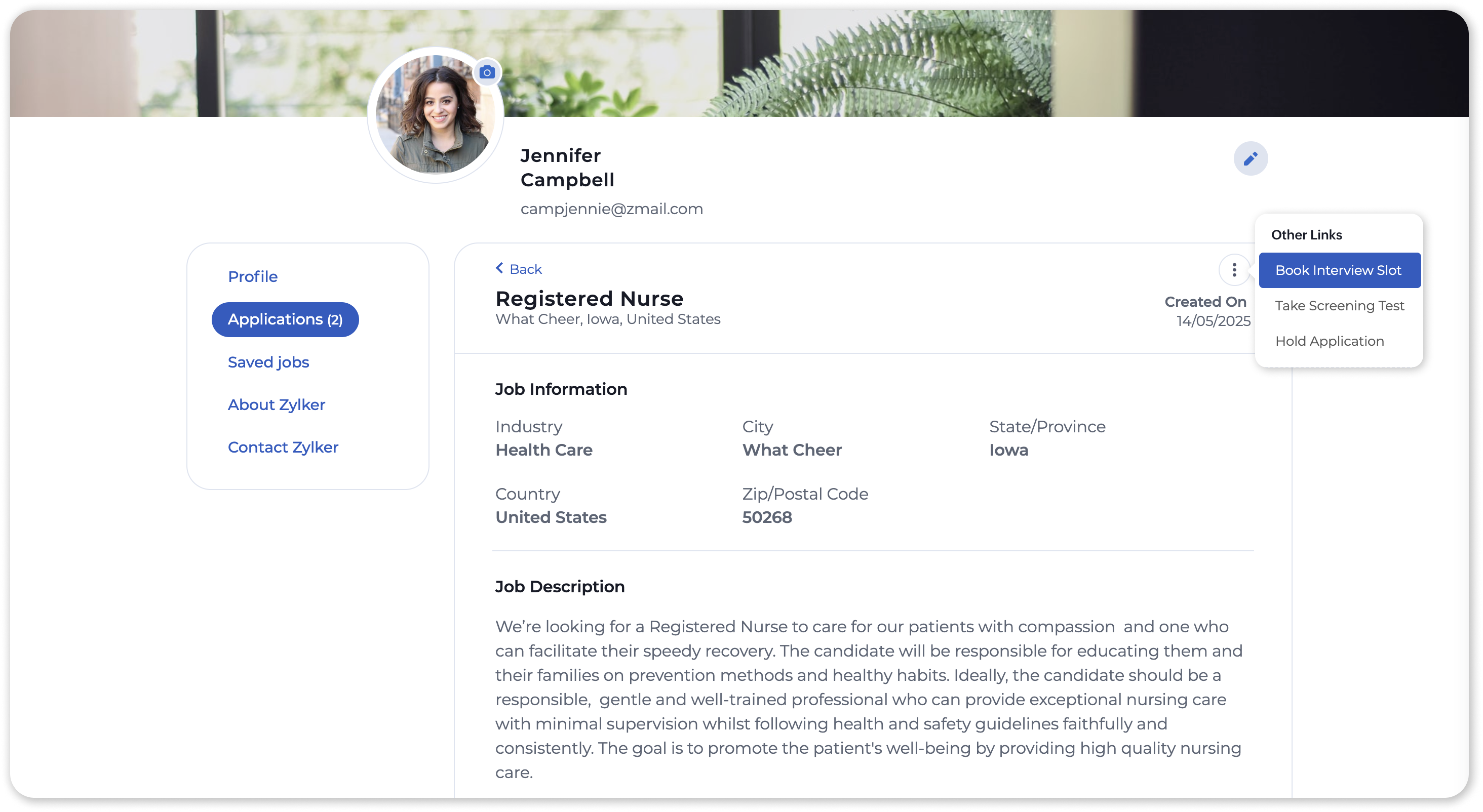
Portal Profile Support
Custom buttons and links can now be restricted to specific portal profiles, ensuring users only see what’s relevant to them:
- Candidate Portal → Candidate
- Client Portal → Client
- Vendor Portal → Vendor
- Custom Portal → Defined by you

This can easily be configured while creating or editing a custom button or link.
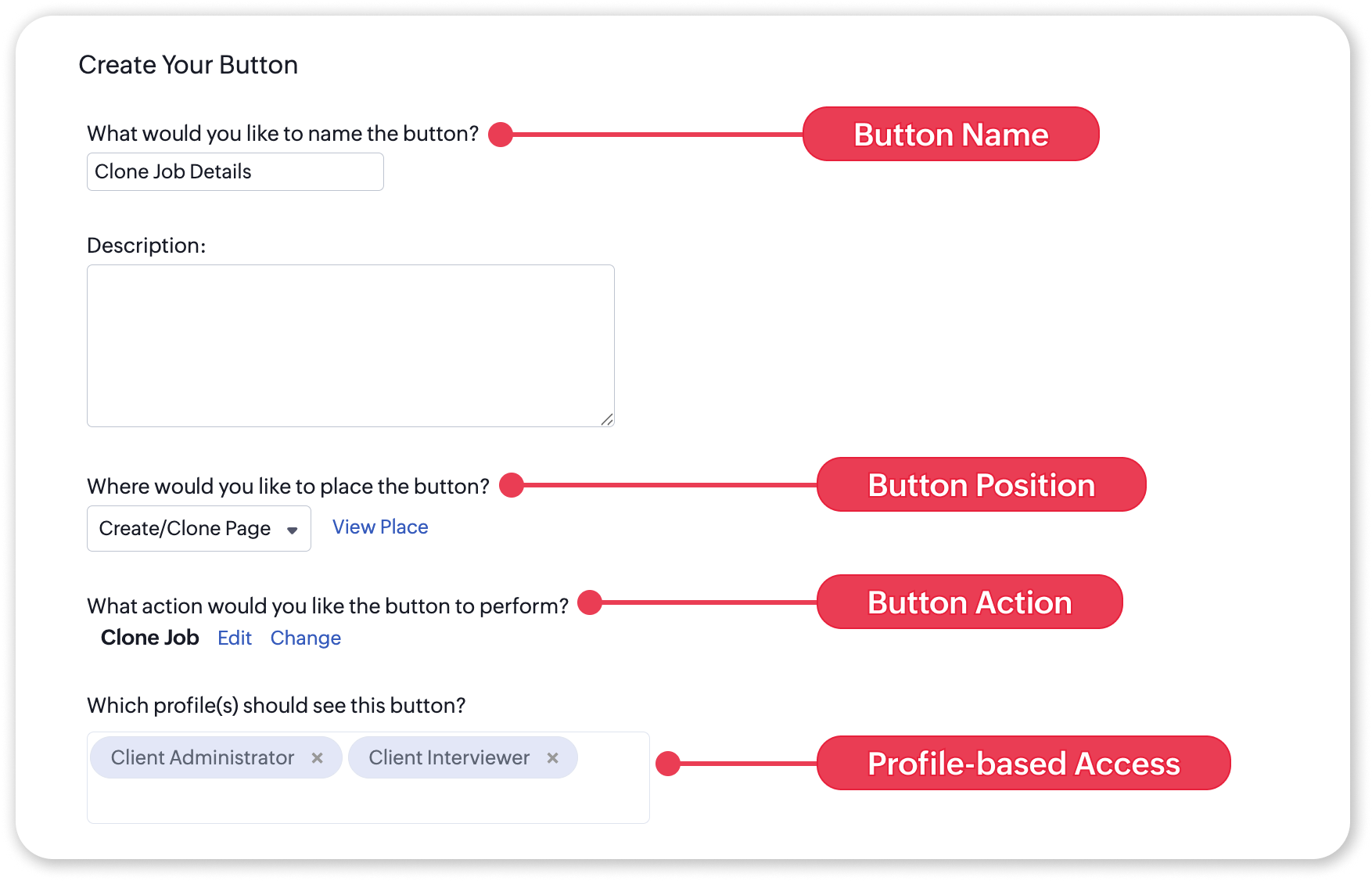
Button Placements in Portals
Each portal supports specific module-level placements for custom buttons. Use the table below to see how each placement setting translates to where the button appears within the portal. See More Portal button placements
Portal | Module | Placement | Where the Button Appears |
Candidate | Candidates | Details Page | Candidate profile section |
Job Openings | List View | Job list view of the Applications section | |
Details Page | Job detail view of the Applications section | ||
Client | Candidates | Details Page | Record overview pop-up of Candidate |
List View | Candidates module list view | ||
Job Openings | Create | Job Opening create page | |
List View | Job Openings module list view | ||
Details Page | Record overview pop-up of Job Opening | ||
Vendor | — | Web Tab support only | Appears as a custom tab in portal |
Custom Portal | All Shared Modules | Any (as configured) | Same as configured internal placements |
Have questions or suggestions? Feel free to leave a comment below or check out our help guide for step-by-step instructions. Need assistance with this update? Reach out to us anytime at support@zohorecruit.com.
Happy customizing!
Regards,
Team Zoho Recruit