Kaizen 215 - Workflow APIs - Part 3

Welcome back to another week of Kaizen!
Over the last couple of weeks, we’ve joined Zylker Cloud Services as they review and improve their workflows. In Part 1, we discovered and audited their sprawling workflow landscape. In Part 2, we learned how to use the Configuration API to understand valid triggers and actions, preventing errors before they happen.
Now, it is time to take action. Zylker has identified the "VP Alert - High Value Deal" workflow as a prime candidate for an update. It is old, has never run, and its logic might be too narrow. We will also explore how to create a new workflow from scratch to handle a new business requirement.
STEP 5: Update an Existing Workflow
From our audit in Step 2, we know that the existing ‘VP Alert - High Value Deal’ workflow (id: 4876876000016390024) hadn’t triggered even once. The original $50,000 threshold missed many valuable deals. Most winning opportunities actually land above $30,000. It has never executed, suggesting the criteria are too strict.
Let us use the Update Workflow Rule API to fix it. We'll change the criteria to trigger for deals greater than or equal to $30,000 and add an additional email notification.
What you can and cannot update
When working with the Update Workflow Rule API, not every field in a workflow is open for modification. Think of it like editing an existing automation blueprint. Some foundations are fixed, while others are flexible.
You can update:
Name and Description
Trigger : You can update triggers, but only within the same trigger type. For example, you can change a Record Action trigger from create to edit, but not from a Record Action trigger to a Score-based trigger. For more details on this, please refer to our detailed help documentation here.
Conditions and Criteria : add, remove, or refine them.
Actions : add new ones, remove existing ones, or update their configuration.
Status : activate or deactivate a workflow rule.
What cannot be updated
There are a few key restrictions to remember:
You cannot change the module associated with the workflow.
You cannot switch trigger categories (e.g., from Record Action to Email Trigger).
You cannot retain unsupported actions when changing to a trigger that doesn’t support them. For instance, if you change a trigger from Edit to Delete, but keep an Assign Owner action, the update will fail, because “Assign Owner” isn’t valid for Delete triggers.
Updating an existing workflow is not about replacing everything. it is about editing precisely what needs to change.
Here is how to do it:
Fetch the workflow details using the Get Workflow Rule API. This gives the full structure, including condition IDs, action IDs, and trigger details.
Identify what needs to change.
In this case, to fix the “VP Alert - High Value Deal” workflow, we can update the Workflow rule to:
lower the threshold to $300,000
change the comparator to greater_than.
To make the workflow more useful, Zylker has also decided to add a few new actions.
But before doing that, the developers needed to confirm which actions are supported for this workflow’s trigger type. That is where last week’s Configuration API comes in handy. Since we already know this is a Record Action trigger (create_or_edit), we can refer to the configuration response we explored in Part 2 to see which actions are valid.
{ "api_name": "create_or_edit", "deprecated": false, "name": "CreateorEdit", "scheduled_actions_supported": true, "actions": [ "field_updates", "assign_owner", "add_tags", "remove_tags", "email_notifications", "tasks", "create_record", "create_connected_record", "add_meeting", "webhooks", "functions", "circuits", "flow" ] }, |
The response clearly shows that email notifications, field updates, and tags are all supported for this trigger type. With that confidence, in addition to updating the condition, we can also add a 'Priority' tag to those records that trigger the Workflow. This makes the workflow more visible and actionable across the sales hierarchy.
Sample Request:
PUT {{api-domain}}/crm/v8/settings/automation/workflow_rules/4876876000016390024
{ "workflow_rules": [ { "description": "Notify sales leadership and track strategic opportunities", "name": "VP Alert - High Value Deal.", "conditions": [ { "sequence_number": 1, "criteria_details": { "criteria": { "group_operator": "AND", "group": [ { "comparator": "greater_than", // change in comparator operator "field": { "api_name": "Amount" }, "value": "300000" // Lowered threshold }, { "comparator": "equal", "field": { "api_name": "Stage" }, "value": "Negotiation/Review" } ] } }, "instant_actions": { "actions": [ { "type": "add_tags", "module": "Deals", "details": { "tags": [ { "name": "Priority" } ], "overwrite": true } } ] }, "id": "4876876000016390025" // id of the condition to be updated } ] } ] } |
After this update, the workflow now triggers for any deal worth more than $300,000 in the Negotiation/Review stage. Apart from sending the email notifications and adding the follow up task, it also tags these deals as Priority.
Edit vs Add:
To edit an existing condition or action, include its existing id in your update payload. Zoho CRM will recognize it as an update to that object.
To add a new condition or action, simply omit the id. CRM treats any object without an ID as a new addition.
STEP 6: Create a new Workflow Rule
With the “VP Alert - High Value Deal” workflow now fixed and performing as expected, Zylker’s sales team quickly began to see results.
But their sales team noticed that deals often stall after proposals are sent, with no systematic follow-up. Zylker has hence refined the requirements for a new Workflow.
They want to automatically trigger follow-up actions when a high-value deal (above ₹30,000) is marked “Closed Lost” due to pricing reasons. This workflow must ensure that every lost opportunity is reviewed, tagged, and re-engaged after a cooling-off period. To achieve this, they want to create a workflow to be triggered whenever a deal’s Stage is updated to Closed Lost. It must perform the following actions:
Add tags Lost due to Pricing and Re-engagement Pending.
Send an email alert to the Sales team, with the details of the failed Deal, so they can look into the reasons.
After 30 business days, automatically create another “Lost Deal - Feedback” task to remind the owner to re-contact the customer for feedback, and for future opportunities.
Before proceeding, Zylker makes an API call to the Workflow Configuration endpoint. This ensures that their chosen trigger type and actions are supported. From the response snippet below, it is clear that a field_update trigger supports scheduled actions and the required action types.
{ "api_name": "field_update", "deprecated": false, "name": "FieldUpdate", "scheduled_actions_supported": true, "actions": [ "field_updates", "assign_owner", "add_tags", "remove_tags", "email_notifications", "tasks", "create_record", "create_connected_record", "add_meeting", "webhooks", "functions", "circuits", "flow" ] } |
With these details validated, we can now move on to adding a new workflow for Zylker using the Create Workflow Rule API request.
Understanding the input JSON structure
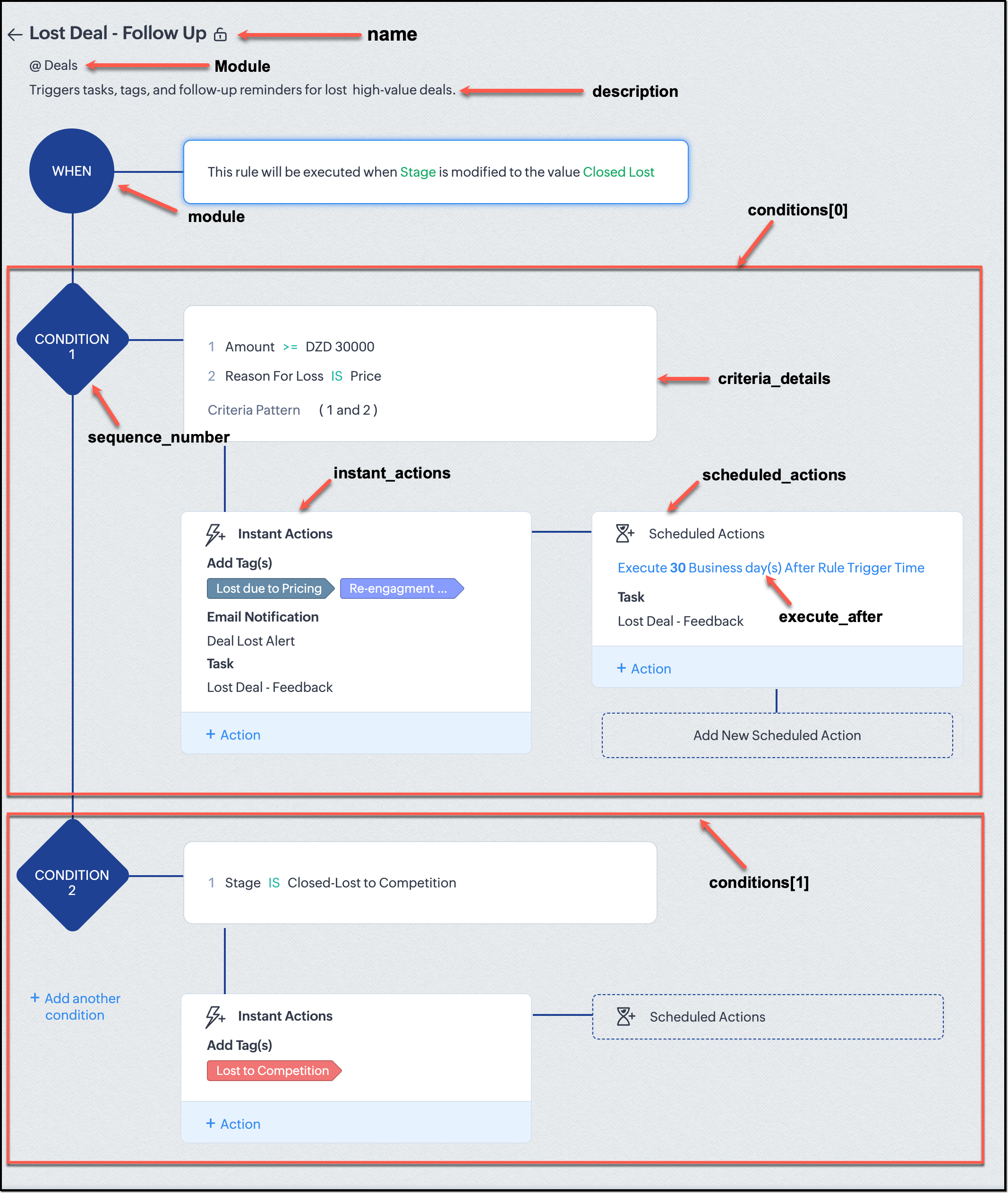
Every workflow definition follows the same hierarchy - defining when the rule runs, what conditions it checks, and which actions it performs.
The top-level input object contains a workflow_rules array. You must include just one workflow rule object per request. Each workflow rule defines its name, trigger type, and one or more condition blocks, each with its own criteria and actions.
Here is a breakdown of what is inside a single workflow rule:
{ "workflow_rules": [ { "name": "VP Alert - High Value Deal.", //name of the workflow rule "description": "Notify leadership when high-value deals are lost due to pricing.", "module": { "api_name": "Deals" }, //module to which the workflow applies "execute_when": { ... }, //trigger configuration (e.g., on record edit, field update, etc.) "conditions": [ { "sequence_number": 1, // order of execution. this is the first condition "criteria_details": { ... }, // condition logic (criteria group) "instant_actions": { "actions": [ ... ] }, //instant actions executed instantly cheduled_actions": [ // schedules actions executed after a delay { "execute_after": { ... }, // delay period for the scheduled action "actions": [ ... ] } ] }, { "sequence_number": 2, // second condition "criteria_details": { ... }, "instant_actions": { "actions": [ ... ] } } ] } ] } |
Associative vs. Non-Associative Actions
Every workflow rule performs one or more actions like sending an email, creating a task, or updating a field, etc. These actions fall into two broad categories: associative and non-associative.
Type | Description | Example Actions |
Non- Associative Actions | These are defined inside the workflow rule itself. They do not need to exist beforehand. You can configure their details directly within the workflow payload. | Create record, schedule a call, add a meeting, convert records, social actions, create record on email received, assign owner, |
Associative Actions | These are reusable actions created separately in CRM and referenced by their IDs. They can be used across multiple workflows and other automation tools. | Field updates, Email notifications, tasks, Webhooks, Add/Remove tags |
When you create or update a workflow via API, the associative actions require you to pass their existing action IDs. These IDs can be fetched using the corresponding Actions APIs : Field Updates, Email Notifications, Webhooks, and Tasks. In the coming weeks of Kaizen, we will take a closer look at each of these Actions APIs. We will see how to create, manage, and delete them within your workflow automation strategy.
Sample Request:
POST {{api-domain}}/crm/v8/settings/automation/workflow_rules
{ "workflow_rules": [ { "execute_when": { "details": { "trigger_module": { "api_name": "Deals", "id": "4876876000000002181" }, "criteria": { "comparator": "equal", "field": { "api_name": "Stage", "id": "4876876000000002565" }, "type": "value", "value": "Closed Lost" }, "repeat": false, "match_all": false }, "type": "field_update" }, "module": { "api_name": "Deals", "id": "4876876000000002181" }, "description": "Triggers tasks, tags, and follow-up reminders for high-value deals lost due to pricing", "name": "Lost Deal due to Pricing - Follow Up", "conditions": [ { "sequence_number": 1, "instant_actions": { "actions": [ { "name": "Lost Deal - Feedback", "id": "4876876000016794047", "type": "tasks" }, { "details": { "module": { "api_name": "Deals", "id": "4876876000000002181" }, "over_write": false, "tags": [ { "name": "Lost due to Pricing", "id": "4876876000016794071", "color_code": "#658BA8" }, { "name": "Re-engagement pending", "id": "4876876000016794075", "color_code": "#879BFC" } ] }, "type": "add_tags" }, { "name": "Deal Lost Alert", "id": "4876876000016794062", "type": "email_notifications" } ] }, "scheduled_actions": [ { "execute_after": { "period": "business_days", "unit": 30 }, "actions": [ { "name": "Lost Deal - Feedback", "id": "4876876000016794047", "type": "tasks" } ] } ], "criteria_details": { "criteria": { "group_operator": "AND", "group": [ { "comparator": "greater_equal", "field": { "api_name": "Amount", "id": "4876876000000002557" }, "type": "value", "value": "30000" }, { "comparator": "equal", "field": { "api_name": "Reason_For_Loss__s", "id": "4876876000002440001" }, "type": "value", "value": "Price" } ] } } } ] } ] } |
The execute_when defines when the workflow should fire.
type = field_update means this rule runs when a field’s value changes.
criteria : Stage = Closed Lost so the rule triggers whenever the Stage field is updated to Closed Lost.
repeat = false ensures it will not trigger multiple times for the same record.
In simple terms: “Whenever a deal is marked as Closed Lost, run this workflow.” The criteria_details section refines the trigger. The workflow only runs when the Amount ≥ ₹30,000 AND Reason for Loss = Price.
The instant_actions section inside the conditions array has the actions to be executed immediately when the criteria are met.
Add Tags : labels the record for easy filtering and reporting.
Send Email Alert : notifies the sales team instantly about the lost deal.
The scheduled_actions defines what happens after some time has passed. In this case, after 30 business days. Here, the workflow automatically creates a “Lost Deal - Feedback” task, reminding the deal owner to follow up with the customer to get feedback, and for future opportunities.
- The Amount is greater than or equal to ₹30,000, and
The Reason for Loss is “Price.”
By combining these elements, this workflow achieves a full closed-loop follow-up system.
Conclusion:
Zylker’s updated and new workflows make their automation smarter and more responsive. They are now able to spot key deals and ensure lost opportunities are revisited.
We hope you are now well on your way to mastering Workflow APIs. Share your thoughts in the comments or write to us at support@zohocrm.com.

Additional Reading:
- Workflow APIs - Part 1 - Auditing Workflows
- Workflow APIs - Part 2 - Find out what actions and triggers are supported for each module
Topic Participants
Anu Abraham
Sticky Posts
Kaizen #198: Using Client Script for Custom Validation in Blueprint
Nearing 200th Kaizen Post – 1 More to the Big Two-Oh-Oh! Do you have any questions, suggestions, or topics you would like us to cover in future posts? Your insights and suggestions help us shape future content and make this series better for everyone.Kaizen #226: Using ZRC in Client Script
Hello everyone! Welcome to another week of Kaizen. In today's post, lets see what is ZRC (Zoho Request Client) and how we can use ZRC methods in Client Script to get inputs from a Salesperson and update the Lead status with a single button click. In thisKaizen #222 - Client Script Support for Notes Related List
Hello everyone! Welcome to another week of Kaizen. The final Kaizen post of the year 2025 is here! With the new Client Script support for the Notes Related List, you can validate, enrich, and manage notes across modules. In this post, we’ll explore howKaizen #217 - Actions APIs : Tasks
Welcome to another week of Kaizen! In last week's post we discussed Email Notifications APIs which act as the link between your Workflow automations and you. We have discussed how Zylker Cloud Services uses Email Notifications API in their custom dashboard.Kaizen #216 - Actions APIs : Email Notifications
Welcome to another week of Kaizen! For the last three weeks, we have been discussing Zylker's workflows. We successfully updated a dormant workflow, built a new one from the ground up and more. But our work is not finished—these automated processes are
Recent Topics
Is it possible to customize ZC Themes?
I understand you can choose a layout and customize Brand Color, App Header, Menu, and Sub-Menu components, but can you override some of the default theme settings with CSS or a config file? For example, - Table highlight color - Listview auto filter highlightIs it possible to create Custom function-based Lookup field in Zoho CRM
Is it possible to create a custom function-based lookup field in Zoho CRM? If so, how? Use case: Need to fetch users from Zoho Projects into a dropdown field in Zoho CRM.@mention in comments no notification
Hi, hope someone can help. When we @mention someone in the comments in Zoho Creator, how is that user notifed as we don't get anything on email or in the app notifications.Add "Running Balance" column to Account Transaction Reports
Hello, Currently Zoho Account Transaction Reports give you the opening balance, then lists the transactions, then provides the closing balance. It would be great if you could add a column on the far right that shows the "Running Balance" on the account after each transaction. There are many times when analyzing or tie-ing out transactions that this would be very helpful. I currently have to frequently run a tape on my adding machine to get balance totals after a specific transaction on the list.how to differentiate if whatsapp comes from certain landing page?
I create a Zobot in SalesIQ to create a Whatsapp bot to capture the lead. I have 2 landing pages, one is SEO optimized and the other want is optimized for leads comes from Google Ads. I want to know from which landing page this lead came through WhatsApperror : Object code : 6500
b3 = map(); b3.put("name", "Test Project Name"); updateprojects2 = invokeurl [ url :"https://projectsapi.zoho.eu/restapi/portal/era0130/projects/169495000000928007/" type :PUT parameters: b3 connection:"in2" ]; info b3 ; info updateprojects2; ------------I got unknown charge from Zoho
Good day, I need help disputing a charge I don't know from, zoho. I have ZohoMail and ZeptoMail. I purchase credits for ZeptoMail, and for ZohoMail I am not subcribed.Zoho Folder Creation in Sharepoint with Sub Folders [Tutorial]
During a recent ZUG meetup in Auckland, New Zealand, I shared how I could use Zoho Flow to create a folder in Microsoft SharePoint, along with its subfolders. As I am not a developer, I thought it would be helpful to post a guide for users who want toFunction 56: Automatically enable the option for customers to pay via bank account
Hello everyone and welcome back to our series! One of the key features of Zoho Books is its integration with multiple payment gateways, allowing you to receive online payments for your invoices. This ensures faster payments, automates payment trackingAttach Files to Your Notecards and share them on the go!
Hey everyone! We’re excited to share a feature many of you have been asking for — you can now attach files directly to your text notecards and share with ease! 🙌 This update was built with your feedback in mind, especially for those who wanted a simpleHow to searchByCriteria records that are under approval?
I need to search for both approved and pending approval records Is that possible with this method? Or I need to a different method? var priceReqID = $Page.record_id; log(priceReqID); var records = ZDK.Apps.CRM.Price_List_Item.searchByCriteria("Price_Request:equals:"How to add Simple Analytics to Zoho Pages?
I have a website with Zoho Pages, how do I add Simple Analytics on it? They seem to have code they need to be embedded https://docs.simpleanalytics.com/scriptCant seem to delete an email account
Hello, I have researching for 4 days how to delete an email account and I am absolutely without a clue. The email account I am trying to delete is support<AT>fyshoes<dot>com. It's the first email account I made and it (is???) was associated with the super user (me). I have since changed it to adming<AT>fychoes<dot>com and I see the support email in my list but I just cant seem to get rid of it. Ultimately I want to associate that email account with another user that I want to add. This is reallyImport data into Multi-Select lookup field from CSV/Excel
How to import data into a multi-select lookup field from the CSV/Excel Sheet? Let's say I have an Accounts multi-select lookup field in the Deals module and I want to import the Deals with Accounts field. Steps:- 1. Create/edit a multi-select lookup fieldScript that deletes a record?
We're using WP Plugin "Integration for WooCommerce and Zoho Pro", and have created a couple of Feeds to send data to Zoho. We are trying to create Contact records, but only based upon condition. Tried to make it with small Deluge function and Workflow,A formula that capitalises the first letter of each word
Hi all, is there a zoho formula that can capitalise the first letter of each word in a string? INITCAP only capitalises the first letter of the first word.Quotes in Commerce?
In Zoho Ecommerce, I need to be able to generate quotes, negotiate with customers, and then generate invoices. Currently, I plan to integrate Zoho CRM to generate quotes. After negotiation and confirmation, I will push the details to Zoho Ecommerce toZoho Commerce - Mobile Application
Does Zoho Commerce have a mobile application for customers to place an order?Register user through Phone Number by Generating OTP
In zoho commerce , I am developing website on online food store Inilialy the user get verification code to their email for registering there account for login. But I need to login using phone number by generating OTP automatically rather than verificationCustom Buttons for Mass Actions
Hello everyone, We’ve just made Custom Buttons in Zoho Recruit even more powerful! You can now create Bulk Action Buttons that let you perform actions on multiple records at once, directly from the List View. What’s new? Until now, custom buttons wereZoho Vault Passwords
Is there a way to consume Zoho Vault Manager passwords using the API? Thanks in advance.Is the ChatGPT Assistant integration capable of recognizing WhatsApp voice messages?
I was wondering: if a visitor sends me a voice message on WhatsApp, would the assistant be able to transcribe it and reply to them?【Zoho CRM】レポート機能のアップデート
ユーザーの皆さま、こんにちは。コミュニティチームの藤澤です。 今回は「Zoho CRM アップデート情報」の中から、レポート機能のアップデートをご紹介します。 目次 1. レポートのエクスポート時のレコードIDの表示について 2. 通貨項目の表示について 3. レポートの削除の監査ログへの反映について 1. レポートのエクスポート時のレコードIDの表示について これまで、レポートをエクスポートするとファイルにレコードIDが必ず含まれていました。レコードIDが識別子として役立つ場合もありますが、実際には多くの企業で参照されることはありません。Translation in zoho bookings
We cant translate zoho booking emails. The general text we can change. But what about text like: ""Here a link to join the meeting online:"" and "Add to Zoho Calendar" and "Add to Google Calendar"? No professional business have mixed languages. Its lookingIs there any way to bill one client in different currencies on different invoices?
I have some customers who have their currency set as USD and most of their billing is done in USD. However, from time to time I have a need to bill them in my base currency GBP for some specific invoices, but there seems to be no way of doing this that I can see. The only workaround that I can see is to create two client records for the same client, one for USD billing and one for GBP billing, but this is not an ideal situation. Is it likely that the (hopefully!) soon to arrive multi-currency supportAPI name for all fields in Zoho Project (Standard or custom)
Hi! I struggle to find easily all API name of all field in Zoho Project to build my API rest with other services. We can find them very fast in CRM but not in PRoject. Could you share a function to get the list of all API Name of any field of an AppDisappearing Mouse cursor in Zoho Mail / Windows 11 (Chrome + Edge)
I'm seeing an issue when writing mails with the light theme with the mouse cursor being white and the document area also being white - making it nearly impossible to see the mouse cursor. I see the problem on Windows 11 under Chrome and Edge. (Yet toZoho Assist not rendering NinjaTrader chart properly
Hi everyone. Just installed and testing Zoho Assist. I want to display my laptop' screen (Windows 11) on a monitor connected to my Mac mini. The laptop is running a stock trading program called NinjaTrader. Basically, when running, this program displaysLink(s) between Notes
Hello Everyone, It would be great if links could be created between notes. Let's say we have 5 Notes A, B, C , D, E. I would like to be able to link Note A to Note B but not in other way, so no link appears in Note B linking to Note A. An so on, linkingFeature Request: Assign Documents to Already Entered Bills, Expenses, Invoices, etc.
Hi Zoho Team, We are regular users of the Documents module in Zoho Books and appreciate its ability to keep financial records well-organized. However, we’ve noticed a limitation: There is no way to attach a document from the "Documents > Files" sectionI don't see any WITHDRAWL transaction at all
Hi I manually imported my bank statement to Zoho books today and I am a complete newbie. I have been reading the knowledgebase but unable to fix this. I only see "Uncategorized 91 DEPOSIT transactions". I don't see any WITHDRAWL transaction at all. Also,Shared inbox unable to see replies
Hi we are a small company me and someone else, we have a shared inbox for our sale@ and contact@ however we have this issue where by if i reply to an email or the other person reply to the email, it does not show it to them and therefore we end up replying404 error at checkout
Our customers are getting a 404 error at checkout. Anyone else with the same problem?FONT Sizing in Notebook
Hi Kishore - What is the status of adding font sizing to the application? I have several things that I have pasted directly into Notebook and the fonts are HUGE! I would like the ability to highlight them and reduce the font to a legible size. NothingCan managers Upload documents to their direct rapports?
Admin employees have the ability to upload documents to employees' files; however, managers do not have add/manage button - is it possible for managers to upload their direct reports' documents, such as absence documents or 121 documents. Is there somethingLeave balance display for next year
Is there a way to not have a rollover or not limit the leave balance depending on the date. For example an employee has 10 days leave balance and wants to apply for January leave in December. They cant because the rollover doesnt show the leave balancePlease add an “Auto-Apply Unused Credits” toggle
Hello — please add a simple org-level option to automatically apply unused credits (credit notes, excess payments, retainers) to new invoices and/or bills. An ON/OFF toggle with choices “invoices”, “bills”, or “both” would save lots of manual work forZoho Books not working/loading
Hi! I haven't been able to access/load Zoho Books for the past hours. I get a time out (and it is not due to my internet connection). Could you please check this asap? Thank you!Custom Fields with Data Types for Expense and Payments Received in Zoho Books
Hi all, We are glad to present to you, the option to create Custom Fields for the Expense and Payments received modules in Zoho Books. This also comes with an icing on top of it - Yes, the custom fields can now be created with different data types. Types like Text, Number, Decimal, Amount, Auto Number and Check Box are supported as of now. Rush to the gear icon at the top right corner, select 'More Settings', choose 'Preferences' in the left pane. Click the Expense/Payment preferences where you canZoho Cliq - Incident alert (Server outage - IN DC) | August 28
We've received server down alerts and are currently investigating the issue (IN DC) to find the root cause. Our team is actively working to restore normal operations at the earliest. Status: Under investigation Start time: 09:44:21 AM IST Affected location:Next Page