Kaizen 215 - Workflow APIs - Part 3

Welcome back to another week of Kaizen!
Over the last couple of weeks, we’ve joined Zylker Cloud Services as they review and improve their workflows. In Part 1, we discovered and audited their sprawling workflow landscape. In Part 2, we learned how to use the Configuration API to understand valid triggers and actions, preventing errors before they happen.
Now, it is time to take action. Zylker has identified the "VP Alert - High Value Deal" workflow as a prime candidate for an update. It is old, has never run, and its logic might be too narrow. We will also explore how to create a new workflow from scratch to handle a new business requirement.
STEP 5: Update an Existing Workflow
From our audit in Step 2, we know that the existing ‘VP Alert - High Value Deal’ workflow (id: 4876876000016390024) hadn’t triggered even once. The original $50,000 threshold missed many valuable deals. Most winning opportunities actually land above $30,000. It has never executed, suggesting the criteria are too strict.
Let us use the Update Workflow Rule API to fix it. We'll change the criteria to trigger for deals greater than or equal to $30,000 and add an additional email notification.
What you can and cannot update
When working with the Update Workflow Rule API, not every field in a workflow is open for modification. Think of it like editing an existing automation blueprint. Some foundations are fixed, while others are flexible.
You can update:
Name and Description
Trigger : You can update triggers, but only within the same trigger type. For example, you can change a Record Action trigger from create to edit, but not from a Record Action trigger to a Score-based trigger. For more details on this, please refer to our detailed help documentation here.
Conditions and Criteria : add, remove, or refine them.
Actions : add new ones, remove existing ones, or update their configuration.
Status : activate or deactivate a workflow rule.
What cannot be updated
There are a few key restrictions to remember:
You cannot change the module associated with the workflow.
You cannot switch trigger categories (e.g., from Record Action to Email Trigger).
You cannot retain unsupported actions when changing to a trigger that doesn’t support them. For instance, if you change a trigger from Edit to Delete, but keep an Assign Owner action, the update will fail, because “Assign Owner” isn’t valid for Delete triggers.
Updating an existing workflow is not about replacing everything. it is about editing precisely what needs to change.
Here is how to do it:
Fetch the workflow details using the Get Workflow Rule API. This gives the full structure, including condition IDs, action IDs, and trigger details.
Identify what needs to change.
In this case, to fix the “VP Alert - High Value Deal” workflow, we can update the Workflow rule to:
lower the threshold to $300,000
change the comparator to greater_than.
To make the workflow more useful, Zylker has also decided to add a few new actions.
But before doing that, the developers needed to confirm which actions are supported for this workflow’s trigger type. That is where last week’s Configuration API comes in handy. Since we already know this is a Record Action trigger (create_or_edit), we can refer to the configuration response we explored in Part 2 to see which actions are valid.
{ "api_name": "create_or_edit", "deprecated": false, "name": "CreateorEdit", "scheduled_actions_supported": true, "actions": [ "field_updates", "assign_owner", "add_tags", "remove_tags", "email_notifications", "tasks", "create_record", "create_connected_record", "add_meeting", "webhooks", "functions", "circuits", "flow" ] }, |
The response clearly shows that email notifications, field updates, and tags are all supported for this trigger type. With that confidence, in addition to updating the condition, we can also add a 'Priority' tag to those records that trigger the Workflow. This makes the workflow more visible and actionable across the sales hierarchy.
Sample Request:
PUT {{api-domain}}/crm/v8/settings/automation/workflow_rules/4876876000016390024
{ "workflow_rules": [ { "description": "Notify sales leadership and track strategic opportunities", "name": "VP Alert - High Value Deal.", "conditions": [ { "sequence_number": 1, "criteria_details": { "criteria": { "group_operator": "AND", "group": [ { "comparator": "greater_than", // change in comparator operator "field": { "api_name": "Amount" }, "value": "300000" // Lowered threshold }, { "comparator": "equal", "field": { "api_name": "Stage" }, "value": "Negotiation/Review" } ] } }, "instant_actions": { "actions": [ { "type": "add_tags", "module": "Deals", "details": { "tags": [ { "name": "Priority" } ], "overwrite": true } } ] }, "id": "4876876000016390025" // id of the condition to be updated } ] } ] } |
After this update, the workflow now triggers for any deal worth more than $300,000 in the Negotiation/Review stage. Apart from sending the email notifications and adding the follow up task, it also tags these deals as Priority.
Edit vs Add:
To edit an existing condition or action, include its existing id in your update payload. Zoho CRM will recognize it as an update to that object.
To add a new condition or action, simply omit the id. CRM treats any object without an ID as a new addition.
STEP 6: Create a new Workflow Rule
With the “VP Alert - High Value Deal” workflow now fixed and performing as expected, Zylker’s sales team quickly began to see results.
But their sales team noticed that deals often stall after proposals are sent, with no systematic follow-up. Zylker has hence refined the requirements for a new Workflow.
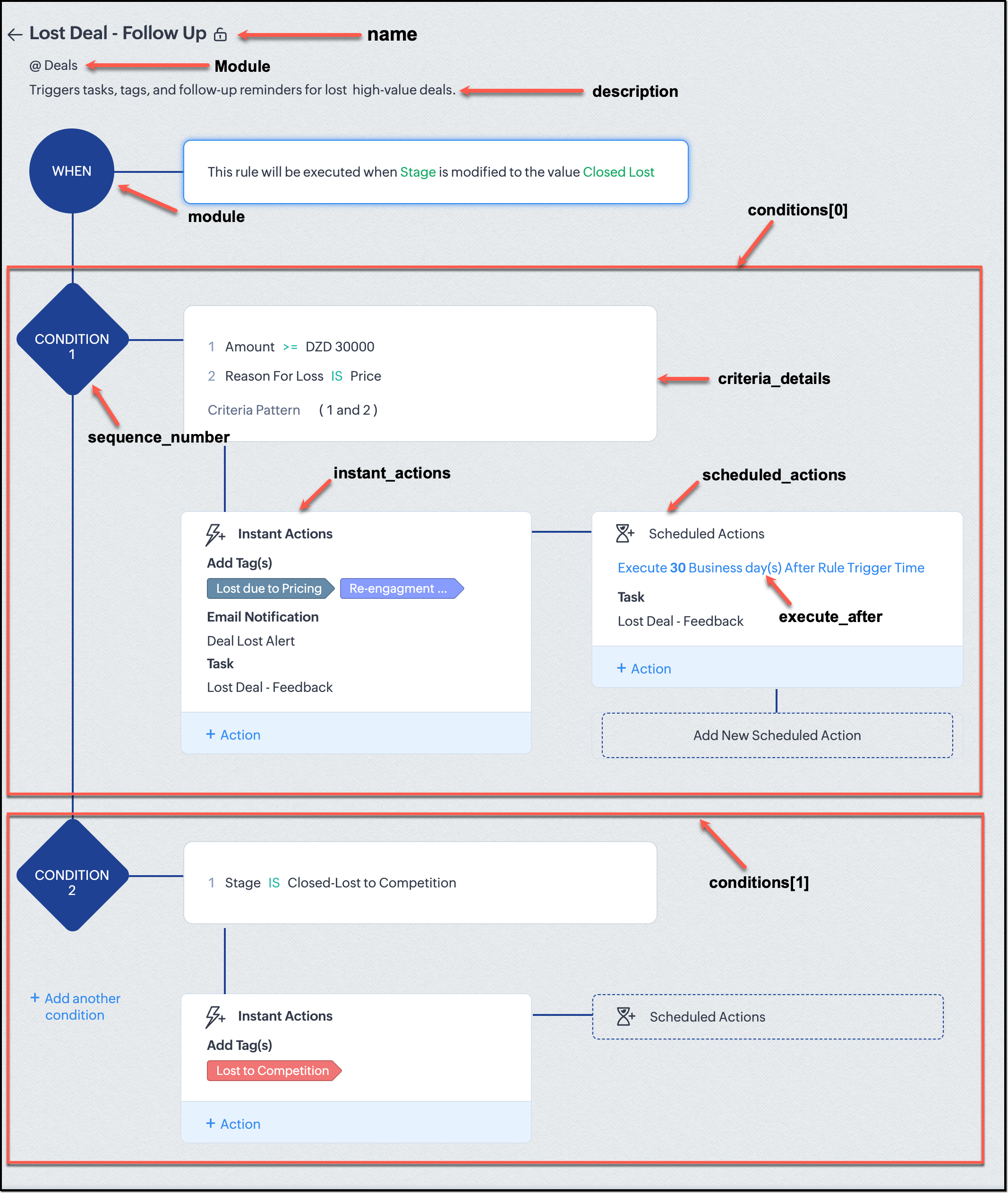
They want to automatically trigger follow-up actions when a high-value deal (above ₹30,000) is marked “Closed Lost” due to pricing reasons. This workflow must ensure that every lost opportunity is reviewed, tagged, and re-engaged after a cooling-off period. To achieve this, they want to create a workflow to be triggered whenever a deal’s Stage is updated to Closed Lost. It must perform the following actions:
Add tags Lost due to Pricing and Re-engagement Pending.
Send an email alert to the Sales team, with the details of the failed Deal, so they can look into the reasons.
After 30 business days, automatically create another “Lost Deal - Feedback” task to remind the owner to re-contact the customer for feedback, and for future opportunities.
Before proceeding, Zylker makes an API call to the Workflow Configuration endpoint. This ensures that their chosen trigger type and actions are supported. From the response snippet below, it is clear that a field_update trigger supports scheduled actions and the required action types.
{ "api_name": "field_update", "deprecated": false, "name": "FieldUpdate", "scheduled_actions_supported": true, "actions": [ "field_updates", "assign_owner", "add_tags", "remove_tags", "email_notifications", "tasks", "create_record", "create_connected_record", "add_meeting", "webhooks", "functions", "circuits", "flow" ] } |
With these details validated, we can now move on to adding a new workflow for Zylker using the Create Workflow Rule API request.
Understanding the input JSON structure
Every workflow definition follows the same hierarchy - defining when the rule runs, what conditions it checks, and which actions it performs.
The top-level input object contains a workflow_rules array. You must include just one workflow rule object per request. Each workflow rule defines its name, trigger type, and one or more condition blocks, each with its own criteria and actions.
Here is a breakdown of what is inside a single workflow rule:
{ "workflow_rules": [ { "name": "VP Alert - High Value Deal.", //name of the workflow rule "description": "Notify leadership when high-value deals are lost due to pricing.", "module": { "api_name": "Deals" }, //module to which the workflow applies "execute_when": { ... }, //trigger configuration (e.g., on record edit, field update, etc.) "conditions": [ { "sequence_number": 1, // order of execution. this is the first condition "criteria_details": { ... }, // condition logic (criteria group) "instant_actions": { "actions": [ ... ] }, //instant actions executed instantly cheduled_actions": [ // schedules actions executed after a delay { "execute_after": { ... }, // delay period for the scheduled action "actions": [ ... ] } ] }, { "sequence_number": 2, // second condition "criteria_details": { ... }, "instant_actions": { "actions": [ ... ] } } ] } ] } |
Associative vs. Non-Associative Actions
Every workflow rule performs one or more actions like sending an email, creating a task, or updating a field, etc. These actions fall into two broad categories: associative and non-associative.
Type | Description | Example Actions |
Non- Associative Actions | These are defined inside the workflow rule itself. They do not need to exist beforehand. You can configure their details directly within the workflow payload. | Create record, schedule a call, add a meeting, convert records, social actions, create record on email received, assign owner, |
Associative Actions | These are reusable actions created separately in CRM and referenced by their IDs. They can be used across multiple workflows and other automation tools. | Field updates, Email notifications, tasks, Webhooks, Add/Remove tags |
When you create or update a workflow via API, the associative actions require you to pass their existing action IDs. These IDs can be fetched using the corresponding Actions APIs : Field Updates, Email Notifications, Webhooks, and Tasks. In the coming weeks of Kaizen, we will take a closer look at each of these Actions APIs. We will see how to create, manage, and delete them within your workflow automation strategy.
Sample Request:
POST {{api-domain}}/crm/v8/settings/automation/workflow_rules
{ "workflow_rules": [ { "execute_when": { "details": { "trigger_module": { "api_name": "Deals", "id": "4876876000000002181" }, "criteria": { "comparator": "equal", "field": { "api_name": "Stage", "id": "4876876000000002565" }, "type": "value", "value": "Closed Lost" }, "repeat": false, "match_all": false }, "type": "field_update" }, "module": { "api_name": "Deals", "id": "4876876000000002181" }, "description": "Triggers tasks, tags, and follow-up reminders for high-value deals lost due to pricing", "name": "Lost Deal due to Pricing - Follow Up", "conditions": [ { "sequence_number": 1, "instant_actions": { "actions": [ { "name": "Lost Deal - Feedback", "id": "4876876000016794047", "type": "tasks" }, { "details": { "module": { "api_name": "Deals", "id": "4876876000000002181" }, "over_write": false, "tags": [ { "name": "Lost due to Pricing", "id": "4876876000016794071", "color_code": "#658BA8" }, { "name": "Re-engagement pending", "id": "4876876000016794075", "color_code": "#879BFC" } ] }, "type": "add_tags" }, { "name": "Deal Lost Alert", "id": "4876876000016794062", "type": "email_notifications" } ] }, "scheduled_actions": [ { "execute_after": { "period": "business_days", "unit": 30 }, "actions": [ { "name": "Lost Deal - Feedback", "id": "4876876000016794047", "type": "tasks" } ] } ], "criteria_details": { "criteria": { "group_operator": "AND", "group": [ { "comparator": "greater_equal", "field": { "api_name": "Amount", "id": "4876876000000002557" }, "type": "value", "value": "30000" }, { "comparator": "equal", "field": { "api_name": "Reason_For_Loss__s", "id": "4876876000002440001" }, "type": "value", "value": "Price" } ] } } } ] } ] } |
The execute_when defines when the workflow should fire.
type = field_update means this rule runs when a field’s value changes.
criteria : Stage = Closed Lost so the rule triggers whenever the Stage field is updated to Closed Lost.
repeat = false ensures it will not trigger multiple times for the same record.
In simple terms: “Whenever a deal is marked as Closed Lost, run this workflow.” The criteria_details section refines the trigger. The workflow only runs when the Amount ≥ ₹30,000 AND Reason for Loss = Price.
The instant_actions section inside the conditions array has the actions to be executed immediately when the criteria are met.
Add Tags : labels the record for easy filtering and reporting.
Send Email Alert : notifies the sales team instantly about the lost deal.
The scheduled_actions defines what happens after some time has passed. In this case, after 30 business days. Here, the workflow automatically creates a “Lost Deal - Feedback” task, reminding the deal owner to follow up with the customer to get feedback, and for future opportunities.
- The Amount is greater than or equal to ₹30,000, and
The Reason for Loss is “Price.”
By combining these elements, this workflow achieves a full closed-loop follow-up system.
Conclusion:
Zylker’s updated and new workflows make their automation smarter and more responsive. They are now able to spot key deals and ensure lost opportunities are revisited.
We hope you are now well on your way to mastering Workflow APIs. Share your thoughts in the comments or write to us at support@zohocrm.com.

Additional Reading:
- Workflow APIs - Part 1 - Auditing Workflows
- Workflow APIs - Part 2 - Find out what actions and triggers are supported for each module
Topic Participants
Anu Abraham
Sticky Posts
Kaizen #198: Using Client Script for Custom Validation in Blueprint
Nearing 200th Kaizen Post – 1 More to the Big Two-Oh-Oh! Do you have any questions, suggestions, or topics you would like us to cover in future posts? Your insights and suggestions help us shape future content and make this series better for everyone.Kaizen #226: Using ZRC in Client Script
Hello everyone! Welcome to another week of Kaizen. In today's post, lets see what is ZRC (Zoho Request Client) and how we can use ZRC methods in Client Script to get inputs from a Salesperson and update the Lead status with a single button click. In thisKaizen #222 - Client Script Support for Notes Related List
Hello everyone! Welcome to another week of Kaizen. The final Kaizen post of the year 2025 is here! With the new Client Script support for the Notes Related List, you can validate, enrich, and manage notes across modules. In this post, we’ll explore howKaizen #217 - Actions APIs : Tasks
Welcome to another week of Kaizen! In last week's post we discussed Email Notifications APIs which act as the link between your Workflow automations and you. We have discussed how Zylker Cloud Services uses Email Notifications API in their custom dashboard.Kaizen #216 - Actions APIs : Email Notifications
Welcome to another week of Kaizen! For the last three weeks, we have been discussing Zylker's workflows. We successfully updated a dormant workflow, built a new one from the ground up and more. But our work is not finished—these automated processes are
Recent Topics
Why not possible to generate?
Using this https://desk.zoho.com/DeskAPIDocument#TicketCount#TicketCount_Getticketcountbyfield on my ZML script url :"https://desk.zoho.com/api/v1/ticketsCountByFieldValues?departmentId=XXXXXXXXXXX&accountId!=XXXXXXXXX&customField1=cf_country_1:XXXXXX&field=overDue"email
Hi My crm email is not working, can you check, I have zoho one account.Need option to see Mass Emails & Cadences in Gmail Outbox OR a dedicated Zoho Outbox
Hi everyone, Right now, when we send 1:1 emails from gmail (with gmail API connected to Zoho CRM), those emails appear both in gmail's sent folder and in Zoho CRM. That works well. But when we send Mass Emails or Cadence emails form Zoho CRM, they areI can't found API for Sales Receipts
Hello May you please help me to find an API document for Sales Receipts to get data and retrive a custom fields like Invoice and credit notes RegardsKaizen #205 - Answering Your Questions | Managing Picklists and Enabling History Tracking via Zoho CRM APIs
Hello everyone! Welcome back to another post in our Kaizen series. In this post, we will look at how you can manage picklist fields in Zoho CRM using APIs. This topic was raised as feedback to Kaizen #200, so we are taking it up here with more details.Internally created tickets
Hi there When tickets are created internally on-behalf of customers - there is nothing to show that the ticket was created by an internal agent. This means, that it's easy for our agents to confuse tickets which were created by internal team members andAutomatically change website passwords
Hi everyone, We just switched to a Professional package to also use the "Automatically change website passwords" function. But I cannot find anything about it, how to use it, anywhere. Does anyone know how I can use this function? Best, CasparChange Invoice Prices for an Effective Date
Hi, It would be a really good feature to be able to change the prices on invoices/recurring invoices from an effective date in the event of price increases. For instance, I am in the process of increasing prices that will be effective from a specific"Other Current Asset" accounts as "Paid Through" accounts in Expense
It would be incredibly useful to be able to assign accounts of type Other Current Asset as Paid Through accounts in Expense. Currently, Other Current Liability are permitted as Paid Through Accounts. This makes sense, as Credit Cards are current liabilities.Multi column open text questions that allows respondents to add rows for additional information
I need to create a question that has 2 columns with open text, but I also need to allow respondents to click a "+" button, or something similar, so that they can add additional information if they choose to. I've tried using the Multiple Textboxes typeBot Filtering & Apple Mail Privacy Protection Compliance in Zoho Campaigns
Dear Campaigns Users, The wait is over! We’re excited to announce that the enhanced bot filtering feature is now live in Zoho Campaigns. This update brings greater accuracy to your email campaign reports by distinguishing real user engagement from automatedDécouvrons les détails qui simplifient vos journées de travail avec Trident
Nous nous installons dans des routines efficaces et rodées avec le temps. Chaque matin, nous ouvrons nos e-mails, passons aux messages, consultons notre agenda, puis attaquons nos tâches. Ce processus nous semble maîtrisé, mais est-il réellement optimiséIssue with Purchase Rate Showing as “0” After Importing Items List
Dear Zoho Books Support Team, Good day. I’m reaching out regarding an issue I’m facing while importing my items list into Zoho Books. Despite mapping all fields correctly and including the purchase price for each product in my Excel file, the PurchaseAPI for Task Entity in Zoho Books
I’m working on automating task creation in Zoho Books via a custom button in the Bills Module. The goal is to create a task in the Tasks Module and assign it to the Finance Team, so they can track progress efficiently. While reviewing Zoho Books documentation,create invoice in zoho books from the zoho forms
Is there a native way to have create invoice in zoho books, when zoho form is completed?Email undelivered
GOod Day I am always receiving an uncategorized-bounce to my email. I am not sure why this is happening.Add inventory_valuation_method to items endpooints
To ensure consistent item creation it would be helpful to have the inventory_valuation_method (FIFO vs WAC) be able to be set at item creation or as an update (consistent with current behavior where it is not allowed for items with existing transactions)Use Zoho to send sales receipts for Gocardless transactions
I've been using gocardless for years and have d/d mandates set up on there. Each week we get bulk payments from customer d/d's. However, we need to send sales receipts to these customers. So I know I can sync mandates into Zoho, and then I can set upZoho - Gocardless sales receipts
I've been using gocardless for years and have d/d mandates set up on there. Each week we get bulk payments from customer d/d's. However, we need to send sales receipts to these customers. So I know I can sync mandates into Zoho, and then I can set upIntroducing Rollup summary in Zoho CRM
------------------------------------------Moderated on 5th July'23---------------------------------------------- Rollup summary is now available for all organizations in all the DCs. Hello All, We hope you're well! We're here with an exciting update thatIntroducing Connected Workflows in Zoho CRM for Everyone : Free Your Teams to Focus on What Matters
Hello Everyone, We’re thrilled to introduce the next big evolution in Zoho CRM for Everyone -- Connected Workflows. This new feature builds on our commitment to deliver a CRM that’s truly inclusive, adaptable, and designed for consistent collaborationCooling-off Period Just Got Better: More Coverage, More Control
We’ve enhanced the Cooling-off Period feature in Zoho Recruit to give you more control over repeat applications and referrals. This helps you maintain a cleaner, more efficient recruitment pipeline. With this enhancement, you can: Prevent duplicate candidateRevenue Management: #7 Revenue Recognition in Construction & Real Estate Industry
If you are in the construction or real estate business, you are used to long project timelines and progressive invoicing to keep up with your billing. But when does revenue get recognized? Will it happen when the contract gets signed? At different milestonesTikTok (and other social platform) Messages and comments of the past
When I link a social channel, Zoho will show in "Inbox", "Messages" and "Contact" sections the interaction done in the past? (comment, messages...)Restrict Employee mail deletion
Dear Zoho, Is there a way where i can restrict my employees to delete any mails from their account554 5.1.8 Email Outgoing Blocked.
Hi guys, I just singed up for mateusz.nowicki@zoho.com mail and I can't send any mails.. Why? Everytime I try to send something I got error like the one in the screenshot. Please, help me.File Upload in Creator's Subfrom
Hello Sir/Madam, Here is a Problem......... Scenario: In CRM One Custom Module (Payments) have one File Upload Field now we have to Upload that File into Creator's Custom Form (Documents) have one Subform (Documents) in Document Upload Field using DelugeTrigger workflow base on email clic
Searching the help and forum, I see that there were workflow trigger rules based on email. But now, I can't find this type of trigger when I create a custom workflow. What I'm looking for would be to automate the sending of an email for a new prospect,Bigin Form Acknowledgement
How to troubleshoot and find out why form acknowledgement is not sending emails after form submission?Zoho Mail POP & IMAP Server Details
Hello all! We have been receiving a number of requests regarding the errors while configuring or using Zoho Mail account in POP/ IMAP clients. The server details vary based on your account type and the Datacenter in which your account is setup. EnsureEver since the new Android App udpates notifications are not working
notifications are not working for the app is its closed I followed the tutuorial to the notificaction fixed and everythig seems to be right but notifications are not workigZoho Analytics & Zoho Desk - but not all desks
I have several desks in our company and one of those is used by our HR department. I want to bring through the data to the shared Zoho Analytics workspace - except for the HR desk. Can this be excluded at data import stage ?Incoming Emails Not Showing Up in Zoho Inbox
Hi - I have my Zoho email account set up to forward a copy of all incoming emails to a secondary Gmail address, whilst retaining the original email in the Zoho inbox. However, all my incoming emails are currently not showing up in my Zoho inbox, so I'mSHEET - Send email when a cell changes
I would like to create a custom function for Zoho Sheet that triggers when a paticular cell changes to a specific value. This would result in sending an email to a recipient (this would be an address that remains the same and included in the script). Example: = IF(N4= "Drafted", <>EmailFunction) 1) Cell N4 changes to "Drafted" 2) Email is sent to recipient or alternatively 3) Post to chat channel I have found the Custom function editor in Sheet. I am not bad at scripting, but【開催報告】 福岡 ユーザー交流会 2025/8/8(金)
皆さま、こんにちは。コミュニティチームの中野です。 8/8(金)に、福岡 ユーザー交流会を開催しました。 本投稿では、その様子をお届けします。当日の登壇資料などもこちらに共有しますので、参加できなかった皆さまもご参照ください。 今年初の開催となる福岡 ユーザー交流会では、CreativeStudio樂合同会社 前田さんによるZoho CRM / Sign / Survey の事例セッションのほか、 Zoho社員セッションでは、Zoho Forms の活用法を解説。 さらに、「見込み客・顧客データの管理/活用方法」をテーマに参加者同士でZohoError: Invalid login: 535 Authentication Failed
I have used zoho with nodemailer. const transporter = nodemailer.createTransport({ host: 'smtp.zoho.com', port: 465, secure: true, auth: { user: 'example@example.com', pass: 'password' } }); While sending the mail, it shows the following error: Error:Zoho Renewal
Hello, If I am not going for zoho email renewal. will i get back my free zoho account? and if yes then is it possible to get back my all free user. how many user get back 10 or 25?Not reciving emails
Apparently i cannot recive emails on my adress contact@sportperformance.ro I can send, but do not recive. The mail i'm trying to send from mybother adress gets sent and doesn't bounce back... but still doesn't get in my inbox. Please adviseNot receiving MailChimp verification e-mail
It seems that their verification e-mails are blocked. I can receive their other e-mails, but not their verification of domain ownership e-mail. I've checked and double checked how I typed the e-mail, using different e-mails (my personal e-mail can receive it), white listing the domain and all that is left is for the IP's to be white listed, but I don't have that power. If a staff member could take a look at this -> http://mailchimp.com/about/ips/ And perhaps white list them for me, that would beCreating my 2nd email account
After creating my first email address, I decided to get another email address. I would like to use this new address as the primary address too. I don't know how to set it up there doesn't seem to be an option for thatNext Page