Two-Factor Authentication in Zoho Mail: Add an extra layer of security to your organization
Account security is a critical aspect of managing any organization's email. With increasing risks of unauthorized access, a single password may not always be sufficient to keep accounts protected. Zoho Mail's Two-Factor Authentication (TFA) addresses this by requiring users to verify their identity using a second method, in addition to their password, before gaining access to their accounts.
What is Two-Factor Authentication in Zoho Mail?
Two-Factor Authentication (TFA) is a security feature available in the Zoho Mail Admin Console. It is the process of using a known key (password) and a randomly generated unknown key (one-time password) together to secure user accounts. When TFA is enabled for an organization, all users will be required to provide an additional security code each time they log in. This ensures that accounts remain protected even if passwords are compromised.
How does Two-Factor Authentication work in Zoho Mail?
TFA in Zoho Mail works differently depending on how users access their accounts.
Via a web browser: The user logs in with their username and password. Upon successful verification, a one-time password (OTP) is sent via SMS, voice call, or a QR code app. The user provides the OTP to complete the login.
Via Zoho Mail apps for iOS and Android: The user logs in with their username and password. A secure code is sent via SMS, voice call, or a QR code app. The user provides the secure code in the mobile app to access their account.
How can administrators manage Two-Factor Authentication effectively?
TFA settings in Zoho Mail Admin Console give administrators control over authentication security across the organization. This ensures consistent security enforcement, reduces the risk of unauthorized access, and allows administrators to assist users when needed.
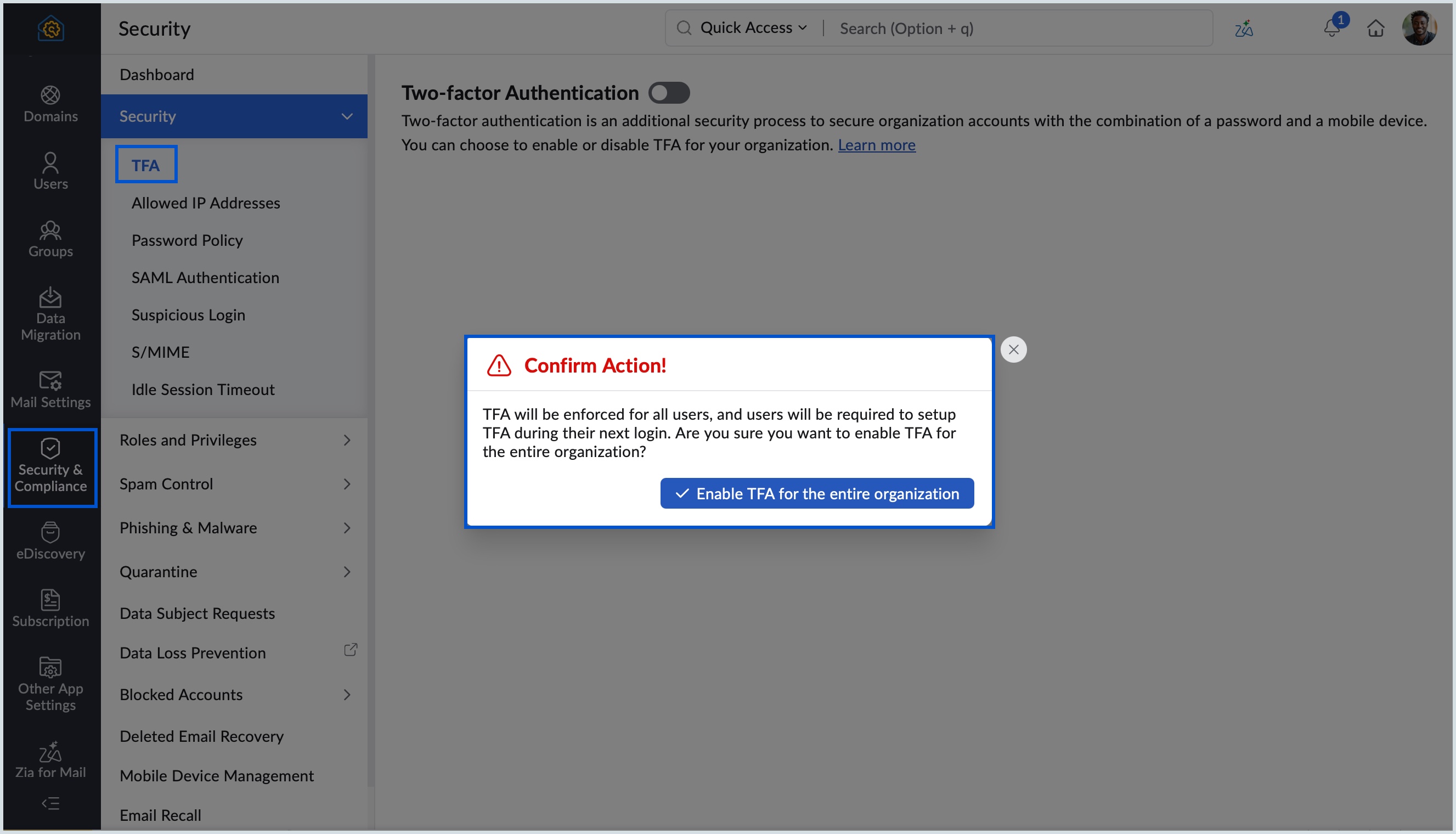
Enable TFA for the entire organization: When TFA is enabled at the organizational level, all users will be required to set up and use TFA during login. Users will be prompted to choose their preferred TFA method the next time they log in after TFA is enabled.
Manage TFA for specific users: TFA cannot be enabled or disabled for individual users from the Admin Console. It is enforced based on the organizational setting. However, if TFA is disabled at the organizational level, individual users can enable TFA for their own accounts from their My Account section.
Reset TFA for specific users: If a user loses access to the device they used to set up TFA, administrators can reset TFA for that user from the Admin Console. Once reset, the user can set up their TFA method again during their next sign-in.
Steps to enable Two-Factor Authentication in Zoho Mail Admin Console
Login to Zoho Mail Admin Console.
Navigate to Security and Compliance in the left pane.
Under Security, go to TFA and toggle it to ON.
Click the Enable TFA for your entire organization button to confirm your action.
Re-authenticate and verify your identity to perform this action.