Improved configuration experience for Zia AI features
Hello everyone,
Zia, the AI assistant built in to Zoho Creator, powers a range of capabilities—from generating forms and suggesting fields to writing Deluge scripts and running AI agents—that help you build applications faster. Until now, configuring Zia meant selecting a single LLM provider that applied uniformly across all these features.
We have now enhanced the Zia configuration experience to give administrators greater flexibility in choosing and managing AI providers and granular control right down to the individual feature level.
What's new
Multiple API keys per provider
You can now add up to five API keys per LLM provider using BYOK (bring your own key). This gives you greater control over how AI capabilities are accessed and managed across your account, making it easier to organize keys by team, project, or purpose.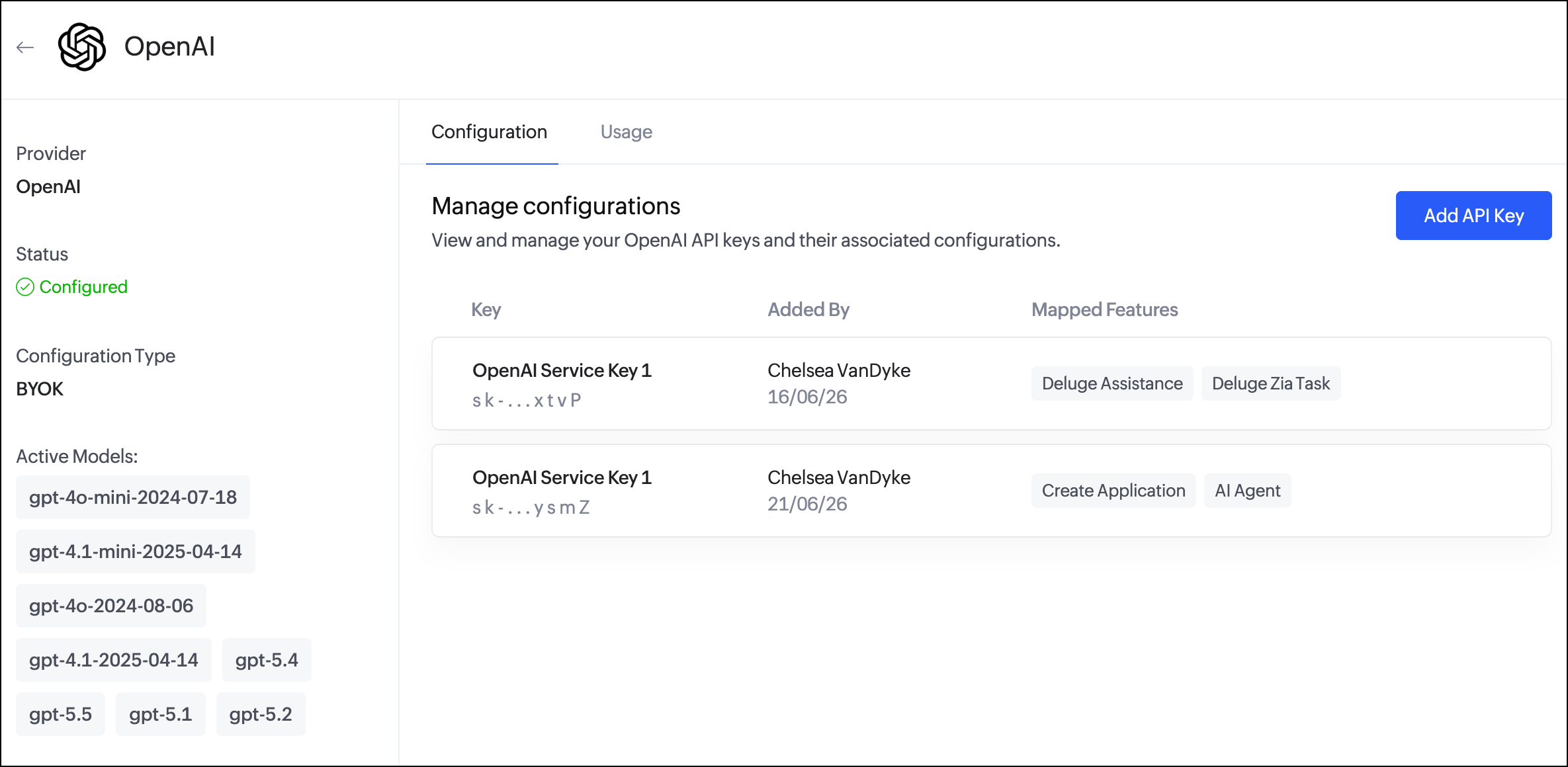
Per-feature provider mapping
Each Zia feature can now be mapped to a specific provider and API key combination. This means different features can run on different providers based on your needs, independently of one another. For example, you can use one provider for application generation and another for Deluge assistance.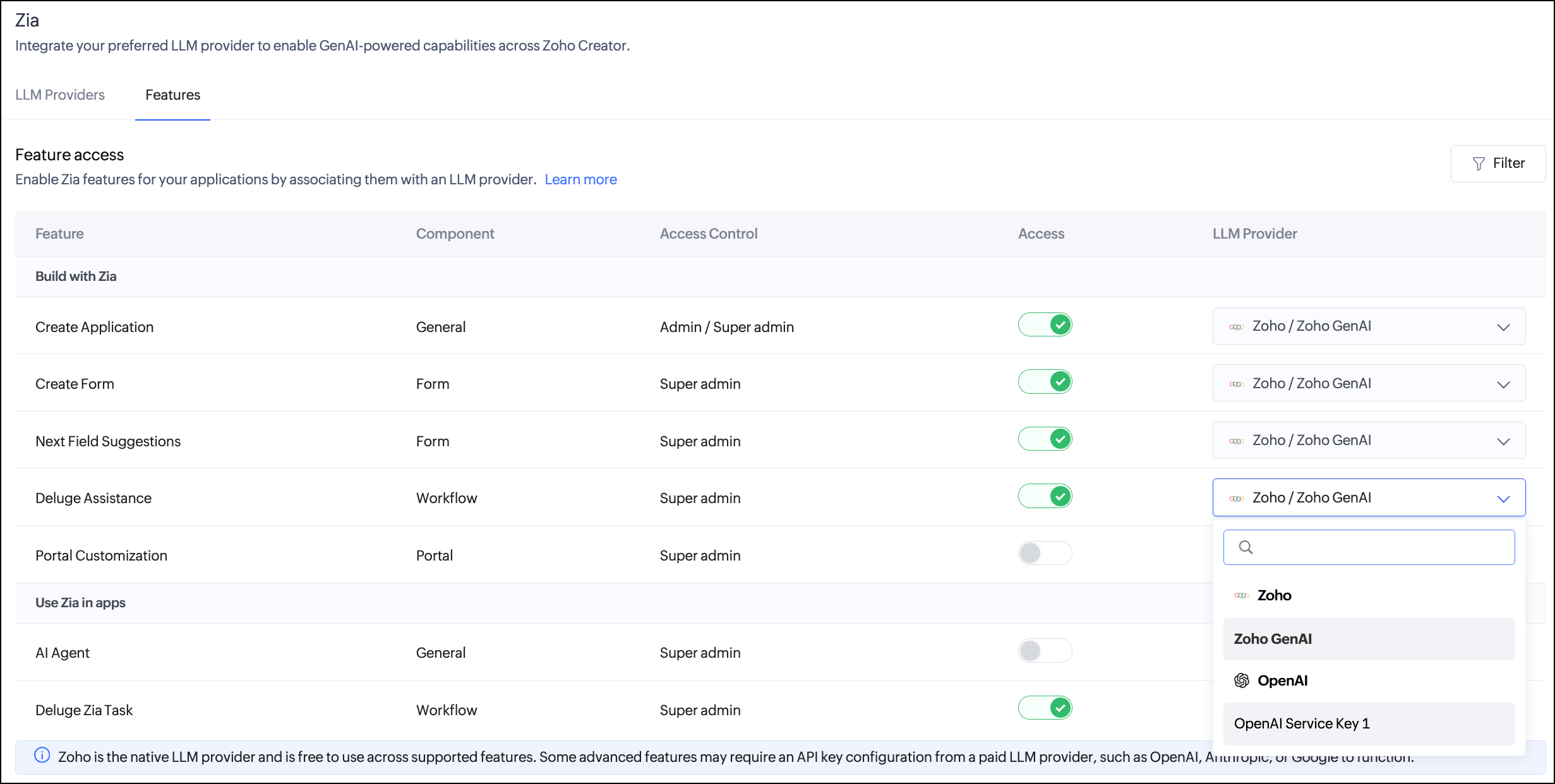
Refreshed Zia landing page
The Zia page under Operations has been updated to reflect these changes. The available AI providers (Zoho, OpenAI, Google, and Anthropic) are now displayed as cards. 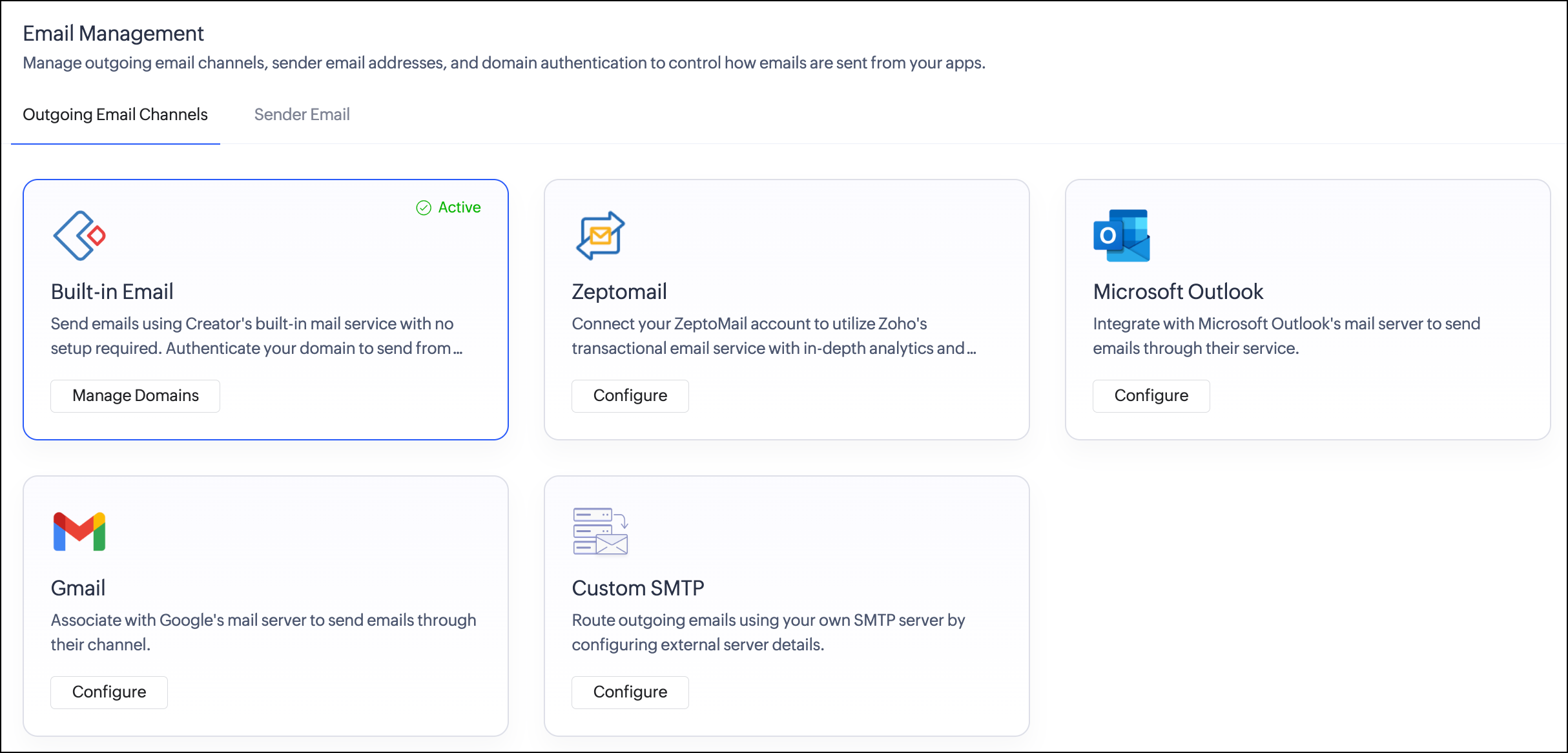
Clicking any provider takes you to a detailed configuration page where you can add API keys, map features, and track usage.
Please note the following:
Zoho remains the default LLM provider and requires no additional configuration. It is free to use.
When no external key is mapped to a feature, Zoho GenAI is used by default for supported features.
If you disable a feature, the LLM provider mapping will not be retained, and the feature will need to be remapped when re-enabled.
Why this matters
Organizations using Zia across multiple workflows often have varying AI requirements for different tasks. A team might prefer one provider's capabilities for code generation while relying on another for natural language tasks. Previously, this was not possible, as one provider served all features. With per-feature mapping, administrators can now make more deliberate, optimized choices about which AI model powers which capability, without being locked into a single configuration for the entire account.
How to get started
Navigate to Zia under Operations in your Creator account.
Select your preferred LLM provider from the provider cards displayed.
Add your API key and assign a key name to help differentiate between keys.
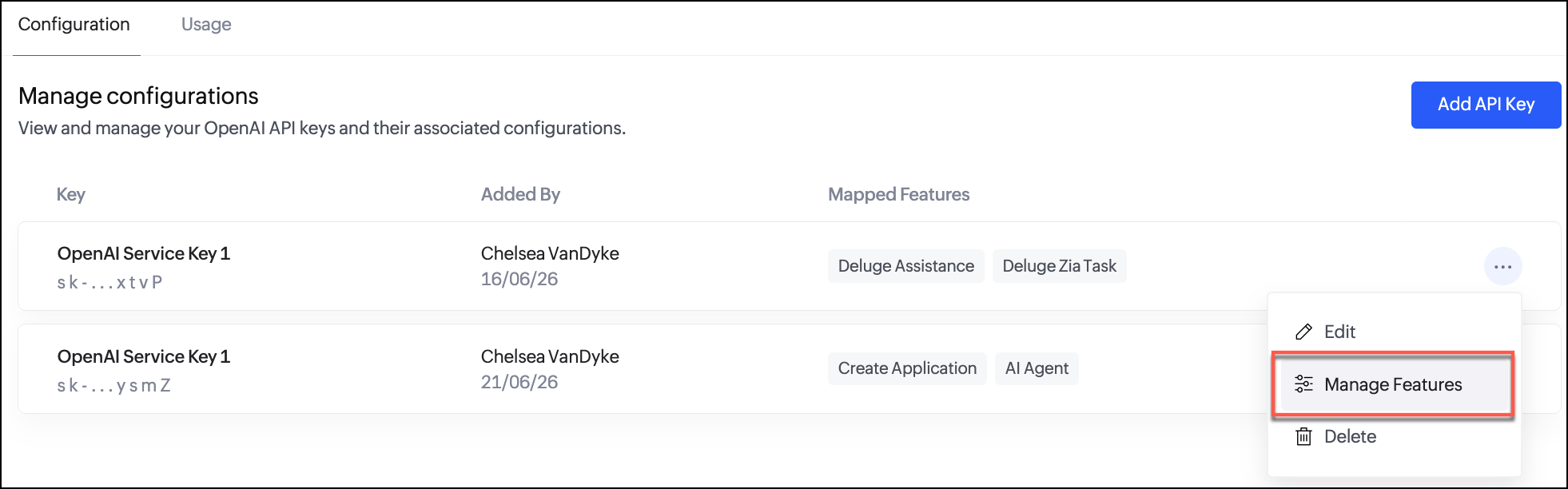
Click the Manage Features option in the meatball menu and map each feature to a specific provider and API key.
For more information, visit the Understanding Zia features in Creator help documentation.
Things to note
This feature is available for Creator 6 (C6) users on paid plans only.
It can be configured by super admins and admins.
For external LLM providers (OpenAI, Google, and Anthropic), API keys must be generated from the respective provider accounts. Any charges applicable for API usage are to be managed directly by the user with the respective provider.
Google, Anthropic, and OpenAI are available in all data centers except CN. Zoho GenAI is available in all data centers except CN, UAE, and SA.
As always, feel free to share your questions or feedback in the comments below.
We'll be back soon with more exciting updates!
Regards,
The Zoho Creator Team