Introducing Compose Email Settings

Emails play a vital role in Zoho Recruit, facilitating communication with candidates, clients, internal teams, and more. Users often prefer a specific email style that aligns with their professional and personal needs. Compose Email Settings in Zoho Recruit address this by allowing users to customize their email editor preferences.
Compose Email Settings refer to the configuration options available when creating a new email within Zoho Recruit. These options allow you to personalise your email editor experience.
Font Customization
You can choose a default font type and size from the available options. This font will be applied automatically to all emails composed using the Send Email/Create new email templates function in Zoho Recruit.
Default Settings
- Font Family: Verdana
- Font Size: 10
Configuration Steps
- Navigate to Setup > General > Email Settings > Compose.
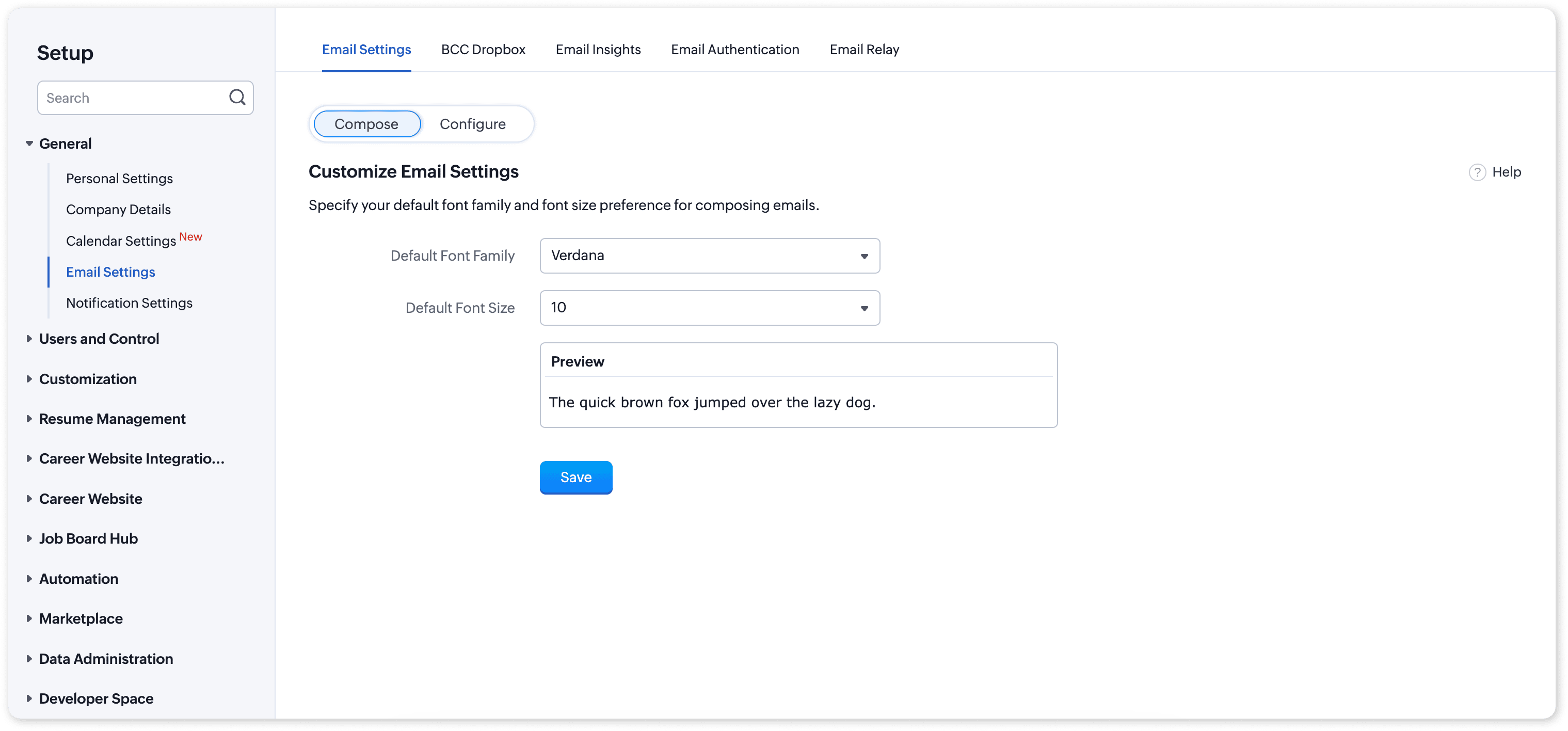
- Click Edit next to Font Family or Font Size.
- Choose your desired font family and/or size.


- Click Save.
Benefits
- Standardized Emails:
Define default font family and sizes, ensuring consistency across all emails sent from Zoho Recruit. - Reduced Effort:
Eliminate the need to manually adjust formatting for each new email, saving time and effort. - Increased Efficiency:
Quickly compose emails with pre-defined settings, streamlining your workflow.
We hope Compose Email Settings will enhance your communication, making email composition easier and more efficient. Please refer to the Email Settings help article for more details
If you have any questions or feedback, feel free to leave a comment below or reach out to us at support@zohorecruit.com.
Regards,
