Kaizen 215 - Workflow APIs - Part 3

Kaizen 215 - Workflow APIs - Part 3


Welcome back to another week of Kaizen!

Over the last couple of weeks, we’ve joined Zylker Cloud Services as they review and improve their workflows. In Part 1, we discovered and audited their sprawling workflow landscape. In Part 2, we learned how to use the Configuration API to understand valid triggers and actions, preventing errors before they happen.

Now, it is time to take action. Zylker has identified the "VP Alert - High Value Deal" workflow as a prime candidate for an update. It is old, has never run, and its logic might be too narrow. We will also explore how to create a new workflow from scratch to handle a new business requirement.

 STEP 5: Update an Existing Workflow 

From our audit in Step 2, we know that the existing ‘VP Alert - High Value Deal’ workflow (id: 4876876000016390024) hadn’t triggered even once. The original $50,000 threshold missed many valuable deals. Most winning opportunities actually land above $30,000. It has never executed, suggesting the criteria are too strict.

Let us use the Update Workflow Rule API to fix it. We'll change the criteria to trigger for deals greater than or equal to $30,000 and add an additional email notification.

 What you can and cannot update 

When working with the Update Workflow Rule API, not every field in a workflow is open for modification. Think of it like editing an existing automation blueprint. Some foundations are fixed, while others are flexible.

You can update:

  • Name and Description

  • Trigger : You can update triggers, but only within the same trigger type. For example, you can change a Record Action trigger from create to edit, but not from a Record Action trigger to a Score-based trigger. For more details on this, please refer to our detailed help documentation here.

  • Conditions and Criteria : add, remove, or refine them.

  • Actions : add new ones, remove existing ones, or update their configuration.

  • Status : activate or deactivate a workflow rule. 

What cannot be updated

There are a few key restrictions to remember:

  • You cannot change the module associated with the workflow.

  • You cannot switch trigger categories (e.g., from Record Action to Email Trigger).

  • You cannot retain unsupported actions when changing to a trigger that doesn’t support them. For instance, if you change a trigger from Edit to Delete, but keep an Assign Owner action, the update will fail, because “Assign Owner” isn’t valid for Delete triggers.

Updating an existing workflow is not about replacing everything. it is about editing precisely what needs to change.

Here is how to do it:

  • Fetch the workflow details using the Get Workflow Rule API. This gives the full structure,  including condition IDs, action IDs, and trigger details.

  • Identify what needs to change.

In this case, to fix the  “VP Alert - High Value Deal” workflow, we can update the Workflow rule to:

  • lower the threshold to $300,000

  • change the comparator to greater_than. 

To make the workflow more useful, Zylker has also decided to add a few new actions.

But before doing that, the developers needed to confirm which actions are supported for this workflow’s trigger type. That is where last week’s Configuration API comes in handy. Since we already know this is a Record Action trigger (create_or_edit), we can refer to the configuration response we explored in Part 2 to see which actions are valid. 

  {

                "api_name": "create_or_edit",

                "deprecated": false,

                "name": "CreateorEdit",

                "scheduled_actions_supported": true,

                "actions": [

                    "field_updates",

                    "assign_owner",

                    "add_tags",

                    "remove_tags",

                    "email_notifications",

                    "tasks",

                    "create_record",

                    "create_connected_record",

                    "add_meeting",

                    "webhooks",

                    "functions",

                    "circuits",

                    "flow"

                ]

},


The response clearly shows that email notifications, field updates, and tags are all supported for this trigger type. With that confidence, in addition to updating the condition, we can also add a 'Priority' tag to those records that trigger the Workflow. This makes the workflow more visible and actionable across the sales hierarchy.

Sample Request:

PUT {{api-domain}}/crm/v8/settings/automation/workflow_rules/4876876000016390024

{

    "workflow_rules": [

        {

            "description": "Notify sales leadership and track strategic opportunities",

            "name": "VP Alert - High Value Deal.",

            "conditions": [

                {

                    "sequence_number": 1,

                    "criteria_details": {

                        "criteria": {

                            "group_operator": "AND",

                            "group": [

                                {

                                    "comparator": "greater_than", // change in comparator operator

                                    "field": {

                                        "api_name": "Amount"

                                    },

                                    "value": "300000"   // Lowered threshold

                                },

                                {

                                    "comparator": "equal",

                                    "field": {

                                        "api_name": "Stage"

                                    },

                                    "value": "Negotiation/Review"

                                }

                            ]

                        }

                    },

                    "instant_actions": {

                        "actions": [

                            {

                                "type": "add_tags",

                                "module": "Deals",

                                "details": {

                                    "tags": [

                                        {

                                            "name": "Priority"

                                        }

                                    ],

                                    "overwrite": true

                                }

                            }

                        ]

                    },

                    "id": "4876876000016390025" // id of the condition to be updated

                }

            ]

        }

    ]

}


After this update, the workflow now triggers for any deal worth more than $300,000 in the Negotiation/Review stage. Apart from sending the email notifications and adding the follow up task, it also tags these deals as Priority.

 Edit vs Add: 

To edit an existing condition or action, include its existing id in your update payload. Zoho CRM will recognize it as an update to that object.

To add a new condition or action, simply omit the id. CRM treats any object without an ID as a new addition.

 STEP 6: Create a new Workflow Rule 

With the VP Alert - High Value Deal workflow now fixed and performing as expected, Zylker’s sales team quickly began to see results.
But their sales team noticed that deals often stall after proposals are sent, with no systematic follow-up. Zylker has hence refined the requirements for a new Workflow.

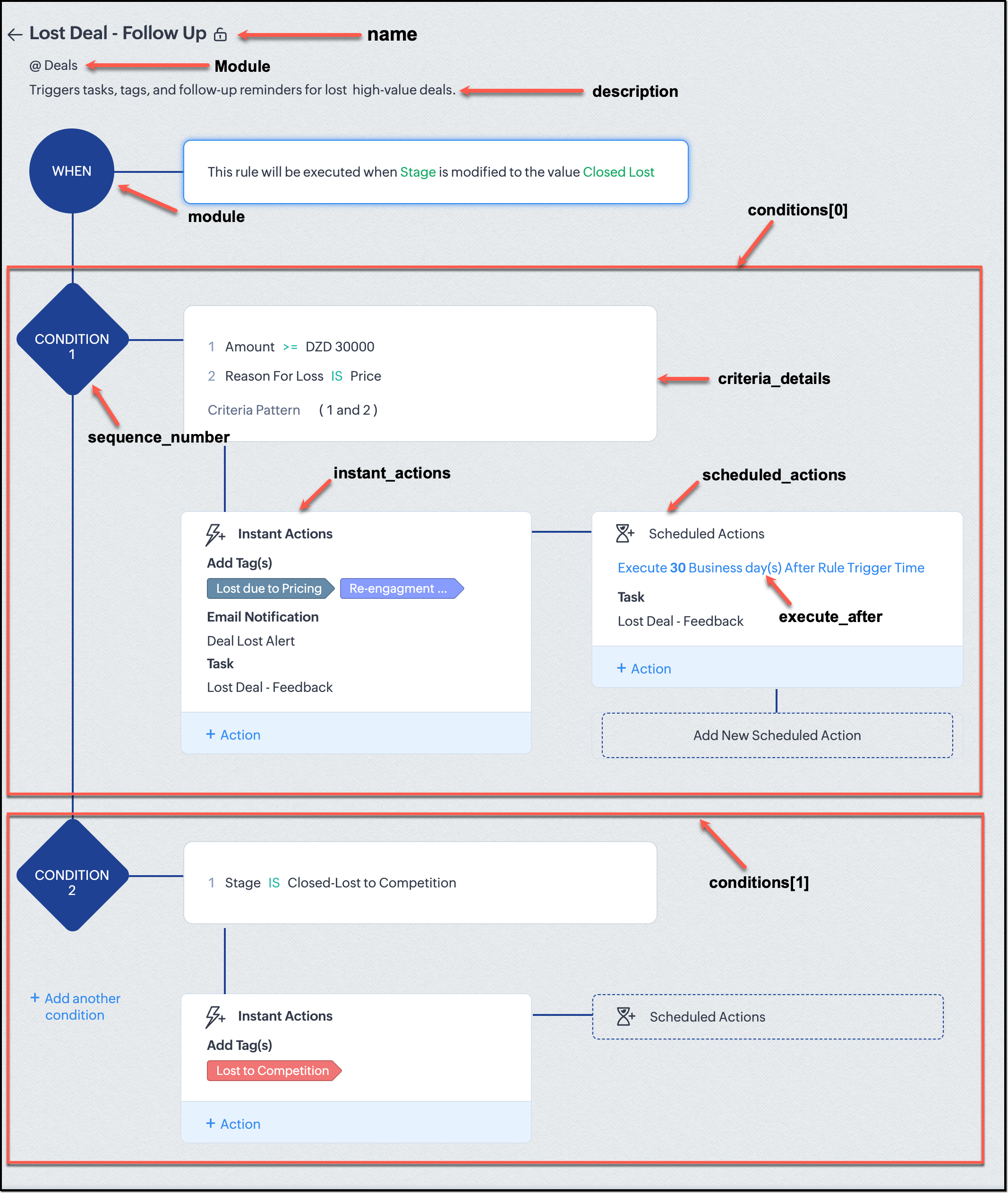
They want to automatically trigger follow-up actions when a high-value deal (above ₹30,000) is marked “Closed Lost” due to pricing reasons. This workflow must ensure that every lost opportunity is reviewed, tagged, and re-engaged after a cooling-off period. To achieve this, they want to create a workflow to be triggered whenever a deal’s Stage is updated to Closed Lost. It must perform the following actions:

  • Add tags Lost due to Pricing and Re-engagement Pending.

  • Send an email alert to the Sales team, with the details of the failed Deal, so they can look into the reasons.

  • After 30 business days, automatically create another “Lost Deal - Feedback” task to remind the owner to re-contact the customer for feedback, and for future opportunities. 

Before proceeding, Zylker makes an API call to the Workflow Configuration endpoint. This ensures that their chosen trigger type and actions are supported. From the response snippet below, it is clear that a field_update trigger supports scheduled actions and the required action types.

  {

                "api_name": "field_update",

                "deprecated": false,

                "name": "FieldUpdate",

                "scheduled_actions_supported": true,

                "actions": [

                    "field_updates",

                    "assign_owner",

                    "add_tags",

                    "remove_tags",

                    "email_notifications",

                    "tasks",

                    "create_record",

                    "create_connected_record",

                    "add_meeting",

                    "webhooks",

                    "functions",

                    "circuits",

                    "flow"

                ]

}


With these details validated, we can now move on to adding a new workflow for Zylker using the Create Workflow Rule API request.

Understanding the input JSON structure 

Every workflow definition follows the same hierarchy - defining when the rule runs, what conditions it checks, and which actions it performs.

The top-level input object contains a workflow_rules array. You must include just one workflow rule object per request. Each workflow rule defines its name, trigger type, and one or more condition blocks, each with its own criteria and actions.

Here is a breakdown of what is inside a single workflow rule:

{

  "workflow_rules": [

    {

      "name": "VP Alert - High Value Deal.",   //name of the workflow rule

      "description": "Notify leadership when high-value deals are lost due to pricing.",

      "module": { "api_name": "Deals" },   //module to which the workflow applies

      "execute_when": { ... },         //trigger configuration (e.g., on record edit, field update, etc.)

      "conditions": [

        {

          "sequence_number": 1,          // order of execution. this is the first condition

          "criteria_details": { ... },           // condition logic (criteria group)

          "instant_actions": { "actions": [ ... ] },  //instant actions executed instantly

          cheduled_actions": [              // schedules actions executed after a delay

            {

                      "execute_after": { ... },              // delay period for the scheduled action

                        "actions": [ ... ]

            }

          ]

        },

        {

          "sequence_number": 2,                      // second condition

          "criteria_details": { ... },

          "instant_actions": { "actions": [ ... ] }

        }

      ]

    }

  ]

}


Associative vs. Non-Associative Actions 

Every workflow rule performs one or more actions like sending an email, creating a task, or updating a field, etc. These actions fall into two broad categories: associative and non-associative.

Type

Description

Example Actions

Non- Associative Actions

These are defined inside the workflow rule itself. They do not need to exist beforehand. You can configure their details directly within the workflow payload.

Create record, schedule a call, add a meeting, convert records, social actions, create record on email received, assign owner,

Associative Actions

These are reusable actions created separately in CRM and referenced by their IDs. They can be used across multiple workflows and other automation tools.

Field updates, Email notifications, tasks, Webhooks, Add/Remove tags


When you create or update a workflow via API, the associative actions require you to pass their existing action IDs. These IDs can be fetched using the corresponding Actions APIs : Field Updates, Email Notifications, Webhooks, and Tasks. In the coming weeks of Kaizen, we will take a closer look at each of these Actions APIs. We will see how to create, manage, and delete them within your workflow automation strategy.

Sample Request:

POST {{api-domain}}/crm/v8/settings/automation/workflow_rules

{

    "workflow_rules": [

        {

            "execute_when": {

                "details": {

                    "trigger_module": {

                        "api_name": "Deals",

                        "id": "4876876000000002181"

                    },

                    "criteria": {

                        "comparator": "equal",

                        "field": {

                            "api_name": "Stage",

                            "id": "4876876000000002565"

                        },

                        "type": "value",

                        "value": "Closed Lost"

                    },

                    "repeat": false,

                    "match_all": false

                },

                "type": "field_update"

            },

            "module": {

                "api_name": "Deals",

                "id": "4876876000000002181"

            },

            "description": "Triggers tasks, tags, and follow-up reminders for high-value deals lost due to pricing",

            "name": "Lost Deal due to Pricing - Follow Up",

            "conditions": [

                {

                    "sequence_number": 1,

                    "instant_actions": {

                        "actions": [

                            {

                                "name": "Lost Deal - Feedback",

                                "id": "4876876000016794047",

                                "type": "tasks"

                            },

                            {

                                "details": {

                                    "module": {

                                        "api_name": "Deals",

                                        "id": "4876876000000002181"

                                    },

                                    "over_write": false,

                                    "tags": [

                                        {

                                            "name": "Lost due to Pricing",

                                            "id": "4876876000016794071",

                                            "color_code": "#658BA8"

                                        },

                                        {

                                            "name": "Re-engagement pending",

                                            "id": "4876876000016794075",

                                            "color_code": "#879BFC"

                                        }

                                    ]

                                },

                                "type": "add_tags"

                            },

                            {

                                "name": "Deal Lost Alert",

                                "id": "4876876000016794062",

                                "type": "email_notifications"

                            }

                        ]

                    },

                    "scheduled_actions": [

                        {

                            "execute_after": {

                                "period": "business_days",

                                "unit": 30

                            },

                            "actions": [

                                {

                                    "name": "Lost Deal - Feedback",

                                    "id": "4876876000016794047",

                                    "type": "tasks"

                                }

                            ]

                        }

                    ],

                    "criteria_details": {

                        "criteria": {

                            "group_operator": "AND",

                            "group": [

                                {

                                    "comparator": "greater_equal",

                                    "field": {

                                        "api_name": "Amount",

                                        "id": "4876876000000002557"

                                    },

                                    "type": "value",

                                    "value": "30000"

                                },

                                {

                                    "comparator": "equal",

                                    "field": {

                                        "api_name": "Reason_For_Loss__s",

                                        "id": "4876876000002440001"

                                    },

                                    "type": "value",

                                    "value": "Price"

                                }

                            ]

                        }

                    }

                }

            ]

        }

    ]

}


The execute_when defines when the workflow should fire.

  • type = field_update means this rule runs when a field’s value changes.

  • criteria : Stage = Closed Lost so the rule triggers whenever the Stage field is updated to Closed Lost.

  • repeat = false ensures it will not trigger multiple times for the same record. 

In simple terms: “Whenever a deal is marked as Closed Lost, run this workflow.” The criteria_details section refines the trigger. The workflow only runs when the Amount ≥ ₹30,000 AND Reason for Loss = Price.

The instant_actions section inside the conditions array has the actions to be executed immediately when the criteria are met.

  • Add Tags : labels the record for easy filtering and reporting.

  • Send Email Alert : notifies the sales team instantly about the lost deal.

The scheduled_actions defines what happens after some time has passed. In this case, after 30 business days. Here, the workflow automatically creates a “Lost Deal - Feedback” task, reminding the deal owner to follow up with the customer to get feedback, and for future opportunities.

The criteria_details defines which records the workflow applies to. In this case, the rule applies to the records that satisfy the following conditions:
  1. The Amount is greater than or equal to ₹30,000, and  

  2. The Reason for Loss is “Price.”  

By combining these elements, this workflow achieves a full closed-loop follow-up system.

Conclusion:  

Zylker’s updated and new workflows make their automation smarter and more responsive. They are now able to spot key deals and ensure lost opportunities are revisited.  

And this is just the beginning. There are countless use cases you can build with workflows. We have included many examples in our Postman collection. Please check them out to get more out of the Workflow APIs. If you have a unique scenario you would like us to address, or a specific automation challenge you are facing, please let us know! We will address them in the upcoming weeks.


We hope you are now well on your way to mastering Workflow APIs. Share your thoughts in the comments or write to us at support@zohocrm.com.

Additional Reading:

  1. Workflow APIs - Part 1 - Auditing Workflows
  2. Workflow APIs - Part 2 - Find out what actions and triggers are supported for each module


    • Sticky Posts

    • Kaizen #198: Using Client Script for Custom Validation in Blueprint

      Nearing 200th Kaizen Post – 1 More to the Big Two-Oh-Oh! Do you have any questions, suggestions, or topics you would like us to cover in future posts? Your insights and suggestions help us shape future content and make this series better for everyone.
    • Kaizen #226: Using ZRC in Client Script

      Hello everyone! Welcome to another week of Kaizen. In today's post, lets see what is ZRC (Zoho Request Client) and how we can use ZRC methods in Client Script to get inputs from a Salesperson and update the Lead status with a single button click. In this
    • Kaizen #222 - Client Script Support for Notes Related List

      Hello everyone! Welcome to another week of Kaizen. The final Kaizen post of the year 2025 is here! With the new Client Script support for the Notes Related List, you can validate, enrich, and manage notes across modules. In this post, we’ll explore how
    • Kaizen #217 - Actions APIs : Tasks

      Welcome to another week of Kaizen! In last week's post we discussed Email Notifications APIs which act as the link between your Workflow automations and you. We have discussed how Zylker Cloud Services uses Email Notifications API in their custom dashboard.
    • Kaizen #216 - Actions APIs : Email Notifications

      Welcome to another week of Kaizen! For the last three weeks, we have been discussing Zylker's workflows. We successfully updated a dormant workflow, built a new one from the ground up and more. But our work is not finished—these automated processes are
    • Recent Topics

    • Where is the scheduled report in New UI?

      Hi Team, Seems there is not such a field in New UI, hence I have to switch to old UI to handle request..
    • Approval Workflow for Purchase Orders Abrir

      The requirement is , that all purchase orders greater than or equal to 5000 go through an approval process from certain people, but within books I only see that the approvers can be by levels or any approver but we cannot enter a rule like these. Can
    • WeTravel + Zoho CRM Integration - Has Anyone Built a Connector or Extension?

      Hi all, I'm exploring options for integrating Zoho CRM with WeTravel (booking & payment platform for tour operators). Zapier seems to be the common method but seems limited. I'm wondering if anyone in the community has developed a more comprehensive solution,
    • Option in pipeline deal to select which hotel or branch or store if client has more than one local store

      Hi, I would like to know if there is an option in the deal pipeline to select which hotel, branch, or store a deal is related to—if the company has more than one location. For example, I have a client that owns several hotels under the same company, and
    • Undo article like/dislike

      It seems to be not possible to undo your like/dislike for an article. Would be great if you can. Kind regards, Helen
    • Nested notebooks

      Dear Sir/Madam, I would like to know if it is possible to nest notebooks. It would be very helpful when there are too many, as it would improve organization. Thank you for your response. Best regards.
    • Tax in Quote

      Each row item in a quote has a tax value. At the total numbers at the bottom, there is also a Tax entry. If you select tax in both of the (line item, and the total), the tax doubles. My assumption is that the Tax total should be totalling the tax from
    • Issue with "Send Email" from Quotes not loading Email Template data

      Hi everyone, I'm currently experiencing an issue when using the "Send Email" option from a Quote record in Zoho CRM. What’s happening: When I go to the Quotes module and select a record, then click Send Email, the attached file (Quote) correctly pulls
    • Dynamically Fetching Lookup Field Display Value

      I have an audit trail form, Audit_Changes, that tracks old vs new values across different forms. For lookup fields, the old/new value is the ID, but I also need the display value. What's a best practice for dynamically fetching the display value of the
    • Stop Scrolling, Start Asking: Meet Zia for Your Files

      Hey everyone 👋 The era of 'scrolling and searching' is officially over. Whether it's a dense legal contract or a long meeting recording, searching for specific details is a massive time-sink. We think you should be able to interact with your files, not
    • Introducing a smarter, faster, and more flexible charting experience

      Hello Zoho Sheet users, We're delighted to share the latest news about a major update to charts in Zoho Sheet! The new version supports dynamic data ranges, granular styling options, faster loading, and other interesting enhancements that allow you to
    • How to create a new Batch and update Stock via Inventory?

      Hi everyone, We are building an automation where a user enters batch details (Batch Number, Mfg Date, Expiry, and Quantity) into a Custom Module. I need this to trigger an API call to Zoho Inventory to: Create the new batch for the item. Increase the
    • Can't change form's original name in URL

      Hi all, I have been duplicating + editing forms for jobs regarding the same department to maintain formatting + styling. The issue I've not run into is because I've duplicated it from an existing form, the URL doesn't seem to want to update with the new
    • How do I open MSG files in Microsoft Word?

      If you want to open MSG files in Microsoft Word is not natively supported, as MSG is an email file format created by Microsoft Outlook. However, there are professional approaches to access MSG content in Word. First, open the MSG file in Outlook and copy
    • Unable to charge GST on shipping/packing & Forwarding charges in INDIA

      Currently, tax rates only apply to items. It does not apply tax to any shipping or packing & forwarding charges that may be on the order as well. However, these charges are taxable under GST in India. Please add the ability to apply tax to these charges.
    • How to add packing & forwarding charge in purchase order & quotation???

      Hello Zoho Team I have just started using Zoho for my company and I wanted to make purchase order. My supplier charges fix 2% as packing & forwarding on Total amount of material and then they charge me tax. For example, Material 1 = 100 Rs Material 2
    • How to create a boxplot chart in Zoho Analytics?

      Hi, I'm looking forward to making a boxplot in Zoho Analytics, either with all my data or with a time segmentation. No documentation or YouTube video explaining that was found. I guess this is a feature gap. How feasible would it be to add this to Analytics?
    • What are the create bill API line item requiered fields

      While the following documentation says that the line items array is requiered it doesn't say what if any files are requiered in the array. Does anyone know? API documentation: https://www.zoho.com/inventory/api/v1/bills/#create-a-bill I'm trying to add
    • WorkDrive issues with Windows Explorer Not Responding

      We are using WorkDrive to collaborate on editing video content. We have a lot of files and quite a few are a few gigs. Recently anytime I try and work with the files Explorer freezes for a couple minutes whether it's dragging the files into Premiere or
    • Connecting Zoho Inventory to ShipStation

      we are looking for someone to help connect via API shipStation with Zoho inventory. Any ideas? Thanks. Uri
    • Where is the settings option in zoho writer?

      hi, my zoho writer on windows has menu fonts too large. where do i find the settings to change this option? my screen resolution is correct and other apps/softwares in windows have no issues. regards
    • Using IMAP configuration for shared email inboxes

      Our customer service team utilizes shared email boxes to allow multiple people to view and handle incoming customer requests. For example, the customer sends an email to info@xxxx.com and multiple people can view it and handle the request. How can I configure
    • When Does WorkDrive integrate with Books?

      When Does WorkDrive integrate with Books?
    • POP mailbox limits

      If I am accessing a remote POP mail server using Zoho Mail is there a mailbox quota for the account or is it all related to my mail account storage limits?
    • Warranty Service and Repair in Zoho FSM

      Hi There, We are a retail store that sells products and also performs installations and repairs. Our field technicians handle this work. Some repairs are covered by manufacturers, who reimburse us for both parts and labour. In these cases, we perform
    • Zoho Sheet for Desktop

      Does Zoho plans to develop a Desktop version of Sheet that installs on the computer like was done with Writer?
    • WhatsApp phone number migration

      Hi @Gowri V and @Pheranda Nongpiur, Thanks for implementing the promised enhancements to the integration between Zoho CRM and WhatsApp. The previous discussion has been locked, so I'm opening this new one. I am copying below a specific
    • WebDAV support

      I need WebDAV support so that I can upload/download (and modify) documents from my local file system. Is anything planned in his direction?
    • Suggestions for Improved Table Management and Dashboard Filter Controls in Zoho Analytics

      Dear Zoho Analytics Community, I hope you are doing well. I would like to share a few suggestions based on issues I am currently experiencing while working with visualizations and dashboards. Firstly, when I create a new visualization using the Sales-Order
    • SPF: HELO does not publish an SPF Record

      I am using Zoho mail. Completed all of the required prerequisites from the dashboard to avoid any issues with mail delivery. But when checking on mail-tester.com getting the following error. Can anyone help me solve this?
    • How do I create an update to the Cost Price from landed costs?

      Hi fellow Zoho Inventory battlers, I am new to Zoho inventory and was completely baffled to find that the cost price of products does not update when a new purchase order is received. The cost price is just made up numbers I start with when the product
    • Price Managment

      I have been in discussions with Zoho for some time and not getting what I need. Maybe someone can help explain the logic behind this for me as I fail to understand. When creating an item, you input a sales rate and purchase rate. These rates are just
    • Actual vs Minimum

      Hi all, I am sure I am not the only one having this need. We are implementing billing on a 30-minute increment, with a minimum of 30 minutes per ticket. My question is, is there a way to create a formula or function to track both the minimum bill vs the
    • Generate leads from instagram

      hello i have question. If connect instagram using zoho social, it is possible to get lead from instagram? example if someone send me direct message or comment on my post and then they generate to lead
    • Kaizen #234 - Automating Deal Handoff with Zia Assistant API, Workflow, Deluge, and Widget in Zoho CRM

      Hello all! Welcome back to a fresh Kaizen week. In this post, we will explore how to automate the deal handoff process in Zoho CRM using Zia Assistant API + Workflow + Deluge + Widgets. Here’s how the final output looks when a deal is reassigned 1. Deal
    • How do you print a refund check to customer?

      Maybe this is a dumb question, but how does anyone print a refund check to a customer? We cant find anywhere to either just print a check and pick a customer, or where to do so from a credit note.
    • Ability to assign Invoice Ownership through Deluge in FSM

      Hi, As part of our process, when a service appointment is completed, we automated the creation of the invoice based on a specific business logic using Deluge. When we do that, the "Owner" of the invoice in Zoho FSM is defaulted to the SuperAdmin. This
    • All new Address Field in Zoho CRM: maintain structured and accurate address inputs

      Availability Update: 29 September 2025: It's currently available for all new sign-ups and for existing Zoho CRM orgs which are in the Professional edition exclusively for IN DC users. 2 March 2026: Available to users in all DCs except US and EU DC. Latest
    • Enhancement to ICR’s field prompting: Preferred data extraction using advanced field prompting

      Dear Customers, We hope you’re well A quick background Intelligent Character Recognition (ICR) comes as part of Zia’s optical recognition capability called Zia Vision. When we introduced it last April, the data extraction was training-based and was applicable
    • See a list of all records enrolled in a cadence?

      I am looking for a way to see a list of all leads or contact currently enrolled in a cadence. I do not see any way to do this through the cadence UI.
    • Next Page