セッション録画における訪問者の識別

お知らせ:当社は、お客様により充実したサポート情報を迅速に提供するため、本ページのコンテンツは機械翻訳を用いて日本語に翻訳しています。正確かつ最新のサポート情報をご覧いただくには、本内容の英語版を参照してください。
PageSenseのセッションの録画データでは、Cookieを使用して訪問者ごとのセッションを識別し、Webサイト上での行動を追跡します。このCookieにより、訪問者のセッションごとに、形容詞と動物名を組み合わせたランダムな名前(例:壮麗なキリン)が生成されます。ただし、レポートページの録画データの一覧から特定のユーザーやイベントを識別するには、以下の手順に従って、WebサイトのPageSense追跡用コードスニペット内にカスタム識別APIを追加します。

たとえば、Webサイトを訪れた訪問者をメールアドレスで識別し、あとで関連するショッピング特典や割引クーポンを案内して、ビジネスのコンバージョンを高めたいとします。この場合、Webサイト上で特定の訪問者情報を保存するために使用している、対応するユーザーIDまたは変数を識別APIのコードに渡すと(以下で説明)、メールアドレスに基づいて訪問者のセッションをすぐに表示できます。
PageSenseでは、セッションのCookieの有効期間は2時間に設定されています。訪問者が最初の操作から2時間以内にWebサイトで複数回操作した場合、すべての操作がまとめられ、ランダムなユーザー名の1件の録画データとして表示されます。ただし、同じ訪問者が2時間後にWebサイトを再訪すると、別の名前で新しい録画データが作成されます。
セッションの録画データに識別APIを設定するには
1. セッションの録画データで識別する訪問者データの種類を決め、そのデータの一覧をWeb開発者に送り、該当する値がWebサイトで利用できるか確認します。
たとえば、録画データ内の顧客を電話番号で識別したり、訪問者のセッションをメールアドレスや名に基づいて識別して絞り込んだりするなど、ビジネスの要件に関連する任意のデータを使用できます。これにより、今後、新商品のリリースや魅力的な特典について顧客に直接連絡したり、メッセージを送ったりできます。
2. 次に、以下のJavaScript識別APIコードをコピーし、WebサイトのJSコード内に貼り付けます。
|

このAPIコードは、WebサイトにPageSense追跡用コードスニペットを追加した後に呼び出してください。
3. 上記のスクリプト内の<name>タグを、セッションに関連付ける変数に置き換えます。メールアドレス、名、電話番号など、Webサイト上の個人識別情報に基づいて訪問者を識別するための一意の値を指定できます。このユーザーIDまたは変数が、Webサイト上の該当するユーザーセッションに関連付けられ、録画データに表示されます。識別APIは、開発者の協力を得て実装できます。必要な識別APIコードをWebサイトに追加するまで、PageSenseにはデータが渡されません。
4. PageSenseでは、<name>タグのパラメーターに文字列を指定する必要があり、一度に指定できる値は1つのみです。
先ほどの例に戻り、Webサイトを訪れた訪問者をメールアドレスで識別し、あとで関連するショッピング特典や割引クーポンを案内して売上を伸ばしたいとします。この場合、上記の識別APIのコードスニペットで、対応する<name>タグに「メールアドレス」(例)を指定できます。これにより、ランダムな名前ではなくメールアドレスを使用して録画データをすばやく識別し、表示できます。
5. 開発者がPageSenseにデータを送信するために必要なコードを実装すると、以下の図のように、録画データの一覧にメールアドレスとともにセッションが表示されます。
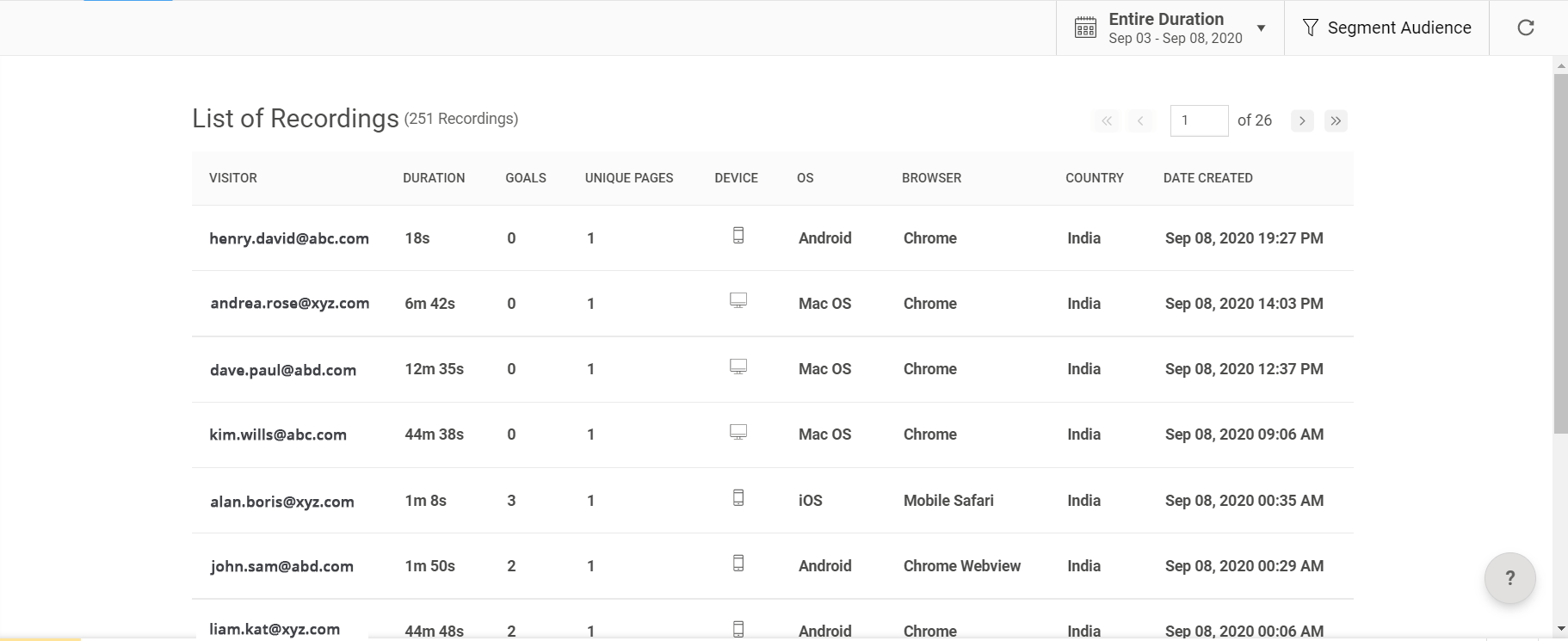

Webサイトに識別APIコードを実装すると、ポップアップテストのレポートに表示されるランダムな訪問者名も置き換えられます。
Zoho Commerceサイトビルダー
Zoho Commerceサイトビルダーに識別APIを追加するには、以下の手順に従います。
1. 識別APIを挿入するストアを開きます。[サイト設定]に移動します。
2. [一般]で、[ヘッダーとフッターのコード]を選択し、以下のコードを追加します。
|
3. [保存]をクリックし、Webサイトを[公開]します。
Zoho Sitesビルダー
Zoho Sitesビルダーに識別APIを追加するには、以下の手順に従います。
1. Zoho Sitesアカウントにログインします。
2. [Webサイト]→[サイト設定]を開きます。
3. [一般]で、コードを挿入するために[ヘッダーとフッターのコード]をクリックします。
4. 以下の識別APIコードをヘッダー領域に貼り付けます。
|
5. [保存]、[公開]の順にクリックします。
Zoho SalesIQ
識別APIをZoho SalesIQに追加する場合は、以下の手順に従ってください。
以下のJavaScript識別APIコードをコピーし、WebサイトのJSコード内に貼り付けます。\
- $zoho.salesiq.ready=function()
- {
- $zoho.salesiq.visitor.chat(function(visitid,data)
- {
- window.pagesense = window.pagesense || [];
- window.pagesense.push(['identifyUser', data.email]);
- });
- }
- $zoho.salesiq.visitor.offlineMessage(function(visitid,data)
- {
- window.pagesense = window.pagesense || [];
- window.pagesense.push(['identifyUser', data.email]);
- });
このドキュメントでは、すべての手順を順を追ってご案内します。さらにサポートが必要な場合やご質問がある場合は、support@zohopagesense.comまでお問い合わせください。いつでもサポートいたします!